How to Screen Mirror iPhone/iPad to Mac - Hassle Free

Have you had the feeling that your iPhone/iPad screen is too small to enjoy the movie or TV show immersively, which affects your viewing experience? If you want to enjoy your favorite videos, photos, or games on a bigger screen, mirroring your iPhone or iPad to a Roku TV is a perfect solution.
Here comes a question - how to mirror iPad to Roku TV?
For beginners, screen mirroring iPhone to Roku TV is not always that simple. Different Roku TV models, iOS versions, and network settings can make the process confusing. For instance, some TVs support AirPlay directly, while others require manual setup or third-party mirroring apps to work properly.
But don’t worry! This article will walk you through several proven ways to mirror iPhone to a Roku TV easily and step by step.
PAGE CONTENT:
Part 1. How to Mirror iPhone to Roku TV via AirPlay
In October 2020, Roku officially announced that it would support AirPlay 2 and HomeKit in the Roku OS 9.4 system update. Therefore, users can use AirPlay directly to mirror their iPhone/iPad to Roku TV easily without extra cables or complicated setups. With this feature, you can share videos, photos, apps, and presentations conveniently, and watch them on Roku TV clearly.
Preparations:
• Your Roku TV should run Roku OS 9.4 or later.
• You are using iOS 15 or later.
• Your iPhone/iPad and Roku TV are connected to the same Wi-Fi network.
Before we start, you should ensure that AirPlay is enabled on your Roku first. You can check this by going to: Settings > Apple AirPlay & HomeKit > AirPlay > On.
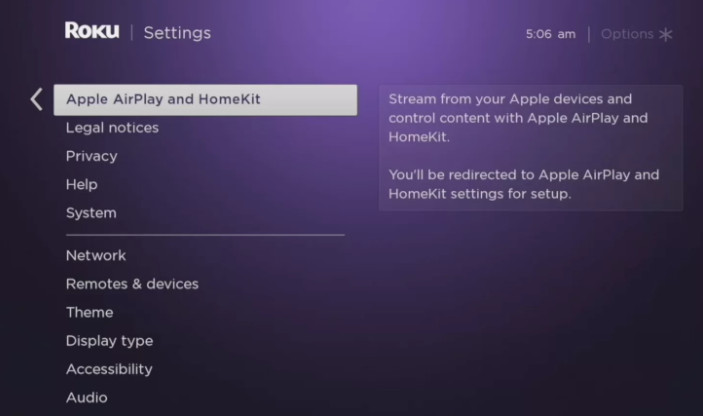
If everything is set, you can follow the steps below to learn how to screen mirror from iPhone to Roku TV using AirPlay:
Step 1. On your iPhone or iPad, swipe down from the top-right corner (or up from the bottom for older models) to open Control Center.
Step 2. Tap the Screen Mirroring button.

Step 3. Choose your Roku device from the following list.
Step 4. Enter the AirPlay Passcode displayed on your Roku TV. Then, your iPhone or iPad screen will appear on your Roku TV instantly.

Tips: To stop mirroring, open the Control Center again, tap Screen Mirroring, and select Stop Mirroring.
Part 2. How to Screen Mirror iPhone to Roku TV via a Third-Party App
If your Roku device does not support AirPlay, don’t worry! You can still mirror your iPhone or iPad using a reliable third-party mirroring app. There are multiple mirroring apps available on the App Store that work seamlessly with Roku to display your iPhone/iPad screen wirelessly. Below are some apps with a good reputation:
• Screen Mirroring for Roku
• DoCast - Mirror iPhone to Roku
• AirBeamTV - Mirror for Roku
Follow the steps below to use a third-party mirroring app. Here, we take DoCast as an example:
Step 1. Download DoCast in the App Store and install it on your iPhone or iPad.
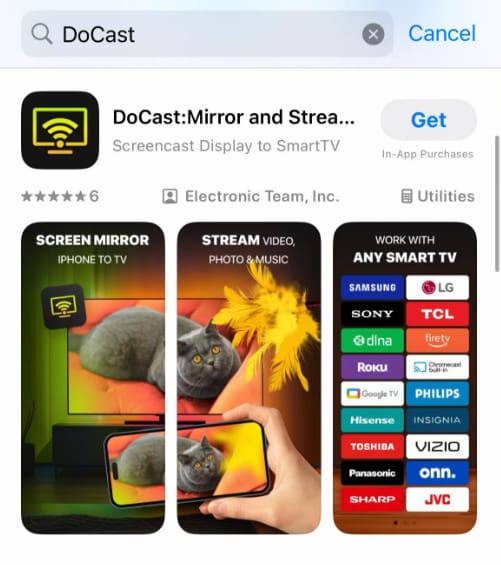
Step 2. Connect both your iPhone/iPad and the Roku TV to the same Wi-Fi.
Step 3. Launch the app and tap Choose Smart TV on the main interface.
Step 4. Select your Roku device from the list.
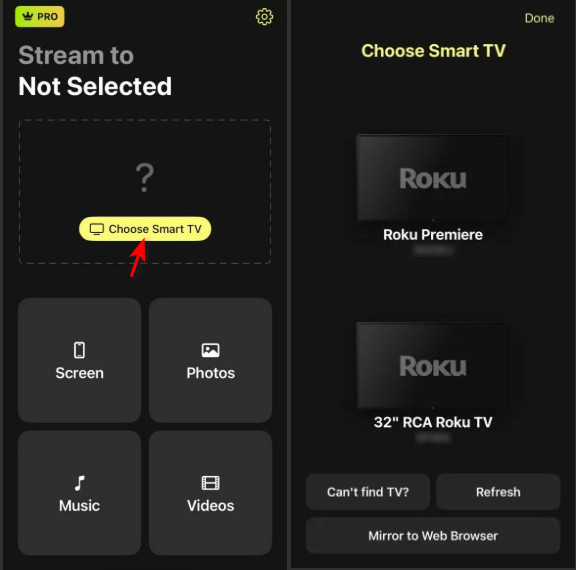
Step 5. Tap the Screen button.
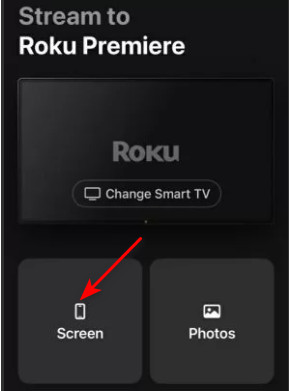
Step 6. Set your preference and click Start mirroring to begin sharing your iPhone/iPad screen on your Roku TV.
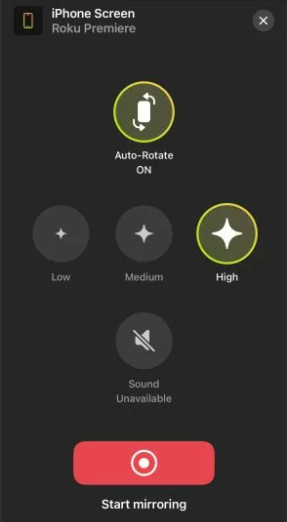
Tips: You can also screen mirror Android to Roku using a third-party app.
Part 3. How to Mirror iPhone/iPad to Roku TV Without Wi-Fi via HDMI Cable
How to mirror iPad to Roku TV without Wi-Fi? If your Wi-Fi is unstable or your Roku doesn’t support AirPlay, don’t worry! You can use the HDMI connection to mirror your iPhone or iPad to the Roku TV. This method doesn’t require a Wi-Fi connection. But you need to prepare an adapter for iPhone or iPad with a Lightning port, and an HDMI cable. Also, don’t forget to make sure there is an available HDMI port on your Roku TV.
Follow the steps below to mirror iPhone/iPad to Roku TV using HDMI:
Step 1. Connect your iPhone or iPad to a suitable adapter.
Step 2. Plug one end of the HDMI cable into the adapter and the other end into the HDMI port of your Roku TV.
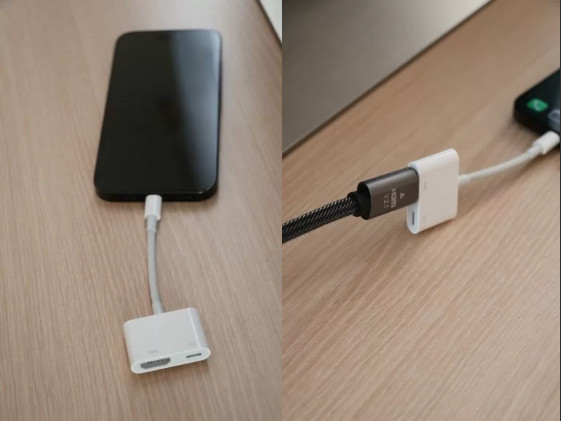
Step 3. Turn on the Roku TV and select the corresponding HDMI source in the menu list.
Step 4. Your iPhone/iPad screen will be synced to your Roku TV.
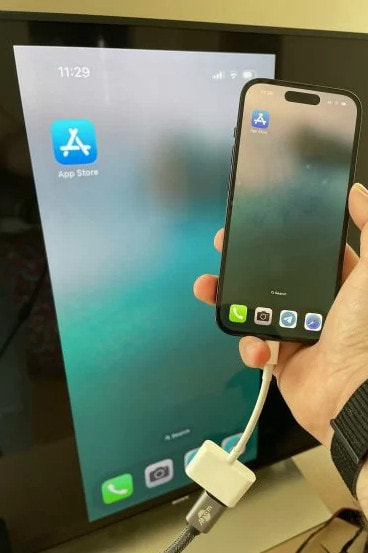
Tips: To stop mirroring, simply disconnect the HDMI cable from your iPhone/iPad or TV.
Bonus: How to Mirror an iPhone/iPad to the Computer
However, if you want to display your iPhone screen for a presentation, online meeting, or live streaming, mirroring your iPhone to a TV may not be the best option. Indeed, the TV screen is great for entertainment, but it doesn’t allow you to record, share, or control your phone easily. In such cases, it’s better to mirror your iPhone to a computer instead.
Best Tool to Mirror iPhone to Computer
- Mirror the iPhone screen to the computer seamlessly.
- Record, capture, and manage your phone content easily.
- Beginner-friendly tutorial and interface.
- High compatibility with nearly all iOS devices.
Secure Download
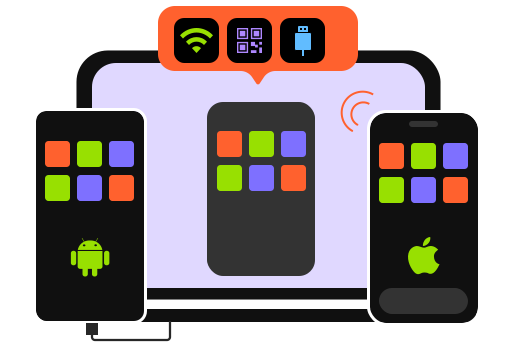
Press the button above to experience how to easily mirror iPhone to PC with ease!
Conclusion
This post has introduced how to mirror iPhone on Roku TV in 3 easy but workable ways. The Easiest way is to make use of the AirPlay feature. If your Roku TV doesn’t support AirPlay, you can use some dedicated mirroring apps, such as DoCast, Screen Mirroring for Roku, etc. Last but not least, if you want a stable connection, using HDMI may be an ideal solution.
Also, we’ve recommended a tailored mirroring tool in the article. If you want to screen mirror iPhone, press the download button to experience how easy it is!
Related Articles