Unveiling the Top 4 Online Android Emulators for PC Experience

Key Takeaways
- Best for quick testing: Appetize.io
- Best for developers: BrowserStack / Genymotion Cloud
- Lightweight option: MyAndroid
In today’s technology, many companies are creating online Android emulators for PCs to make it simple for users to experience their preferred applications on their personal computers. These emulators have different strengths based on the creator’s objectives, so comparing them is crucial to finding the best user experience. Online Android emulators for PCs replicate the mobile environment on a computer, providing a personalized experience. App developers often use them for testing before public release.
In this guide, we’ll review some of the best online Android emulators for PC in 2026.
PAGE CONTENT:
Part 1. Review of Top 4 Online Android Emulators
Quick Overview of the 4 Best Online Android Emulators
| Emulator | Type | Best For | Key Features | Price |
| Appetize.io | Cloud emulator | App demos, APK testing | Run Android apps directly in browser | Freemium |
| BrowserStack | Cloud device testing | Developers, QA testing | Real device cloud testing | Paid |
| Genymotion Cloud | Cloud Android VM | App development | Full Android environment in cloud | Freemium |
| MyAndroid | Browser-based Android emulator | Lightweight app usage | Simple Android UI in browser | Free/Limited |
Appetize Emulator
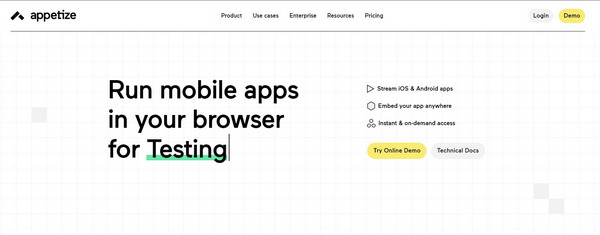
Appetize Emulator is the most unique iOS Emulator for Android in the market. You are not required to install this application to access Apple features. Open the Google browser on your device, visit its website, and begin utilizing iOS apps.
Pricing
Free to use
Features
- Runs iOS apps
- Nice graphics
- Works well on Google Chrome
- User-friendly interface
- Compatibility with various device types
- Swift development and testing processes
- Restricted customization choices
- Elevated cost
- Lack of support for Android-exclusive features
BrowserStack
BrowserStack is a cloud-based testing platform that enables developers and quality assurance (QA) teams to directly test websites and mobile applications on real devices through browsers. Equipped with various plugins and tools, it enables developers to test applications effortlessly.
Pricing
BrowserStack is a paid online Android emulator with a free trial. Full access requires a subscription starting at around $29/month.
Features
- Test Android applications across various screen sizes and resolutions.
- It efficiently integrates with Android Studio debugging tools to identify and resolve issues during app development.
- Capture screenshots while running different applications.
- Support for both old and new Android operating system versions.
- Ease of development for various Android applications.
- Useful for QA testing and debugging
- Lacks a built-in app store.
- It’s not suitable for gaming.
- Requires a paid subscription for full access.
Genymotion Cloud
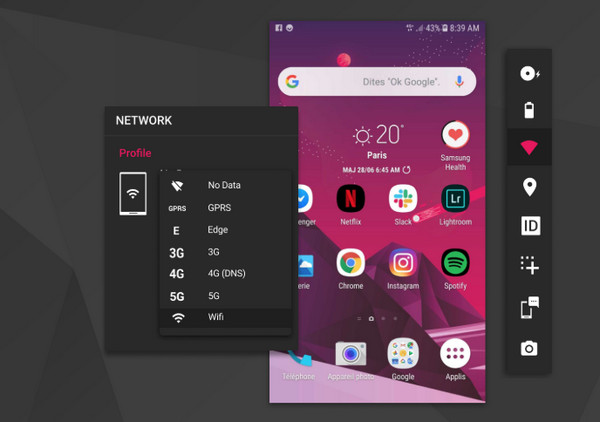
Genymotion Cloud is an excellent Android emulator online that allows users to run and test Android applications directly in a web browser without installing any software. It is widely used by developers and QA testers, and can simulate different Android environments.
Pricing
Paid, but offers a free trial for new users. Full access requires about $49/month.
Features
- Run full Android virtual devices in the cloud
- Access multiple Android versions and device models
- Test and debug apps remotely from a browser
- Integrates with development and CI/CD tools
- No installation required
- Flexible Android version selection
- Useful for professional app testing and automation
- Not suitable for gaming
- Requires a stable internet connection
- Paid plans are needed for extended usage
MyAndroid
MyAndroid is a browser-based Android emulator that allows users to run a simplified Android environment directly in a web browser without installing any software. It is mainly used for quick testing and lightweight app access.
Pricing
MyAndroid is typically free to use.
Features
- Cloud-based app environment for lightweight usage.
- Run multiple applications simultaneously in separate windows.
- No installation required.
- Easy to access and use.
- Flexible Android version selection
- Useful for professional app testing and automation
- Limited performance compared to full emulators.
- Not suitable for gaming or heavy applications
Part 2. Best Offline Android Emulators for PC (Alternatives)
Although the online Android emulators can run apps quickly in the browser, they still have shortcomings in terms of performance, gaming experience, and more. Therefore, many users choose to install offline Android emulators on their computers to obtain a more stable and smoother usage experience. Here, we also list 3 of the most popular offline Android emulators for your reference.
BlueStacks
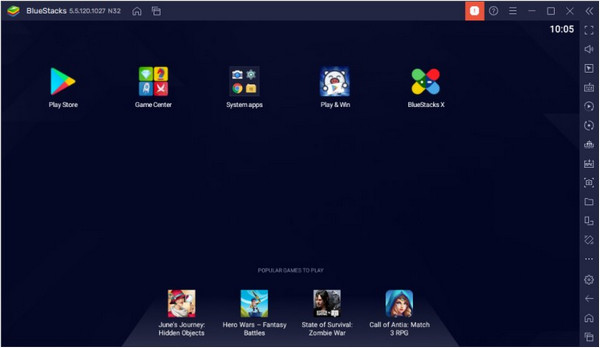
BlueStacks, a top-rated free online Android emulator, allows users to download and run various games and applications on their PCs. It’s recognized as the best Android emulator for low-end PCs, offering compatibility without requiring a high-end graphics card.
Pricing
Free
Features
- Easily manage multiple applications through a user-friendly and uncomplicated interface.
- Experience efficient performance with minimal system requirements.
- Enjoy smooth operation on the latest Android versions.
- Run applications faster, optimized for both gaming and general use.
- User-friendly application with one-click installation.
- Live stream games seamlessly through the application.
- Advertisements may appear during application usage.
MEmu Play
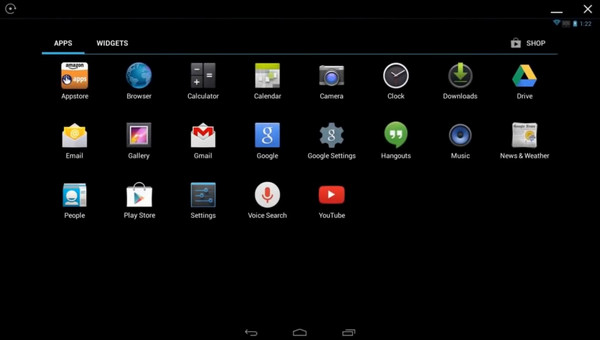
MEmu Play stands out for its optimized performance in gaming, featuring an integrated accelerometer that enhances game loading times. Its key mapping feature makes it the best Android emulator for gaming, enabling players to set hotkeys for mouse and keyboard controls in mobile games.
Pricing
The application is free to use.
Features
- Enhance gaming with the custom key mapping feature.
- Compatibility with Intel, NVIDIA, and AMD graphics cards.
- Easy installation and application running with simple clicks.
- Run multiple applications simultaneously.
- Effortless file transfer between the emulator and PC.
- Performance may be suboptimal on low-end PCs.
Nox Player
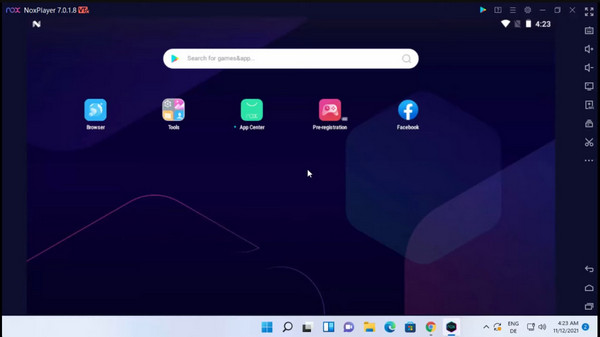
Nox Player is a versatile Android emulator for Windows and Mac OS, excelling in gaming and running various applications. With a user-friendly interface, it swiftly installs on both platforms. It may exert a significant system load, so check your PC or Mac’s specifications.
Pricing
Free to use.
Features
- One-click keyboard mapping customization.
- Quick installation on Mac and Windows.
- File sharing between the emulator and PC/Mac is efficient.
- Smooth performance on both Windows and MacOS.
- Multi-window support on a single device.
- Customizable performance settings for games.
- May exert a heavy load on your system.
Part 3. The Best Way to Mirror Your Phone to PC
An alternative to emulators is phone mirroring software like Apeaksoft Phone Mirror. This software is ideal for those who wish to avoid installing multiple apps on their devices. Unlike emulators, phone mirroring ensures compatibility with all phone applications. Moreover, it usually doesn’t require additional software installation, saving you from the hassles of multiple downloads and configurations.

Downloaded by over 1,000,000 users
- Real-time screen mirroring from Android to Windows PC.
- Easy wireless connection via WiFi, with optional USB support for Android.
- Suitable for screen sharing, presentations, and viewing on a larger display.
- Simple setup with a user-friendly interface.
Secure Download
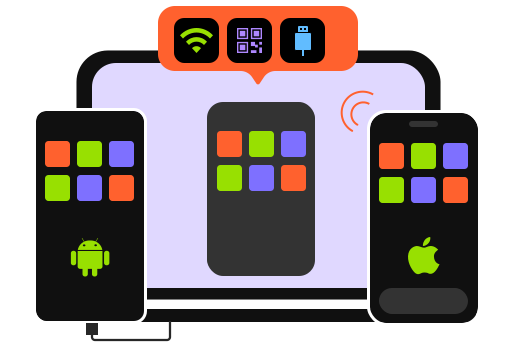
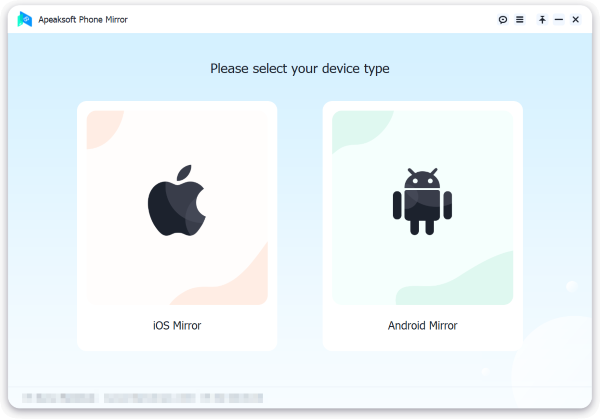
Step 1. Choose Android Mirror
Launch Apeaksoft Phone Mirror on your computer and select the Android Mirror function.
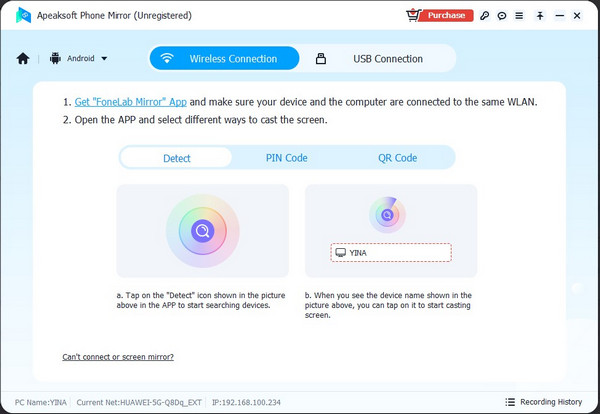
Step 2. Connect Android Phone to PC
Just link your Android device to your PC via WiFi or USB and follow the on-screen instructions.
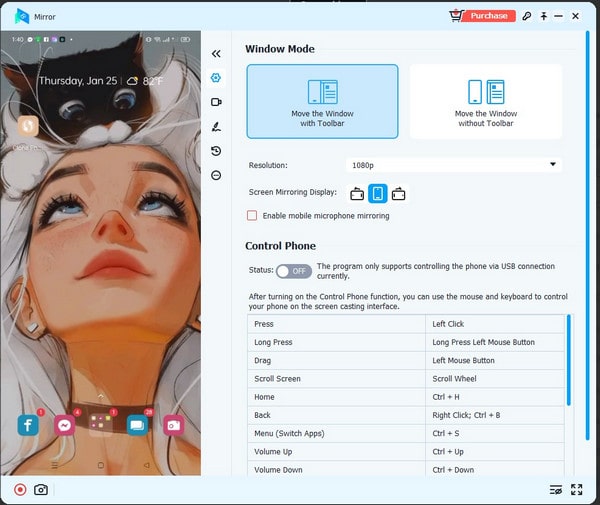
Step 3. Start Android Mirroring
After a successful connection, you can mirror your Android device to your computer and efficiently do screen recordings or snapshots.
Part 4. FAQs About Online Android Emulators
How can I simulate the Android environment?
To simulate an Android environment on a PC, you need to open Chrome and press Ctrl + Shift + I. In this way, you can directly test the Android layout and screen size in the browser. For a complete browser test, the cloud-based Android emulator can provide a more realistic environment.
Can I execute an APK file without using an emulator?
There is no official way to run an APK on a PC directly. To open an APK file, you must use an Android environment, such as an Android emulator or a cloud-based Android platform.
Is the use of emulators legal?
Emulators are legal for use or download, but sharing or downloading copyrighted game ROMs is illegal. Emulators are subject to specific conditions to avoid legal issues, and using them responsibly, without sharing ROMs, is essential.
Conclusion
Android emulators are like virtual Android devices for your computer, allowing you to test and use different Android apps easily. In this article, we’ve looked at some of the best online Android emulators, considering their features, ratings, and user-friendliness. All the emulators we discussed have been tested and proven to work well, letting you run Android apps and games smoothly on your PC. Just pick the one that fits your needs and preferences. If you’re looking for a simple and convenient way to play mobile games on your PC, try Apeaksoft Phone Mirror.
 Apeaksoft Phone Mirror
 Mirror iPhone/Android to PC for video and audio recording.
Secure Download
Related Articles