

How to Screen Mirror to a Sony TV from iPhone Quickly

Screen mirroring to a Sony TV allows you to enjoy your iPhone content on a bigger screen. Whether you want to watch movies, play games, or share presentations, knowing the operation can boost your workflow. In this guide, we'll cover several practical methods - from using AirPlay on supported Sony TVs to Wi-Fi connections for BRAVIA models - and introduce the most stable and efficient tool to mirror your screen effortlessly.
By following these steps, you can start enjoying your iPhone content on the big screen in no time.
PAGE CONTENT:
Part 1: How to Screen Mirror to Sony TV with AirPlay Supported
If your Sony TV supports AirPlay, mirroring your iPhone screen to Sony TV is fast and convenient. AirPlay allows seamless streaming of videos, music, photos, and even apps directly from your device without extra cables. With this feature, your iPhone and Sony TV communicate wirelessly, ensuring smooth playback and minimal lag. Whether you want to share a video clip, enjoy a movie, or present content to a group, AirPlay makes the process simple. This section will explain how to both stream videos and mirror your entire iPhone screen to a Sony TV so that you can enjoy your content on the big screen effortlessly.
1. Stream Video from iPhone
If you simply want to watch videos on a larger screen, then streaming video from your iPhone directly to a Sony TV with AirPlay is the quickest way. Whether it's a movie, TV show, or a short clip, AirPlay ensures smooth playback directly on your TV screen. This method doesn't require additional apps or cables—your iPhone and Sony TV communicate wirelessly, allowing you to enjoy high-quality video with minimal setup and maximum convenience.
Step 1. Make sure both the iPhone and the Sony TV are connected to the same Wi-Fi. The more stable the Wi-Fi is, the smoother the playback will be.
Step 2. Start playing any content you want to watch on your iPhone. As the video is playing, you can see AirPlay on the screen. They often show up in the top corner of the screen. Tap AirPlay to proceed.
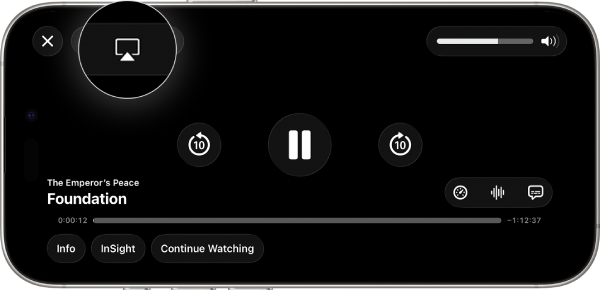
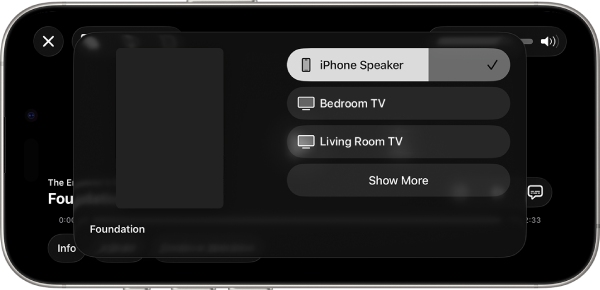
Step 3. Then, devices that support AirPlay will be listed. Tap to choose your Sony TV to screen mirror the video playing from your iPhone to the Sony TV. In this way, you can mirror iPhone to TV successfully.
2. Screen Mirror from iPhone
Screen mirroring lets you display your entire iPhone screen on a Sony TV, not just videos. With AirPlay, anything on your device - apps, games, or presentations - appears instantly on the big screen. This method provides real-time interaction and seamless control, making it ideal for sharing content with friends, playing mobile games, or giving presentations without needing extra cables or complicated setups.
Step 1. Connect both your iPhone and Sony TV to the same Wi-Fi to ensure the stability of screen mirroring.
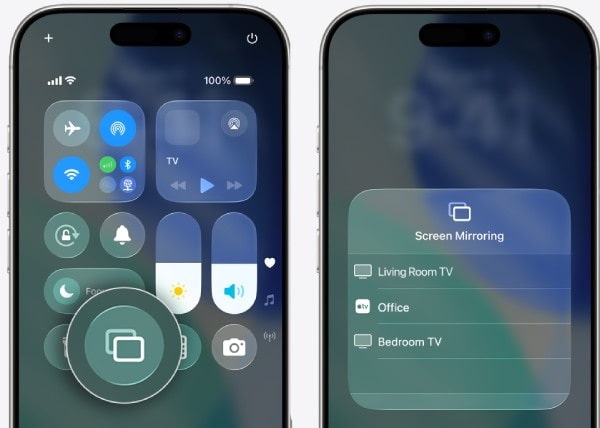
Step 2. Swipe down from the top of your iPhone to open Control Center. Tap Screen Mirroring to open a pop-up window.
Step 3. Under Screen Mirroring, tap to select your Sony TV for screen mirroring from your iPhone.
Part 2: [For BRAVIA] How to Screen Mirror to a Sony TV via Wi-Fi
If your Sony BRAVIA TV doesn't support AirPlay, you can still mirror your iPhone screen using a Wi-Fi connection. Although it might take a little bit longer than screen mirroring via AirPlay, it can help build a connection between your Sony BRAVIA TV and your iPhone over the same network. While it may require a compatible mirroring app or the built-in Wi-Fi display function, it provides a reliable alternative for BRAVIA users. This section will guide you through the process of connecting your iPhone to a BRAVIA TV via Wi-Fi so you can enjoy your content on a larger screen without doing AirPlay on your iPhone.
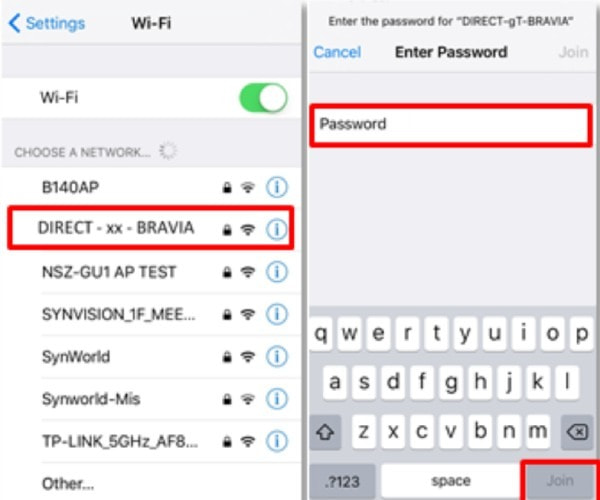
Step 1. Open Settings on your iPhone, turn on Wi-Fi, and navigate to the Wi-Fi page.
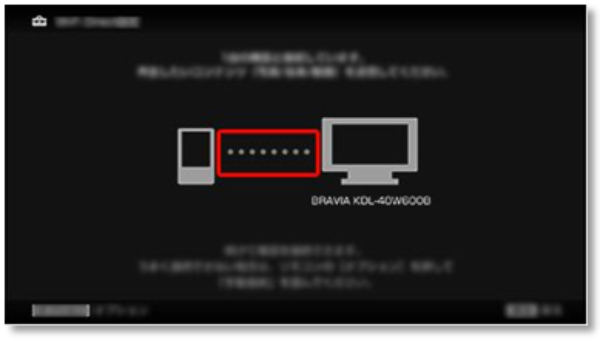
Step 2. Tap Direct-xx-BRAVIA on your iPhone and enter the WPA key (passcode) displayed on your BRAVIA TV. Then, tap Join to connect.
Step 3. Wait for the connection to build. Once finished, the Settings window will pop up. If you notice that the checkmark is displayed at SSID on your iPhone and a dashed line is displayed on the TV, it means that your iPhone has screen mirrored to the Sony TV.
Part 3: The Most Stable Way to Screen Mirror from iPhone
When you want to screen mirror your iPhone to a Sony TV, generally speaking, it refers to videos or some relatively basic demonstrations. Because you will find that once you want to project the content of some games or applications onto a large screen, there will be certain lag and frame drops, which will make the viewing experience very unsmooth. Therefore, for anyone seeking the most stable and universal way to mirror games or applications on an iPhone, choosing a professional tool on a computer would be a more appropriate option. Apeaksoft Phone Mirror is a great solution.
Apeaksoft Phone Mirror is beginner-friendly and does not require any technical expertise. It supports both Wi-Fi and USB connections simultaneously. It is almost compatible with all iOS devices and provides clear and high-quality visual effects. It is an ideal choice for sharing content with friends, streaming media, or giving presentations. If you want a professional-quality, stable, and flexible Mirror solution, Apeaksoft Phone Mirror stands out.
Step 1. Download Apeaksoft Phone Mirror from the official website. Once the file is downloaded, set up the file to install it. Then, launch Apeaksoft Phone Mirror.
Secure Download
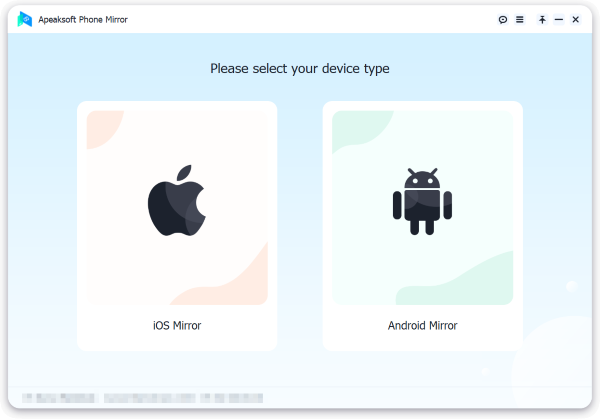
Step 2. Connect your iPhone to the computer using a USB cable. Click iOS Mirror on the main interface to proceed.
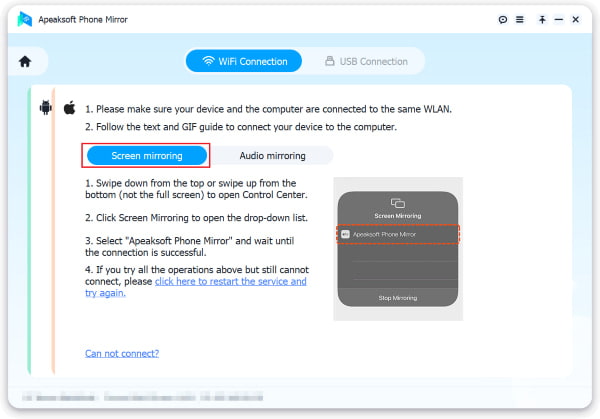
Step 3. Under the Wi-Fi Connection tab, click Screen Mirroring. Following the instructions to screen mirror your iPhone on the computer stably.
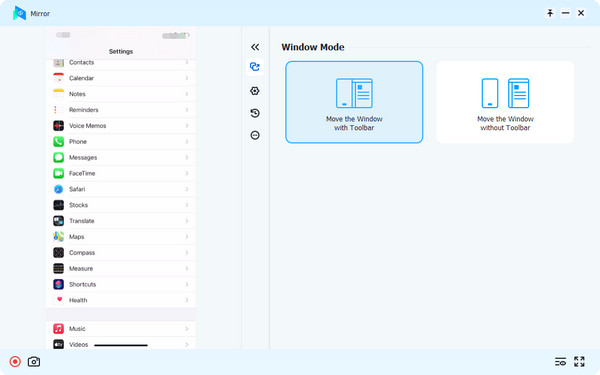
Step 4. Now you can enjoy screen mirroring from your iPhone on your computer more stably than on a Sony TV, even when you are running games or other software. You can also perform various operations, including screenshots.
Conclusion
Overall, screen mirroring your iPhone to a Sony TV opens up a larger and more immersive viewing experience. Whether your Sony TV supports AirPlay or not, applicable methods are provided to help you solve this problem and enjoy video viewing on a larger screen. However, you may find that when you mirror games or applications, there might be some lag. At this time, it is recommended to connect through professional tools on your computer. When you use Apeaksoft Phone Mirror, you will find that games and applications are mirrored more stably and smoothly than on the Sony TV.
Related Articles
Discover Chromebook screen mirroring for smart TVs. This article guides you through three simple ways to share your Chromebook screen on your TV.
Mirror your Mac to Apple TV effortlessly using AirPlay, HDMI Cable, and AirBeamTV. Explore diverse methods for an enhanced and seamless viewing experience.
How do you start the screen mirroring Mac to Samsung TV? How can I mirror an image file on my MacBook? Learn three ways to mirror your Mac screen to a TV.
Can you screen mirror your iPhone to iPad? How can I mirror my iPhone to my iPad without Wi-Fi? This post tells how to mirror your iPhone screen to an iPad.



