How to Screen Share on Discord Desktop & Mobile + Troubleshooting

Key Takeaways
- You must first join a voice channel to start screen sharing on Discord.
- Mac users need to enable the screen recording permission first.
- Free users can only use a 720p resolution.
- Members of Discord (Nitro) can increase the resolution to 1080p and stream at 60fps.
Want to share your screen with friends, teammates, or students on Discord? This beginner-friendly guide shows you how to screen share on Discord, whether you want to stream a game, present a project, or watch Netflix together.
This guide is designed for beginners and everyday users who want to share their screen on the desktop or mobile, and even mirror a phone to a PC for streaming.
PAGE CONTENT:
Part 1: How to Screen Share on Discord [Desktop & Mobile]
Discord supports screen sharing on both desktop and mobile devices, and the entire process is very simple. This section provides detailed instructions for all devices so you can quickly get started with screen sharing on Discord.
Before You Start
- You cannot share the screen if you are not in a voice channel.
- Go to your Mac System Preferences and enable Screen Recording permission for Discord. Otherwise, the screen will go black, or the sharing function will not work.
Screen Share on Discord on PC
Step 1. Open Discord and join a voice channel.
Step 2. Click the Screen button at the bottom. Click it and choose what to share. You can choose to share the entire screen or each program window. Then, click Go Live to start screen sharing on Discord.
Step 3. A floating control bar will appear in the bottom right corner. You can click the Settings button to adjust stream quality and system audio.
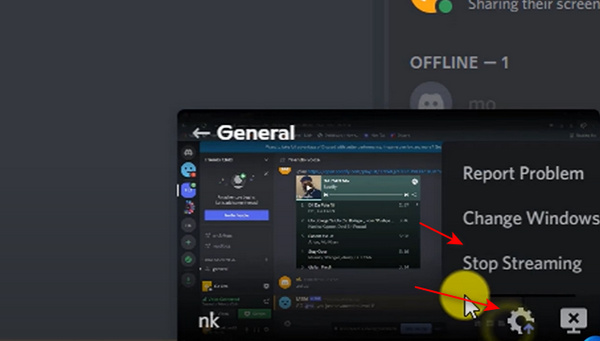
Step 4. Click the Stop Streaming button to stop screen sharing on Discord.
Screen Share on Discord on Mobile
Step 1. Open Discord on your mobile phone. Join any server. You need to join a voice channel. No matter whether there's anybody in the channel, you can tap the Join Voice button to go on.
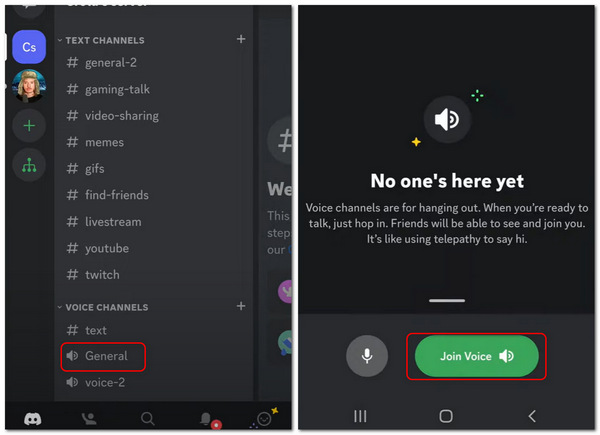
Step 2. Once you are in the voice call, tap the Share Screen button in the call controls. In this way, you'll successfully share your screen on Discord on mobile.
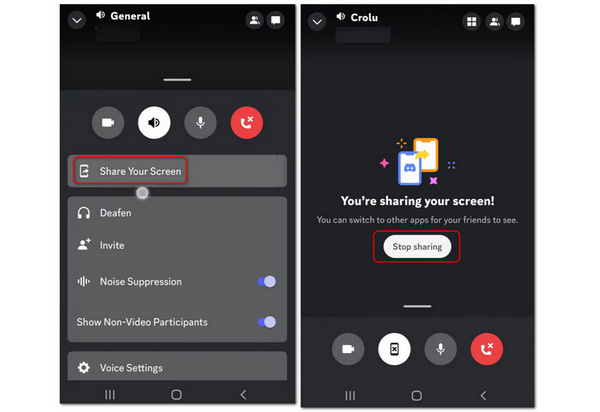
Step 3. To stop sharing your screen, tap the Stop Sharing button.
Part 2: How to Screen Share Netflix on Discord
Screen sharing on Discord lets you share your screen so you and your friends or family can watch the same movies or TV shows and discuss the exciting plots together. screen share Netflix videos on Discord. Some users try to watch Netflix programs together using it. But notice that Netflix uses DRM, so there might be a black screen when sharing the screen. And some browsers (such as Google Chrome) may prevent the video recording function from working. If you want to give it a try, here are the steps.
Step-by-Step Guide
Step 1. Open Discord and join a voice channel.
Step 2. Open Netflix in your browser.
Step 3. Click Screen Share on Discord.
Step 4. Select the Chrome browser window.
Step 5. Start screen sharing.
Part 3: Easily Share Your Phone Screen to Discord on a PC
Discord does not support directly sharing the screen of a mobile device to a desktop voice channel. How can you screen share your phone on Discord on a PC? There's a straightforward method to share your phone screen with Discord on your computer. You may need a screen mirroring tool, such as Apeaksoft Phone Mirror.
This program can screen-share your phone to your PC without lag. There are not many preconditions - only a computer and your phone, so you can wirelessly connect your phone to your PC and then start screen sharing the phone to Discord on the PC. The screen shared can be set to a maximum resolution of 4K and 60 FPS, which is very enjoyable for you and your friends to view every movement and picture on your phone.

Downloaded by over 1,000,000 users
- Share a phone's screen on desktop Discord with 4K resolution.
- Allow you to wirelessly screen-share your phone on the desktop Discord.
- Automatically share screen and voice from your phone to your computer.
- Offer a recording feature when you screen share the phone on your PC.
Secure Download
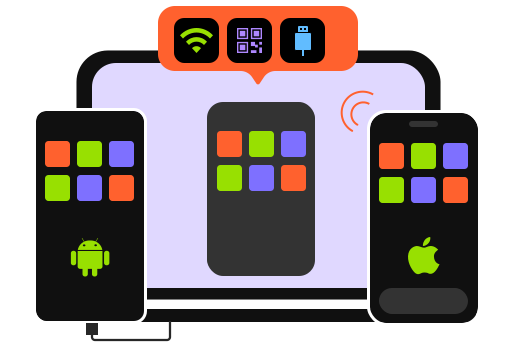
Step 1. Download Apeaksoft Phone Mirror for free and launch it. Put your iOS or Android phone close to your computer. You can click the Wireless Mirror button to share the screen on the desktop Discord.
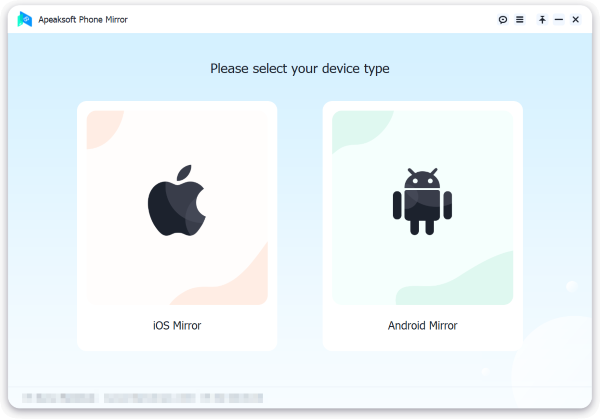
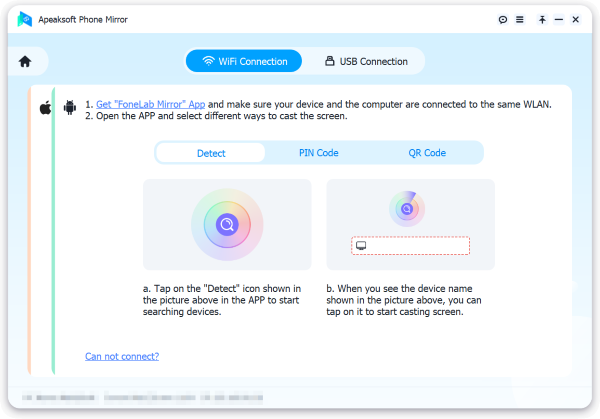
Step 2. If you use Android, you need to install FoneLab Mirror on your phone as a precondition. Then, you can easily share the screen through 3 modes: Detect, PIN Code, and QR Code. For iOS users, you only need to use the built-in mirroring feature on your iPhone.
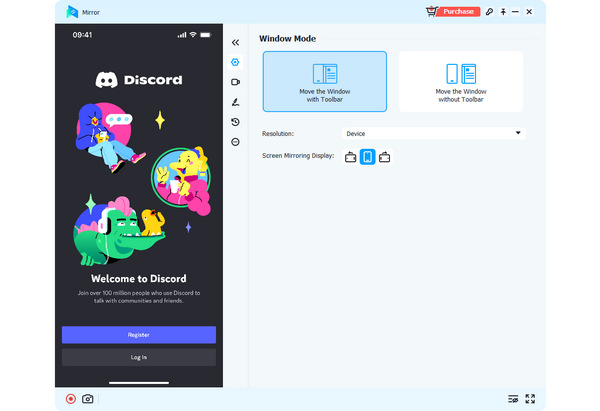
Step 3. If you choose USB Mirror, it will also be very easy. This program will automatically install a small mirroring driver. Then, you can use a USB cable to share your phone's screen on the desktop Discord quickly. You'll see the mirrored screen on your computer.
Part 4: Troubleshooting Discord Screen Share Not Working
If you are unable to share a screen on Discord, don't panic. This section will summarize some common issues, such as black screen, lack of sound, or lag, along with their solutions.
| Issue | Cause | Fix |
| Black Screen | • DRM-protected content (such as Netflix or streaming sites) • Or Hardware acceleration conflicts in browser or Discord | • Turn off Hardware Acceleration in Discord settings and your browser and restart Discord. • Try sharing a different window instead of the full screen. |
| No Sound | Incorrect audio settings | • Enable Share System Audio when starting screen share. • Check your system sound settings. • Make sure Discord has microphone and audio permissions. |
| Screen Share Lag or Low Quality | • Internet issue • Incorrect streaming settings • System performance | • Switch to a more stable internet connection • Lower stream quality (720p or 30fps) • Close background running apps |
| Screen Share Button Not Showing | • Not inside a voice channel • Outdated apps | • Join a voice channel first • Update Discord |
| Screen Share Not Starting | No permissions | • Run Discord as administrator • Enable Screen Recording permission on Mac |
Part 5: FAQs about Screen Share on Discord
Why do I fail to join a server to start screen sharing on Discord?
Discord may be kind of challenging to use, for it's a unique chatting social platform. You can watch some user guides or tips about Discord for Mac/Windows/mobile.
Is screen sharing Netflix on Discord legal?
Due to the DRM (digital rights management) protection, Netflix may disable the screen-sharing function and display a black screen. Sharing copyrighted content may violate Netflix's terms of service. This guide is for educational purposes only.
Can I record my Discord when screen sharing on it?
Yes, you can. On any server in Discord, you can unlock screen sharing and recording features. If you find some recording features unreliable, you can use desktop or Chrome screen recorders to record the shared screen on Discord.
Conclusion
You've learned how to screen share on Discord on desktop and mobile. You can have more fun on Discord. Also, if you want to share your phone's screen on desktop Discord, Apeaksoft Phone Mirror is your best choice. We are always offering our best tips and resolutions for you.
 Apeaksoft Phone Mirror
 Mirror iPhone/Android to PC for video and audio recording.
Secure Download
Related Articles