Share Screen on Microsoft Teams for Windows, Mac, Browser & Mobile

Microsoft Teams lets people join to chat, have a meeting, and share files and apps. When you have an online meeting with other members, you may need to share your desktop screen in Teams to do a tutorial or demonstration. If you are a beginner, it will be confusing to use this product. Don't worry! This post will display how to share your screen on Teams easily on Windows, Mac, browser, iPhone & Android.
PAGE CONTENT:
- Part 1: Adjust Settings Before Sharing Your Screen on Teams
- Part 2: How to Share Screen on Teams on Windows
- Part 3: How to Share Your Screen on Teams on Mac
- Part 4: How to Screen Share on Teams on Android/iPhone
- Part 5: How to Share Screen on Teams Meeting in the Browser
- Part 6: How to Share Your Screen on Microsoft Teams Chat
- Bonus Tip: Share Your Phone Screen in Teams on Desktop
- Part 7: FAQs About Screen Share on Teams
Part 1: Adjust Settings Before Sharing Your Screen on Teams
There are presenters and attendees in a Teams meeting. Presenters can directly share a screen in Microsoft Teams if they know how to. But attendees can't directly share their screens because they are not enabled to present. So, if you host the meeting and want other attendees to share their screens in Teams, you need to ensure a setting.
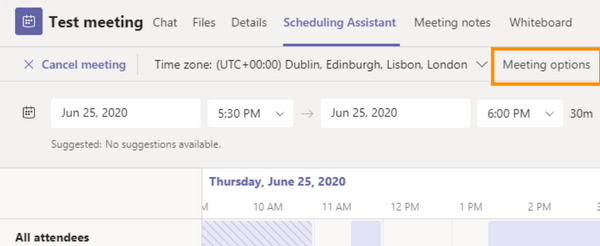
Step 1. Open Teams and click the Calendar button. Click the Scheduling Assistant button, then the Meeting options button.
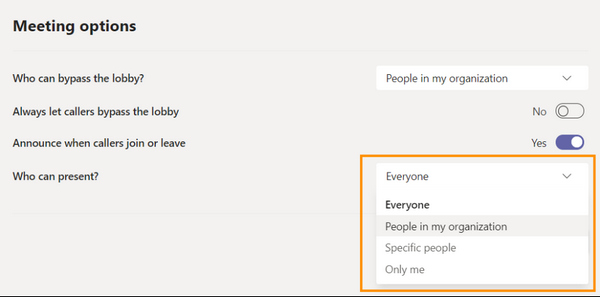
Step 2. Locate the Who can present? option, click the dropdown button on its right side, and then click Everyone. In this way, other attendees can also share their screens in your Teams meeting if you give them a chance.
Part 2: How to Share Screen on Teams on Windows
After adjusting some settings, now you can start or join a meeting to share your desktop screen on Teams. This section will introduce how to share screen on Microsoft teams on Windows.
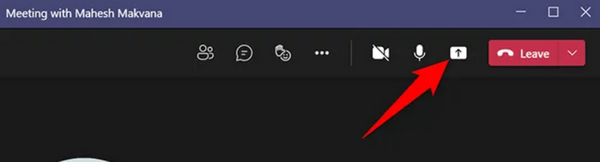
Step 1. Enter a meeting, and then click the Share Content button in the top right corner of the meeting room.
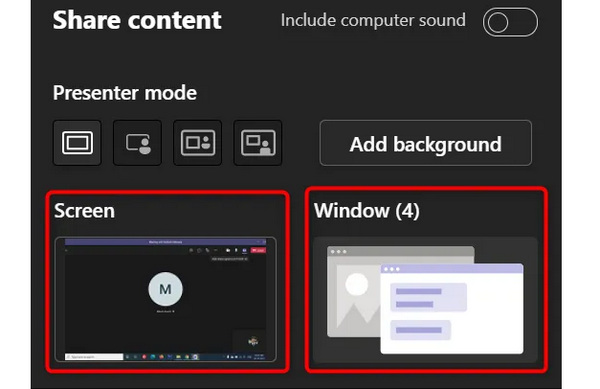
Step 2. The Share content menu will appear. You can click the Screen button to share the entire screen in Teams. To share the single window of a program. You can click the Window button to select your desired window.
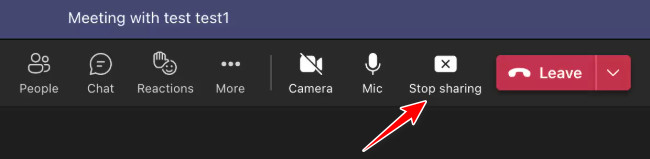
Step 3. Now, you've started sharing the screen in Teams. When you want to stop sharing, just click the Stop sharing button. If you want to let other attendees share their screens, click the Give control button.
Part 3: How to Share Your Screen on Teams on Mac
Screen share on Mac is a bit more complicated than on Windows, but they are similar overall. See the steps below to learn how to share screen on Microsoft Teams on Mac:
Step 1. Before you start, you should go to the Apple logo in the top left and choose System Preferences.
Step 2. Click Privacy & Security, and find the Screen Recording option. Enable screen recording for Teams.
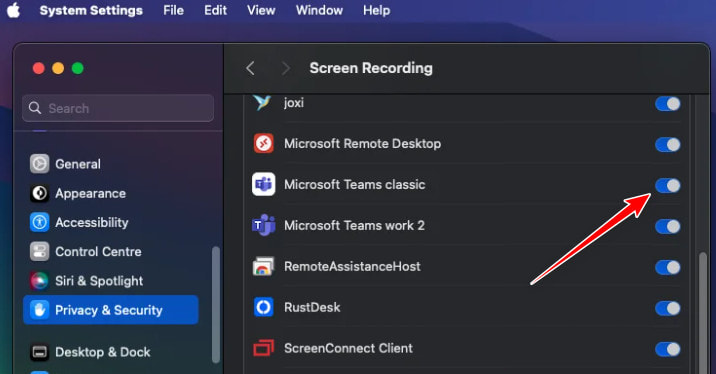
Step 3. Follow the same steps in the above part to start or stop screen sharing on Teams.
Part 4: How to Screen Share on Teams on Android/iPhone
No matter whether you use an iPhone or an Android phone, it is the same way to share your phone screen on Teams. Also, you can allow every attendee to have the right to present in a mobile Microsoft Teams.
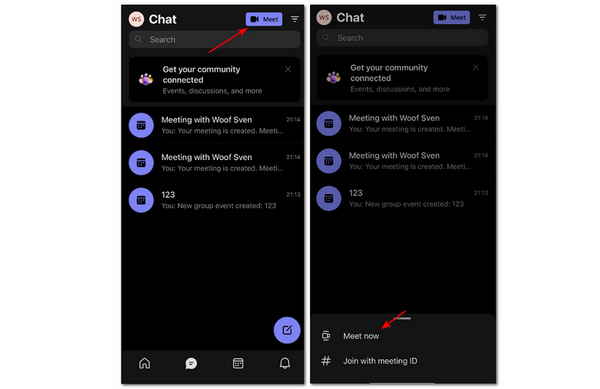
Step 1. Open Microsoft Teams on your mobile phone. Tap the Chat or Calendar button. Then, tap the Meet button in the top right corner. Tap the Meet now button as the host to start a meeting.
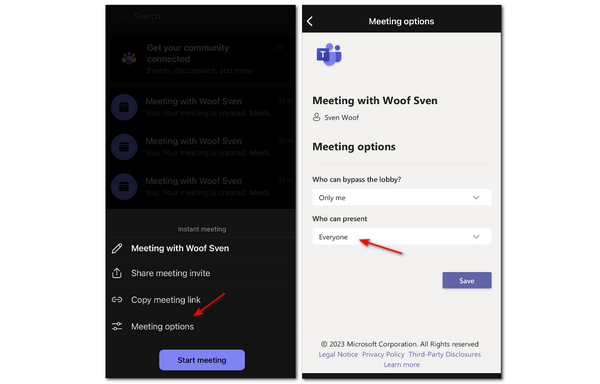
Step 2. You can tap the Meeting options button and then tap the dropdown button in the Who can present section to choose everyone. Then, every attendee can easily share a screen in your Teams meeting.
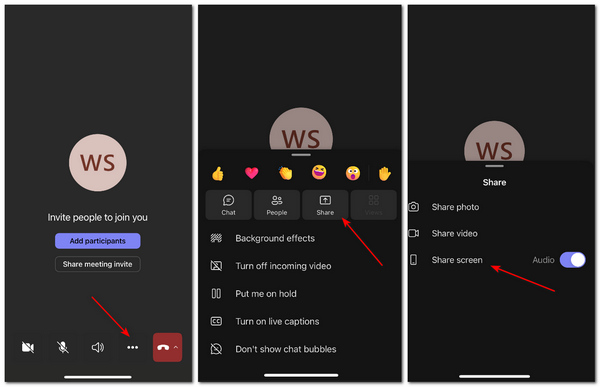
Step 3. Go back and tap the Start meeting button. Then, in the meeting room, tap the More button and then the Share button. Finally, tap the Share screen button. In this way, you've successfully shared your phone screen in Teams.
Part 5: How to Share Screen on Teams Meeting in the Browser
You can also share your screen on Microsoft Teams without installing the desktop app. In this section, we’ll walk you through the step-by-step process to share your screen in Teams using popular browsers like Chrome.
Step 1. Log into your Microsoft account in a browser and start a meeing.
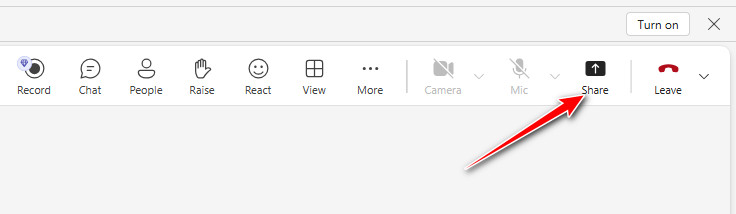
Step 2. Click the Share button in the top right.
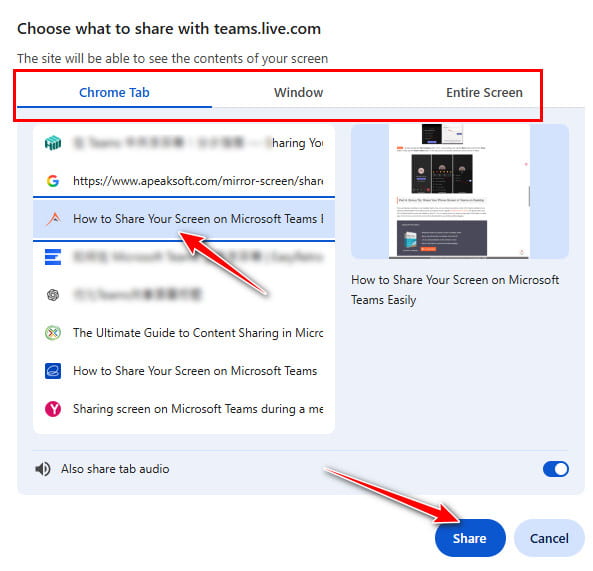
Step 3. Select a target window you want to share. Click Share.
Step 4. Click the Stop sharing button at the top to stop sharing on Teams.
Part 6: How to Share Your Screen on Microsoft Teams Chat
You can also share your Teams screen when you are using Microsoft Teams Chat. Follow the steps below to share your screen on Microsoft Teams Chat:
Step 1. Open the chat Window in Teams.
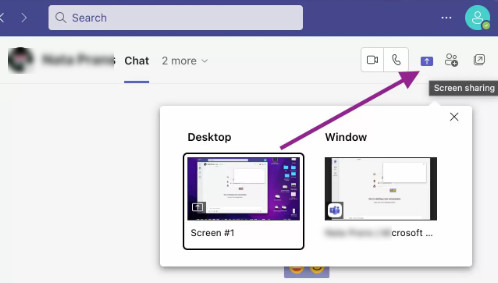
Step 2. Tap the share button in the top-right corner.
Step 3. Select the screen you want to share.
Step 4. Click Stop presenting if you want to stop screen share on Teams Chat.
Bonus Tip: Share Your Phone Screen in Teams on Desktop
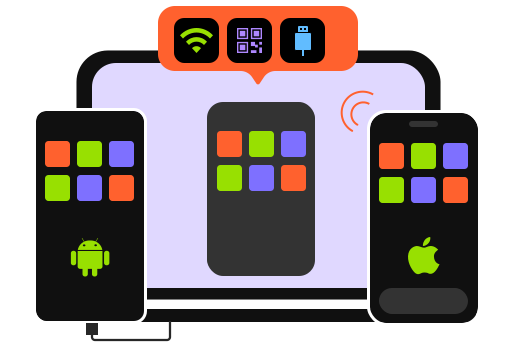
If you are having a meeting on your desktop Teams, how can you share your phone screen in the Teams meeting to do a tutorial or demonstration? The best way to do so is to mirror your phone to the computer using professional tools, such as Apeaksoft Phone Mirror.
It can quickly share your iOS or Android phone screen with stability to your PC. You can easily mirror your phone screen with a USB cable or mobile apps. Every move on your phone screen will be transferred to your desktop without lagging.

Downloaded by over 1,000,000 users
- Wirelessly share your phone screen in desktop Teams.
- Mirror your phone with a resolution of at most 4K.
- Let you add annotations on the mirrored screen.
- Mirror every move on your phone without lagging.
Secure Download
Part 7: FAQs About Screen Share on Teams
Can I use another screen recorder on an iPhone to transfer the screen in Teams?
No, you can't. Actually, many iOS apps you use to record or mirror your screen take advantage of the built-in recorder or mirror in your iPhone, which is not as flexible as how to record or mirror Android screen to a computer or other devices.
Why is there no sound when I share my screen in Teams?
You should check if you've turned off your microphone or system sound. Another possible reason is that the host forgot to turn off the Mute feature towards other participants.
Can I use Teams online?
Yes, you can. Microsoft offers an online version of Teams. You don't need to download a client with the online Teams. One minor disadvantage is that the online Teams may lose some features based on what browser you use. However, you can still share your screen online in Teams.
Conclusion
You've learned how to share your screen on Microsoft Teams on a PC and mobile phone. If you want to share the phone screen on the desktop Teams, then Apeaksoft Phone Mirror must be your best choice. We hope that you can do better in your Teams meeting with all the methods in this article.
 Apeaksoft Phone Mirror
 Mirror iPhone/Android to PC for video and audio recording.
Secure Download
Related Articles