

How to Effectively Fix Zoom Screen Share Not Working

'I want to share my screen when joining a Zoom meeting, but it is not working. How can I fix Zoom screen share not working?' As one of the most popular online meeting services, Zoom allows users to create meetings or participate in online meetings remotely on their computer or mobile device. Screen-sharing is one of the essential features. It can cause inconvenience and frustration when the screen share feature works abnormally. Here you can learn proven solutions.
PAGE CONTENT:
Part 1: How Does Zoom Share Screen Work
Understanding how to share your screen on Zoom is now an essential skill in the digital world. It allows you to share the entire screen or just one app, show slides and drawings or a whiteboard, and share files from Google Drive or OneDrive.
How to Use Zoom Share Screen on a Computer
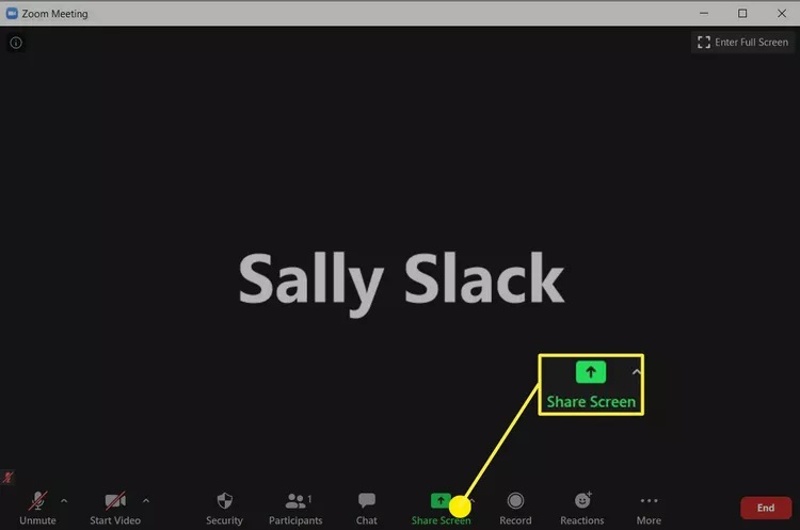
Step 1. Start or join a Zoom meeting on your desktop.
Step 2. Click the Share Screen button at the bottom.
Tips: If you are a participant, ask the host to permit screen sharing for you from the Advanced sharing options.
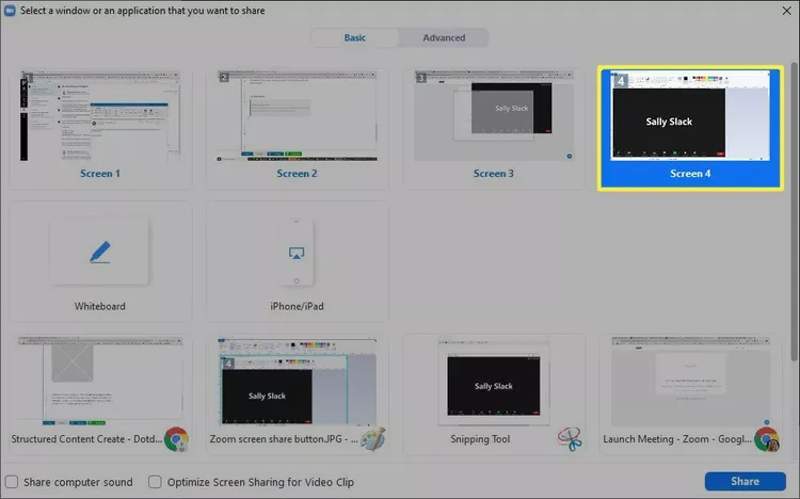
Step 3. Choose the Basic, Advanced, or Files tab, and pick what you want to share, like Desktop, Whiteboard, Portion of Screen, Video, etc.
Step 4. To share sound, check Share computer sound. Click the Share button to begin sharing the Zoom screen.
How to Share Zoom Screen on Mobile
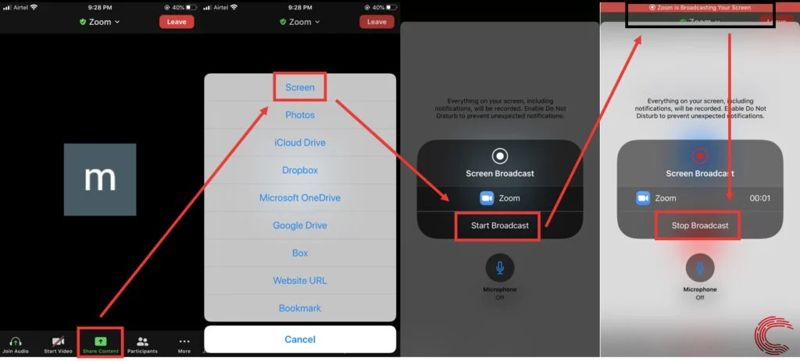
Step 1. Open the Zoom app on your mobile device and create or join a meeting.
Step 2. Tap the Share button at the bottom.
Step 3. Choose Screen on the pop-up dialog.
Step 4. Then, tap the Start Broadcast button to begin sharing your Zoom screen.
Part 2: Why Is Zoom Share Screen Not Working
The share screen feature in Zoom is useful and allows you to display everything on your screen to other participants easily. A few factors can lead to Zoom share screen not working. The main causes include:
1. Don't have permission to share of screen.
2. The display resolution settings are improper.
3. Your internet connection is not stable.
4. Something is wrong on Zoom.
5. Software glitches.
Part 3: Fix Zoom Share Screen Not Working
Solution 1: Turn on Share Screen in Zoom
If you disable Screen sharing in Zoom accidentally, Mac Zoom screen share won't work. Moreover, participants must gain permission from the host before sharing their Zoom screens. Therefore, you must turn on Screen sharing in Zoom.
Step 1. Sign in to the Zoom web.
Step 2. Go to Settings on the sidebar and enter the Meeting tab.
Step 3. Locate In Meeting(Basic) and toggle on Screen sharing.
Step 4. To permit participants to screen sharing, click the Arrow button next to the Share Screen in Zoom.
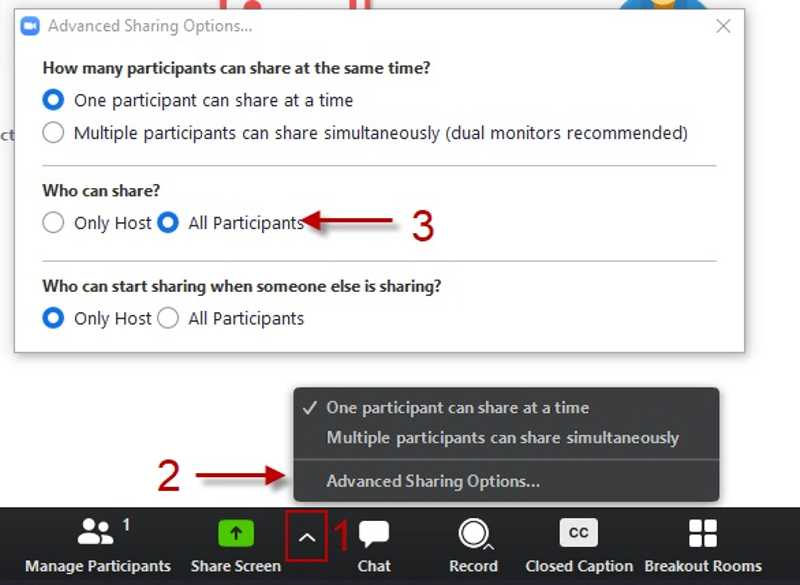
Step 5. Choose Advanced Sharing Options.
Step 6. Then, select All Participants under Who can share.
Solution 2: Permit Zoom to Use Your Sound
Some users complain that screen share audio is not working in Zoom. If you forgot to enable Share sound, the screen share is mute. Here are the steps to fix this problem and enable high-quality audio:
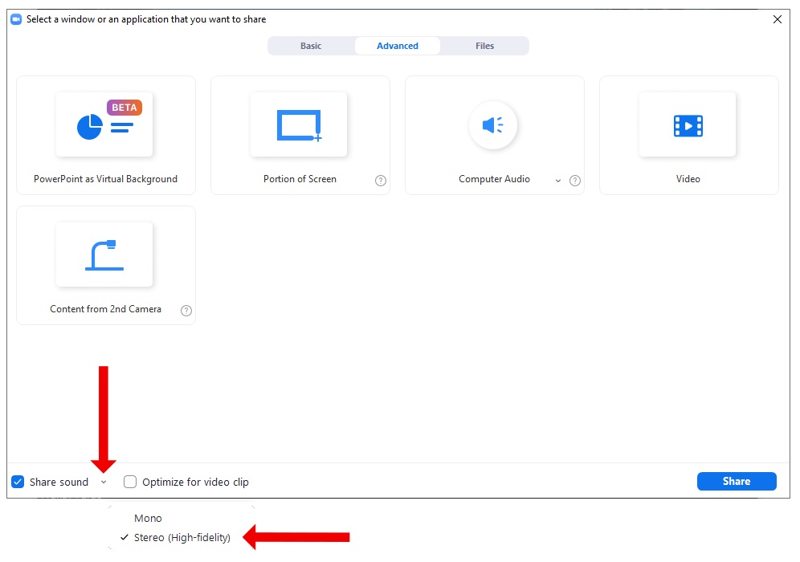
Step 1. After picking what you want to share, locate the bottom left corner.
Step 2. Tick the checkbox for Share sound.
Step 3. Click the Arrow button and select a proper quality. Pick Stereo if you wish to share higher quality sound.
Solution 3: Downscale Display Resolution
Zoom share screen may not work on a high-resolution display, like 4K or 5K resolution. Zoom requires lots of resources to share the screen on a high-resolution display. Fortunately, Windows enables you to downscale the resolution.
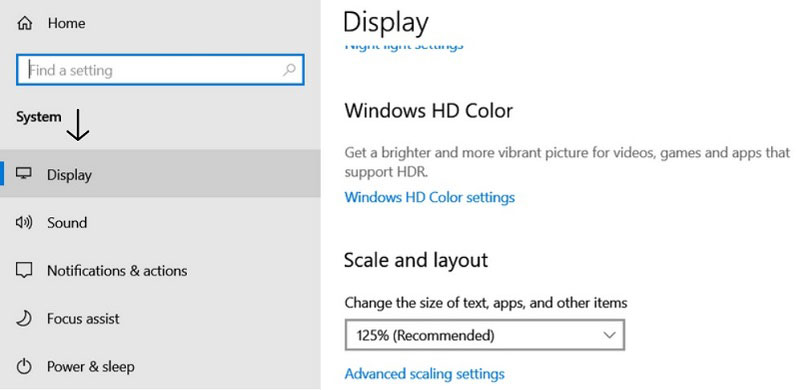
Step 1. Right-click the Start menu and choose Settings.
Step 2. Go to System on the sidebar and choose Display.
Step 3. Find Display resolution under the Scale & layout section.
Step 4. Select a lower resolution. Then, try to share your screen again.
Solution 4: Turn on Hardware Acceleration
Zoom is a cloud-based meeting service. It means that you need a stable internet connection, including sharing the screen. Moreover, you'd better enable hardware acceleration to fix the Zoom share screen not working.
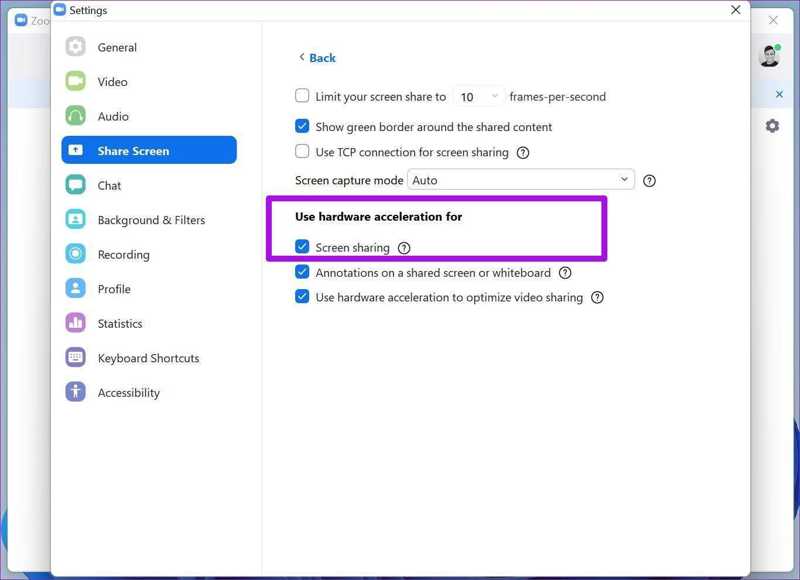
Step 1. Go to the Settings screen in Zoom.
Step 2. Select Share Screen and click Advanced.
Step 3. Check Screen sharing under Use hardware acceleration for.
Solution 5: Update Zoom App
If Zoom AirPlay is not working, you need to update your app or reinstall it. That can fix the software glitches due to the outdated app or too much cache data. Here are the steps to update your Zoom app.
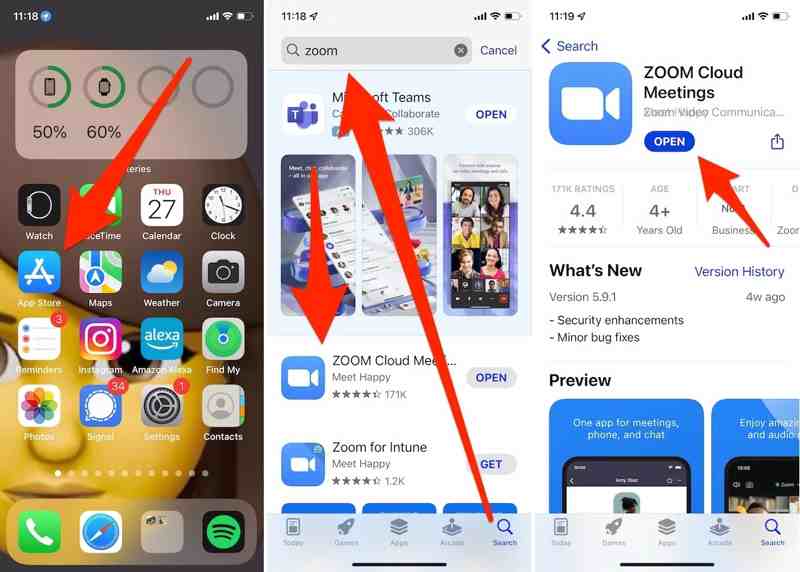
Step 1. Open the App Store or Play Store.
Step 2. Find the Zoom app and check if it is up to date.
Step 3. If there is a new version, tap Update.
Step 4. Try sharing the screen in Zoom. If it is still not working, uninstall it from your device. Then, install it again.
Further Reading
Bonus Tip: Best Phone Mirror Software
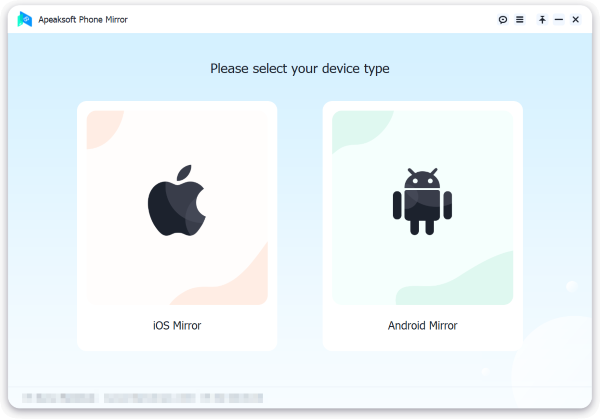
If you want to share your iPhone or Android screen with a computer, Apeaksoft Phone Mirror is the best option. The user-friendly design helps you share a phone screen without any trouble, even for beginners.
The Best Way to Share a Phone Screen to a Computer
- Share phone or iPhone screen in a Zoom meeting.
- Send sound while sharing screen.
- Support multiple screen sharing sources.
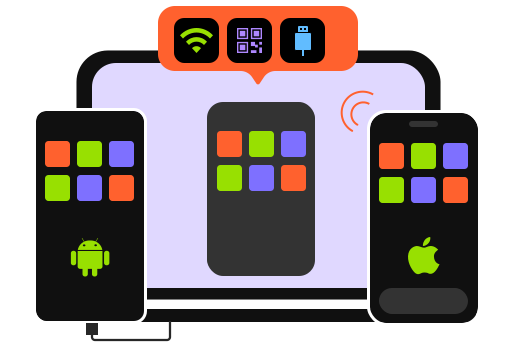
- Compatible with a wide range of iOS and Android devices.
Secure Download
Conclusion
This article helps you fix Zoom screen share not working due to a variety of problems. You can follow our solutions to share your screen when joining a Zoom meeting. Moreover, we recommended the best phone sharing tool, Apeaksoft Phone Mirror. It is not only easy to use, but also offers lots of useful tools.
Related Articles




