

Hoe schakel je het schermvergrendeling van je iPhone of iPad uit?

Om je gegevens en privacy te beschermen, heeft Apple een schermvergrendeling toegevoegd aan alle iOS-apparaten. iOS kan de schermvergrendeling automatisch weergeven als je je scherm een bepaalde tijd niet aanraakt. De volgende keer dat je je apparaat wilt gebruiken, moet je je toegangscode, Face ID of Touch ID invoeren. Maar aan elke medaille kleven ook nadelen. Dat geldt ook voor de schermvergrendeling van de iPhone. Deze handleiding laat verschillende manieren zien om deze te ontgrendelen. Schakel de schermvergrendeling uit. op uw iPhone of iPad.
PAGINA-INHOUD:
Deel 1: Een eenvoudige manier om het schermvergrendeling van je iPhone uit te schakelen
Het uitschakelen van het vergrendelscherm op een iPhone is een fluitje van een cent als je weet waar je de instelling kunt vinden. Je hebt hiervoor je iPhone-toegangscode of Apple ID-wachtwoord nodig. Gelukkig... Apeaksoft iOS-ontgrendelaar Het programma kan de taak zonder enige voorkennis uitvoeren. Bovendien is het dankzij het intuïtieve ontwerp gemakkelijk te leren.
Een eenvoudige manier om het schermvergrendeling van je iPhone volledig uit te schakelen zonder wachtwoord.
- Schakel het vergrendelscherm van je iPhone uit zonder wachtwoord.
- Zorg voor een hoog succespercentage.
- Beschikbaar voor vergrendelschermcodes, Face ID en Touch ID.
- Bied bonusfuncties aan, zoals MDM-omleiding.
- Ondersteunt de nieuwste versies van iOS en iPadOS.
Veilige download
Veilige download

Hoe schakel je het schermvergrendeling van je iPhone uit zonder wachtwoord?
Stap 1. Installeer iPhone-ontgrendelaar
Installeer de iPhone-ontgrendelingssoftware op je pc en start deze vervolgens. Er is ook een versie voor Mac. Kies de Wis toegangscode modus en klik op de Start om verder te gaan.
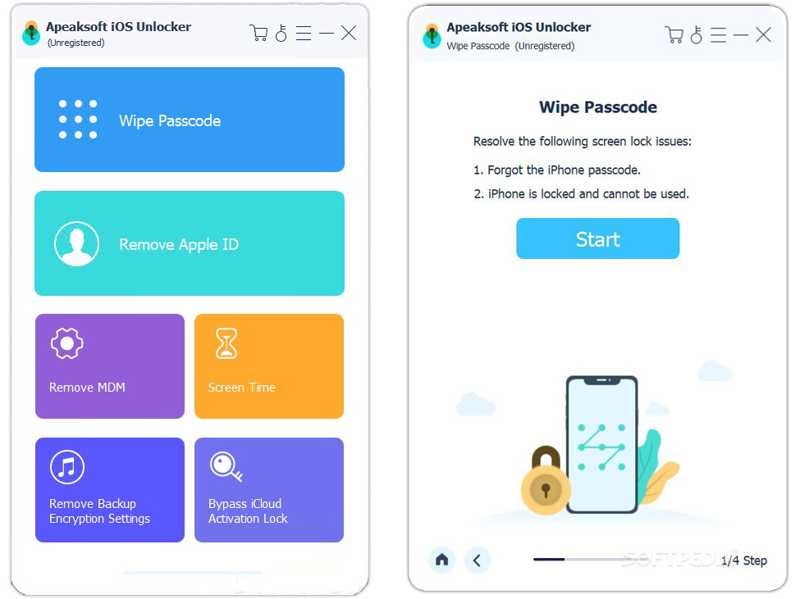
Stap 2. Controleer de apparaatinformatie.
Verbind je iPhone met je pc via een Lightning-kabel. Zodra de software je apparaat detecteert, selecteer je de apparaatgegevens in het formulier.
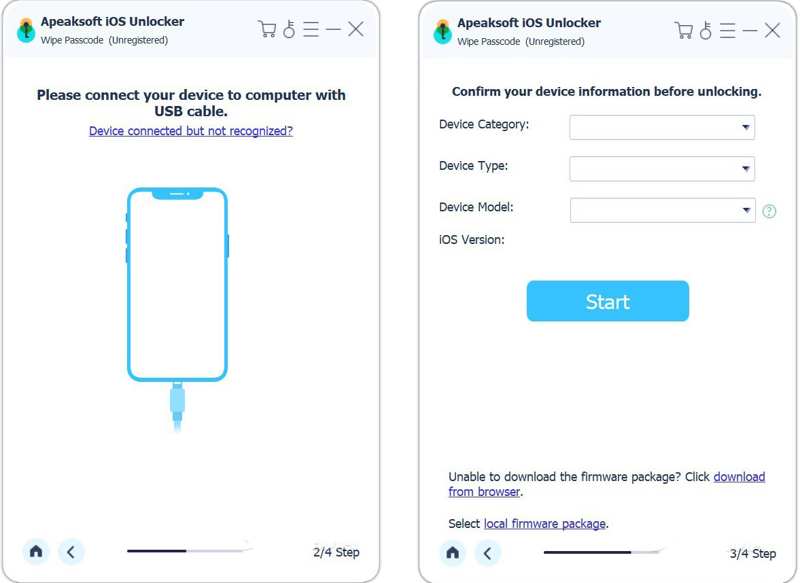
Stap 3. Schakel het vergrendelscherm uit.
Klik vervolgens op de Start Druk op de knop om het downloaden van de firmware te starten. Zodra het downloaden is voltooid, zal de software direct de schermvergrendeling van je iPhone verwijderen. Je kunt ook Apple ID verwijderen van je iPhone.
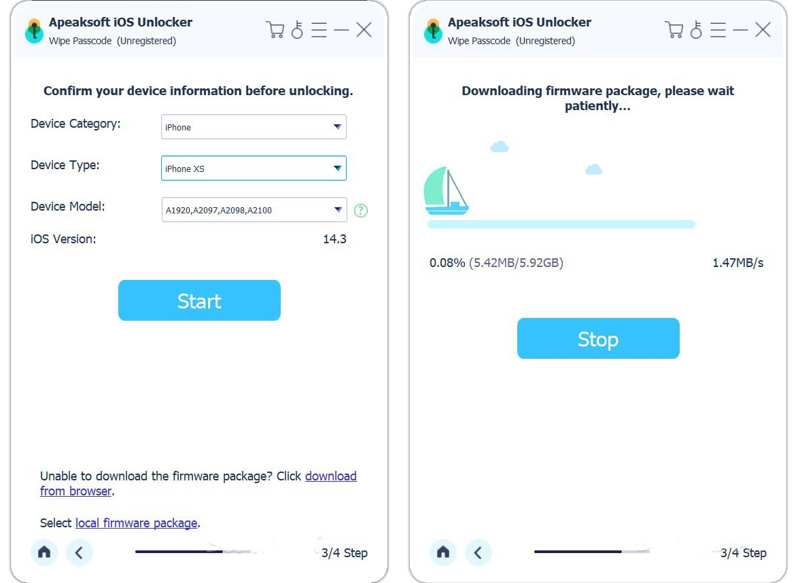
Deel 2: Hoe schakel je het vergrendelscherm uit in de instellingen?
Als je toegang hebt tot je iPhone, zijn er twee manieren om het vergrendelscherm uit te schakelen: voorkomen dat het vergrendelscherm verschijnt en de schermvergrendeling uitschakelen. Bij de eerste optie wordt het vergrendelscherm niet weergegeven, bij de tweede optie wordt je scherm niet vergrendeld met een toegangscode.
Hoe schakel je de vergrendelschermschakelaar uit?
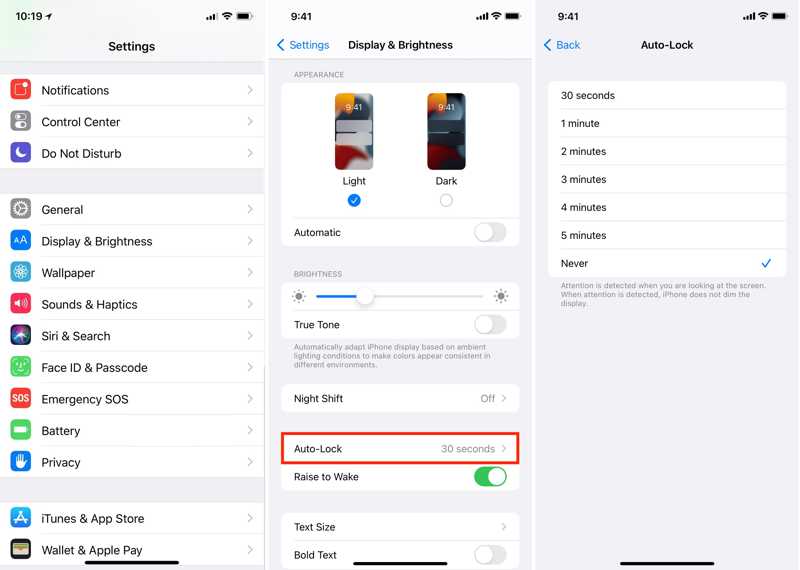
Stap 1. Open de Instellingen app op je iPhone.
Stap 2. Ga naar Display en helderheiden tik op Auto-Lock.
Stap 3. kies nooit Om te voorkomen dat het scherm van je iPhone vergrendelt.
Hoe schakel je de schermvergrendeling op je iPhone uit?
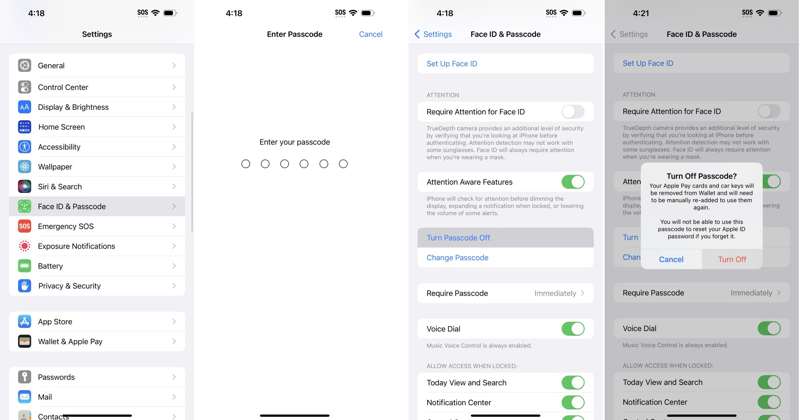
Stap 1. Voer je uit Instellingen app.
Stap 2. Ga naar Face ID & toegangscode en voer je toegangscode in.
Tips: Voor een iPhone met een thuisknop ga je naar Tik op ID en toegangscode.
Stap 3. Tik Schakel de toegangscode uit En kies Turn Off indien gevraagd.
Stap 4. Voer uw Apple ID-wachtwoord in en bevestig het.
Deel 3: Hoe je het vergrendelscherm uitschakelt met Zoek mijn
Met de functie 'Zoek mijn' van Apple kun je het vergrendelscherm van je apparaat op afstand uitschakelen als je 'Zoek mijn iPhone' of 'Zoek mijn iPad' hebt ingeschakeld. Je kunt hiermee je apparaat wissen en de toegangscode van het vergrendelscherm verwijderen.
Hoe schakel je de schermvergrendeling van je iPhone online uit?
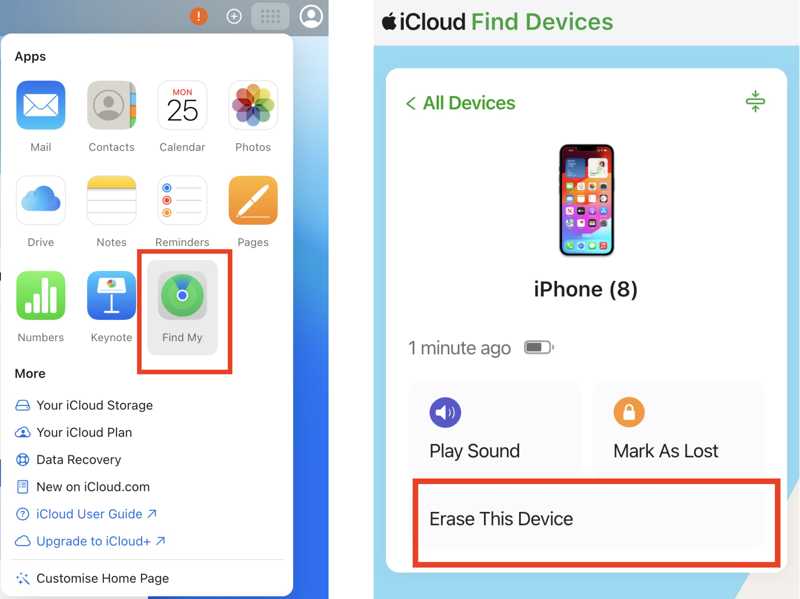
Stap 1. Ga naar www.icloud.com in een browser en meld u aan met uw Apple ID en wachtwoord.
Stap 2. Kies Find My.
Stap 3. Kies je iPhone uit de Werkt op alle toestellen lijst.
Stap 4. Klik vervolgens op de Wis dit apparaat knop.
Stap 5. Voer, indien gevraagd, uw telefoonnummer in of negeer de melding.
Stap 6. Dan klikken Wissen en bevestig de actie.
Hoe schakel je de schermvergrendeling op je iPad uit met een ander iOS-apparaat?
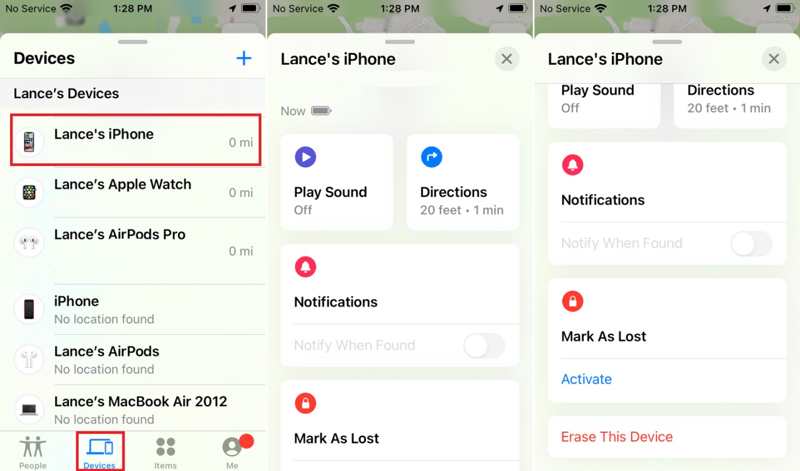
Stap 1. Voer de ... uit Find My app op een ander iOS-apparaat.
Stap 2. Ga naar uw Apparaten tabblad en kies uw iPhone.
Tips: Als u uw iPhone niet kunt vinden, tikt u op Toevoegen knop, kies AirTag toevoegenen ontdek je iPhone.
Stap 3. Vouw de onderste werkbalk uit en tik Wis dit apparaat.
Stap 4. Volg de instructies op het scherm om de schermvergrendeling op je iPhone uit te schakelen.
Deel 4: Hoe schakel je het vergrendelscherm uit met iTunes/Finder?
Een andere manier om het vergrendelscherm van je iPhone of iPad uit te schakelen, is door je apparaat te herstellen met iTunes of Finder. Hiervoor heb je een computer, de nieuwste versie van iTunes of Finder en een USB-kabel nodig.
Stap 1. Sluit uw apparaat met een compatibele kabel aan op uw computer.
Stap 2. Open iTunes of Finder, afhankelijk van je besturingssysteem:
Open iTunes op Windows.
Open iTunes op macOS Mojave of eerder.
Open Finder op macOS Catalina of een nieuwere versie.
Situatie 1: Uw apparaat is toegankelijk
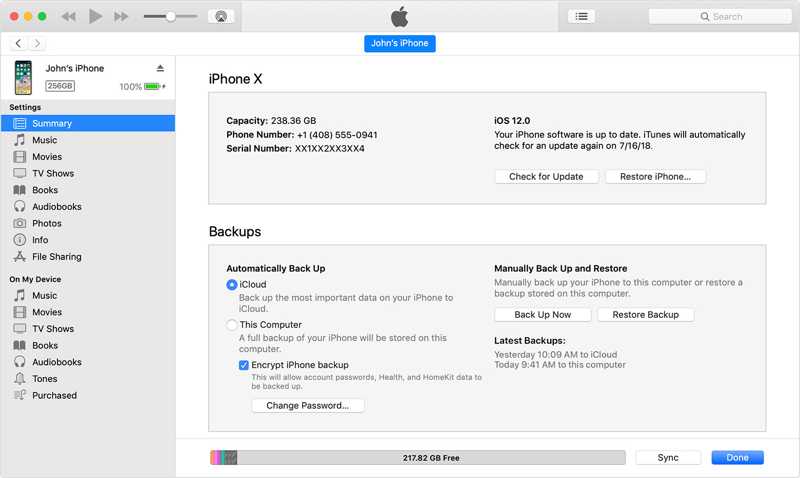
Stap 3. Klik op de Telefoonnummer Klik op de knop in iTunes nadat je apparaat is gedetecteerd. Klik in Finder op de naam van je apparaat.
Stap 4. Ga naar uw Samenvatting or Algemeen Tab.
Stap 5. Klik op de Herstel iPhone Klik op de knop en volg de instructies op het scherm om het vergrendelscherm te verwijderen.
Situatie 2: Uw apparaat is uitgeschakeld
Stap 3. Plaats je iPhone of iPad in Recovery Mode:
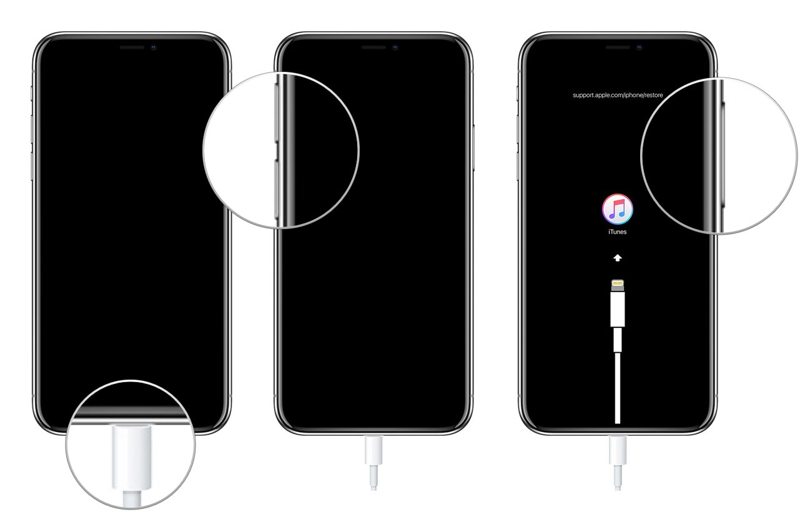
Voor iPhone 8 of nieuwer, iPad zonder thuisknop
Druk snel op en laat de knop los volume omhoog knop.
Druk snel op en laat de knop los Volume omlaag knop.
Druk lang op de Kant Houd de knop ingedrukt totdat uw apparaat de herstelmodus ingaat.
Voor iPhone 7 / 7 Plus
Houd de toets ingedrukt Volume omlaag + Kant knoppen samen.
Laat de knoppen los wanneer uw apparaat de herstelmodus ingaat.
Voor iPhone 6s of ouder, iPad met een thuisknop
Houd de toets ingedrukt Home + Sleep / Wake Knoppen tegelijkertijd.
Zodra het scherm van de herstelmodus verschijnt, laat u de knoppen los.
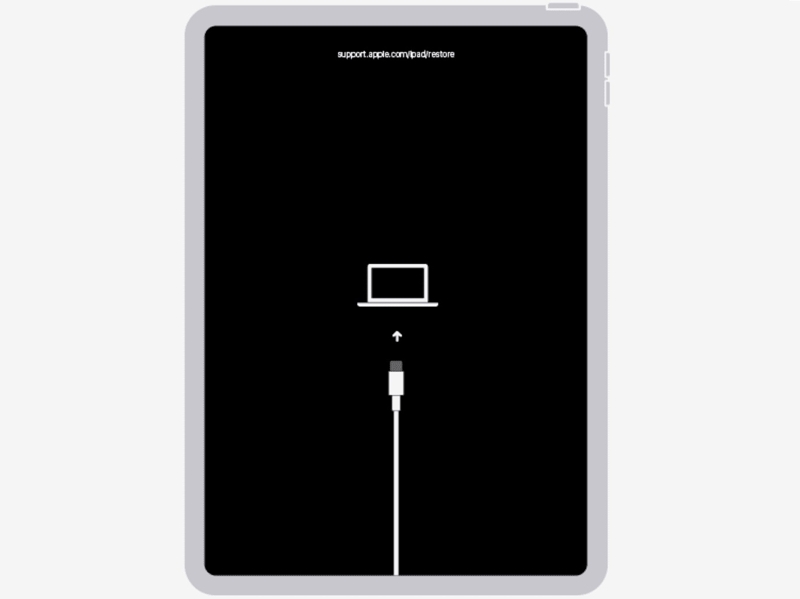
Stap 4. Wanneer iTunes of Finder je iPhone in herstelmodus detecteert, klik je op de herstellen knop in het dialoogvenster.
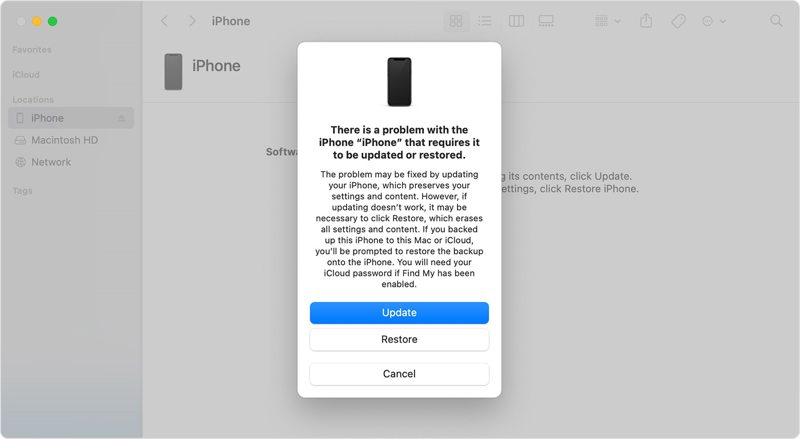
Stap 5. Wacht tot het proces is voltooid en koppel uw apparaat los.
Stap 6. Stel vervolgens je iPhone of iPad in nadat je de schermvergrendeling van de iPhone hebt uitgeschakeld.
Conclusie
Deze gids biedt meerdere manieren om Schakel de vergrendelschermschakelaar op je iPhone uit. Of iPad. Je kunt een geschikte methode kiezen op basis van onze beschikbaarheid en jouw situatie. Als je apparaat toegankelijk is, kun je het instellen in de ingebouwde Instellingen-app. Met Zoek mijn apparaat kun je het op afstand instellen. Apeaksoft iOS-ontgrendelaar Dit is een goede optie als je je iPhone-toegangscode en Apple ID-wachtwoord bent vergeten.
Gerelateerde artikelen
Ontdek hoe u de batterijstatus van uw iPhone kunt controleren en de gebruiksgeschiedenis kunt wissen met onze snelle en duidelijke handleiding voor betere apparaatprestaties.
Wilt u verwijderde spraakmemo's zonder beperkingen van uw iPhone herstellen? Als u dat doet, zal deze gids drie methoden voor u onderzoeken.
Om foto's met een lage resolutie op de iPhone te corrigeren, kunt u de ingebouwde functies van de iPhone in de Foto-app, de Adobe Lightroom-app of een online foto-upscaler gebruiken.
Hieronder vindt u verschillende manieren om uw iPhone, iPad of iPod Touch terug te zetten naar de fabrieksinstellingen, met of zonder computer.



