

Hoe foto's van een computer naar een iPhone over te zetten

Apple heeft meerdere manieren uitgebracht om zet iPhone-foto's over naar een computerOok voor het overzetten van foto's van een computer naar een iPhone zijn er verschillende methoden beschikbaar. Deze methoden zijn geschikt voor verschillende situaties. Door de juiste methode te kiezen, stroomlijn je het proces en behoud je de kwaliteit van je foto's. Deze handleiding beschrijft de beproefde methoden, geeft een overzicht van de vereisten en laat de werkprocessen zien. Zo kun je foto's zonder kwaliteitsverlies naar je iOS-apparaat overzetten.
PAGINA-INHOUD:
- Deel 1: De snelste manier om foto's van pc naar iPhone over te zetten
- Deel 2: Foto's van een computer naar een iPhone overzetten via iCloud Drive
- Deel 3: Foto's van je computer naar je iPhone overzetten met iCloud Foto's
- Deel 4: Foto's synchroniseren van Mac naar iPhone via AirDrop
- Deel 5: Hoe je foto's van je computer naar je iPhone kunt overzetten via e-mail.
- Deel 6: Foto's overzetten van pc naar iPhone met iTunes
Deel 1: De snelste manier om foto's van pc naar iPhone over te zetten
Als je snel foto's van je pc naar je iPhone wilt exporteren, Apeaksoft iPhone-overdracht is een goede optie. Hiermee kun je elke foto van je harde schijf aan je iOS-apparaat toevoegen. Belangrijker nog, de software zet foto's tijdens het proces automatisch om.
Een snelle manier om foto's van pc naar iPhone of iPad over te zetten.
- Voeg snel en onbeperkt foto's van je pc toe aan je iPhone.
- Bekijk en beheer iPhone-foto's.
- Hercodeer de fotobestanden tijdens het proces.
- Behoud de fotokwaliteit met behulp van geavanceerde technologie.
- Ondersteuning van de nieuwste versies van iOS en iPhone.
Veilige download
Veilige download

Hoe foto's van pc naar iPhone over te zetten
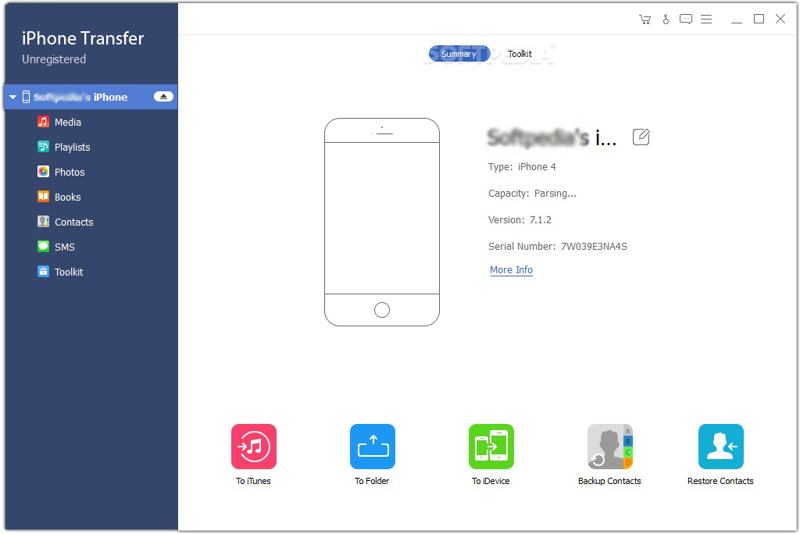
Stap 1. Detecteer je iPhone
Start iPhone Transfer zodra je het op je pc hebt geïnstalleerd. Er is ook een versie voor Mac. Verbind je iPhone met je pc met een Lightning-kabel. Tik indien nodig op Vertrouwd op uw scherm om deze pc te vertrouwen. Vervolgens detecteert de software uw apparaat onmiddellijk.
Stap 2. iPhone-foto's bekijken
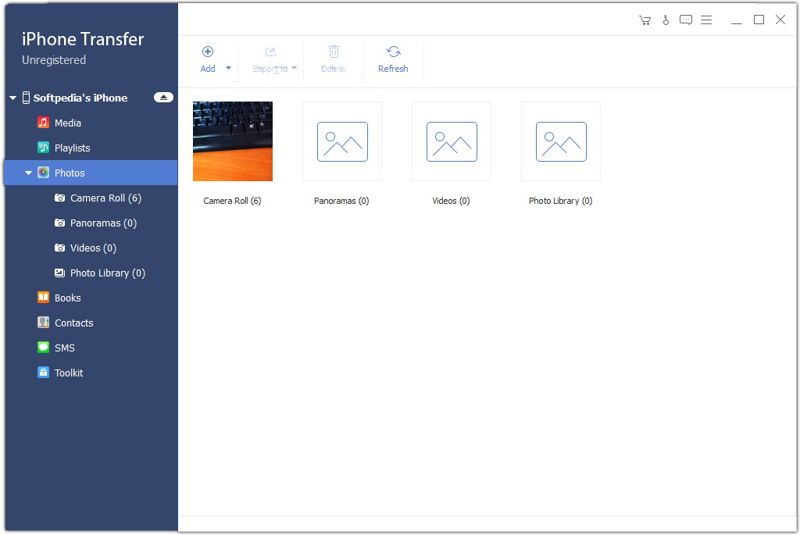
Ga naar uw Foto's Gebruik het tabblad in de zijbalk om alle foto's op je iPhone te bekijken. Als je iPhone niet genoeg opslagruimte heeft, selecteer dan de foto's die je niet wilt zien en klik op de knop. Verwijdering knop om ruimte vrij te maken.
Stap 3. Exporteer foto's van pc naar iPhone
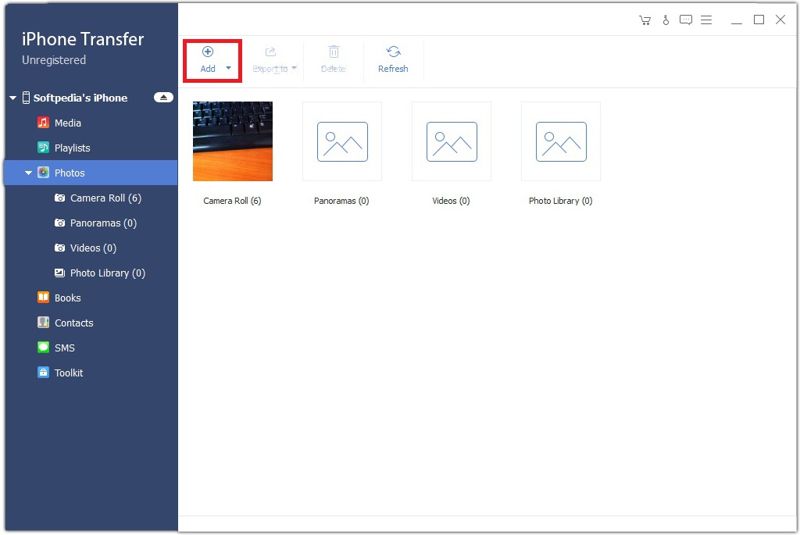
Ga naar het gewenste album en klik op de Toevoegen klik op de knop in de bovenste menubalk. Zoek de foto's die u wilt overzetten, selecteer ze en klik. Open. Je kan ook iPad iBooks overzetten naar computer met dit programma.
Deel 2: Foto's van een computer naar een iPhone overzetten via iCloud Drive
iCloud Drive is een eenvoudige manier om foto's draadloos van een computer naar een iPhone te uploaden. Deze methode vereist een stabiele netwerkverbinding. Houd er rekening mee dat het geen goede optie is voor het overzetten van grote hoeveelheden fotobestanden.
Stap 1. Ga in een browser naar www.icloud.com en log in met je Apple-account.
Stap 2. Kies iCloud Drive.
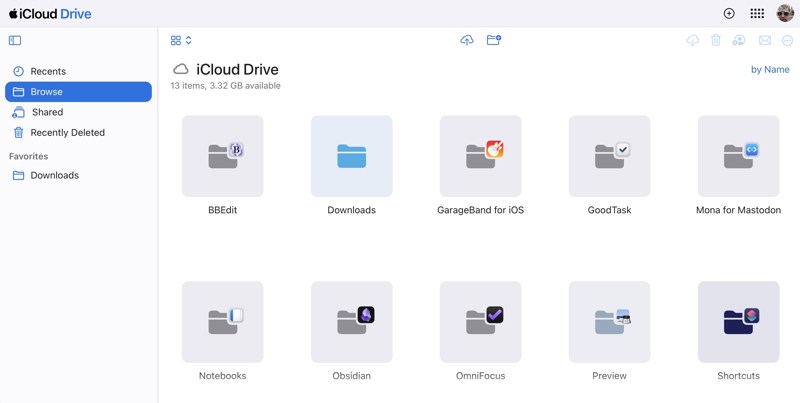
Stap 3. Ga naar uw Blader Tab.
Stap 4. Klik op de Uploaden Klik op de knop, selecteer de gewenste foto's en upload ze.
Stap 5. Pak je iPhone erbij en start de Bestanden app en kies iCloud Drive om de foto's te laden.
Deel 3: Foto's van je computer naar je iPhone overzetten met iCloud Foto's
iCloud Foto's is een draadloze methode om foto's van een computer naar een iPhone te verplaatsen, of andersom. Het werkt via een internetverbinding. Alle foto's worden echter zonder preview naar je iPhone gesynchroniseerd.
Op een pc:
Stap 1. Installeer de iCloud-app, open deze en log in met je Apple-account.
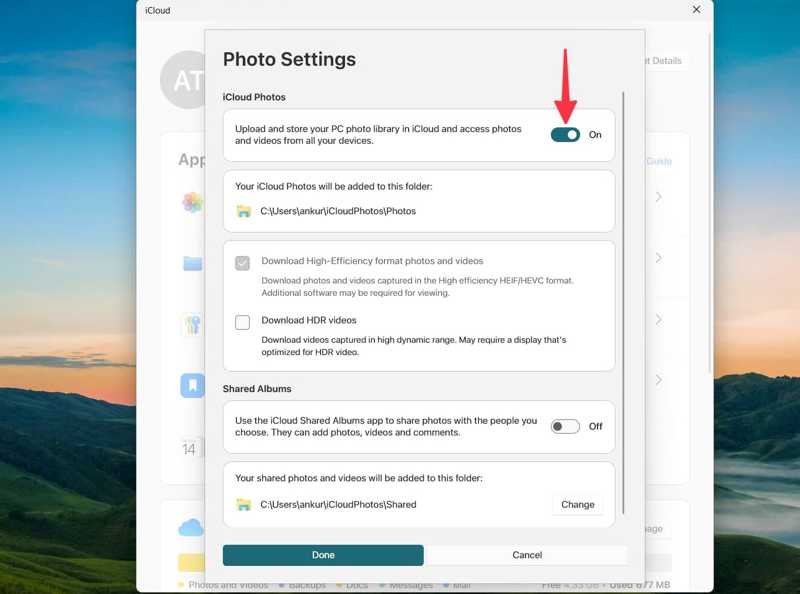
Stap 2. Klik iCloud Foto's en schakel het in.
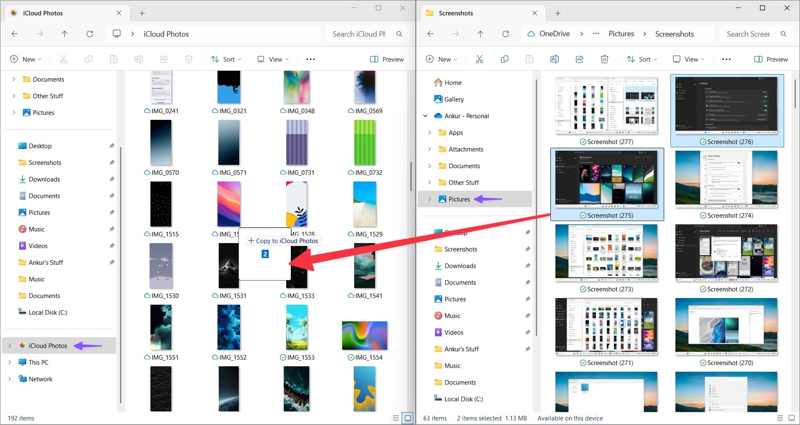
Stap 3. Open Bestandsverkenner en voeg de gewenste foto's toe aan de iCloud Foto's map.
Op een Mac:
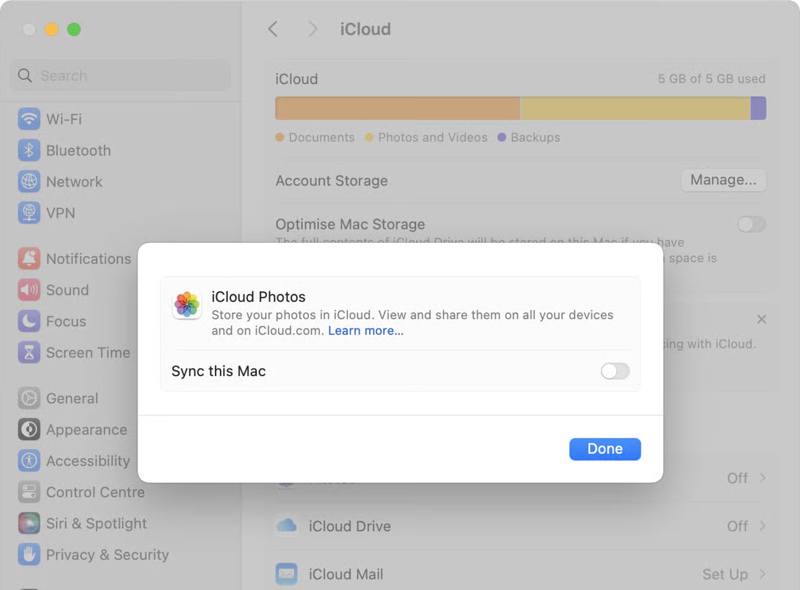
Stap 1. Klik op de Appel menu en kies Systeem instellingen.
Stap 2. Klik op je Apple ID en kies iCloud.
Stap 3. Selecteren Foto's, aanzetten Synchroniseer deze Macen klik Klaar .
Verplaats foto's van computer naar iPhone
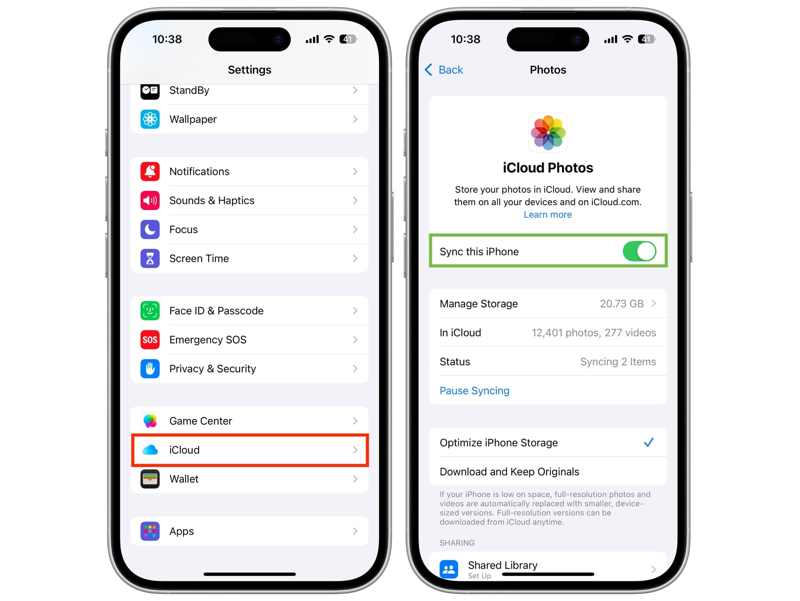
Stap 1. Tik op je profiel in je settings app.
Stap 2. Verbind je iPhone met wifi of mobiele data.
Stap 3. Kies iCloud, kraan Foto'sen schakel in Synchroniseer deze iPhone.
Deel 4: Foto's synchroniseren van Mac naar iPhone via AirDrop
Als je een MacBook gebruikt, is AirDrop een snelle manier om foto's draadloos van je Mac naar je iPhone te synchroniseren. Deze methode vereist geen extra software of hardware, maar is niet geschikt voor het synchroniseren van een grote hoeveelheid foto's. Als je macOS echter ouder is, AirDrop werkt mogelijk niet..
Stap 1. Zet je iPhone aan en ga naar de controle Center.
Stap 2. Tik Wi-Fi en Bluetooth om ze in te schakelen.
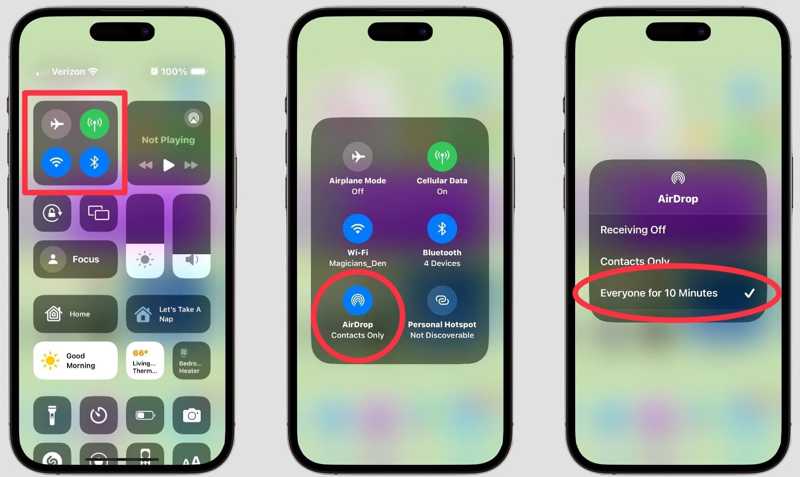
Stap 3. Houd het netwerkvenster ingedrukt en tik erop. AirDrop.
Stap 4. Kies Iedereen or Iedereen 10 minuten.
Stap 5. Open vinder op je Mac en kies AirDrop op de zijbalk.
Stap 6. Pick Iedereen vanaf Sta mij toe ontdekt te worden door.
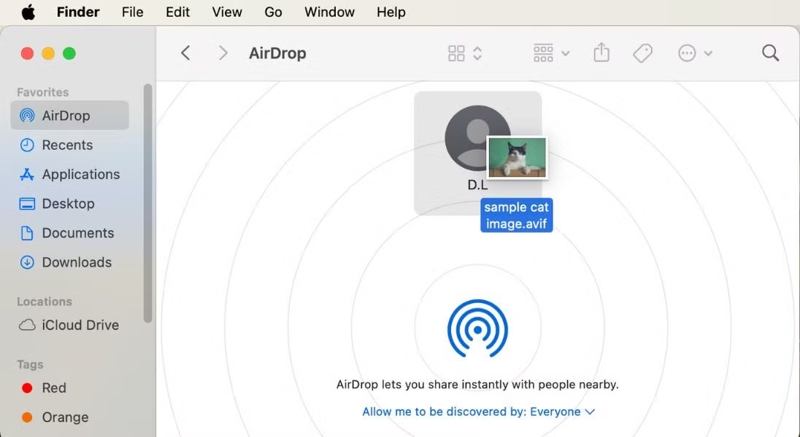
Stap 7. Voer je uit Foto's Sleep de gewenste foto's naar de app en zet ze neer op je iPhone. AirDrop scherm.
Stap 8. Tik vervolgens op 'Accepteren' op je iPhone om de foto's te ontvangen.
Deel 5: Hoe je foto's van je computer naar je iPhone kunt overzetten via e-mail.
Als je gewoon een paar foto's van je computer naar je iPhone wilt overzetten, is e-mail een andere optie. Deze methode vereist geen speciale service, behalve een e-mailadres. Je moet echter wel een door iOS ondersteund formaat gebruiken.
Stap 1. Maak een nieuwe e-mail aan in een browser of e-mailapp op je computer.
Stap 2. Voeg de foto's toe als bijlagen en verstuur de e-mail.
Stap 3. Pak je iPhone erbij.
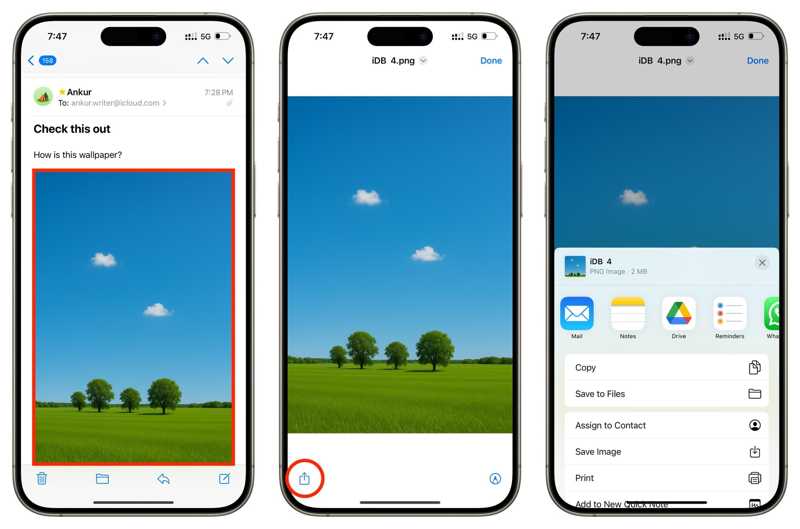
Stap 4. Open de Mail-app en lees de nieuwe e-mail.
Stap 5. Tik op een afbeeldingsbijlage en tik vervolgens op de Delen knop en kies Afbeelding opslaan.
Deel 6: Foto's overzetten van pc naar iPhone met iTunes
Een andere manier om foto's van je pc naar je iPhone over te zetten via USB is met iTunes. Hiermee kun je een fotomap op je harde schijf synchroniseren met je iPhone, zonder netwerkverbinding. Voor deze methode heb je wel de nieuwste versie van iTunes nodig.
Stap 1. Sluit je iPhone met een USB-kabel aan op je pc.
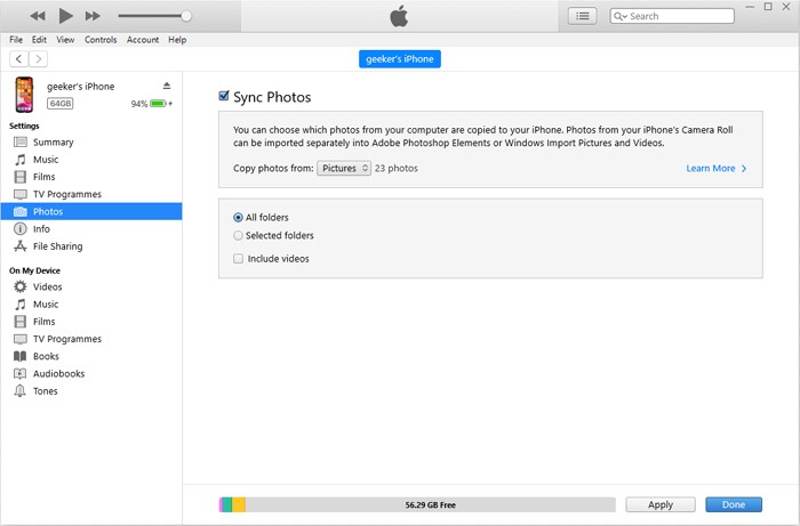
Stap 2. Open iTunes en klik op de Telefoonnummer -knop nadat uw apparaat is gedetecteerd.
Stap 3. Ga naar uw Foto's tab onder de settings pagina.
Stap 4. Check Sync foto's.
Stap 5. Trek de Foto's kopiëren van Selecteer de optie en kies de map waarin de gewenste foto's zijn opgeslagen.
Stap 6. Klik ten slotte op de Toepassen om het te bevestigen.
Conclusie
Nu moet je minstens 6 methoden leren om Foto's overzetten van pc en Mac naar iPhone Met een USB-kabel of draadloos. Kies de methode die het beste bij u past aan de hand van onze beschrijving en volg de stappen om uw foto's snel naar uw iPhone over te zetten. Apeaksoft iPhone-overdracht Het is een snelle manier om de klus te klaren zonder kwaliteitsverlies.
Gerelateerde artikelen




