

Hoe los je het probleem op dat de App Store steeds om je wachtwoord blijft vragen?

"Waarom doet de De App Store blijft om een wachtwoord vragen. "Wanneer krijg je een foutmelding bij het bijwerken van een app?" Toen Apple de App Store in 2008 lanceerde, bevatte deze slechts 500 apps. Tegenwoordig is het een van de grootste appwinkels ter wereld met honderden miljoenen apps. Naast het downloaden van apps kun je je apps ook bijwerken via de App Store. Sommige gebruikers kunnen echter een wachtwoordfout tegenkomen. Dit artikel biedt oplossingen om dit probleem te verhelpen.
PAGINA-INHOUD:
Deel 1: Waarom vraagt de App Store om een wachtwoord?
De App Store vereist uw wachtwoord om veiligheidsredenen bij het downloaden en bijwerken van apps en bij in-app aankopen. Het is echter ongebruikelijk als de App Store herhaaldelijk om een wachtwoord vraagt. De meest voorkomende redenen hiervoor zijn:
- 1.Je hebt je Apple ID-gegevens gewijzigd.
- 2.Veiligheidsinstellingen.
- 3.Beschadigde app-updates.
- 4.Openstaande bedragen of problemen met uw betaalmethoden.
- 5.Softwarefouten.
Deel 2: Hoe voorkom je dat de App Store om een wachtwoord vraagt?
Oplossing 1: log opnieuw in op Apple ID
Als je een andere Apple ID gebruikt en de App Store om een wachtwoord vraagt, kun je het beste inloggen met hetzelfde account. Bovendien moet je je wachtwoord bijwerken als je het op andere apparaten hebt gewijzigd.
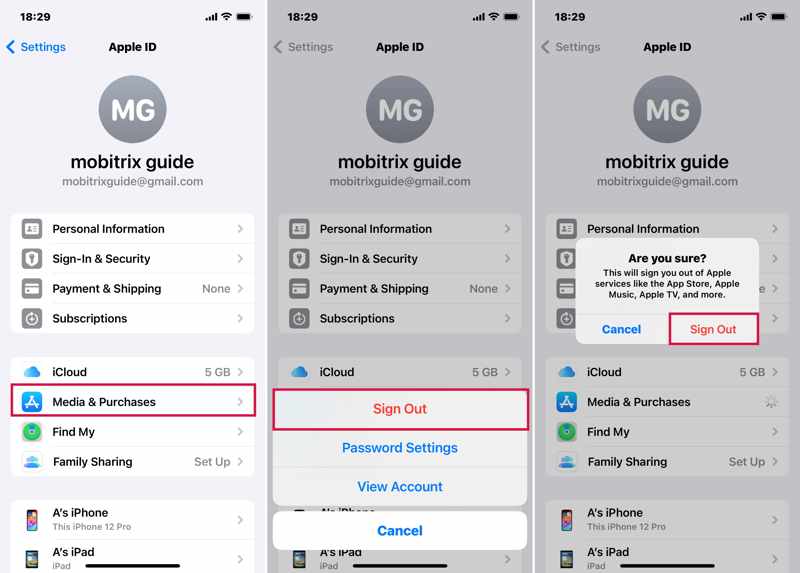
Stap 1. Open de Instellingen app op uw apparaat.
Stap 2. Tik op je profiel en kies Media en aankopen.
Stap 3. Tik op je Apple ID en kies uitloggen in het contextmenu.
Stap 4. Tik indien nodig nogmaals op 'Uitloggen' om te bevestigen.
Stap 5. Start uw iOS-apparaat opnieuw op.
Stap 6. Navigeer naar Instellingen, tik op je profiel en kies Media en aankopen.
Stap 7. Log in met uw Apple ID en wachtwoord.
Tips: Je kunt je ook afmelden bij je Apple ID in de App Store-app en er vervolgens weer mee inloggen.
Oplossing 2: Betaalgegevens bijwerken
Het kan zijn dat de App Store om een wachtwoord vraagt omdat uw betaalgegevens verouderd zijn. Zorg er daarom voor dat uw betaalgegevens actueel zijn. Hieronder vindt u de stappen om uw gegevens bij te werken:
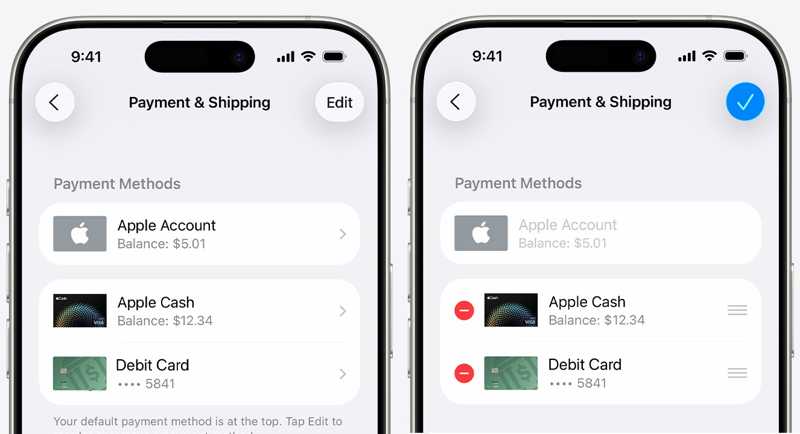
Stap 1. Voer je uit Instellingen app en tik op je profiel.
Stap 2. Kies Betalen & Verzenden.
Stap 3. Meld u aan met uw Apple-account als u daarom wordt gevraagd.
Stap 4. Om verouderde betaalmethoden te verwijderen, tikt u op de Edit knop, druk op de Verwijdering knop en druk op verwijderen.
Stap 5. Als je een nieuwe betaalmethode wilt toevoegen, tik je op 'Betaalmethode toevoegen', voer je de gegevens in en tik je op 'Betaalmethode toevoegen'. Klaar .
Oplossing 3: Pas de wachtwoordinstellingen aan.
Telkens wanneer je iets koopt of een app downloadt in de App Store, moet je je wachtwoord invoeren. Als je wilt voorkomen dat de App Store om een wachtwoord vraagt, kun je de wachtwoordinstellingen aanpassen.
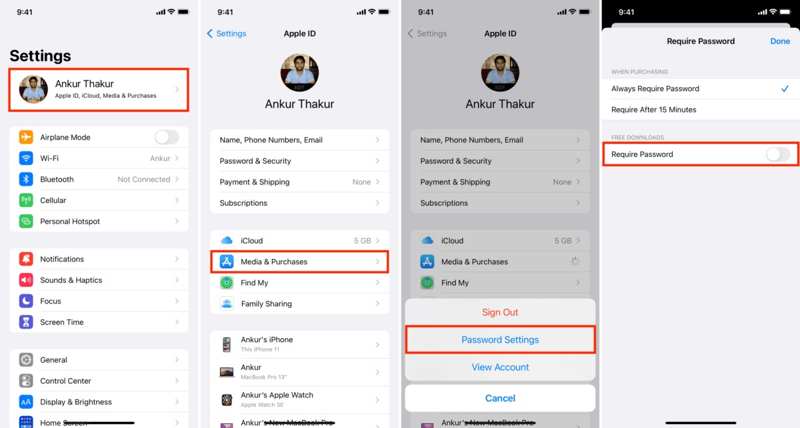
Stap 1. Tik op je profiel in je Instellingen app.
Stap 2. Kies Media en aankopenen kies Wachtwoordinstellingen in het pop-upvenster.
Stap 3. Uitschakelen Wachtwoord vereist voor GRATIS DOWNLOADS.
Stap 4. Selecteer vervolgens Vereist na 15 minuten voor BIJ AANKOOP.
Stap 5. Tik Klaar Probeer het nog eens in de App Store.
Oplossing 4: Controleer de aankoopgeschiedenis
Als een aankoop in behandeling is, blijft de App Store om een wachtwoord vragen. Je kunt je aankoopgeschiedenis bekijken en de aankoop voltooien of annuleren. Hieronder vind je de stappen om je aankoopgeschiedenis te bekijken:
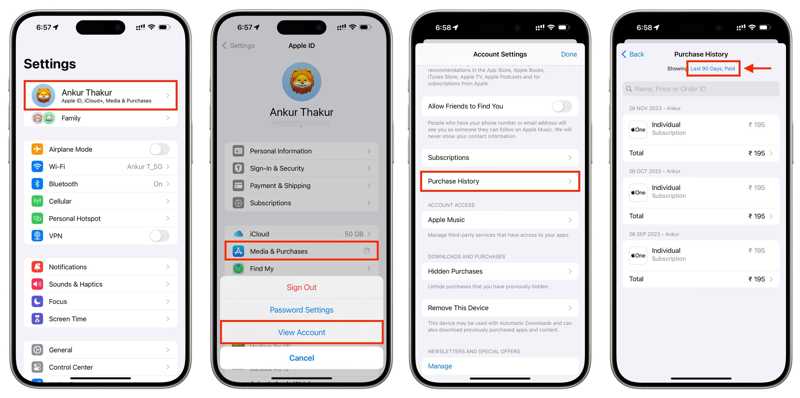
Stap 1. Ga naar Instellingen en tik op je profiel.
Stap 2. Kies Media en aankopen en kies Bekijk account.
Stap 3. Voer uw Apple ID-wachtwoord in en tik op Connexion.
Stap 4. Tik Aankoop Geschiedenisen controleer uw rekening.
Stap 5. Als een aankoop in behandeling is, voltooi of annuleer deze dan.
Verder lezen
Deel 3: De ultieme oplossing voor het probleem dat de App Store om een wachtwoord vraagt.
Als de gebruikelijke oplossingen niet werken en de App Store steeds om een wachtwoord blijft vragen, kunt u het beste het oude account volledig verwijderen. Vanaf dat moment raden we aan om... Apeaksoft iOS-ontgrendelaarHet is mogelijk om je Apple ID-account te wissen zonder wachtwoord.
De ultieme oplossing voor het probleem dat de App Store om een wachtwoord vraagt.
- Verwijder snel je Apple ID van je iPhone.
- Je hoeft geen wachtwoord of iPhone-toegangscode in te voeren.
- Geschikt voor diverse situaties, zoals een defecte iPhone.
- Ondersteunt de nieuwste modellen iPhone en iPad.
Veilige download
Veilige download

Hoe los je het probleem op dat de App Store om een wachtwoord vraagt?
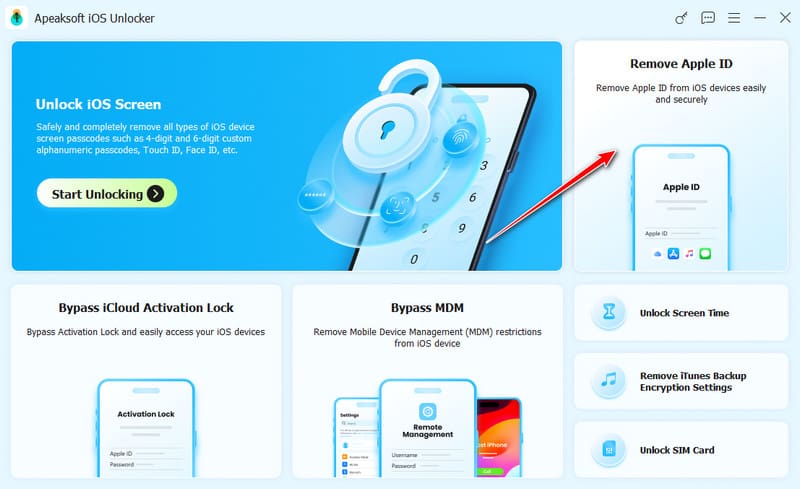
Stap 1. Installeer iOS Unlocker
Start de iOS-ontgrendelingssoftware nadat je deze op je computer hebt geïnstalleerd. De software is compatibel met Windows en macOS. Verbind je iPhone met je computer met een Lightning-kabel. Kies de optie... Verwijder Apple ID modus en klik op de Begin nu knop.
Stap 2. Verwijder problematische Apple ID
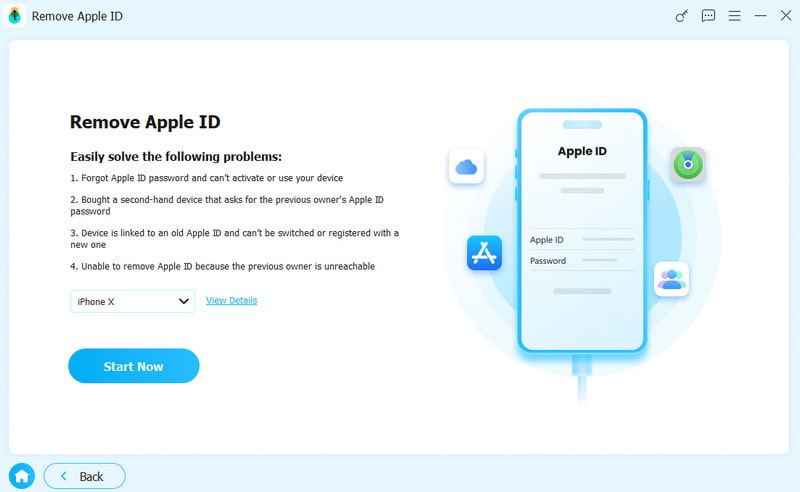
De software verwijdert je Apple ID automatisch als 'Zoek mijn iPhone' is uitgeschakeld.
Als 'Zoek mijn iPhone' is ingeschakeld, reset dan alle instellingen in iOS 11.3 of ouder. Daarna zal de software zijn werk doen.
Als 'Zoek mijn iPhone' is ingeschakeld in iOS 11.4 of hoger, schakel dan tweefactorauthenticatie in op je apparaat. Controleer vervolgens je gegevens en bevestig de verwijdering van het account.
Als dat klaar is, maak dan een nieuwe Apple ID en een nieuw wachtwoord aan op je iPhone.
Conclusie
Door onze oplossingen te volgen, zou u Voorkom dat de App Store om een wachtwoord vraagt. Op je iPhone of iPad kun je, naast het bijwerken van je accountgegevens, ook de wachtwoordvereiste voor gratis downloads uitschakelen. Bovendien... Apeaksoft iOS-ontgrendelaar Hiermee kun je een problematisch Apple-account direct verwijderen.
Gerelateerde artikelen
Als u een bericht krijgt met de melding dat uw Apple ID is uitgeschakeld, raak dan niet in paniek en volg onze oplossingen om uw account snel te ontgrendelen.
De foutmelding 'Apple ID niet geldig of ondersteund' kan verschillende dingen betekenen. U kunt onze oplossingen gebruiken om het probleem op te lossen.
Kun je een iPad ontgrendelen zonder Apple ID? Hoe ontgrendel je de toegangscode van je iPhone zonder Apple ID? Lees dit bericht om te ontdekken hoe je iOS kunt ontgrendelen zonder Apple ID!
Wanneer het wachtwoord van uw Apple ID niet werkt, kunt u onze vijf oplossingen volgen om het probleem op te lossen en weer toegang te krijgen tot uw account.



