


Slik tilbakestiller du Apple ID-passordet ditt på iPhone/Mac/på nett

Denne veiledningen vil forklare hvordan du tilbakestill Apple ID-passordet ditt raskt og sikkert. Det finnes noen scenarier der du må tilbakestille kontopassordet ditt, for eksempel hvis du har glemt passordet ditt. Ifølge Apple må du tilbakestille passordet ditt hvis kontoen din er låst eller deaktivert. Når du mistenker uautorisert tilgang, bør du tilbakestille passordet ditt umiddelbart. Her kan du lære de velprøvde metodene og detaljerte trinnene.
SIDEINNHOLD:
- Del 1: Slik tilbakestiller du Apple ID-passordet på Apple-enheten din
- Del 2: Slik tilbakestiller du Apple ID-passordet på nettet
- Del 3: Slik tilbakestiller du Apple ID-passordet med gjenopprettingsnøkkelen
- Del 4: Slik tilbakestiller du Apple ID-passordet via gjenopprettingskontakt
- Del 5: Slik tilbakestiller du Apple ID-passordet på en annen iPhone
- Del 6: Slik tilbakestiller du Apple-ID og passord ved hjelp av en ny konto
Del 1: Slik tilbakestiller du Apple ID-passordet på Apple-enheten din
Den enkleste måten å tilbakestille Apple ID-passordet ditt på er på iPhone eller MacBook. Du trenger bare å autentisere med låseskjermpassordet eller innloggingspassordet under prosessen. Her er trinnene:
Forutsetninger:
- 1.Du har aktivert tofaktorautentisering for Apple-kontoen din.
- 2.iPhone-passordet ditt eller Mac-påloggingspassordet ditt.
- 3.Din pålitelige Apple-enhet.
Slik tilbakestiller du Apple ID-passordet på iPhone
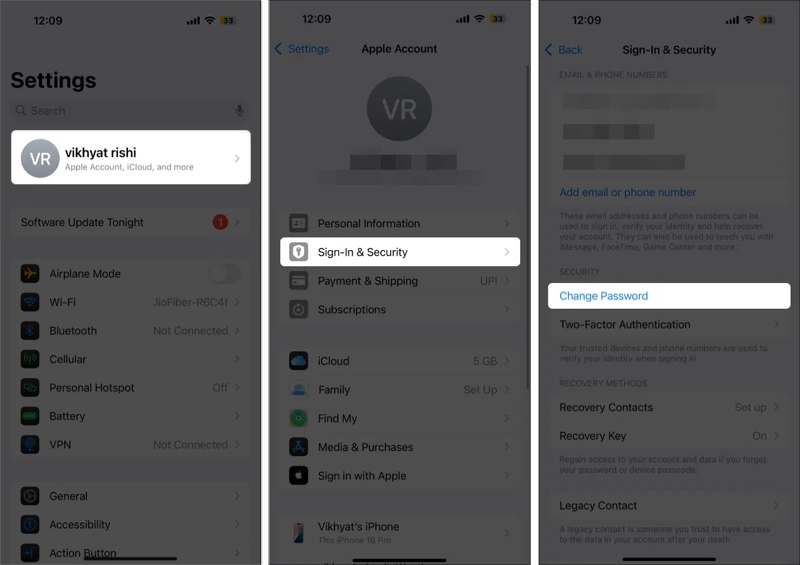
Trinn 1. Åpne innstillinger app fra startskjermbildet.
Trinn 2. Trykk på profilen din.
Trinn 3. Gå til Innlogging og sikkerhet.
Trinn 4. Trykk på Endre passord knapp.
Trinn 5. Autentiser med iPhone-passordet ditt.
Trinn 6. Skriv inn et nytt passord, skriv det inn på nytt og bekreft det.
OBS: Hvis du konfigurerer en ny iPhone, trykker du på Glemt passord eller har ikke en Apple-konto når du blir bedt om å oppgi Apple-ID-en og passordet ditt. Følg deretter instruksjonene for å tilbakestille passordet på en ny enhet.
Slik tilbakestiller du Apple ID-passordet for barnet ditt
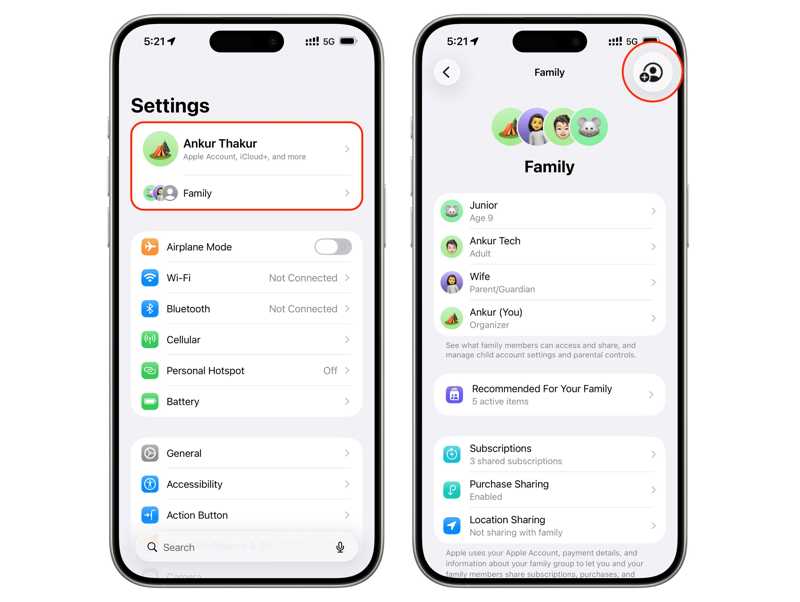
Trinn 1. Pek Familie under profilen din i innstillinger app.
Tips: Hvis du tilbakestiller barnets passord på en Mac, klikker du på Familie i Systeminnstillinger app.
Trinn 2. Velg barnets navn fra listen.
Trinn 3. Pek Apple-ID og passord eller det aktuelle alternativet.
Trinn 4. Pek Endre passordet til [barnets navn].
Trinn 5. Skriv inn enhetspassordet ditt for å autentisere.
Trinn 6. Følg instruksjonene på skjermen for å tilbakestille Apple-ID-passordet for barnet ditt.
Slik tilbakestiller du Apple ID-passordet på Mac
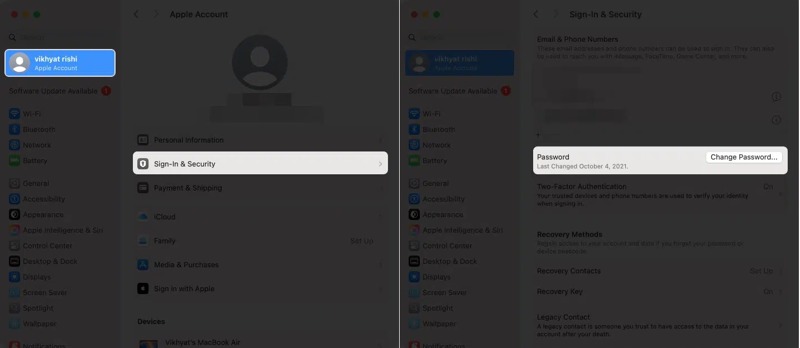
Trinn 1. Klikk på eple menyen på den pålitelige MacBooken din.
Trinn 2. Velg Systeminnstillinger or system~~POS=TRUNC.
Trinn 3. Klikk Apple-konto or Apple-ID.
Trinn 4. Velg Innlogging og sikkerhet alternativet.
Trinn 5. Klikk på Endre passord knapp.
Trinn 6. Skriv inn Mac-brukerpassordet ditt for å fortsette.
Trinn 7. Skriv inn et nytt passord, skriv det inn på nytt og klikk Endring.
Del 2: Slik tilbakestiller du Apple ID-passordet på nettet
Videre kan du tilbakestille Apple ID-passordet ditt på nettet. Apple har lansert iForgot-portalen for tilbakestilling av passord i en nettleser. Selvfølgelig må du oppgi nødvendig informasjon for å bekrefte eierskapet ditt.
Forutsetninger:
- 1.E-postadressen eller telefonnummeret til Apple-kontoen din.
- 2.En stabil nettside.
- 3.En nettleser.
- 4.En kanal for autentisering.
Trinn 1. Gå til https://iforgot.apple.com/ i en nettleser.
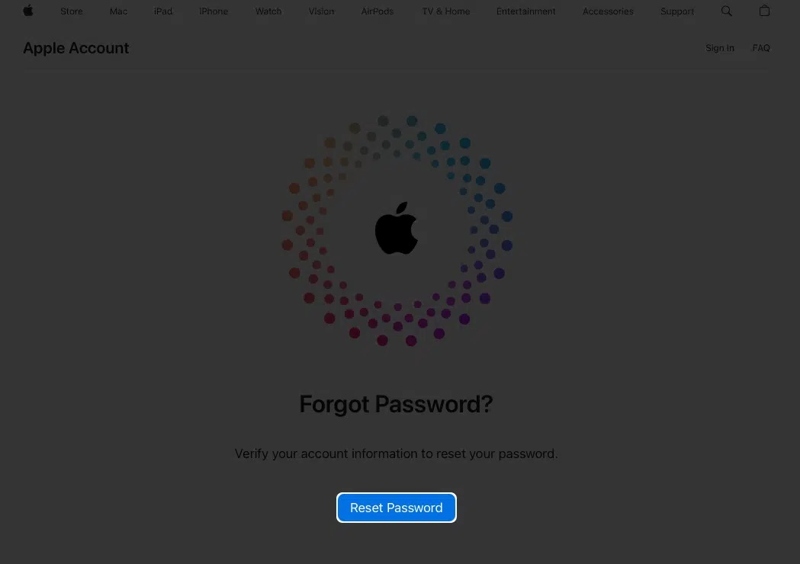
Trinn 2. Skriv inn Apple-kontoen din, skriv inn tegnene i bildet, og klikk på Fortsett.
Trinn 3. Dobbeltsjekk telefonnummeret ditt og klikk på Fortsett.
Alternativ 1: Tilbakestill Apple ID-passord med klarert enhet
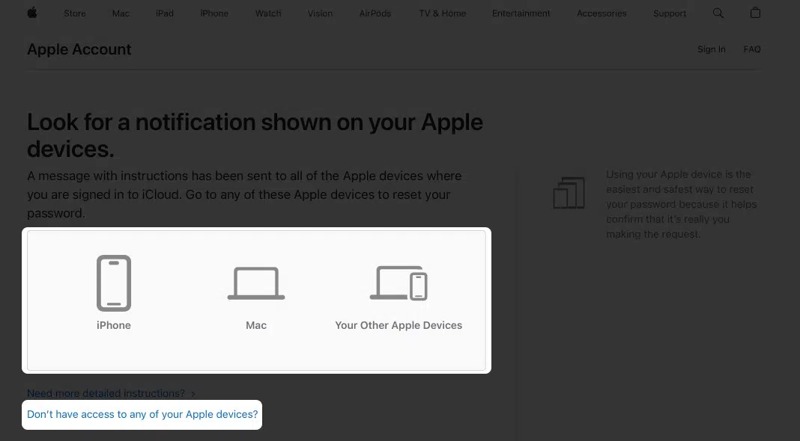
Trinn 4. Hvis du har konfigurert tofaktorautentisering, sender Apple et varsel til alle pålitelige enheter.
Trinn 5. Bruk en pålitelig iPhone, iPad eller Mac.
Trinn 6. Press Allow på varselet.
Trinn 7. Autentiser med iPhone-passordet eller innloggingspassordet ditt.
Trinn 8. Skriv inn et nytt passord og bekreft tilbakestillingen av Apple-ID-passordet.
Alternativ 2: Tilbakestill Apple ID-passord med telefonnummer
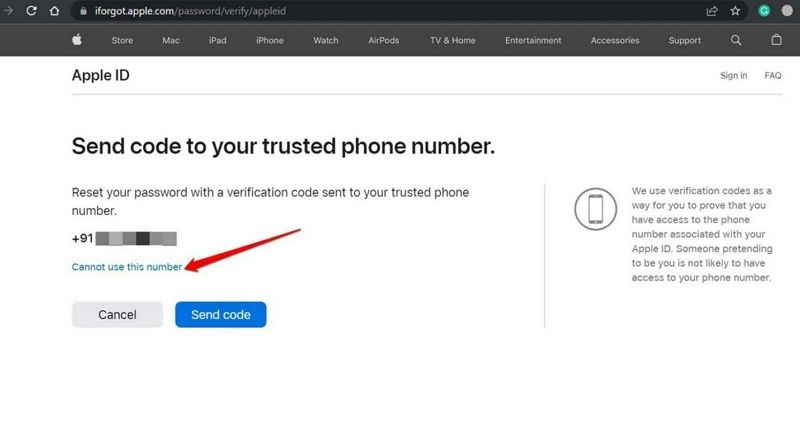
Trinn 4. Klikk på Send kode knappen for å sende en bekreftelseskode til det pålitelige telefonnummeret.
Trinn 5. Deretter skriver du inn koden du mottok.
Trinn 6. Opprett et nytt passord og skriv det inn på nytt.
Alternativ 3: Tilbakestill Apple ID-passord med e-post
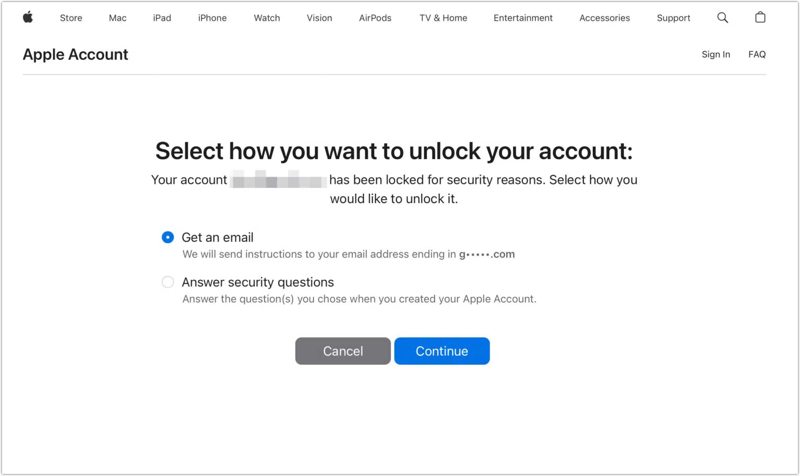
Trinn 4. Etter at du har bekreftet Apple-kontoen din, velger du Få en e-post.
Trinn 5. Klikk på Fortsett knapp.
Trinn 6. Deretter vil du motta en bekreftelses-e-post fra Apple.
Trinn 7. Følg instruksjonene i e-posten for å tilbakestille Apple-ID-passordet ditt via e-post.
Alternativ 4: Tilbakestill Apple ID-passord med sikkerhetsspørsmål
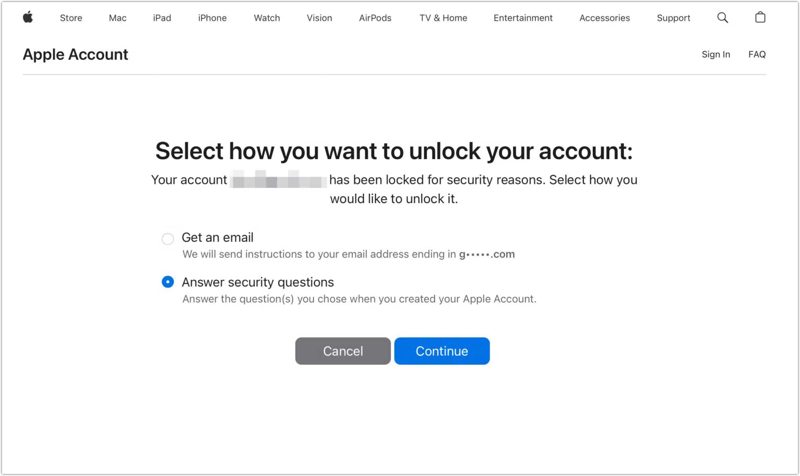
Trinn 1. Hvis den tilknyttede e-posten ikke er tilgjengelig, velg Svar på sikkerhetsspørsmål, og klikk Fortsett.
Trinn 2. Fyll ut skjemaet med fødselsdatoen din og annen informasjon.
Trinn 3. Gi det nøyaktige svaret på hvert sikkerhetsspørsmål.
Trinn 4. Deretter lager du et nytt passord og bekrefter det for å tilbakestille Apple ID-passordet ditt på iForgot.
Videre Reading
Del 3: Slik tilbakestiller du Apple ID-passordet med gjenopprettingsnøkkelen
Da Apple lanserte iOS 15, rullet de ut en metode for kontogjenoppretting kalt Recovery Key. Det er en kode på 28 tegn som genereres etter oppsettet på Apple-enheten din. Deretter kan du tilbakestille Apple-ID-passordet ditt med Recovery Key.
Forutsetninger:
- 1.Apple-enheten din kjører iOS 15 og nyere, iPadOS 15 og nyere, eller macOS Big Sur og nyere.
- 2.Tofaktorautentisering er aktivert.
Slik konfigurerer du gjenopprettingsnøkkelen på iPhone
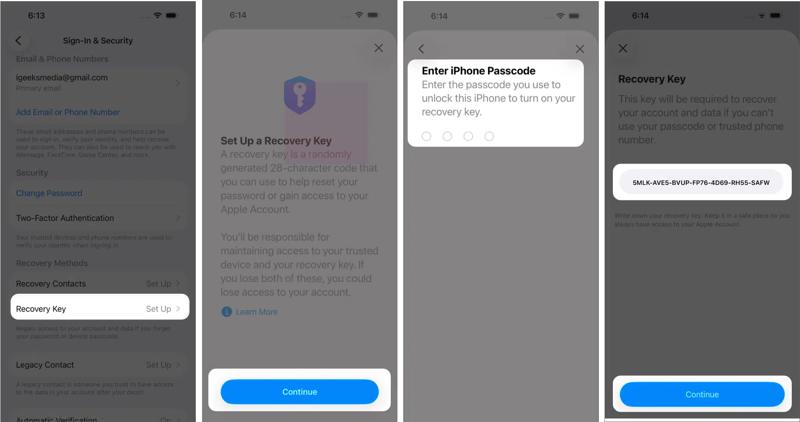
Trinn 1. Gå til innstillinger app.
Tips: For Mac, kjør Systeminnstillinger app.
Trinn 2. Trykk på profilen din og velg Innlogging og sikkerhet.
Trinn 3. Trykk på Key Recovery alternativet.
Trinn 4. Pek Fortsett og treffer Bruk gjenopprettingsnøkkelen hvis du ikke har satt det opp.
Trinn 5. Autentiser med Face ID, Touch ID eller passord.
Trinn 6. Nå vil du se den 28-sifrede gjenopprettingsnøkkelen.
Trinn 7. Husk nøkkelen og trykk Fortsett.
Trinn 8. Skriv inn nøkkelen og bekreft den for å aktivere nøkkelen din.
Slik tilbakestiller du Apple ID-passordet med gjenopprettingsnøkkelen
Trinn 1. På en lånt iPhone eller Mac, gå til iforgot.apple.com i en nettleser.
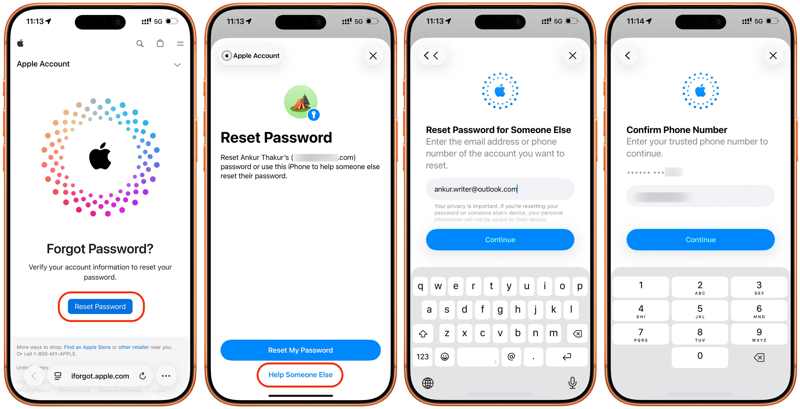
Trinn 2. Trykk på Tilbakestill passord knappen og velg Hjelp noen andre.
Trinn 3. Skriv inn e-postadressen eller telefonnummeret til Apple-kontoen din, og trykk på Fortsett.
Trinn 4. Skriv inn det pålitelige telefonnummeret og trykk på Fortsett.
Trinn 5. Pek Send koden til [telefonnummeret ditt].
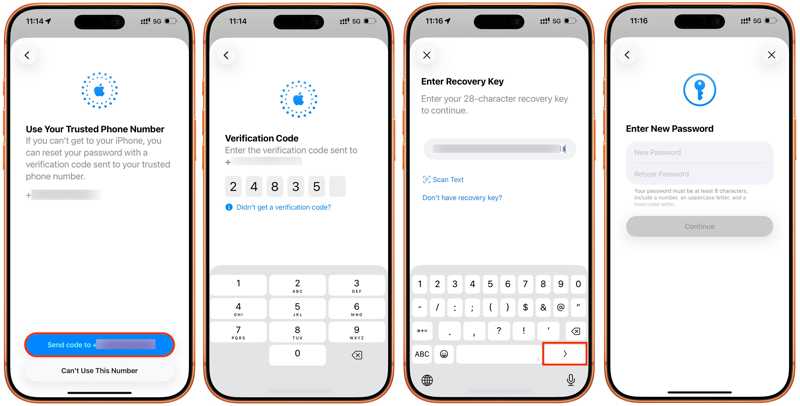
Trinn 6. Skriv inn bekreftelseskoden du mottok.
Trinn 7. Deretter skriver du inn gjenopprettingsnøkkelen din og går videre.
Trinn 8. Til slutt skriver du inn det nye passordet og trykker på Fortsett for å tilbakestille Apple ID-passordet.
Del 4: Slik tilbakestiller du Apple ID-passordet via gjenopprettingskontakt
Gjenopprettingskontakt er en ny funksjon knyttet til tilbakestilling av Apple-ID-passord. Apple lar brukere legge til opptil fem gjenopprettingskontakter, for eksempel nære venner og familie som bruker Apple-enheter.
Forutsetninger:
- 1.iOS 15, iPadOS 15 og macOS Monterey og nyere.
- 2.Tofaktorautentisering er aktivert.
- 3.Du må være 13 år eller eldre.
Slik konfigurerer du gjenopprettingskontakt på iPhone/iPad
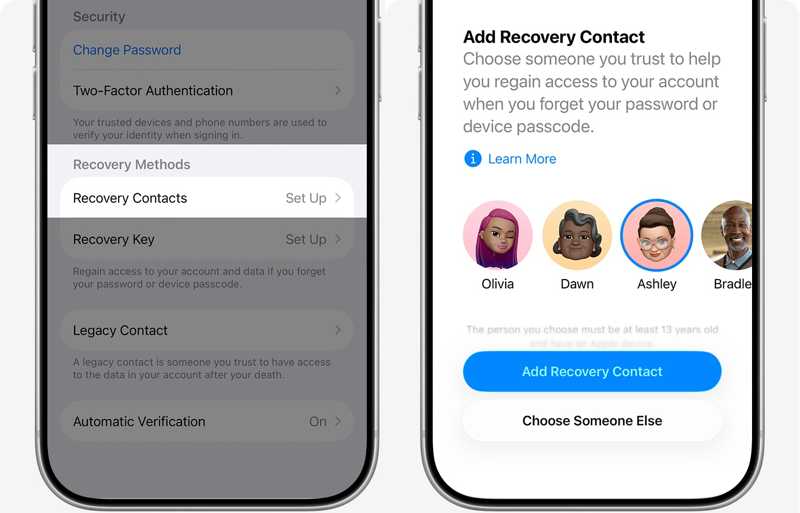
Trinn 1. Gå til innstillinger på enheten.
Tips: For Mac, åpne Systeminnstillinger app.
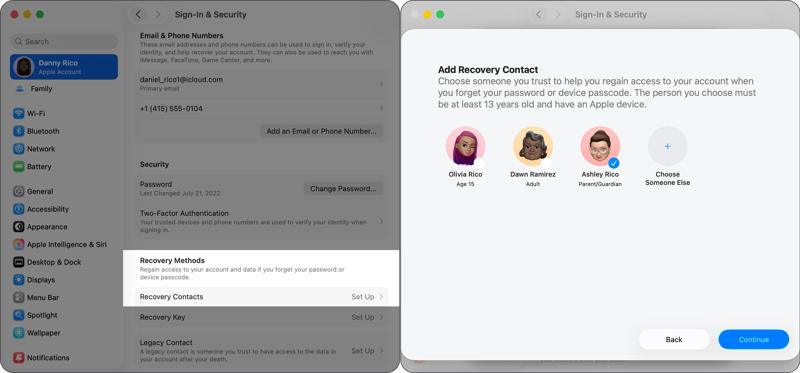
Trinn 2. Trykk på profilen din og velg Innlogging og sikkerhet.
Trinn 3. Pek Gjenopprettingskontakter, og treffer Legg til gjenopprettingskontakt.
Trinn 4. Følg trinnene på skjermen for å autentisere.
Trinn 5. Etter at kontaktene har godtatt forespørselen din, er oppsettprosessen fullført.
Slik tilbakestiller du Apple ID-passordet med en gjenopprettingskontakt
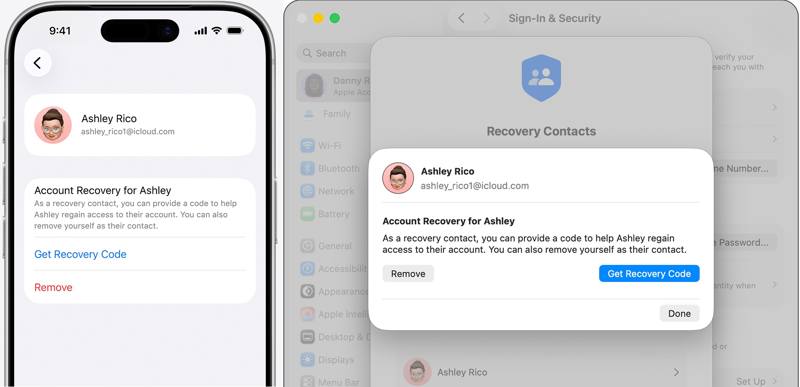
Trinn 1. Slå på enheten til gjenopprettingskontakten, for eksempel en iPhone.
Trinn 2. Kjør innstillinger or Systeminnstillinger appen og trykk på profilen.
Trinn 3. naviger til Innlogging og sikkerhet og Gjenopprettelse av konto.
Trinn 4. Trykk på kontakten din og trykk på Få gjenopprettingskode.
Trinn 5. Bytt til enheten din og start tilbakestillingsprosessen.
Trinn 6. Tilby gjenopprettingskoden.
Trinn 7. Etter at identiteten din er bekreftet, tilbakestill Apple-ID-passordet ditt.
Del 5: Slik tilbakestiller du Apple ID-passordet på en annen iPhone
Apple Support-appen tilbyr personlig feilsøking, enhetsadministrasjon og tjenestetilgang på ett sted. Den er utviklet for å hjelpe brukere med å tilbakestille Apple ID-passordet sitt på en lånt iPhone eller iPad.
Forutsetninger:
- 1.En annen iPhone eller iPad.
- 2.Den nyeste versjonen av Apple Support-appen.
- 3.Apple-kontoen og passordet ditt.
- 4.Nødvendig informasjon, som ditt pålitelige telefonnummer.
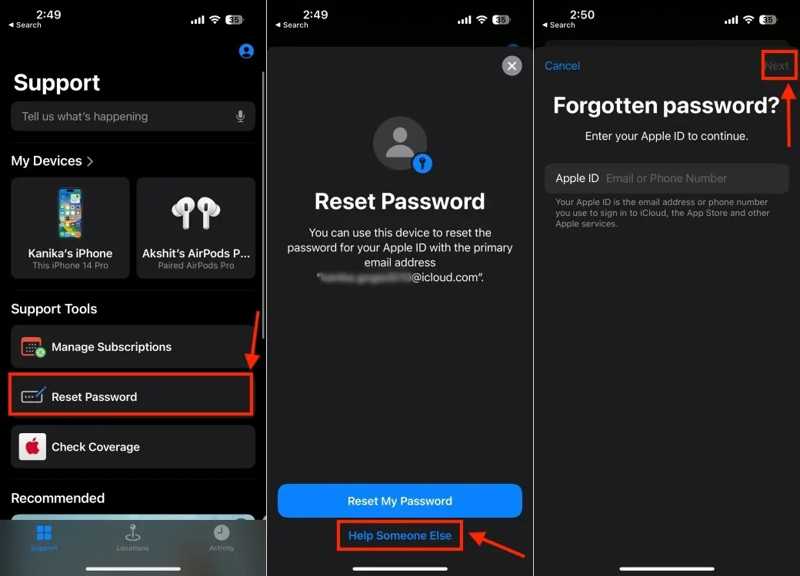
Trinn 1. Åpne Apple Support app på en lånt iPhone.
Tips: Du kan installere appen gratis fra App Store.
Trinn 2. Trykk på Tilbakestill passord alternativ under Støtteverktøy seksjon.
Trinn 3. Velg Hjelp noen andre under Tilbakestille passordet mitt knapp.
Trinn 4. Skriv inn e-postadressen eller telefonnummeret som er knyttet til Apple-kontoen din, og trykk på neste.
Trinn 5. Skriv inn ditt pålitelige telefonnummer og trykk på Fortsett.
Trinn 6. Oppgi bekreftelseskoden du mottok.
Trinn 7. Deretter angir du et nytt passord, bekrefter det og bekrefter tilbakestillingen av Apple ID-passordet ditt.
Del 6: Slik tilbakestiller du Apple-ID og passord ved hjelp av en ny konto
Du må oppgi e-postadressen eller telefonnummeret til Apple-kontoen din når du tilbakestiller passordet. Hva skjer hvis du har glemt både Apple-ID-en og passordet ditt? Du må først finne ut Apple-ID-en din. Gå til Apple-enheten eller -tjenesten du har logget på med kontoen din, og sjekk kontoen. Hvis ingen konto er tilgjengelig, bør du tilbakestille Apple-ID-en og passordet med en ny konto. Fra nå av anbefaler vi at du Apeaksoft iFoneKit iOS-opplåserDen lar deg fjerne den gamle Apple-kontoen og passordet direkte fra iPhone eller iPad, slik at du kan opprette en ny konto.

Lastet ned av over 1,000,000 Brukere
- Fjern Apple-ID og passord i 3 trinn.
- Ikke spør om iPhone-passordet eller Apple ID-legitimasjonen din.
- Tilby instruksjoner på skjermen for å forenkle prosessen.
- Tilby bonusfunksjoner, som å omgå skjermtid.
- Støtt de nyeste utgavene av iOS og iPadOS.
Sikker nedlasting
Sikker nedlasting

Slik tilbakestiller du Apple ID og passord på iPhone
Trinn 1. Installer iOS Unlocker
Start programvaren for fjerning av Apple-konto etter at du har installert den på PC-en. Den er tilgjengelig på Windows 11 og tidligere. Det finnes en annen versjon for Mac OS X 10.7 eller nyere. Velg Fjern Apple ID modus for å fortsette.
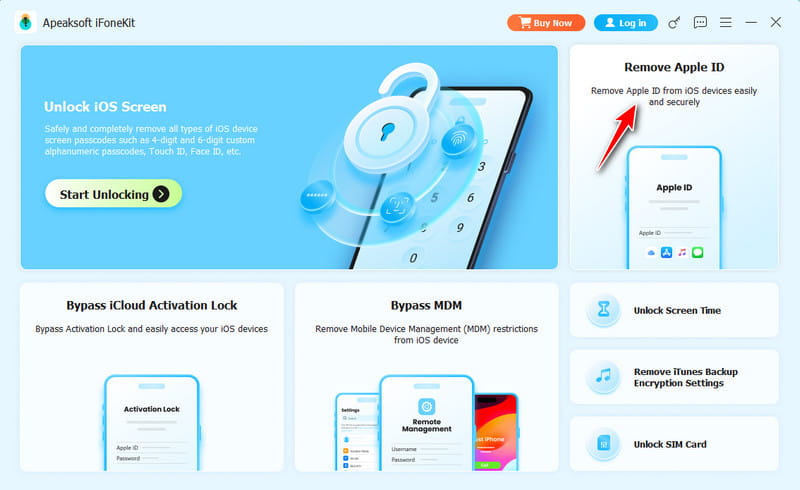
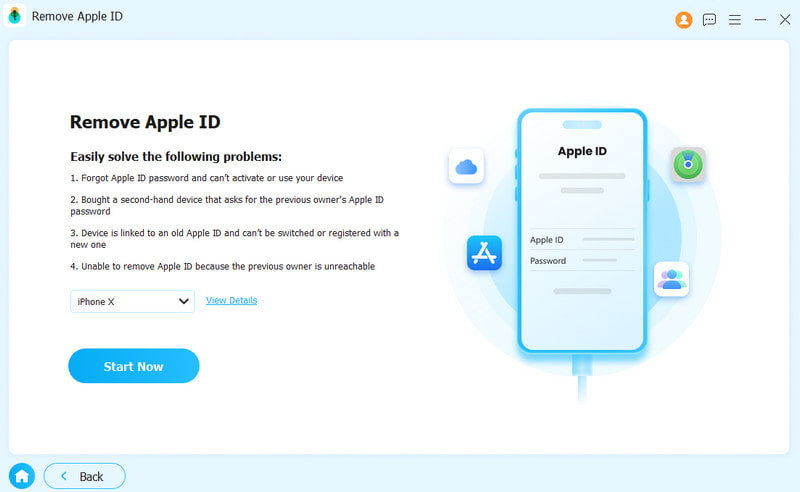
Trinn 2. Koble til din iPhone
Koble iPhonen din til PC-en med en Lightning-kabel. Hvis du blir bedt om det, trykker du på Stol på skjermen for å stole på denne PC-en. Deretter vil programvaren oppdage enheten din og laste inn enhetsinformasjonen. Klikk på Start nå knappen for å starte prosessen.
Trinn 3. Fjern Apple ID og passord
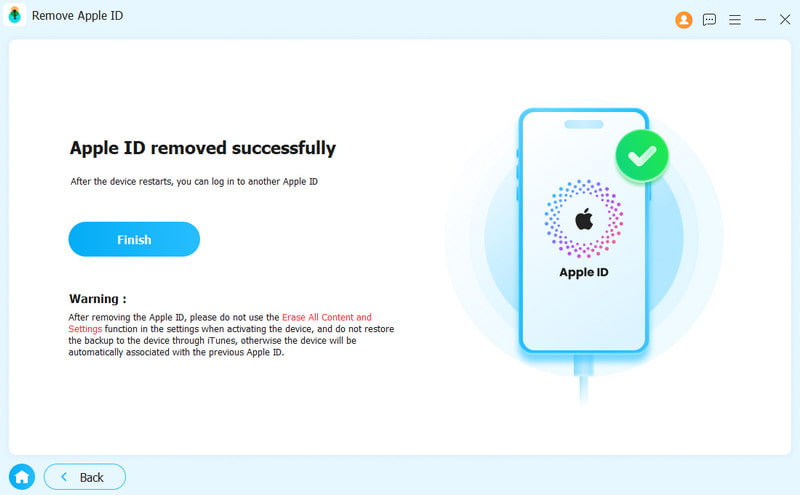
Hvis Finn min er deaktivert, vil programvaren begynne å fjerne den nåværende Apple-kontoen og passordet automatisk.
Hvis Finn min er aktivert, følg instruksjonene på skjermen for å tilbakestille alle innstillinger på iPhonen din. Klikk. OK i bekreftelsesdialogboksen. Klikk deretter på Bekreft igjen -knappen for å bekrefte på nytt. Programvaren vil starte fjerningsprosessen.
Trinn 4. Tilbakestill Apple-ID og passord
Når det er ferdig, vil iPhonen din starte på nytt Hallo skjermen. Følg assistenten for å sette den opp som en ny enhet. Når du blir bedt om å angi en konto, velger du Opprett en gratis Apple-konto og følg instruksjonene for å tilbakestille Apple-ID-en og passordet ditt.
Konklusjon
Denne guiden viste flere måter å tilbakestille Apple ID-passordetHvis tofaktorautentisering er konfigurert, kan du raskt tilbakestille den på iPhone, iPad eller Mac. Ellers må du fullføre prosessen på Apples iForgot-nettsted. Du må selvfølgelig bekrefte identiteten din i henhold til innstillingene dine. Apeaksoft iFoneKit iOS-opplåser lar deg tilbakestille passordet ditt fullstendig med en ny konto.
 Apeaksoft iPhoneKit
 Lås opp alle typer iOS-passord fra iPhone, iPad og iPod.
Sikker nedlasting
Sikker nedlasting
Relaterte artikler




