


Slik låser du opp iPhone etter flere mislykkede forsøk

Har du noen gang fått panikk da du tastet inn feil passord flere ganger på rad, og så meldingen «iPhone er deaktivert» på skjermen? Du nøler kanskje med å prøve igjen, usikker på hva som vil skje videre. I denne veiledningen skal vi forklare hvor mange forsøk på å låse opp iPhone, hva som skjer etter flere mislykkede passordinntastinger, og hvordan du raskt får tilbake tilgang til den deaktiverte iPhonen din.
SIDEINNHOLD:
Del 1: Hvor mange forsøk på å låse opp iPhone?
Hvis du glemmer passordet til iPhone-skjermen din, kan du bli fristet til å prøve noen mulige kombinasjoner for å teste lykken. Men hvis du skriver inn feil passord for mange ganger, vil iPhone-en din bli deaktivert. Så, hvor mange forsøk på å låse opp iPhone-passordet kan du gjøre før iPhone-en låser deg ute?
Slik fungerer det etter flere mislykkede forsøk på iPhonen din:
- Etter 1 til 5 mislykkede forsøk kan du prøve igjen umiddelbart uten forsinkelse.
- Etter det sjette forsøket er iPhonen din deaktivert i ett minutt.
- Etter det niende forsøket er den deaktivert i 5 minutter.
- Etter det niende forsøket er den deaktivert i 15 minutter.
- Etter det niende forsøket er den deaktivert i 60 minutter.
- Etter det tiende mislykkede forsøket er iPhonen din fullstendig deaktivert, og du får ikke en ny sjanse til å prøve.
Del 2: Slik låser du opp iPhone etter for mange feilforsøk
Hva skjer etter 10 mislykkede forsøk på å oppgi passord på iPhone? Er iPhone permanent deaktivert etter det siste forsøket? Ikke få panikk, iPhonen din er ikke låst for alltid. Det finnes fortsatt løsninger for å få tilgang til den låste iPhonen igjen. Fortsett å lese for å se hvordan du låser opp iPhonen din etter flere mislykkede forsøk.
OBS: Opplåsingsprosessen vil slette alle dataene dine på iPhonen din, så sørg for å sikkerhetskopiere all viktig informasjon før slettingen. På denne måten kan du gjenopprett iPhonen din fra sikkerhetskopier seinere!
Metode 1: Fjern skjermpassordet med en iOS-opplåser
Hvis du ønsker en rask og enkel løsning, er det et smart valg å bruke et dedikert iOS-opplåsingsverktøy. Apeaksoft iFoneKit iOS-opplåser er et slikt verktøy som enkelt fikser en deaktivert iPhone etter mange feilforsøk. Det kan slette alle skjermlåsene på iOS-enheter uten å oppgi passordet.

Lastet ned av over 1,000,000 Brukere
- Fjern alle slags låser på iOS-enheter.
- Lås opp nesten alle iPhone/iPad/iPod-modeller uten passord.
- Slett skjermpassordet med 4/6 sifre, Face ID eller Touch ID i noen få trinn.
- Fjern enkelt MDM/Apple ID/Skjermtid/iTunes-sikkerhetskopipassord.
- Fjern SIM-kortbegrensningene for bruk med forskjellige operatører.
Sikker nedlasting
Sikker nedlasting

Slik låser du opp iPhone etter flere mislykkede forsøk:
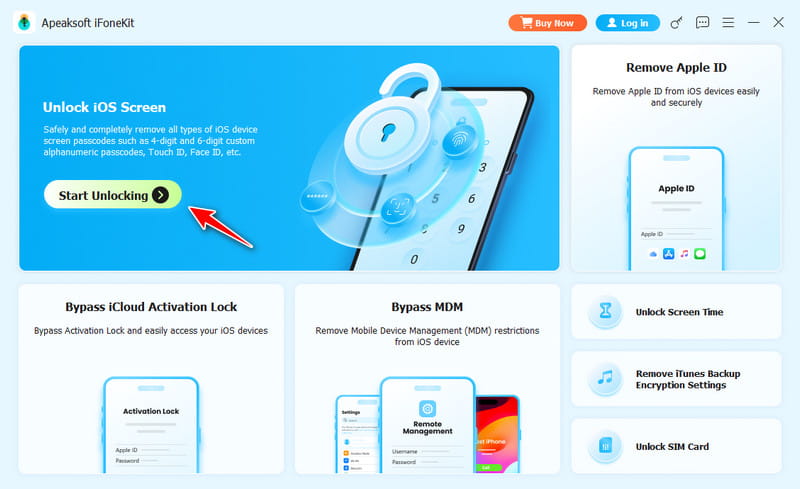
Trinn 1. Start iOS Unlocker og velg Lås opp iOS-skjermen modus fra hovedgrensesnittet.
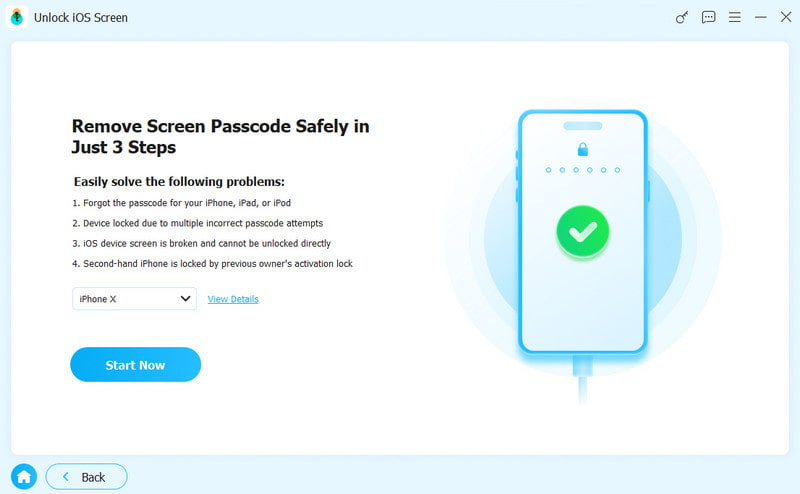
Trinn 2. Koble iPhonen til en datamaskin via en USB-kabel. Bekreft enhetsinformasjonen, og klikk deretter Start nå å fortsette.
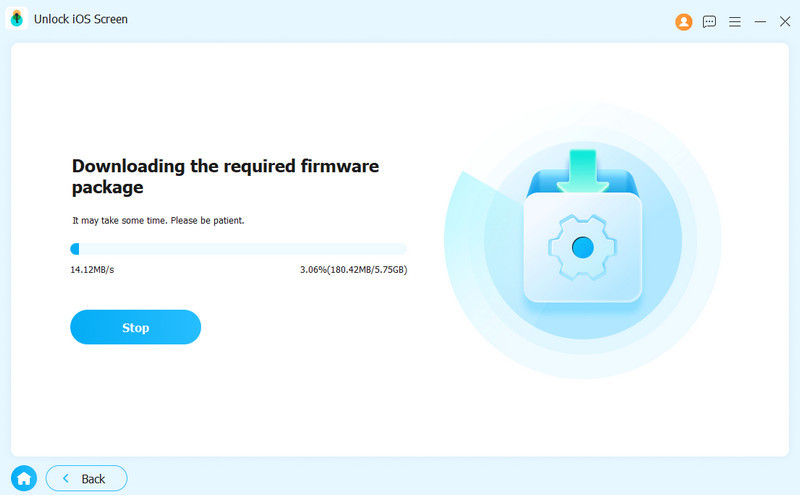
Trinn 3. Last ned den nødvendige fastvarepakken. Vent tålmodig mens nedlastingen fullføres.
Trinn 4. Følg instruksjonene på skjermen og bekreft to ganger for å bekrefte fastvaren.
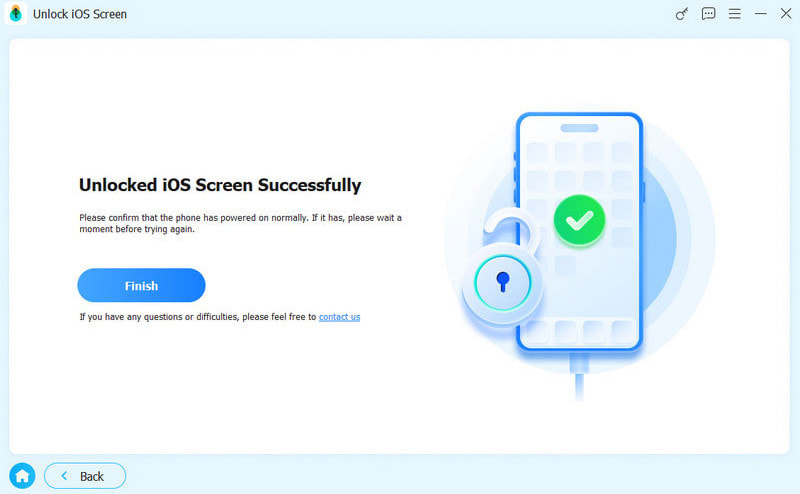
Trinn 5. Etter bekreftelse starter opplåsingsprosessen automatisk. Vent en stund, så fjernes iOS-skjermlåsen.
Metode 2: Tilbakestill iPhonen din via alternativet Glemt passord
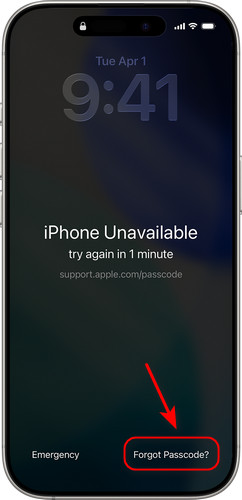
Hvis iPhonen din viser «iPhone utilgjengelig» eller «Sikkerhetssperre», og den kjører iOS 17 eller nyere, kan det hende du ser en Glemt passord alternativet direkte på skjermen. Du kan bruke den til å tilbakestille iPhonen din så lenge du vet Apple-ID-en og passordet ditt. Denne måten fungerer bare hvis Finn min er aktivert og iPhonen din er koblet til et Wi-Fi-nettverk eller mobildata.
Slik tilbakestiller du iPhonen din via glemt passord:
Trinn 1. Fortsett å skrive inn feil passord helt til iPhone utilgjengelig skjermen vises.
Trinn 2. Trykk på Glemt passord alternativet nederst til høyre. Hvis enheten din kjører iOS 15.2 eller iOS 16, vil du se Slett iPhone i stedet.
Trinn 3. Pek Start iPhone Reset, og skriv deretter inn Apple-ID-en og passordet ditt for å bekrefte avgjørelsen.
Trinn 4. Etter bekreftelse, trykk på Slett iPhone for å slette alle data og innstillinger. Når prosessen er fullført, kan du konfigurere iPhonen din og opprette en ny passkode.
Metode 3: Slett iPhone-en din ved hjelp av iCloud
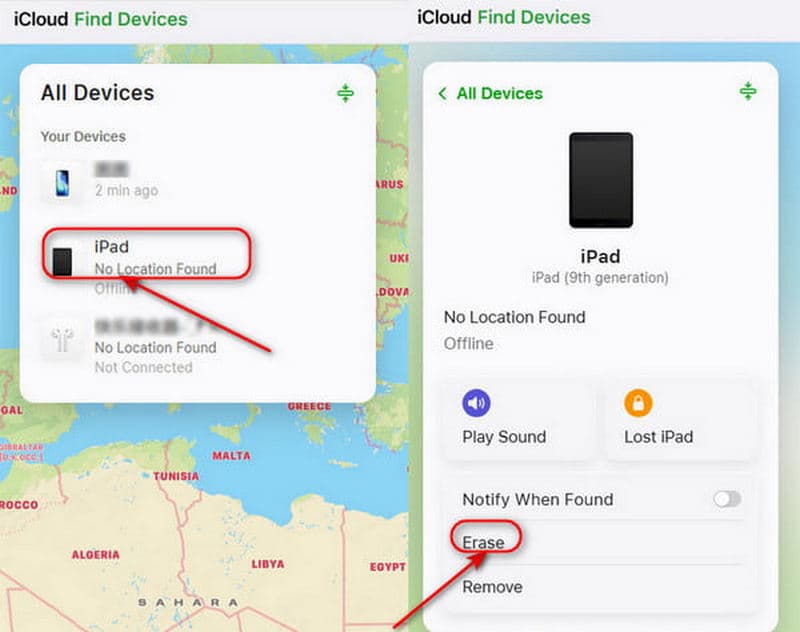
Du kan også bruke iCloud til å låse opp en deaktivert iPhone etter 10 mislykkede forsøk eksternt. Men iPhonen din må ha aktivert «Finn meg» før den ble låst, og du kan logge på Apple-kontoen din.
Slik bruker du iCloud til å slette iPhonen din:
Trinn 1. Gå til iCloud.com på en annen enhet og logg inn med Apple-ID-en og passordet ditt.
Trinn 2. Klikk Finn enheter, velg Alle enheter øverst. Finn og velg iPhonen du vil låse opp.
Trinn 3. Klikk Slett iPhone nederst til høyre. Etter at slettingen er fullført, konfigurerer du iPhonen på nytt og gjenoppretter dataene dine fra en sikkerhetskopi hvis tilgjengelig.
Metode 4: Gjenopprett iPhonen din ved hjelp av gjenopprettingsmodus
Etter mange mislykkede passordforsøk på iPhonen din, låser den deg ute. Dessverre, selv om Finn min iPhone ikke var aktivert, vil du ikke kunne tilbakestille den eksternt via iCloud. Ikke bekymre deg, du kan låse opp iPhonen din ved å sette den i Recovery Mode.
Trinn 1. Installer iTunes på datamaskinen din og oppdater den til den nyeste versjonen.
Trinn 2. Sett inn din iPhone Recovery Mode.
For iPhone 8 og nyere modeller, inkludert iPhone SE (2. generasjon)
Trykk og slipp volum opp knappen raskt, etterfulgt av volum ned knapp. Trykk og hold inne Power knappen til du ser Recovery Mode skjermen.
For iPhone 7 og iPhone 7 Plus
Fortsett å trykke på volum ned knappen og Side knappen sammen til Recovery Mode skjermen vises.
For iPhone 6S eller tidligere, inkludert iPhone SE (1. generasjon)
Trykk og hold inne Home og Side knappene samtidig til Recovery Mode skjermen vises.
Trinn 3. Koble iPhonen din til datamaskinen via en USB-kabel. Åpne iTunes og velg den låste iPhonen i venstre felt.
Trinn 4. Klikk Gjenopprette i popup-vinduet, og da vil alle dataene dine på iPhonen din bli slettet.
Del 3: Vanlige spørsmål om iPhone-passordforsøk
Hvor mange forsøk på å låse opp iPhone etter en time?
Etter det niende mislykkede forsøket er iPhonen din deaktivert i en time. Når timen har gått, kan du prøve å taste inn passordet på nytt. Hvis du imidlertid taster inn feil passord for tiende gang, vil iPhonen bli fullstendig deaktivert.
Hvor mange forsøk må jeg gjøre for å låse opp iPhonen før den deaktiveres permanent?
Du får totalt 10 feilaktige passordforsøk. Etter det tiende mislykkede forsøket vil iPhonen din vise «iPhone er deaktivert» eller «Sikkerhetssperre», og du vil ikke kunne prøve igjen.
Hvordan låser jeg opp iPhonen min etter mislykkede passordforsøk?
(1) Bruk et profesjonelt tredjepartsverktøy som Apeaksoft iFoneKit iOS Unlocker. (2) Bruk alternativet Glemt passord på låseskjermen. (3) Slett enheten eksternt via iCloud. (4) Sett iPhonen i gjenopprettingsmodus.
Finnes det noen måte å låse opp iPhone uten å miste data?
Ja! Fra og med iOS 17 la Apple til en nyttig funksjon: hvis du endret passordet ditt i løpet av de siste 72 timene og deretter glemte det nye, kan du trykke på Glemt passord? på låseskjermen og velg Skriv inn forrige passordEtter at du har tastet inn den gamle passkoden, kan du tilbakestille den uten å miste data.
Konklusjon
Hvis iPhonen din er låst, får hvert forsøk på feil passord en konsekvens. Hvis det tiende forsøket fortsatt mislykkes, vil iPhonen din bli permanent deaktivert. Men nå har du fire pålitelige løsninger. låse opp iPhone etter flere mislykkede forsøkVelg et profesjonelt iOS-opplåsingsverktøy som Apeaksoft iFoneKit iOS Unlocker, bruk det innebygde alternativet for glemt passord, slett data via iCloud, eller sett iPhonen din i gjenopprettingsmodus. Velg ett av dem for å fikse problemet raskt!
påminnelse: Mange metoder for opplåsing av iPhone sletter alle data på enheten din. Sørg for at du sikkerhetskopierer iPhonen din på forhånd ved hjelp av iCloud eller iTunes/Finder – dette er den eneste måten å holde viktige data trygge på.
 Apeaksoft iPhoneKit
 Lås opp alle typer iOS-passord fra iPhone, iPad og iPod.
Sikker nedlasting
Sikker nedlasting
Relaterte artikler




