

How to Recover Deleted GIFs on Windows and Mac (4 Proven Methods)

Key Takeaways
- If you deleted GIF files, you can go to the Recycle Bin or Trash first to restore them directly and easily.
- If you have a local or cloud backup, you can recover the deleted GIFs from there.
- Even if the GIF files were permanently deleted (using Shift + Delete or after emptying the bin), they can still be recovered using professional data recovery software, as long as the data has not been overwritten.
Accidentally deleted your GIFs? Don't panic - it is much easier to recover them than you think! This guide will show you how to recover deleted GIFs step by step, whether you emptied the Recycle Bin, lost files after a system crash, or can’t find your GIFs anywhere on your computer.
PAGE CONTENT:
- Can You Recover Deleted GIF Files?
- Method 1. Recover Deleted GIF from Recycle Bin / Trash
- Method 2. Recover Permanently Deleted GIF with One Click [Recommend]
- Method 3. Recover Deleted GIF from Local Backup
- Method 4. Recover Deleted GIF from Cloud Backup
- Tips to Prevent GIF Files from Being Deleted Again
Can You Recover Deleted GIF Files?
GIFs are similar to other image files like JPG and PNG, so deleting them doesn't mean they are gone forever.
When you delete a GIF, the file isn’t immediately removed. Firstly, it will go to the Recycle Bin (or Trash on Mac). You can easily restore them there.
If you have emptied the recycle bin, also don't worry. You can use professional data recovery software. Most of them will offer a free trial or a limited recovery quota, which is often enough to retrieve the GIF images.
If you have ever backed up your computer, things will be much easier. You can directly recover from File History (or Time Machine on Mac).
In short, recovering deleted GIF files is usually possible, especially if you act quickly after deletion.
Method 1. Recover Deleted GIF from Recycle Bin / Trash
The fastest and easiest way to get back a deleted GIF is to check your Recycle Bin (Windows) or Trash (Mac). Files deleted normally are stored here temporarily until you empty them. So you can restore them with just a few clicks.
Recycle Bin (Windows)
Step 1. Open the Recycle Bin.
Step 2. Enter gif in the filter box (top-right).
Step 3. Double-click the desired one and click Restore.
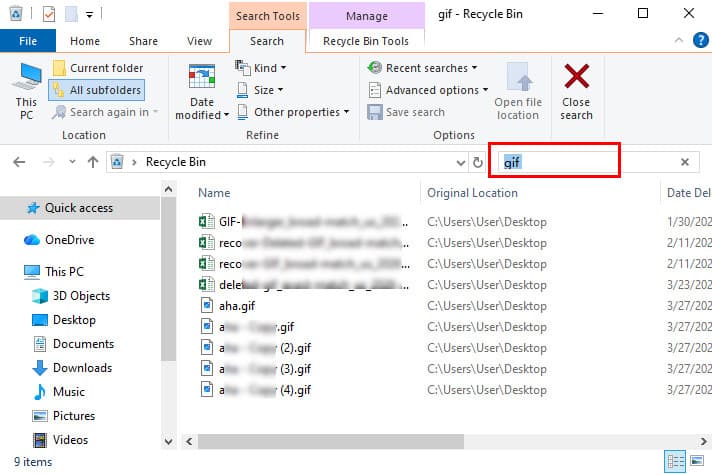
Tips: GIF files will be restored to their original location.
Trash (Mac)
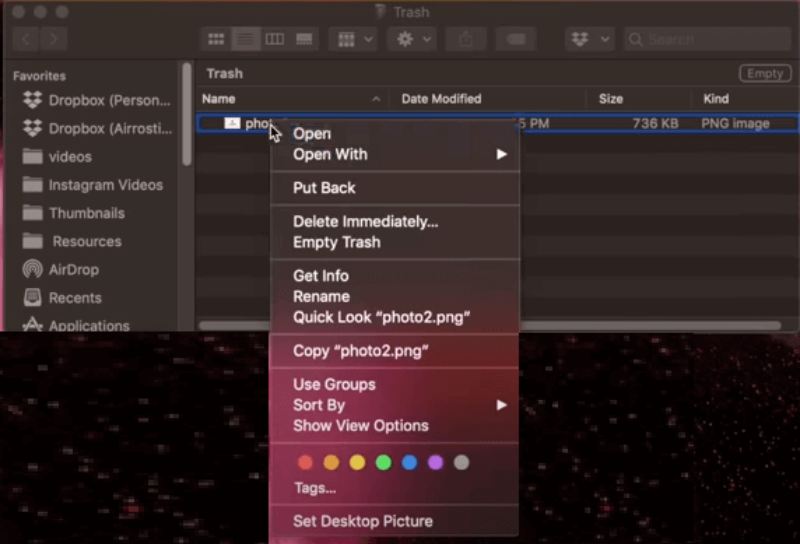
Step 1. Open Trash from the dock.
Step 2. Search for your target GIF images.
Step 3. Right-click it and choose Put Back.
Method 2. Recover Permanently Deleted GIF with One Click [Recommend]
If you have a habit of using Shift + Delete, or you regularly clean up your deleted files, things will be much more complicated. Fortunately, Apeaksoft Data Recovery provides an easy and one-stop solution to help you recover permanently deleted GIF packs on both Windows and Mac, even without a backup.
Recover Deleted GIF Pack with Ease
- Recover deleted GIF packs with one click.
- Support GIF recovery from your computer, hard drives, SD card, USB drive, etc.
- Recover GIF images due to various situations like accidental deletion, formatting, drive corruption, system crash, etc.
- Besides, this tool works for almost all file types you need, like recovering PowerPoint, Word, videos, audio, etc.
- It provides a free recovery trial of 200MB.
Secure Download
Secure Download

Step 1. Download and install this professional GIF recovery tool onto your computer for free.
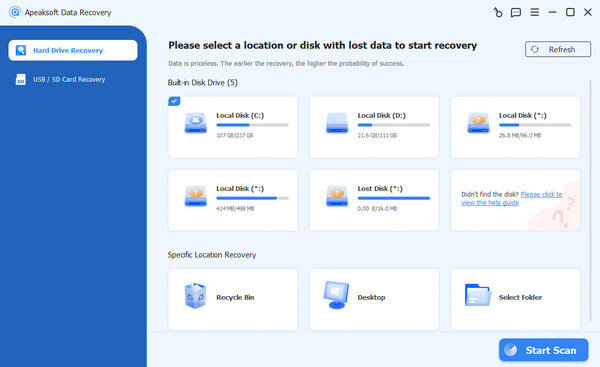
Step 2. Launch the tool and choose Hard Drive Recovery from the left panel, and click Start Scan.
If your GIFs are stored in an external drive, you should choose the second option.
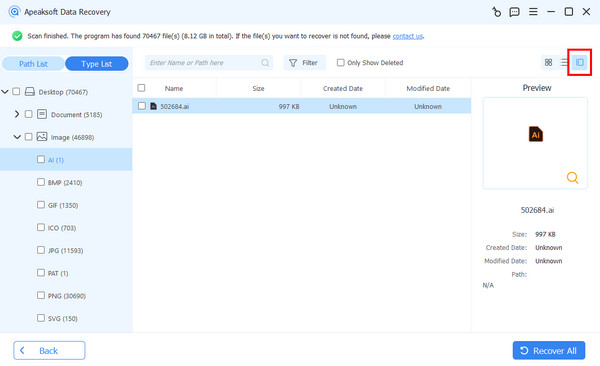
Step 3. Locate your target GIF files based on the Type List. Search in the Filter box is needed.
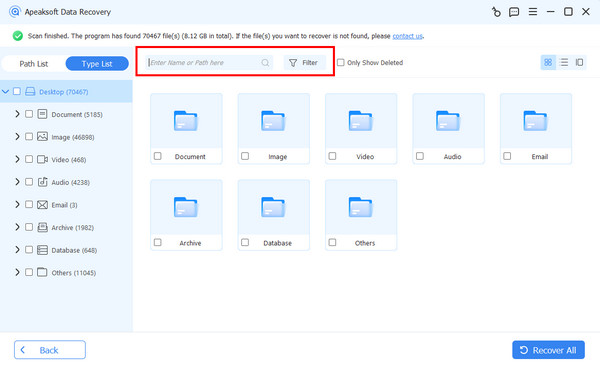
Step 4. Preview the GIF files.
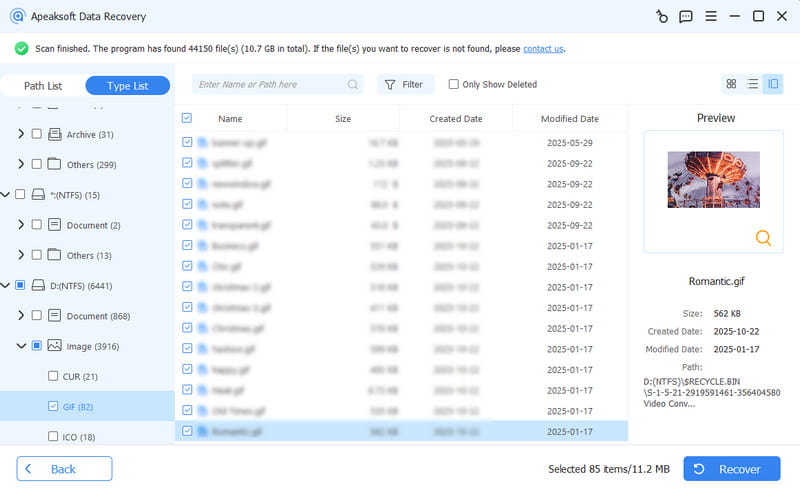
Step 5. Check all the GIFs you need and click Recover (bottom-right).
Method 3. Recover Deleted GIF from Local Backup
If you’ve previously enabled a backup feature on your computer, recovering deleted GIFs can be fast and flexible. Here, we’ll show you how to use Windows File History/Previous Versions and Mac Time Machine to restore GIFs from your local backups.
File History (Windows)
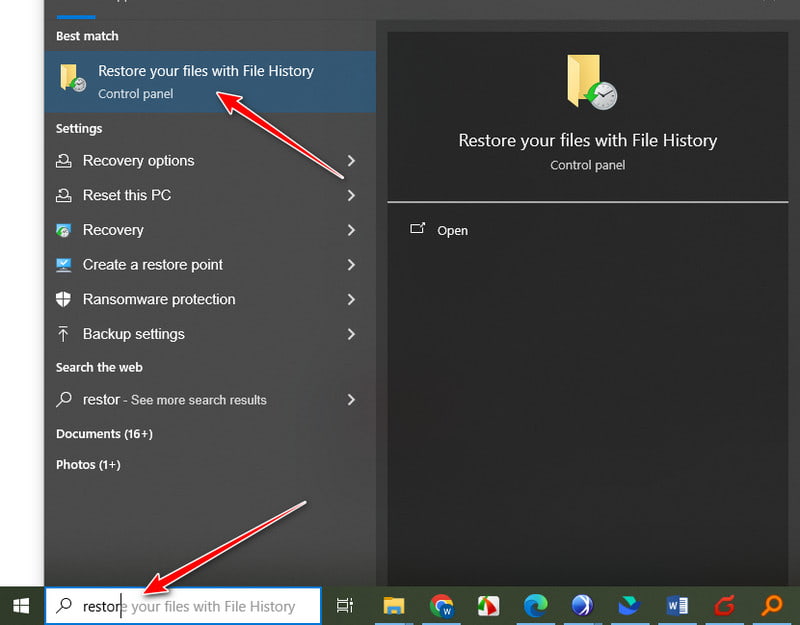
Step 1. Type Restore your files with File History in the search box (bottom-left).
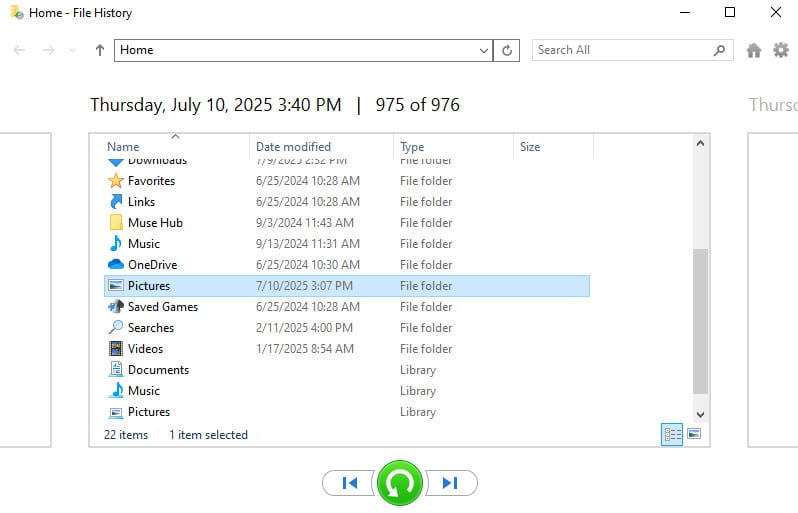
Step 2. Locate the related folder.
Step 3. Click the Recover button at the bottom center.
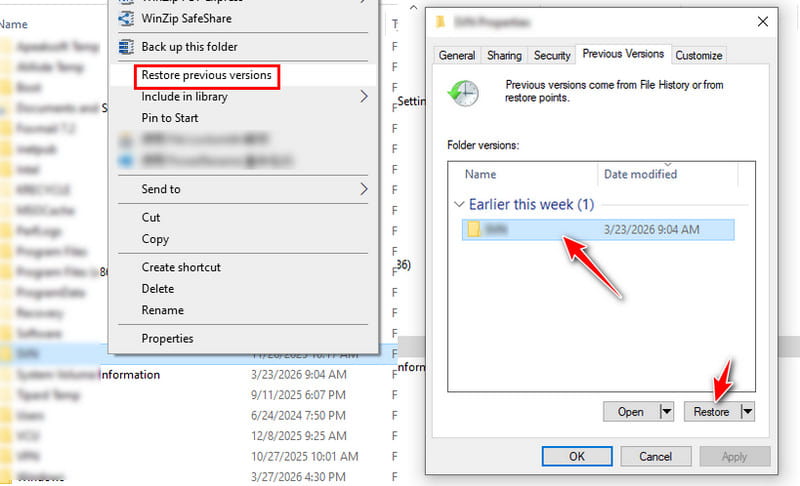
Previous Version (Windows)
Step 1. Open File Explorer and locate the folder that your deleted GIFs were once stored in.
Step 2. Right-click the folder and choose Restore previous version.
Step 3. Choose the version that you think may contain the deleted GIF images.
Step 4. Click Restore.
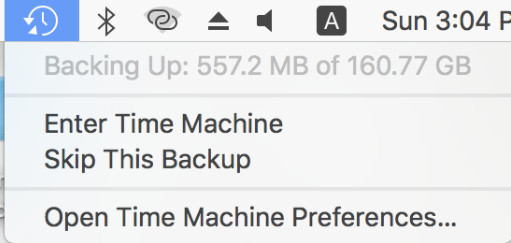
Time Machine (Mac)
Step 1. Open Time Machine from the top right.
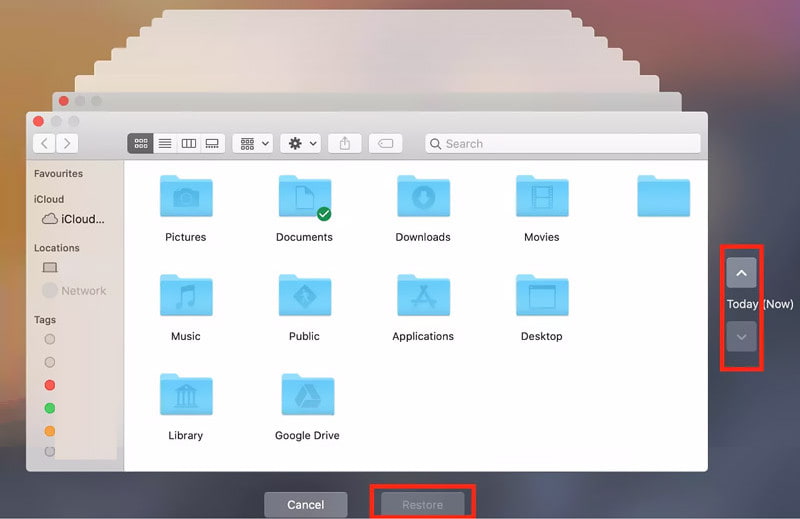
Step 2. Click the up or down arrow from the timeline on the right to locate the exact folder.
Step 3. Select the target GIF pack and click Restore.
Method 4. Recover Deleted GIF from Cloud Backup
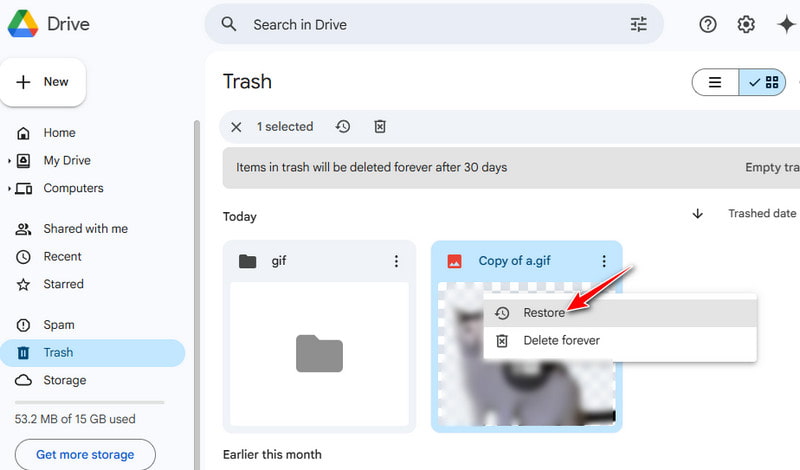
If you use a cloud backup service, recovering deleted GIFs can be quick and convenient. Here, we’ll use Google Drive as an example to show how you can restore your GIF files.
Step 1. Open Google Drive in your browser and sign in with your account.
Step 2. Check the Trash folder.
Step 3. Right-click it and choose Restore.
Tips to Prevent GIF Files from Being Deleted Again
- Regularly back up your GIF files to an external hard drive or a cloud drive.
- Enable the backup feature on your computer so that there will be a restore point that you can use.
- Check twice before you delete GIFs on your computer or empty the trash folder.
- Sort your GIFs clearly for better management.
- Do not unplug your devices suddenly when transferring data.
Conclusion
Recovering GIFs is not as complex as you think, right? Check the trash folder first. If they’re not there, look into your local or cloud backups. For permanently deleted files, free data recovery software can help you get your GIFs back quickly and safely.
Related Articles




