


How to Watch Deleted YouTube Videos with/Without URLs

YouTube is the biggest video-sharing platform, providing millions of high-quality videos for millions of users. Everyone can find videos they’re interested in from different channels. However, you may feel lost when you find some liked videos are deleted by the creators or YouTube, or you have accidentally deleted YouTube videos from your own channel. In this case, you can read this guide and learn how to find deleted YouTube videos and recover them.
PAGE CONTENT:
Part 1. How to Watch Deleted YouTube Videos with URL
If you still have the URL of a deleted YouTube video, you can use it to search for archived copies or more information about the video.
How to Find Deleted YouTube Videos Using Wayback Machine
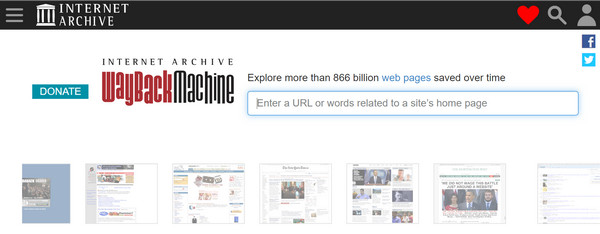
The Wayback Machine website archives web pages, texts, audio, and images from this Internet Archive tool. You can use it to see the previous version of a webpage. If you want to see a YouTube video that was removed, you can use Wayback Machine to recover deleted YouTube videos.
Tips: Sometimes, the Wayback Machine will not let you watch the deleted YouTube videos directly. In some cases, it only displays video information, such as title, description, or thumbnail.
Step 1. Go to https://web.archive.org on your browser. Enter the URL of the deleted YouTube video in the search bar.
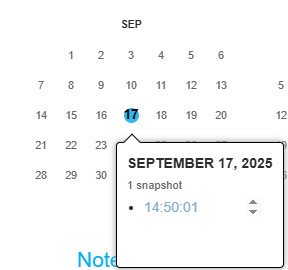
Step 2. Then, you can browse the timeline and click the date to see deleted YouTube videos.
Tips: How do I get all video URLs from a YouTube channel?
Go to the YouTube channel and click the Videos section. Right-click and select Inspect at the bottom. Click the Console tab. You may need to type allow pasting and hit the Enter key. Then, paste var scroll = setInterval(function(){ window.scrollBy(0, 1000)}, 1000); and hit Enter. Wait until the page loads to the last video. Then, copy and paste the window.clearInterval(scroll); console.clear(); urls = $$(‘a’); urls.forEach(function(v,i,a){if (http://v.id=="video-title-link"){console.log(‘ ’+v.title+’ ’+v.href+’ ’)}}); and hit the Enter key. Now, you can get a list of all video URLs from a YouTube channel with video titles.
How to Watch Deleted YouTube Videos in YouTube Video Finder
If the Wayback Machine does not provide useful results, you can also try YouTube Video Finder. There is a deleted YouTube video finder for you to view and retrieve deleted YouTube videos.
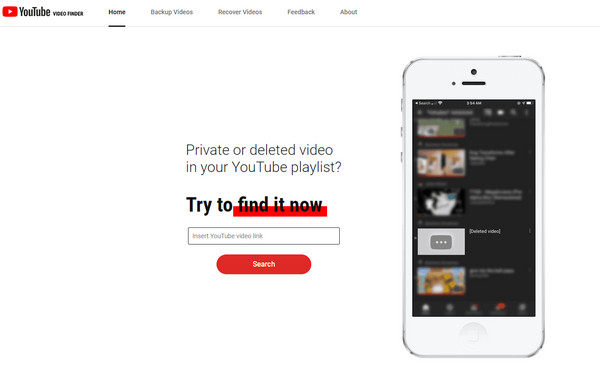
Step 1. Visit https://youtubevideofinder.site/ on the browser. Enter the link to the YouTube video and click the Search button.
Step 2. Then, this deleted YouTube video finder will provide several options for you to find it.
Part 2. How to Find Deleted YouTube Videos Without URL
If you don't have the URL of a deleted YouTube video, there is also a method to help you search for the video using information you still remember, such as its title, channel name, or creator.

Search for References to the Original Video on Google
You can open Google and type the information you remember about the deleted video in the search box. For example, you can try searching for site:youtube.com "Name of the Video". If you also remember the channel name, add it to narrow down the results site:youtube.com "Name of the Video" "Channel Name". Then, you can look through the results. If you find original YouTube video, you can copy the URL and try the methods in Part 1 to watch deleted YouTube Videos.
Search for Reuploads of Deleted YouTube Videos
Some videos may have been reposted by other users on YouTube or reuploaded on other websites. For example, if you remember seeing the video shared on Facebook, you can search site:facebook.com "Video Title". If you do not know where the video was reposted, search for the video title on Google and add terms such as "Video Title" reupload, "Video Title" mirror, and more.
Part 3. How to Recover Deleted YouTube Videos Saved Locally
If you’ve ever downloaded YouTube videos to your computer or originally uploaded them from your local files, finding deleted YouTube videos will be a piece of cake. Depending on whether you have a backup, you can restore the video from Time Machine or use data recovery software to scan your computer for the deleted file.
How to Recover Deleted YouTube Videos Without Backup
The fastest and most reliable way to get them back is using professional software like Apeaksoft Data Recovery. It can scan your hard drive or external storage to recover videos you thought were gone. Before trying more complicated methods like online archives or contacting creators, this tool usually saves users the most time and effort.

Downloaded by over 1,000,000 users
- Find deleted YouTube videos without URL.
- Fast scanning speed and high success rate.
- Easy-to-follow steps and intuitive interface.
- Preview before the recovery.
- Supports almost all video formats like MP4, MOV, AVI, etc.
Secure Download
Secure Download

How to Use Apeaksoft Data Recovery to Recover Deleted YouTube Videos
Step 1. Press the button above to download and install the software in a few seconds.
Step 2. Choose the location where your YouTube videos were once saved (often Local Disk C:), and press the Start Scan button.
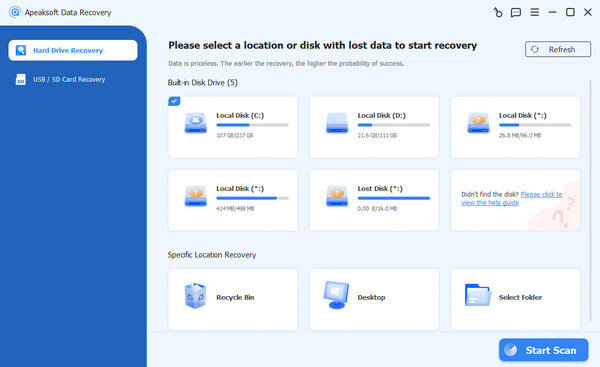
Step 3. Select the Video option in the left panel. Search for your target video on the right page.
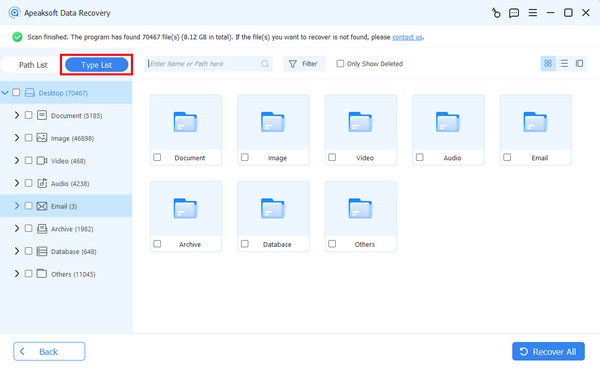
Tips: You can quickly locate your deleted YouTube videos by entering relevant keywords of the file name into the search box at the top right of the program interface. This allows the software to filter the scan results and helps you find the video you want to recover much faster.
Step 4. Check your target video, and press the Recover button.
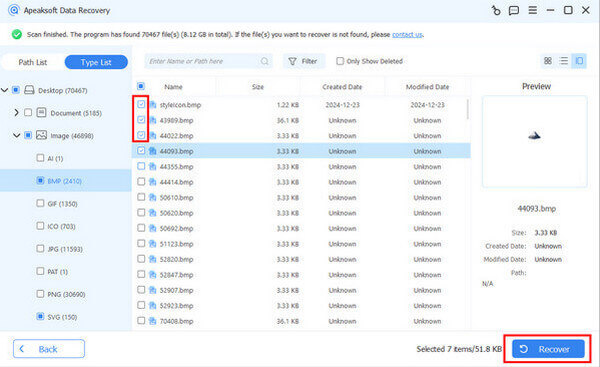
Tips: Similar steps also apply for recovering deleted emails, images, audio, PS4 game data, etc.
How to Recover Deleted YouTube Videos from Time Machine
If you are a Mac user and have used Time Machine to back up your Mac regularly, you can recover deleted or lost videos that you uploaded to YouTube or other social platforms.
Step 1. First, connect the external storage device that stores your Time Machine backup to your Mac. Then, open a folder that you use to save YouTube videos.
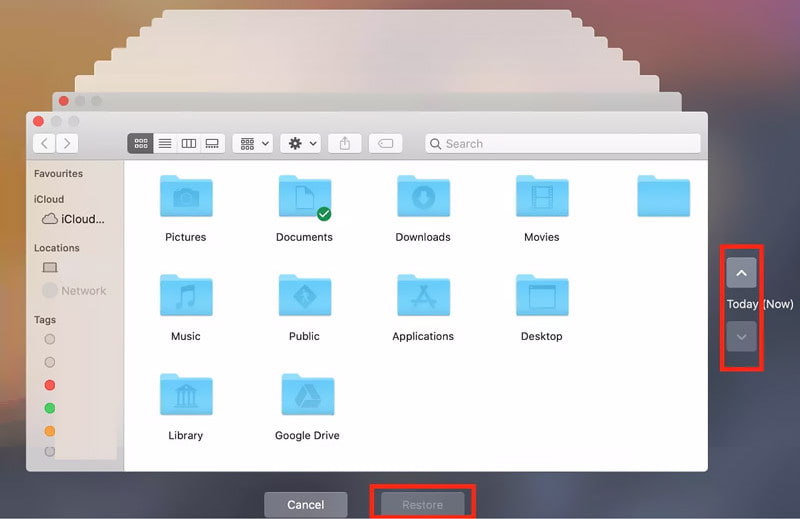
Step 2. Click the Time Machine symbol in the upper-right navigation bar. Then, you can use the timeline at the right edge of your Mac screen to locate your deleted YouTube videos. Select one video and press the Space Bar to preview it before recovery.
Step 3. Once you select the correct YouTube video, you can click Restore to recover the deleted YouTube video.
Tips: Can I replace the existing video with the same URL?
No, you cannot replace the existing video with the same URL because every new video you upload to YouTube generates a new URL. However, you can make some changes to an existing video, including trimming it, changing the title and description, etc.
Part 4. How to Recover Deleted YouTube Videos from Your Own Channel
Another straightforward method to recover deleted YouTube videos from your own channel is to contact the YouTube support team. However, if you want to exercise this chance, you need to meet the requirements: at least 10,000 views or be a part of the YouTube Partner Program.
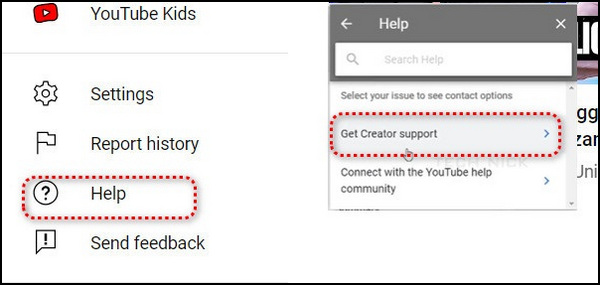
Step 1. Log in to your YouTube account and click Help at the bottom-left panel.
Step 2. Click Need more help at the bottom and select Get Creator Support.
Step 3. Select Email Support from the Channel & video features section. Here, you can report your issue to the YouTube support team.
Tips: How do I see deleted YouTube history?
If you have watched YouTube videos on Google Chrome, you can check your Google History to find your deleted YouTube history. You can also visit the Google My Activity page to filter your deleted YouTube history.
Part 5. FAQs about Deleted YouTube Videos
Are deleted YouTube videos gone forever?
Yes. Just as YouTube official claims that "When you delete a video, it's permanently deleted." But don’t worry! You can still recover permanently deleted YouTube videos using the methods above.
How to see YouTube deleted videos?
The easiest way to view the deleted YouTube videos is to copy the video URL and paste it to the web.archive.org website. Then, follow the steps we mentioned above to watch it easily.
What are alternatives to deleting a video?
If you don't want to delete the YouTube video and also don't want others to see it, you can change the video visibility to Private or Unlisted.
Conclusion
This guide offers a detailed introduction on how to view deleted YouTube videos. Depending on your condition, you can try the above five methods to get them back. Moreover, you can have a YouTube video backup from time to time, just in case.
 Apeaksoft Data Recovery
 Recover deleted or lost data on Windows and Mac computer.
Secure Download
Secure Download



