Why Are FaceTime Photos Not Saving and How to Fix It

"I was on a FaceTime video with my friend, but none of the photos I took were saved. Why are FaceTime photos not saving?" You may have noticed the camera shutter button during FaceTime calls. It enables you to take live photos during FaceTime calls. Then the photos will be normally saved automatically to the Photos app on your iPhone. If your FaceTime photos are not saving to the photo library, follow our verified solutions to get rid of the error quickly.
PAGE CONTENT:
Part 1: Why Are FaceTime Photos Not Saving
During FaceTime calls, you can take Live Photos and screenshots by tapping the Shutter button. You can find these photos in your Photos app. The FaceTime Live Photo will be saved in the Live album directly.
However, you may discover that you cannot take photos during FaceTime calls or you cannot find FaceTime photos in the Photos app. The main reasons why your FaceTime photos are not saving include:
| What Happens | Likely Cause | What to Do |
| There is a prompt saying “FaceTime Photos must be enabled on both devices” | One of you and your friend doesn’t turn on the FaceTime Live Photos function | Enable FaceTime Live Photos on both devices |
| The Shutter button does not work | A temporary FaceTime or iOS glitch | Restart FaceTime or your iPhone and try again |
| The photo was taken, but cannot find it | The photo may be in a different location in the Photos app, or there may be a Photos/iCloud sync issue | Check your Photos library, Live Photos, and iCloud Photos settings |
| FaceTime photos suddenly stop saving | Your iPhone may have limited storage, or a software issue may be affecting FaceTime | Check your iPhone storage and update iOS |
Part 2: How to Fix FaceTime Photos Not Saving
Solution 1: Turn on FaceTime Live Photos on Both Devices
If FaceTime photos are not saving, first make sure FaceTime Live Photos is enabled on both devices. Therefore, both people on the FaceTime call should check the feature in the Settings app and turn it on to take FaceTime Live Photos.
Step 1. Run your Settings app.
Step 2. Scroll down to the bottom and click Apps. Choose FaceTime, and scroll down to find the FaceTime Live Photos option.

Step 3. Toggle on the switch next to the option if it is disabled. If the option is already enabled, toggle it off, wait a few seconds, and turn it back on.
Solution 2: Check Where Your FaceTime Photos Are Saved
If FaceTime shows that the photo was taken successfully, but you cannot find it in the Photos app, you can check whether they are accidentally deleted or saved somewhere else.
First, you can open the Photos app and check your Photo Library to see whether the FaceTime photo is there. If you still cannot find it, you can check the Recently Deleted album in case it was accidentally removed.
If you use iCloud Photos, make sure your iPhone is connected to the internet and wait for your photos to finish syncing. Then check your Photos library again.
Solution 3: Check Your iPhone Storage
iOS does not offer any option to clear cache and junk files. If FaceTime pics are not saving due to low storage space, you should free up space first, and then try to take photos during FaceTime calls. Go to Settings > General > iPhone Storage to check how much space is available.

If your storage is almost full, delete unnecessary apps, videos, photos, or other large files, and then try taking another FaceTime Live Photo. You can also use tools like Apeaksoft iPhone Eraser to free up space with one click.
Solution 4: Restart FaceTime and Your iPhone
Temporary FaceTime or iOS glitches can sometimes prevent FaceTime photos from being saved. Try restarting FaceTime first. If the problem continues, restart your iPhone and test FaceTime Live Photos again.
How to Restart FaceTime:
Step 1. Choose FaceTime in your Settings app.
Step 2. Toggle off the FaceTime option.
Step 3. A few minutes later, toggle on the FaceTime option to restart it.

How to Restart iPhone:
Step 1. Keep pressing the Side button until you see the power-off screen.
Step 2. Move the slider to the right side to shut down your device.
Step 3. Wait for your screen to become black, and then hold down the Side button again until the Apple logo appears.

Now, make a FaceTime call, and take photos. They should be saved to your Photos app.
Solution5: Update iOS
Outdated software can lead to various problems including FaceTime pictures not saving. Therefore, you should keep your software up to date. Then FaceTime Live Photos function should work normally.

Step 1. Run your Settings app.
Step 2. Navigate to General > Software Update.
Solution 6: Reinstall FaceTime
If FaceTime photos are still not saving after trying the fixes above, reinstalling FaceTime may help resolve app-related problems.
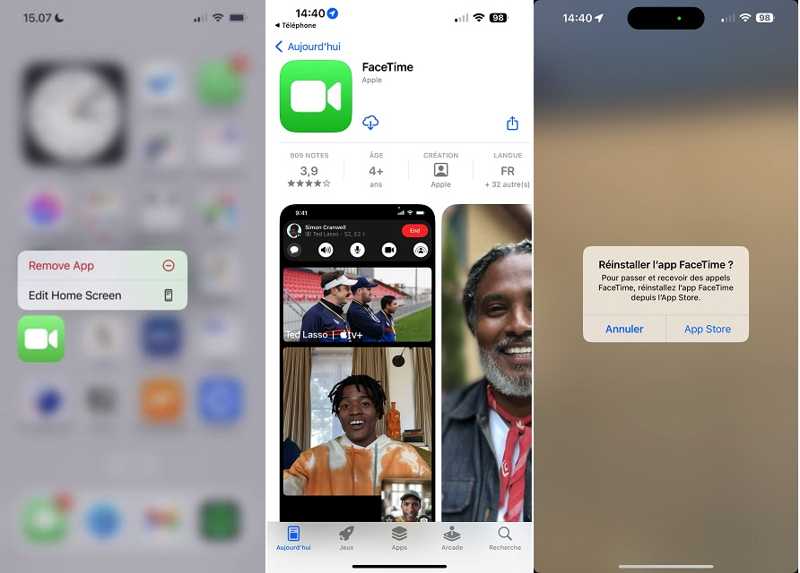
Step 1. Deeply press the FaceTime app on your screen.
Step 2. Choose Remove App on the context menu, pick Delete App, and tap Delete if prompted.
Step 3. Restart your iPhone. Go to the App Store app, and enter facetime in the search bar.
Step 4. Next, tap the Download button to reinstall FaceTime on your device. Then try taking live photos during a FaceTime call.
Solution 7: Fix iOS System Issues (Last Resort)
If the FaceTime photos not saving issue remains after trying all the solutions above, the problem may be caused by an underlying iOS system issue. In this case, you can use Apeaksoft iOS System Recovery to diagnose and fix iOS system problems that may affect FaceTime and other features.
Secure Download
Secure Download
Step 1. Download this tool from the button above and choose the iOS System Recovery option.
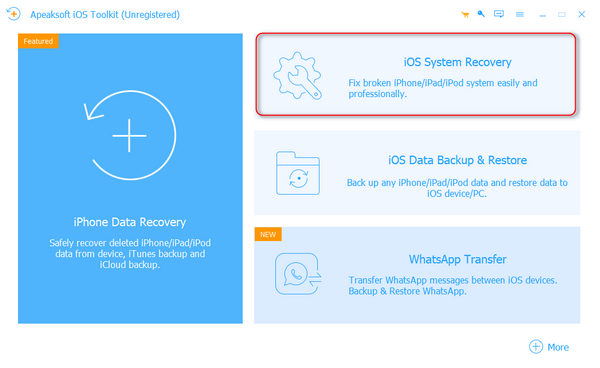
Step 2. Connect your device and click System Repair.

Step 3. Choose a fix mode and wait for the software to download the necessary firmware.
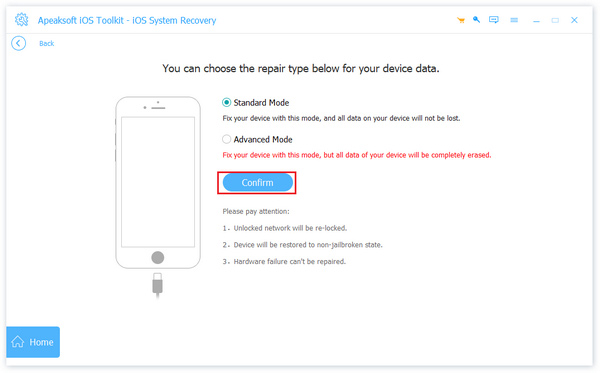
Step 4. Click the Next button and start repairing iOS problems.
Part 3: Can You Recover FaceTime Photos That Were Not Saved
It depends on what happened to the FaceTime photo. If you tapped the Shutter button but the FaceTime photo was never successfully saved to your iPhone, there is usually no photo file available to recover. In this case, you should try the solutions above to fix the saving issue and take the photo again.
However, if the FaceTime photo was successfully saved before but was later deleted or lost due to accidental deletion, an iOS update, factory reset, or other data loss, there is a chance to recover it. Apeaksoft iPhone Data Recovery can help you scan for lost photos and recover them from your iPhone or available backups.

Downloaded by over 1,000,000 users
- Recover FaceTime photos on iOS without backup.
- Preview lost FaceTime photos before recovery.
- Extract FaceTime pictures from iCloud/iTunes backup without reset.
- Support the latest models of iPhone.
- Available on Windows 11/10/8/7/Vista/XP and Mac OS X 10.7 or above.
Secure Download
Secure Download

How to Recover FaceTime Photos on iPhone Without Backup
Step 1. Connect to your iPhone
Download and run this FaceTime photo recovery software after installing it on your computer. Choose Recover from iOS Device. Next, hook up your iPhone to your computer with a Lightning cable. If prompted, tap Trust on your screen. Click the Start Scan button to continue.
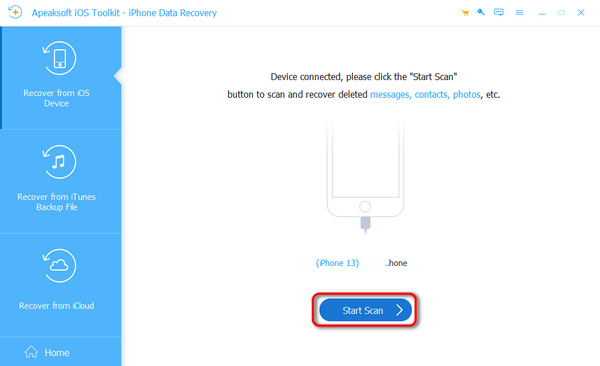
Step 2. Preview FaceTime photos
Then select Camera Roll under the Media heading on the left sidebar of the main interface. Then you can search and view the lost FaceTime photos.

Step 3. Retrieve FaceTime photos
Select the FaceTime photos that you want to get back, and click the Recover button at the bottom right side. Set an output folder, and hit Recover again. You can also recover deleted Facebook photos on your iPhone.
Conclusion
You can fix FaceTime photos not saved yourself following our article and solutions above. The common solutions are available for both advanced users and average people. Apeaksoft iPhone Data Recovery can help you get back lost FaceTime photos.
 Apeaksoft iOS System Recovery
 Fix virious iOS system issues on iPhone, iPad, and iPod.
Secure Download
Secure Download
Related Articles