How to Quickly Find Missing AppData Folder on Your PC

"I'm trying to install a VR game, but it fails and says missing the AppData folder. How can I fix this problem?" The Windows OS has a folder called AppData, short for Application Data. It stores custom settings and other information for app operation. Users don't need to access this folder, but apps and software cannot work if it is missing. This guide tells what you should do if you cannot find the AppData folder.
PAGE CONTENT:
Part 1: Why You Can't Find the AppData Folder
Microsoft added the AppData folder since Windows Vista. Since then, it has been in every version. It contains data your system application needs to run. It is located in your startup drive. The reasons why you cannot see the AppData folder include:
- 1.The folder is hidden.
- 2.The AppData folder is stored in the wrong location.
- 3.The folder was accidentally deleted.
- 4.The folder is corrupted or crashed.
- 5.The disk stores AppData folder is damaged.
Part 2: How to Find Deleted/Missing AppData
How to Find the AppData Folder in File Explorer
Where is the AppData folder? It is usually located in the Users folder in your startup drive. If you know the location, you can find the missing AppData folder in a File Explorer window. Here are the steps:
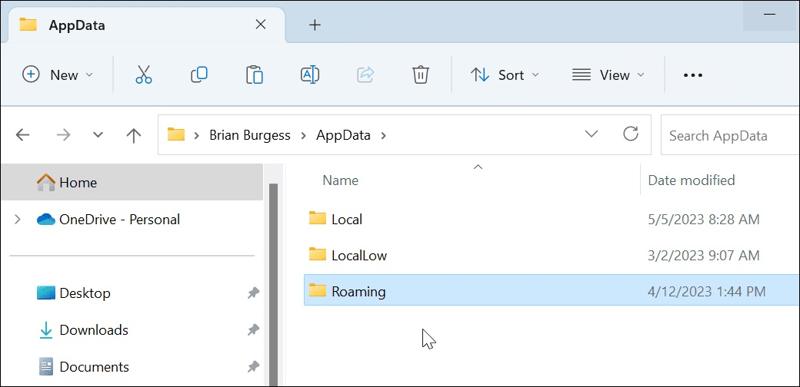
Step 1. Click the File Explorer button on your desktop or press Win + E on your keyboard to open it.
Step 2. Go to the startup drive: C:.
Step 3. Choose the Users folder, and pick your username.
Step 4. Then, find the AppData folder.
How to Find the AppData Folder by Run Dialog
If you cannot see the AppData folder in your File Explorer, you can find it from the Run dialog. You can run %AppData% to quickly locate the folder on your hard drive if it still exists.
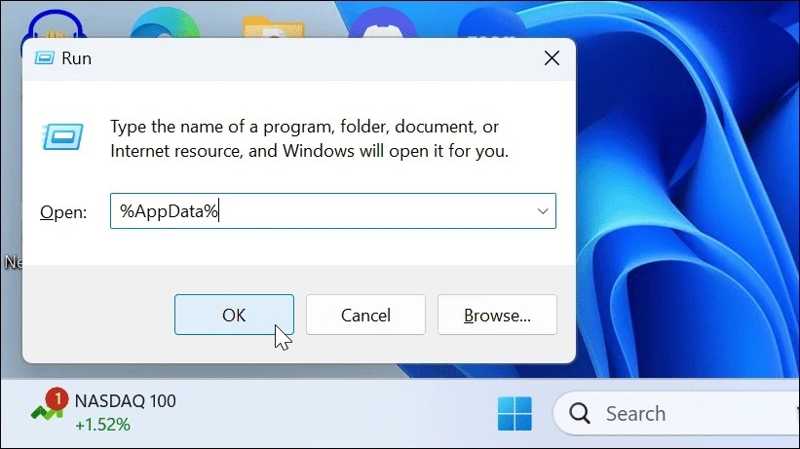
Step 1. Press the Win+ R keys on your keyboard to open the Run dialog.
Step 2. Input %AppData% in the box and click the OK button.
Step 3. The File Explorer window will open automatically and display the AppData folder directly.
Part 3: What to Do If the AppData Folder Is Not Showing
Solution 1: Unhide AppData Folder
By default, the AppData folder is hidden on Windows 11/10. If the AppData folder is not showing, you can unhide a specific folder or all folders on your hard drive. The workflows are different between the old and new versions of Windows.
Unhide AppData Folder on Windows 11/10
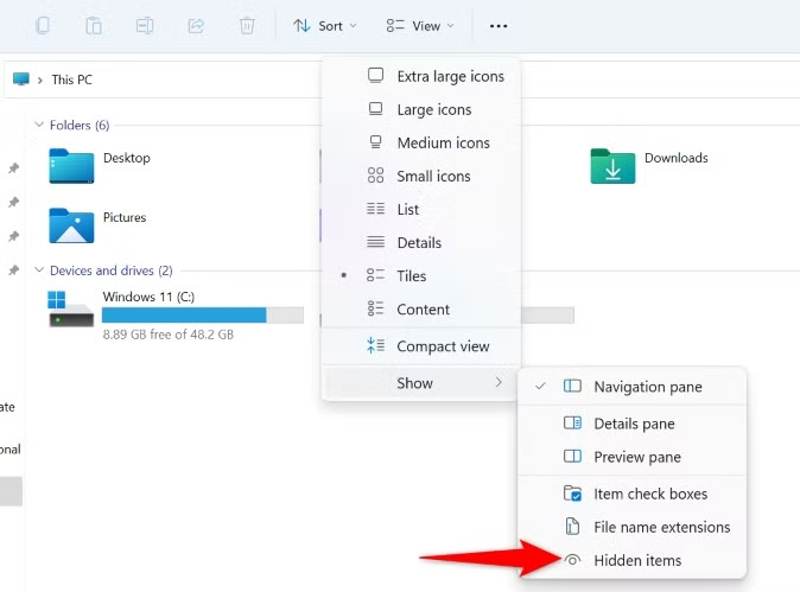
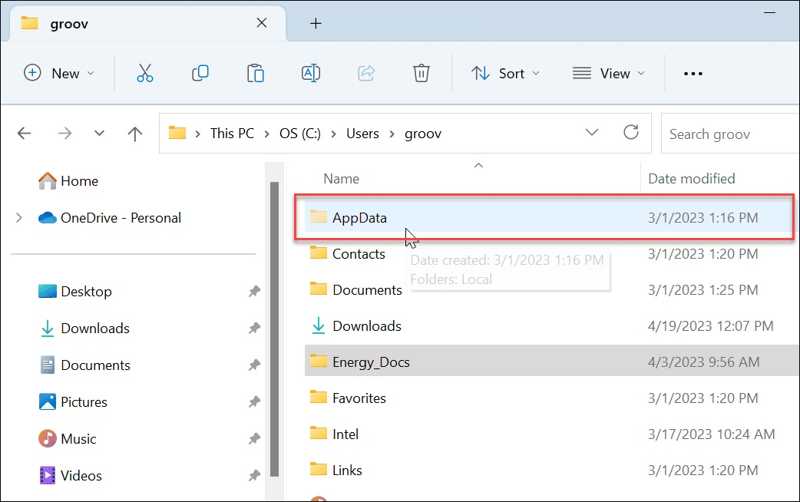
Step 1. Open a File Explorer window.
Step 2. Navigate to the startup drive and go to the Users folder.
Step 3. Choose your username to proceed.
Step 4. Click the View button on the menu bar.
Step 5. Choose Show and pick Hidden items.
Step 6. Now, the missing AppData folder should appear.
Unhide AppData Folder on Windows 8/7
Step 1. Right-click on the Start menu and choose Control Panel.
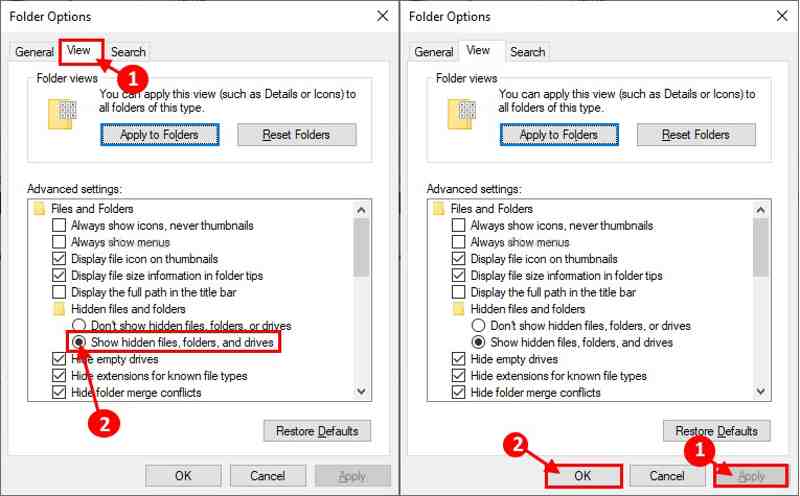
Step 2. Choose File Explorer Options and switch to the View tab on the dialog.
Step 3. Scroll down in the Advanced settings pane, and select Show hidden files, folders, and drives.
Step 4. Click the OK button and hit Apply.
Step 5. Next, go to the Users folder on your startup drive in a File Explorer.
Step 6. Choose your username, and you will find the AppData folder showing.
Further Reading
Solution 2: Restore AppData Folder from Recycle Bin
If you can't find the AppData folder on Windows 11 or earlier, chances are that you accidentally deleted it. You can check your Recycle Bin and restore the missing AppData folder to the original location.
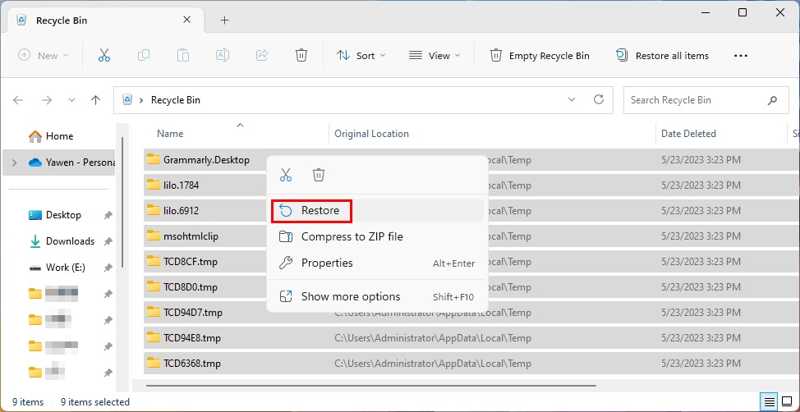
Step 1. Double-click on the Recycle Bin button on your desktop. Tip: If you cannot find it, open a File Explorer and choose Recycle Bin on the sidebar.
Step 2. Find the AppData folder.
Step 3. Right-click on the folder and choose Restore from the context menu.
Step 4. Now, you can find the missing AppData folder in the startup drive.
Part 4: Ultimate Solution to Find AppData Folder
If your AppData folder is permanently deleted, you cannot find it on either the startup drive or the Recycle Bin. Fortunately, Apeaksoft Data Recovery is able to look for the lost AppData folder without a backup. It works for a wide range of situations and doesn't require technical skills. The intuitive interface makes it easy to navigate.
Ultimate Way to Find AppData Folder on Windows 11/10/8/7
- Restore the missing AppData folder without backup.
- Easy to use and recover data.
- Work for both local disks and external hard drives.
- Compatible with a wide range of file types.
- Support Windows 11/10/8/7/XP/Vista and macOS.
Secure Download
Secure Download

How to Find a Missing AppData Folder
Step 1. Install data recovery software
Launch the data recovery software once you install it on your computer. Go to the Hard Drive Recovery tab on the sidebar, and pick your startup drive. Click on the Start Scan button to begin looking for missing files and folders.

Step 2. Preview lost files
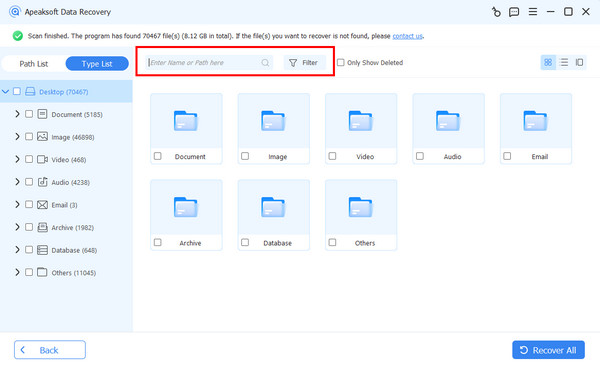
Once data scanning is complete, go to the Path List tab on the left side and navigate to the desired folder. You can also quickly locate the AppData folder with the Filter feature.
Step 3. Restore the AppData folder
Make sure to select the missing AppData folder and click the Recover button at the bottom right corner. Then, set an output folder and confirm data recovery. You'd better set another location to save the AppData folder. Then, copy and paste the folder to your startup drive. When it is done, close the software.

Conclusion
This article explained how to find the AppData folder on Windows 11/10/8/7 and earlier. You can locate the folder in a File Explorer directly if you know where it is saved. Plus, you can quickly find the folder using the Run dialog. If the folder is lost and missing, restore it from the Recycle Bin folder. Apeaksoft Data Recovery enables you to retrieve the lost folder without a backup. It can deeply scan your hard drive and recover deleted folders. Moreover, it is easy to use.
Related Articles