

How to Recover Photos from a Broken iPhone or iPad

Like most digital devices, an iPhone screen may be broken due to a variety of factors. It is difficult and expensive to repair hardware. Another important problem is data loss on a damaged iPhone. While the broken handset seems hopeless at the moment, there are a few methods you can use to get photos off a broken iPhone or iPad. This guide identifies the proven methods and demonstrates the workflows.
PAGE CONTENT:
Part 1: How to Get Photos off a Broken iPhone Without Backup
Is it possible to recover photos from a broken iPhone without a backup? Yes, all you need is a powerful data recovery tool for iOS devices, such as Apeaksoft iPhone Data Recovery. It is able to scan your iPhone or iPad memory and look for photos or other data.
The Best Way to Retrieve Photos from a Broken iPhone Without Backup
- Recover photos from an iOS device without a backup.
- Open iCloud and iTunes backup for data recovery.
- Preview lost photos for selectively recovering.
- Support both Camera Roll and app photos.
- Available to the latest versions of iOS and iPadOS.
Secure Download
Secure Download

How to Retrieve Photos from a Broken iPhone Without Backup
Step 1. Scan your iPhone
Launch the best photo recovery software for iOS once you install it on your PC. There is another version for Mac users. Connect the broken iPhone to your PC with a Lightning cable. The software will detect your device automatically. Choose the Recover from iOS Device tab, and click the Start Scan button.

Step 2. Preview photos
Once data scanning finishes, select the data types you want to recover. For photo recovery, select Camera Roll, Photo Stream, and Photo Library.

Step 3. Retrieve photos
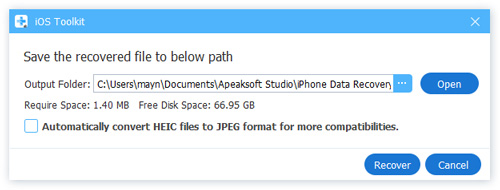
Check the photos you want to retrieve and click the Recover button. Then, set an output folder and hit Recover.
Part 2: How to Get Photos off a Broken iPhone via iCloud
If you have turned on iCloud Photos, all your photos on your iPhone will be synced to your iCloud account. That gives you an option to get photos off an iPhone when the screen is broken. The prerequisite is that you have turned on iCloud Photos.

Step 1. Go to www.icloud.com/photos in a browser.
Step 2. Sign in with your Apple ID and password. If 2FA is turned on, you need to input the verification code on your screen.
Tips: Or sign in to www.icloud.com and click Photos.
Step 3. Go to the Library album, and you will see all photos synced to your iCloud account.
Step 4. Press the Ctrl or Cmd key on your keyboard, and select each photo you want to retrieve.
Step 5. Click the Download button to get photos off the broken iPhone.
Part 3: How to Recover Photos from Broken iPhone by iCloud Backup
iCloud Backup is another way to retrieve photos from a broken iPhone. The prerequisite is that you have an iCloud backup. This method also requires an accessible iPhone or iPad with enough storage capacity.
Step 1. Power on another iOS device. If it is a new device, skip to step 4.
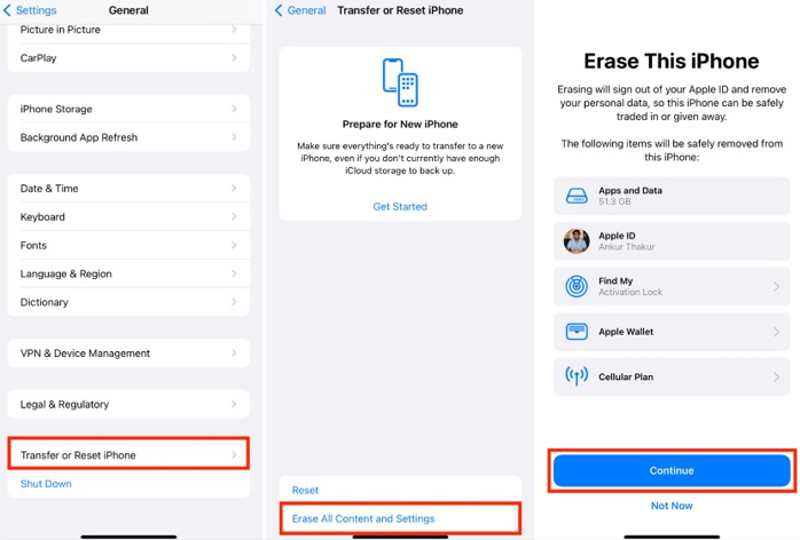
Step 2. Run the Settings app, go to General, and choose Transfer or Reset iPhone.
Step 3. Tap Erase All Content and Settings, enter your Apple ID and password, and confirm erasing your iPhone.
Step 4. When the device restarts, set it up following the onscreen prompts.
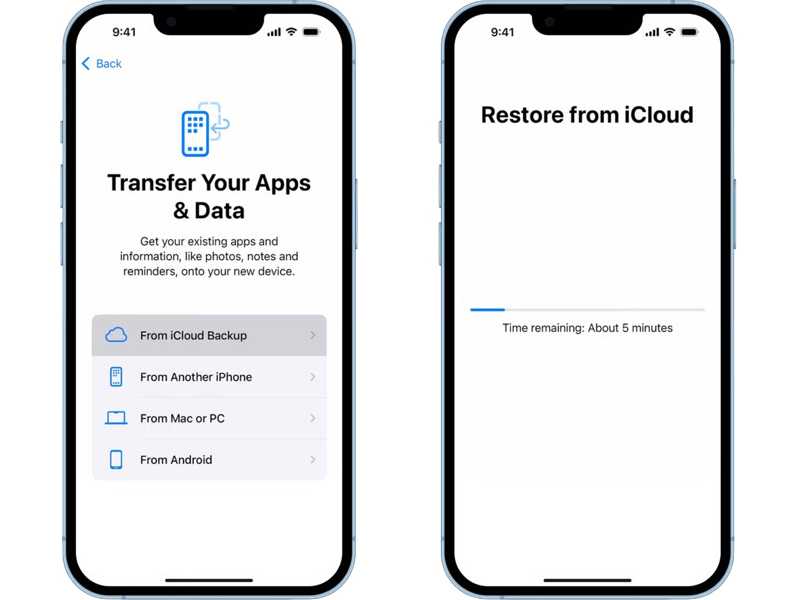
Step 5. Choose From iCloud Backup on the Apps & Data screen.
Step 6. Input your Apple ID and password, and pick the latest backup.
Step 7. When it is done, you will find your photos on the device.
Part 4: How to Get Photos off a Broken iPhone from iTunes Backup
If you have another iOS device, you can also get photos off a broken iPhone using iTunes backup. Of course, the prerequisite is that you have backed up your iPhone to a computer before it breaks.
Step 1. Connect another iOS device to your computer with a USB cable.
Step 2. Open the latest version of iTunes on your PC. On macOS Catalina or later, run Finder instead.
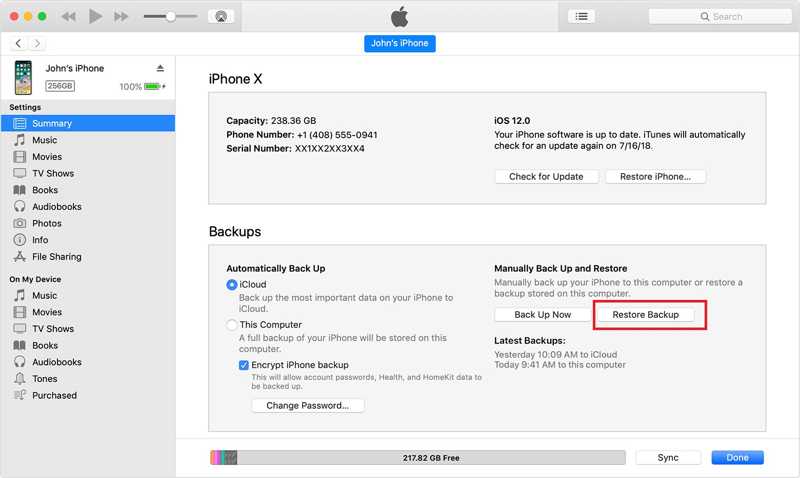
Step 3. Once the device is detected, click the Phone button at the top left side in iTunes.
In Finder, click the device name on the sidebar.
Step 4. Then, go to the Summary or General tab.
Step 5. Click the Restore Backup button.
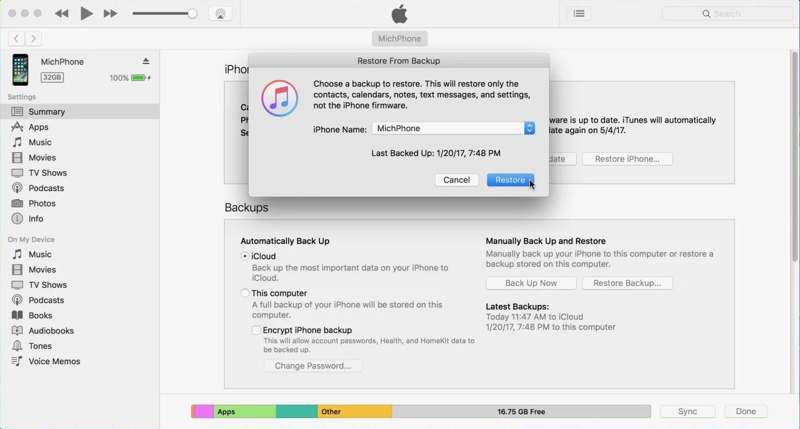
Step 6. Select the iTunes backup for the broken iPhone, and click Restore to recover photos from broken iPhone without iCloud. But you'll need to enter the iTunes backup password if you've ever set it.
Conclusion
This guide demonstrated four ways to recover photos from a broken iPhone or iPad. iCloud Photos offers a way to download photos if you have turned the feature on. iCloud Backup allows you to restore photos to another iOS device. iTunes Backup provides another option to get back your photos. Apeaksoft iPhone Data Recovery is the easiest option for photo recovery, even if you don’t have any backup for the broken iPhone.
Related Articles
It must be exhausting to encounter iCloud backup failure when you enable it. Don't worry; this post offers the best way to fix it.
Is your iCloud backup stuck or failing? Don't panic, there are hidden problems and repair tips you may not know about. Here's how to break out of the deadlock.
You can sync photos to iCloud from your iPhone. However, you may encounter iCloud Photos not syncing due to unknown reasons.
Do you want to restore deleted apps from iCloud? This article



