


How to Recover Deleted Google Drives [Complete Guide]

Have you accidentally deleted spreadsheets, photos, or project documents in Google Drive and don't know how to get them back? Don't worry. This guide will walk you through how to recover deleted files from Google Drive step by step!
PAGE CONTENT:
- Part 1: Where Do Deleted Google Drive Files Go
- Part 2: Recover Deleted Files from Google Drive Trash
- Part 3: Restore Overwritten Google Drive Files via File Version History
- Part 4: Recover Permanently Deleted Google Drive Files [Admin Console]
- Part 5: Contact Google Support to Recover Deleted Google Drive Files
- Part 6: Recover Deleted Google Files from Local Storage
| Situation | Method |
| Deleted files are within 30 days and still in Trash | Restore files from Google Drive Trash |
| File content was accidentally overwritten | Restore previous versions with File Version History |
| Google Workspace account and files were removed from Trash within 25 days | Recover files through Google Workspace Admin Console |
| Personal Google account and files were removed from Trash | Contact Google Support and request file recovery |
| Files were previously saved on local storage or computer backups | Recover local copies with data recovery software |
Part 1: Where Do Deleted Google Drive Files Go
Before working out how to recover deleted files from Google Drive, let's first figure out where deleted files go in Google Drive. When you delete files in Google Drive, they won't get erased permanently right away. In the first stage, the deleted files are sent to Trash and remain there available for 30 days. You can recover deleted files from Google Drive anytime within this retention period.
If you manually empty the Trash folder, or the files are kept in the Trash folder for over 30 days, they will be permanently deleted. However, for Google Workspace accounts, administrators have an extra 25‑day window for admin restoration.
However, once files are auto‑deleted after sitting in Trash for over 30 days, no user or administrator can recover permanently deleted Google Drive files, because the data is removed from Google servers.
Part 2: Recover Deleted Files from Google Drive Trash
Deleted files will first go to the Trash and will be retained there for 30 days. Therefore, if your files are deleted within 30 days, and you haven't deleted them manually, you can check the Trash folder. Note that after 30 days, they are automatically and permanently erased. Manually emptying the Trash will also result in immediate permanent deletion.
Step 1. Open the Google Drive web page.
Step 2. Click Trash from the left‑hand sidebar.
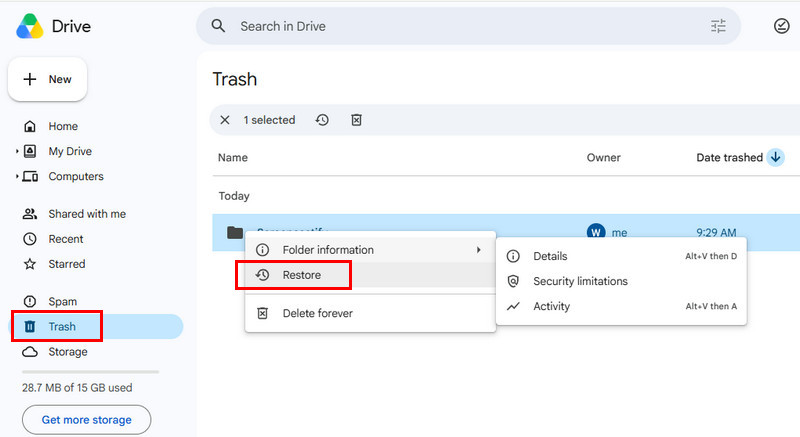
Step 3. Locate your target file or folder.
Step 4. Right‑click and choose Restore. The files will return to the original folders.
Part 3: Restore Overwritten Google Drive Files via File Version History
If your file is not deleted but its content has been accidentally overwritten, you can use the File Version History to get your previous content back.
Step 1. Open the target file inside Google Drive.
Step 2. Click File in the top menu, click Version history > See version history.
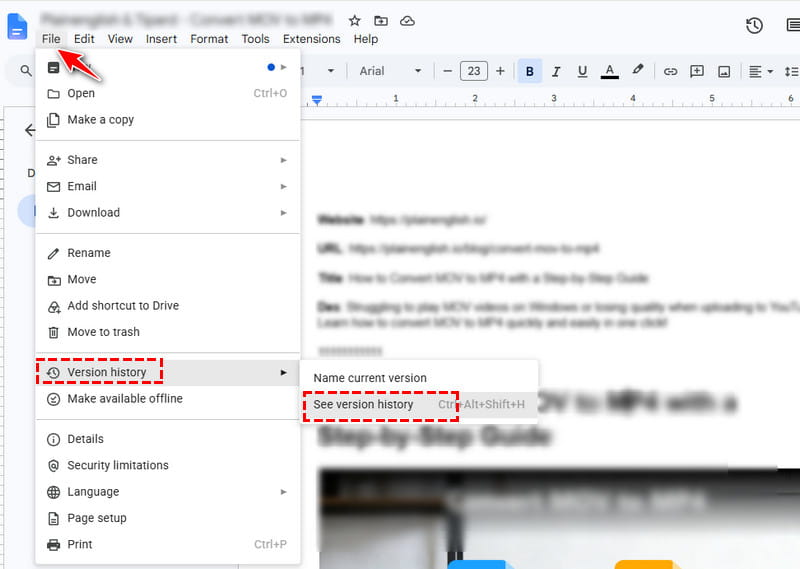
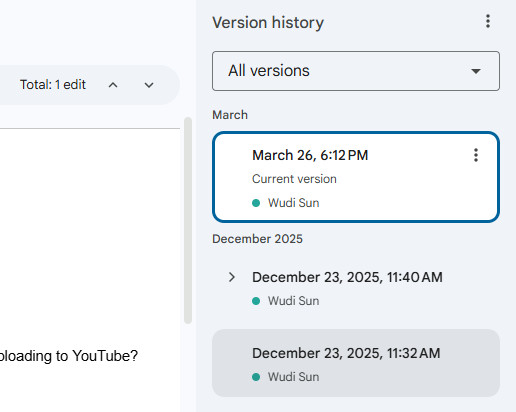
Step 3. Browse all saved previous versions on the right panel.
Step 4. Select the version you need and hit Restore this version to recover deleted Google Docs.
Part 4: Recover Permanently Deleted Google Drive Files [Admin Console]
If you are on a Google Workspace or Education plan and have manually emptied your Trash (which means your Google files are permanently deleted), administrators can recover a deleted Google Drive file within a 25‑day window. However, this does not work for personal accounts.
Step 1. Sign in to your Google Workspace Admin account.
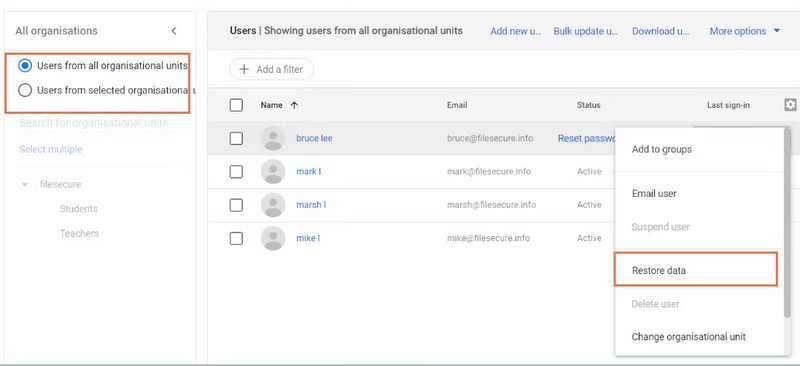
Step 2. Go to Directory - Users, and find the target account.
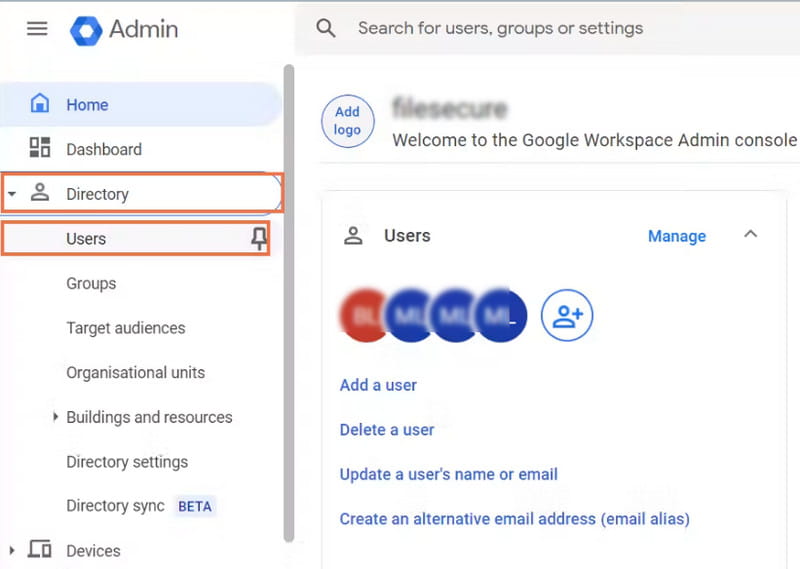
Step 3. Click More options next to the target user, then select Restore data.
Step 4. Choose Drive as the application, set the correct date range, and start restoration.
Part 5: Contact Google Support to Recover Deleted Google Drive Files
If you have manually emptied Trash, you can try contacting Google Support and then submit a file recovery request. Google specialists may help check whether your files are still recoverable. However, recovery is not guaranteed.
Step 1. Sign in with your Google account and open the Google Drive Help page.
Step 2. Follow the available support options to submit a file recovery request for Drive file recovery.
Step 3. Wait for feedback from Google specialists
Part 6: Recover Deleted Google Files from Local Storage
If you have the habit of editing files locally before uploading to Google Drive or keep a local backup of your Google Drive files on your computer, you can use data recovery software, such as Apeaksoft Data Recovery, to recover permanently deleted Google Drive files. But note that this approach only works for files that were once saved locally.

Downloaded by over 1,000,000 users
- Recover permanently deleted Google Drive files that were once stored locally.
- Provides a deep scan feature for all recoverable Google files.
- Preview all files before the Google Drive recovery.
- Selectively recover Google Drive files as you need.
Secure Download
Secure Download

Step 1. Download and install Apeaksoft Data Recovery from the button above.
Step 2. Choose a location or disk where your local Google Drive files are stored. Click Start Scan.

Step 3. Preview the scanned files and use the file type filters or search box to quickly find the files you need.
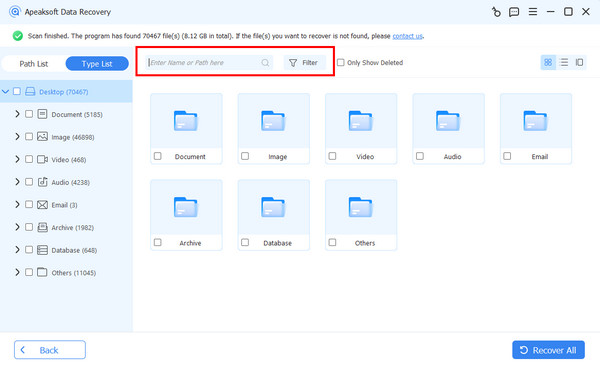
Step 4. Check the files and click Recover All.

Tips: This tool can also help you recover deleted Google Calendar events.
Conclusion
Whether you can recover deleted Google Drive files depends on how and when they were deleted. You can start your Google Drive recovery with Trash or Version History, then try Google Workspace Admin or Google Support. If you have local copies, data recovery software such as Apeaksoft Data Recovery can also help.
Related Articles




