


How to Recover iCloud Login Password Without Resetting It

To help users manage passwords, Apple has introduced a feature that saves passwords and passkeys on iPhones, iPad devices, and Mac computers. Whenever you forget your passwords, you can find them from the built-in or third-party password manager. When you forget your iCloud login information, for example, you can get iCloud password recovery without resetting it. This guide shares multiple proven methods to retrieve your account password on your handset and computer.
PAGE CONTENT:
- Part 1: What Is iCloud Password Recovery
- Part 2: How to Recover iCloud Password on iPhone/iPad
- Part 3: How to Recover iCloud Password on Mac
- Part 4: How to Recover iCloud Password on Windows
- Part 5: How to Recover iCloud Password from Browsers
- Part 6: How to Recover iCloud Password Without Restrictions
Part 1: What Is iCloud Password Recovery
In fact, you need to log in to iCloud with your Apple ID and password. In other words, your iCloud password is the same as your Apple ID password. When you forget your iCloud password, instead of resetting it, you can try to recover it from the built-in password manager first.
Part 2: How to Recover iCloud Password on iPhone/iPad
With the release of iOS 18, Apple has added the Passwords app to iPhones, iPads, and Mac computers. It saves passwords and login information on your iPhone or iPad. That offers a way to recover your iCloud password on an iPhone.
How to Recover iCloud Password on iOS 18, iPadOS 18 and Above
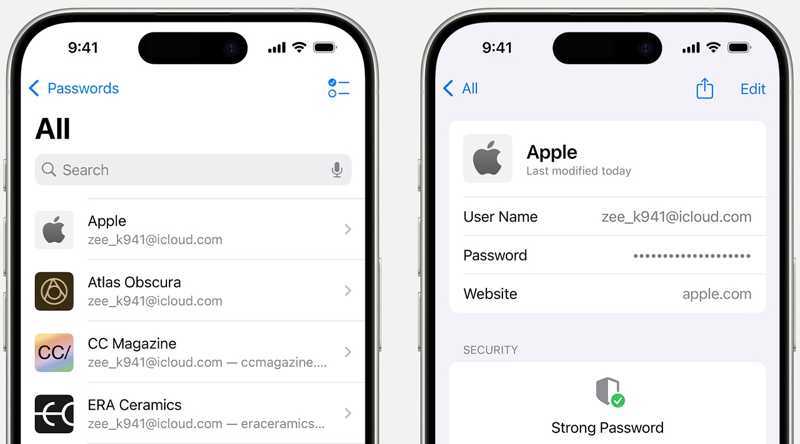
Step 1. Open the built-in Passwords app from your home screen.
Step 2. Authenticate with your Face ID or passcode.
Step 3. Choose the All group.
Step 4. Search for a website where you have logged in with your iCloud password.
Step 5. Tap the correct password-setting website from the results.
Step 6. Tap the Edit button to view your iCloud password.
Note: This option is available on macOS Sequoia or later.
Part 3: How to Recover iCloud Password on Mac
In fact, Apple has introduced the built-in password manager on Apple devices before releasing the Passwords app. This feature saves your passwords as long as you access relevant websites on macOS Sonoma and earlier.
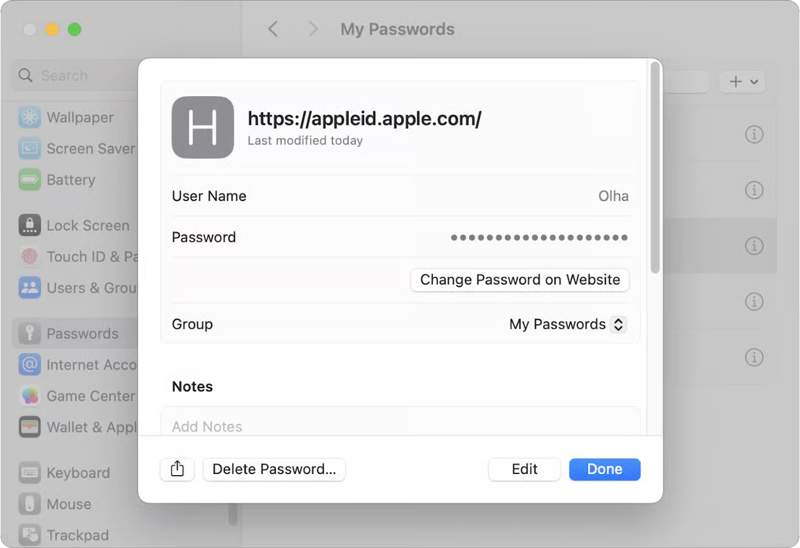
Step 1. Click the Apple menu and choose System Settings.
Step 2. Scroll down and choose the Passwords option.
Step 3. Search for icloud.com or apple.com in the Search bar.
Step 4. Choose the right website to view the information.
Step 5. Click the Edit button to display your iCloud password.
Note: This method is available in the Settings app on iOS 17 and iPadOS 17 or earlier.
Part 4: How to Recover iCloud Password on Windows
Even if you don't have your Apple device, chances are that your iCloud password is recoverable using the iCloud Passwords app or extension on Windows. The precondition is that you have turned on iCloud Keychain or iCloud Password on your iPhone, iPad, or Mac.
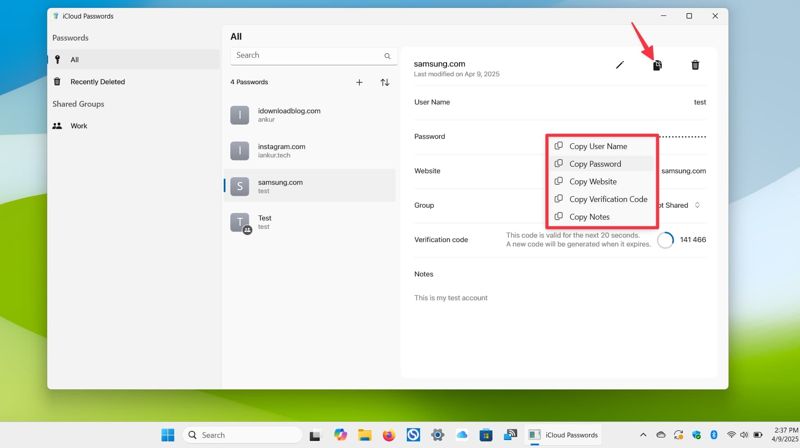
Step 1. Open the iCloud Passwords app on your PC.
Step 2. Authenticate with your computer password or biometric.
Step 3. Go to the All section.
Step 4. Choose a website linked to your iCloud password.
Step 5. Click the Copy button with a dual-paper icon and choose Copy Password.
Step 6. Then, open a blank text or document, and paste the content to recover your iCloud password.
Part 5: How to Recover iCloud Password from Browsers
In addition to the built-in password manager, you can get iCloud password recovery if you have visited it on a third-party web browser, such as Google Chrome, Firefox, or MS Edge. We demonstrate the workflows respectively.
How to Get iCloud Password Recovery in Chrome
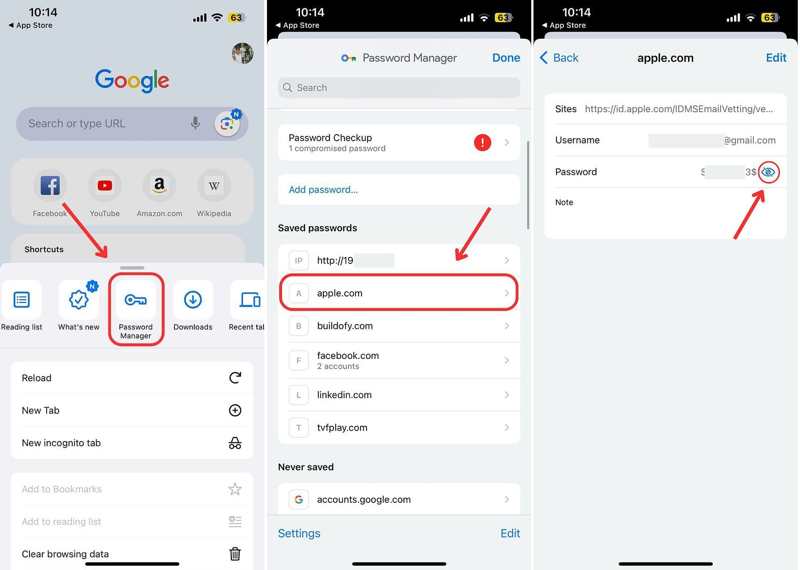
Step 1. Open the Google Chrome app.
Step 2. Tap the More button with a three-dot icon.
Step 3. Choose Password Manager in the toolbox.
Step 4. Find and select the Apple or iCloud website from the list.
Step 5. Hit the View button with an eye icon to recover the iCloud password.
How to Recover iCloud Password in Firefox
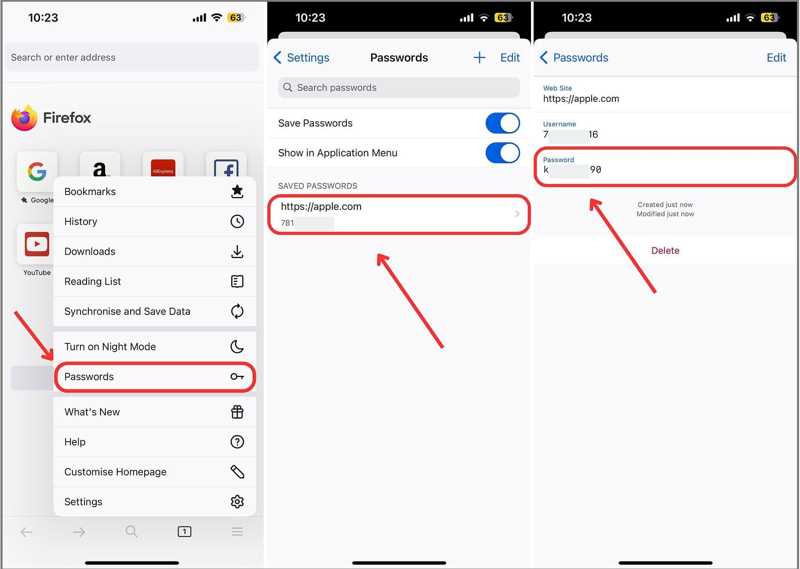
Step 1. Open Firefox.
Step 2. Tap the Hamburger button.
Step 3. Choose Passwords from the menu.
Step 4. Look for icloud.com or apple.com on the list and choose it.
Step 5. Hit the Password field or the Edit button to retrieve the iCloud password.
How to Retrieve iCloud Password in Edge
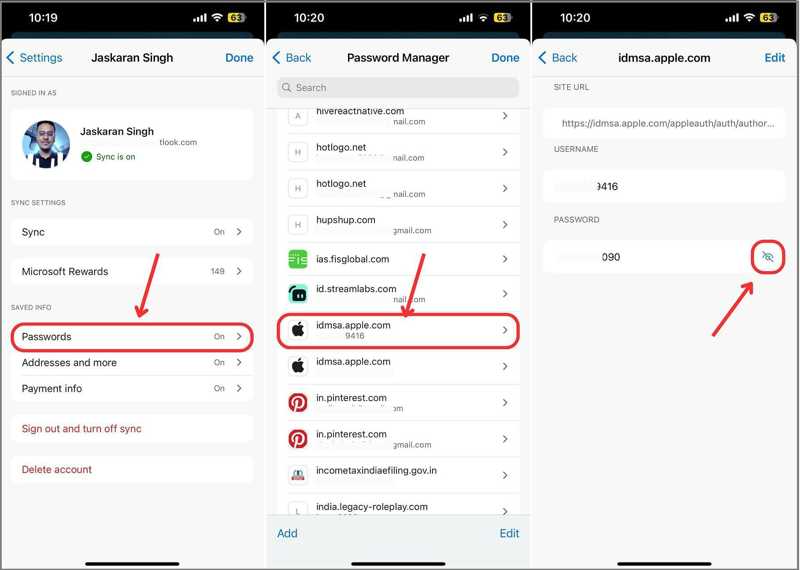
Step 1. Hit the Hamburger button in Microsoft Edge.
Step 2. Go to Settings and choose Passwords.
Step 3. Search for apple.com in the Password Manager.
Step 4. Choose the right website.
Step 5. Hit the Edit button or View button with an eye icon to recover your iCloud password.
Further Reading
Part 6: How to Recover iCloud Password Without Restrictions
If you cannot recover your iCloud password, try an alternative solution: remove the old account and set a new password. From this point, we recommend Apeaksoft iFoneKit iOS Unlocker. It allows you to remove the forgotten iCloud password from your iOS device without a password.

Downloaded by over 1,000,000 users
- Remove the forgotten iCloud password from an iOS device.
- Don't ask you to enter a password or iPhone passcode.
- Offer bonus features, like Screen Time password removal.
- Support the latest editions of iOS and iPadOS.
Secure Download
Secure Download

How to Recover iCloud Password from Your iPhone
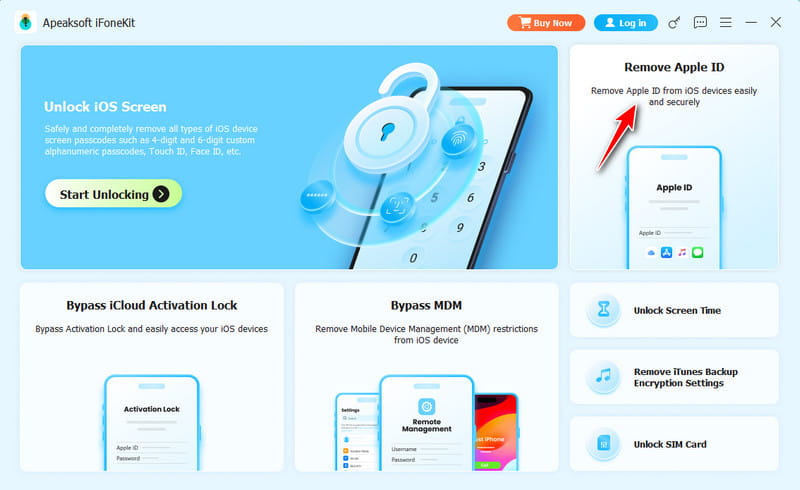
Step 1. Install iCloud password remover
Launch iFoneKit once you install it on your computer. It works on Windows 11/10/8/7/XP/Vista and macOS 10.7 or above. Choose the Remove Apple ID mode to proceed.
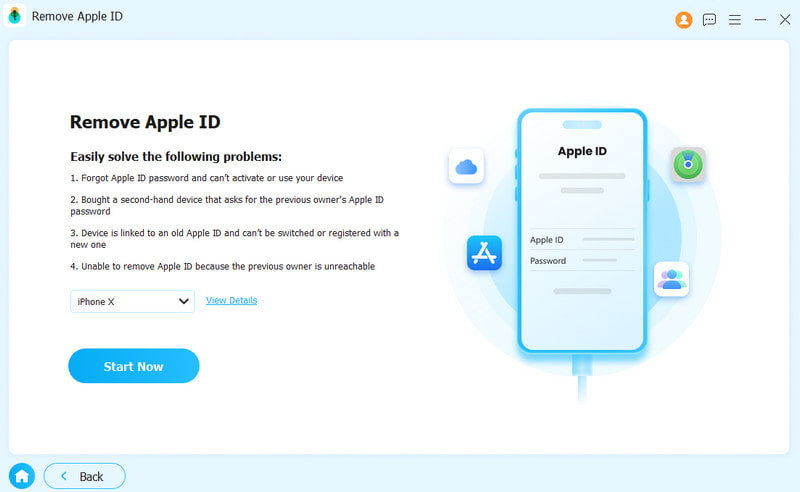
Step 2. Connect to your iPhone
Plug your iPhone into your computer with a Lightning cable. Make sure to trust this computer. After your device is recognized, click the Start Now button.
Step 3. Remove iCloud password
If Find My iPhone is disabled, the software will begin removing the forgotten iCloud password. If Find My iPhone is enabled, reset all settings on your device following the onscreen instructions. Then, click OK and hit Confirm Again to initiate the process.
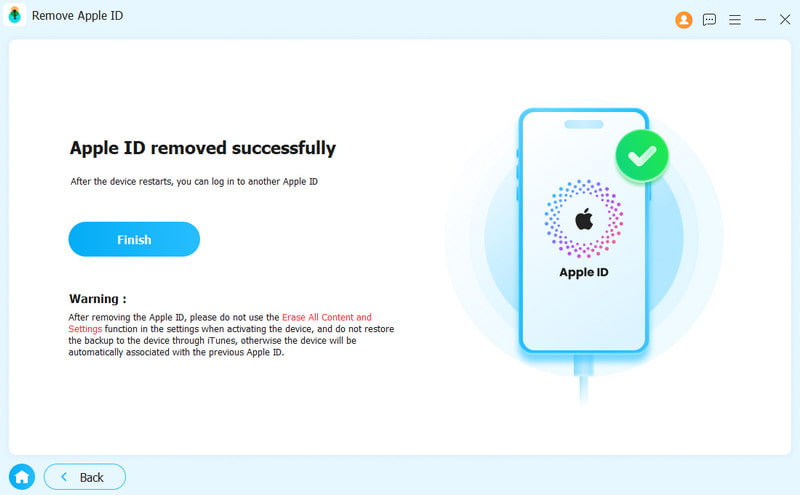
Note: When it is done, you can make a new iCloud password.
Conclusion
This guide shared multiple ways to recover your iCloud login password on your iPhone, iPad, Mac, and PC in various situations. Apple's Passwords saves your login information and passwords if you access them on your device. Moreover, third-party browsers may also store your iCloud password. Apeaksoft iFoneKit iOS Unlocker is the ultimate tool for resetting your iCloud account and password.
 Apeaksoft iFoneKit
 Unlock all types of iOS passwords from iPhone, iPad and iPod.
Secure Download
Secure Download
Related Articles




