What Is iMyFone D-Back and How to Use It to Recover Data

Today, data recovery is still a hot topic among iOS users. It cannot be denied that Apple provides a few methods to get back lost data, such as the Recently Deleted folder, iCloud and iTunes backup. However, all these methods have prerequisites. In some cases, you have to look for a third-party data recovery tool to retrieve deleted files from your memory. iMyFone D-Back, for example, is one of the best iPhone data recovery software. You can learn an unbiased review from this article.
PAGE CONTENT:
Part 1: iMyFone D-Back Review
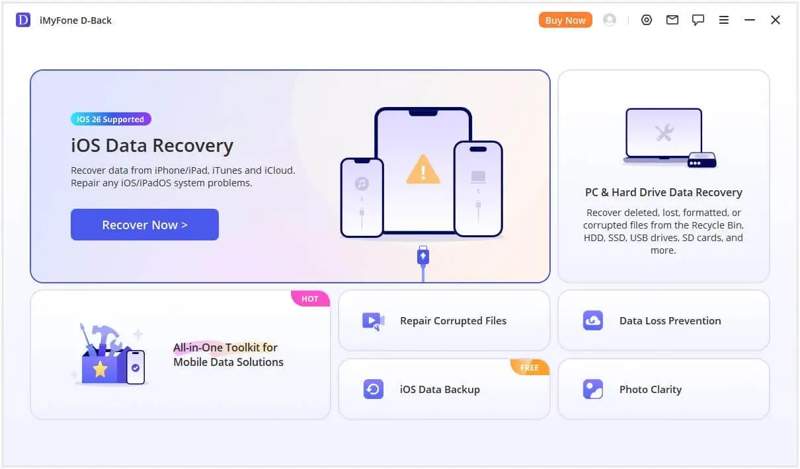
iMyFone D-Back is a premium data recovery toolkit for iOS devices, but it delivers bonus features, such as fixing common software glitches. It brings a glimmer of hope to iPhone and iPad users whose data has been deleted or lost due to various factors.
Key Features of iMyFone D-Back
- 1.Recover data from iOS devices without backup.
- 2.Restore data from iTunes and iCloud backup.
- 3.Support for a range of data types, like photos, videos, WhatsApp, etc.
- 4.Identify software issues and update errors automatically.
- 5.Work on both Windows 11/10/8/7 and macOS 10.9 or later.
- 6.Available for various situations, like factory reset, update failure, and more.
- 7.Provide multiple recovery modes for different circumstances.
- 8.Preview recoverable files for selective recovery.
iMyFone D-Back Review
- It comes with a clean, simple, and user-friendly interface.
- The screen provides step-by-step instructions.
- It provides a Smart Recovery option to find lost files quickly.
- According to our research, it can recover recently lost files with a high success rate.
- It works well on almost all iOS devices.
- The data recovery process is quite slow.
- It is not working if your lost files are overwritten.
- The free version can recover nothing.
- It requires you to install iTunes on your computer.
Price of iMyFone D-Back
iMyFone D-Back offers both individual and business plans. While it comes with a free download option, users need to subscribe to a plan to take advantage of all the features.
Individuals Plans
One month plan(3 devices/2 PCs): $49.99
One year plan(3 devices/2 PCs): $69.99
Lifetime plan(5 device/2 PCs): $79.99
The Business Plan starts at $139.99 annually for 10 devices on 3 PCs.
Is iMyFone D-Back Legit to Use?
Yes. If you download it from the official website, it is safe and legit to use. It won’t install malware, viruses, or spyware on your device.
Further Reading
Part 2: How to Use iMyFone D-Back
Does iMyFone D-Back work? Technically, yes. It can scan your iOS device and open backups. However, it might not work for old lost files and permanently deleted data. Here are the steps to use it:
Step 1. Download and install iMyFone D-Back on your computer.
Step 2. Launch it and select the iPhone Recovery mode.
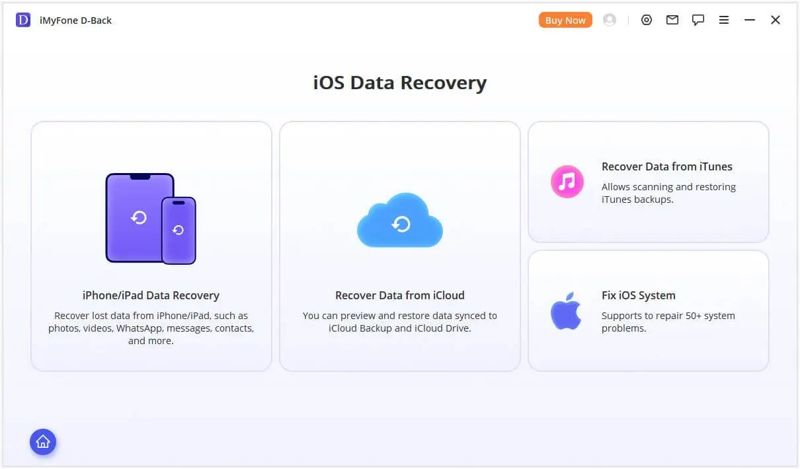
Step 3. Choose what situation you are in. If you don’t have a backup, choose iPhone/iPad Data Recovery. Or choose Recover Data from iCloud or Recover Data from iTunes.
Step 4. Connect your iPhone or iPad to your computer with a compatible cable.
Step 5. After your device is detected, click the Next button to proceed.
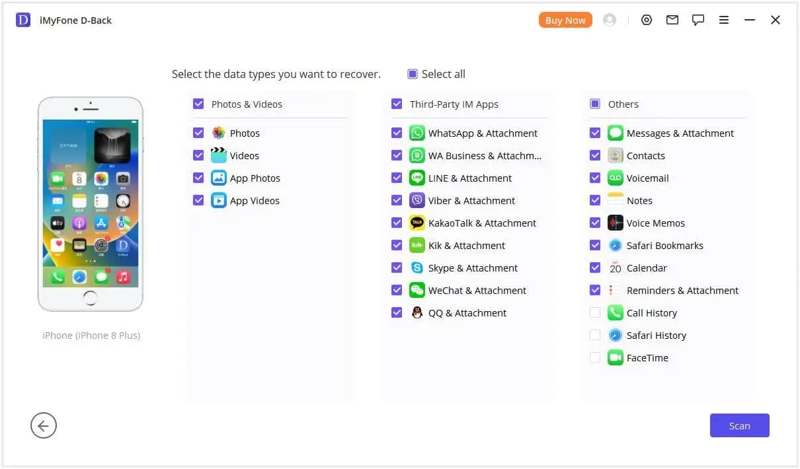
Step 6. Next, select the data types you would like to recover, and click the Scan button to begin scanning your memory.
Step 7. When device scanning finishes, select a data type, like Photos, and preview all photos recoverable.
Step 8. Select all files and items you want to get back.
Step 9. Now, you have two options:
If you wish to recover data to your computer, click the Recover to Computer button. Set an output folder, and confirm data recovery.
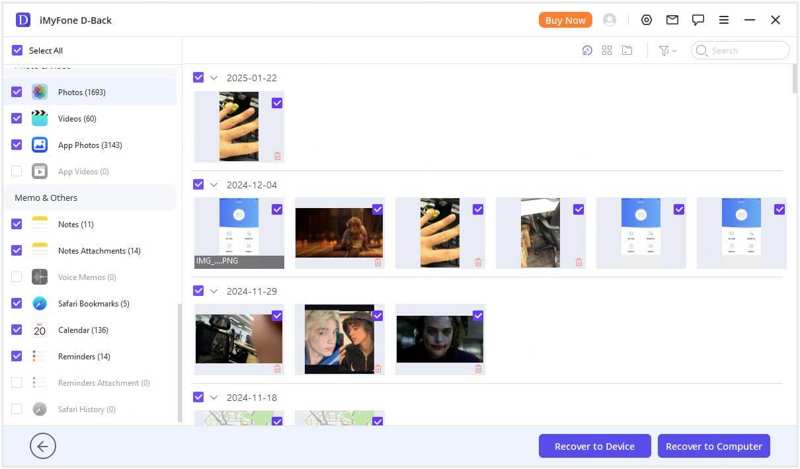
If you want to restore data to your iOS device, click the Recover to Device button and hit Next.
Part 3: A Great Alternative to iMyFone D-Back
Obviously, iMyFone D-Back iOS Data Recovery is not a perfect option to recover data from iOS devices. Of course, it is not the only option. If it is unavailable to you, you can try an alternative solution, such as Apeaksoft iPhone Data Recovery. It provides a higher success rate and is able to discover more files and data.
A Great Alternative to iMyFone D-Back iPhone Data Recovery
- Recover lost data from iOS devices in one click.
- Extract files from iTunes or iCloud backups.
- Work for almost all data types on iOS devices.
- Won’t interrupt or overwrite existing data on your device.
- Support all iOS and iPadOS devices.
Secure Download
Secure Download

How to Use iMyFone D-Back Alternative
Step 1. Connect to your iPhone
Launch the alternative to iMyFone D-Back once you install it on your computer. It is compatible with Windows 11/10/8/7/XP/Vista and macOS 10.7 or later. Plug your iPhone into your computer with a Lightning cable. If prompted, tap Trust on your screen to trust this computer. Then, choose the Recover from iOS Device tab, and click the Start Scan button.
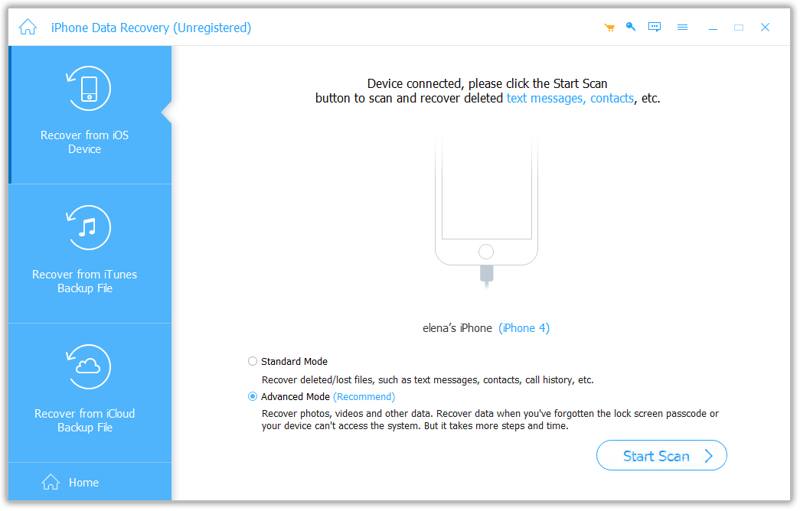
Tips: If you want to extract data from an iTunes or iCloud backup, choose Recover from iTunes Backup File or Recover from iCloud Backup File.
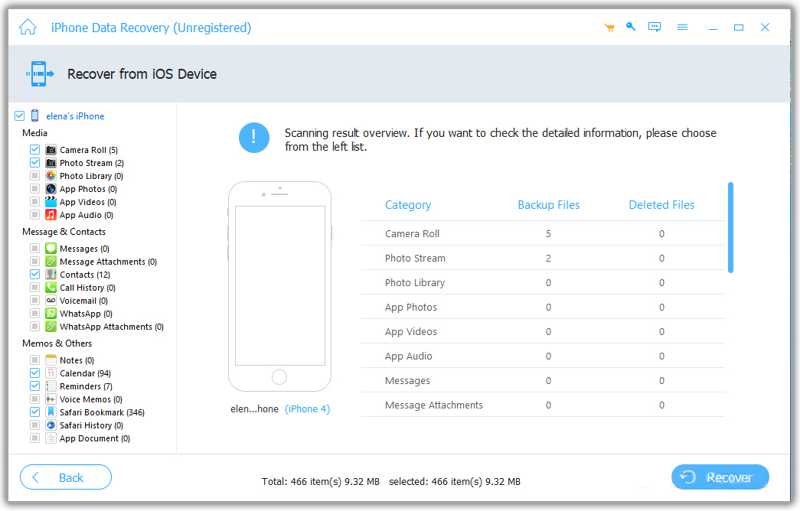
Step 2. Preview lost files
Once data scanning completes, you can preview files on your iPhone by type, such as Camera Roll, Messages, Contacts, and more. If there are too many files, toggle on Only display the deleted items on the top ribbon.
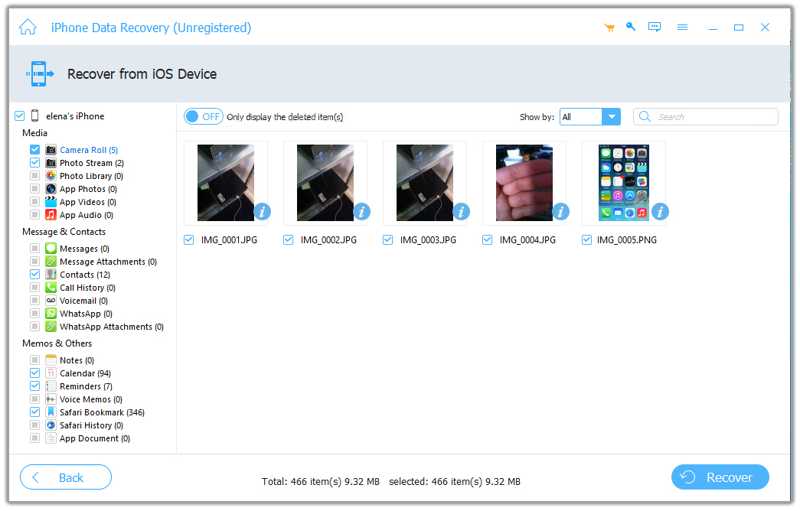
Step 3. Recover data from iPhone
Select all files you want to retrieve, and click the Recover button at the bottom right corner. Next, set a destination folder and confirm data recovery. During the process, keep your iOS device connected to your computer.
Conclusion
Now, you should understand what iMyFone D-Back is, what it can do, and other information. While it is unavailable to all lost data on iOS devices, it is worth you to try when you accidentally delete important files on iPhone and iPad. Our unbiased review can help you make the best decision. More importantly, we recommended an alternative option, Apeaksoft iPhone Data Recovery. It is easier to use, and is able to recover more old files no matter you have a backup or not.
Related Articles