

How to Find and Recover Deleted Text Messages on iPad

Suppose you received an important message on your iPad and accidentally deleted it. The first thing that appears in your mind might be how to recover deleted messages on an iPad. In fact, you have multiple options to get them back, including text messages and iMessage. Our guide identifies the proven methods and explains the prerequisites. Thus, you can discover the right way and follow our steps to get back your information.
PAGE CONTENT:
Part 1: How to Recover Recently Deleted Messages on iPad
When you delete messages on your iPad accidentally or intentionally, they go to the Recently Deleted folder and are stored here for up to 30 days. Then, they will be permanently erased. Before that, you can quickly find deleted messages on your iPad.
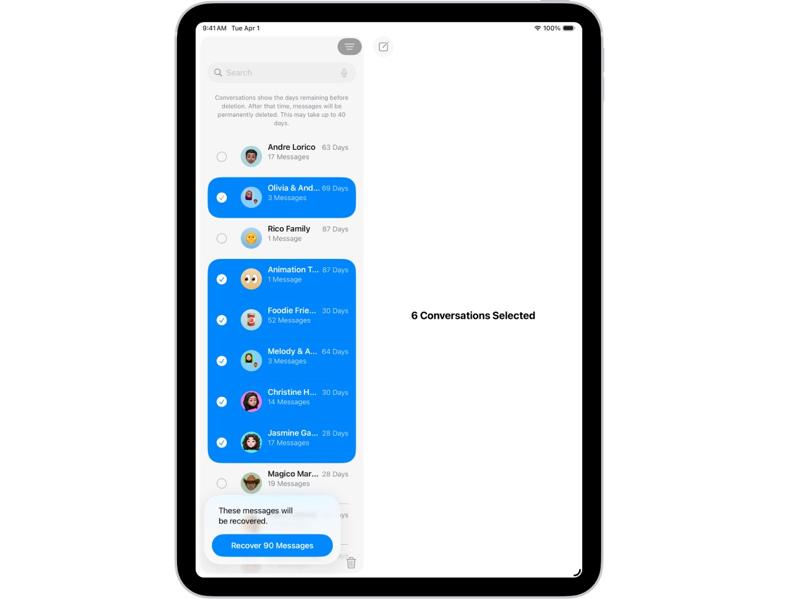
Step 1. Run the Messages app on your iPad.
Step 2. Tap the
Step 3. Choose the
Step 4. Select the deleted messages you want to recover and tap
Step 5. When prompted, tap
Step 6. Then, you can get deleted messages back on your iPad in the original folder.
Part 2: How to Recover Permanently Deleted iPad Messages
How to Retrieve Deleted iPad Messages from iCloud Backup
If you back up your iPad to iCloud regularly, you can retrieve deleted messages on your iPad from iCloud backup. The cost is that you need to erase your device and remove all current data.
Step 1. Run the Settings app on your iPad.
Step 2. Go to General and Transfer or Reset iPad.
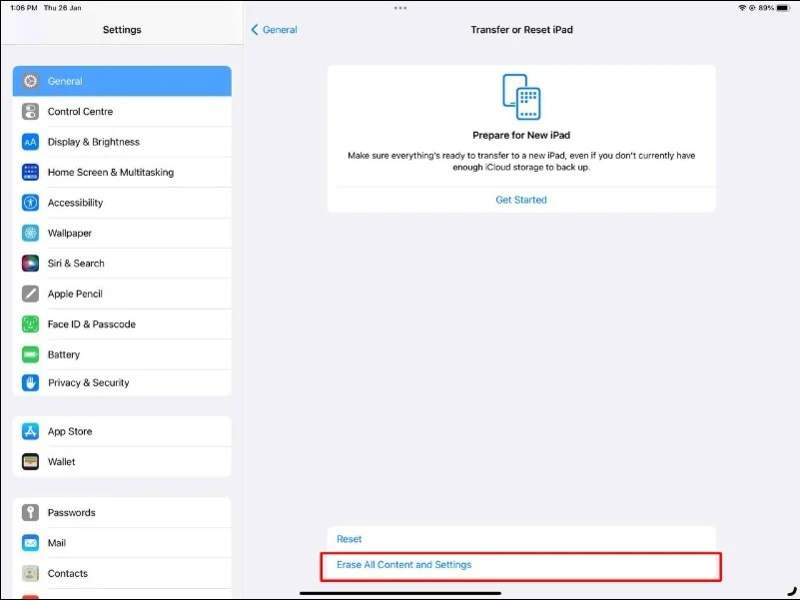
Step 3. Tap the Erase All Content and Settings option.
Step 4. If prompted, enter your iPad passcode or Apple ID password.
Step 5. Follow the onscreen instructions to confirm the action.
Step 6. When your iPad restarts, set it up following the onscreen instructions.
Step 7. Make sure to connect to a Wi-Fi network.
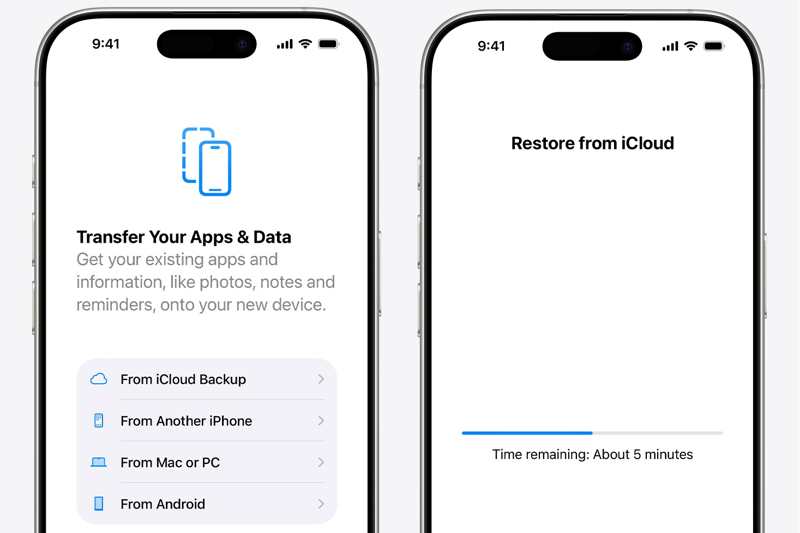
Step 8. Choose From iCloud Backup on the Apps & Data screen.
Step 9. Enter your Apple ID and password, and pick the right backup.
Step 10. Finally, complete the setup.
How to Restore Deleted iPad Messages from iTunes Backup
Some people prefer to back up their iPad devices to computers. That gives you a chance to restore deleted messages on your iPad from an iTunes or a Finder backup. This way requires a computer and a USB cable.
Step 1. Connect your iPad to your computer.
Step 2. Open the latest version of iTunes. If your computer runs macOS Catalina or later, run Finder instead.
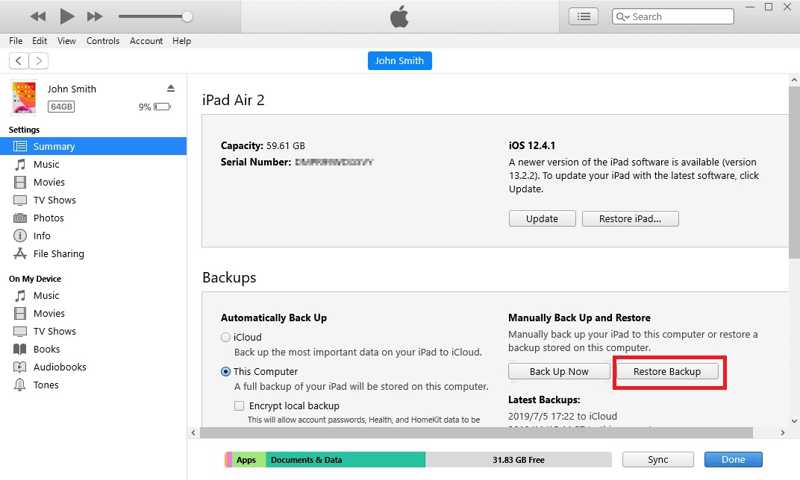
Step 3. After your device is detected, go to the Summary tab in iTunes and the General tab in Finder.
Step 4. Locate the Backups section, and select This Computer or Back up all of the data on your iPad to this Mac.
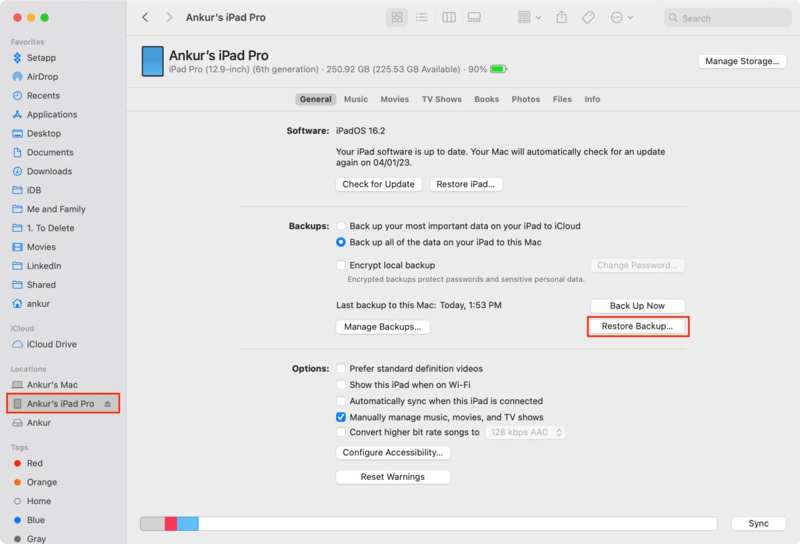
Step 5. Click the Restore Backup button, and choose the right backup file.
Step 6. Hit Restore to begin restoring deleted messages on your iPad.
Part 3: How to Retrieve Permanently Deleted iPad Messages Without Backup
If you don’t have a backup, it is difficult to get deleted messages back on your iPad. Fortunately, Apeaksoft iPhone Data Recovery is all you need. It is able to scan your iPad memory and look for lost text messages.
The Easiest Way to Get Deleted Messages Back on Your iPad
- Recover deleted messages on an iPad without backup.
- Extract deleted messages from iTunes or access iCloud backup.
- Preview lost messages for recovery.
- Compatible with the latest versions of iOS and iPadOS.
Secure Download
Secure Download

How to Get Deleted Messages Back on Your iPad
Step 1. Scan your iPad
Start the best iPad data recovery tool after installing it on your PC. There is another version for Mac. Plug your iPad into your PC with a Lightning cable. Once the software recognizes your device, go to the Recover from iOS Device tab. The Recover from iTunes Backup File and Recover from iCloud Backup File tabs allow you to retrieve messages from backups.

Step 2. Preview iPad messages
Choose the Messages under the Message & Contacts section on the left sidebar. Pull down the top option and pick Show Deleted Only. Preview the deleted messages on your iPad.
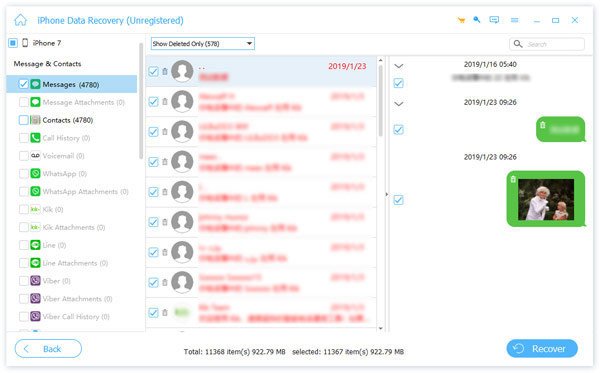
Step 3. Retrieve deleted messages
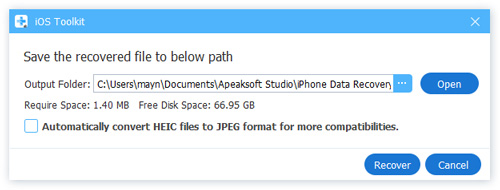
Select the conversations and messages you want to get back and click the Recover button. Then, pick an output folder and hit Recover. You can also retrieve iPhone call history in this program.
Conclusion
This guide shared four ways to find deleted messages on your iPad. The Recently Deleted folder allows you to get back messages deleted within 30 days. iTunes and iCloud backups are another option if you regularly back up your device. However, these standard methods all have prerequisites. Apeaksoft iPhone Data Recovery is a powerful tool to recover lost data from your iPad without backup, including text messages and iMessages.
Related Articles
If you just restored iPhone and lost some important photos, you can learn more details about how to recover iPhone photos after restore without backup.
How to restore iPhone without iTunes to fix a disabled iPhone? This page lists the 3 easy ways to restore iPhone to factory settings, even without a password.
If your iPhone notes were disappeared without knowing why, then you can read this article to learn 5 easy methods to get notes back with ease.
When software errors or glitches occur on your iPhone, you can put your iPhone in Recovery Mode following our step-by-step guide.



