

How to Fix It When All My Notes Disappeared on iPhone

Finding that your iPhone notes disappeared can feel like a digital nightmare. Whether it's a shopping list, a creative draft, or critical work passwords, iPhone Notes disappearing can lead to great panic.
If you are currently asking yourself, "where did my notes go on my iPhone?"; don't worry. In 90% of cases, the notes aren't actually deleted; they are simply hidden due to syncing errors, account changes, or software glitches.
In this comprehensive guide, we will walk through every possible solution to find your lost notes on iPhone, even if the iPhone notes disappeared with no recently deleted folder in sight.
PAGE CONTENT:
Part 1: Why Did My Notes Disappear on My iPhone?
Understanding the reason can help you prevent this from happening again. If my notes are gone on my iPhone, it usually boils down to:
- iOS Update Glitches: Sometimes a system update resets sync settings.
- Accidental Deletion: You might have swiped left on a folder without noticing.
- Email Password Changes: If you changed your Gmail password but didn't update it on your iPhone, the notes will stop syncing.
- iCloud Storage Full: If your iCloud is capped, new notes won't sync, and old ones might appear to be missing.
Part 2: 5 Ways to Fix iPhone Notes Disappeared
Way 1: Check Your Account Settings
The most frequent reason users find their iPhone notes missing is that they have toggled off a specific email account sync. Many people don't realize that their notes are often tied to Gmail, Yahoo, or Outlook rather than iCloud.
Step 1. Go to Settings, tap the Notes button, and then select Accounts.
Step 2. Here, tap into each account, like iCloud, Gmail, and more.
Step 3. Ensure that Notes is turned on in each account. This way, all the Notes under those accounts will show up again.
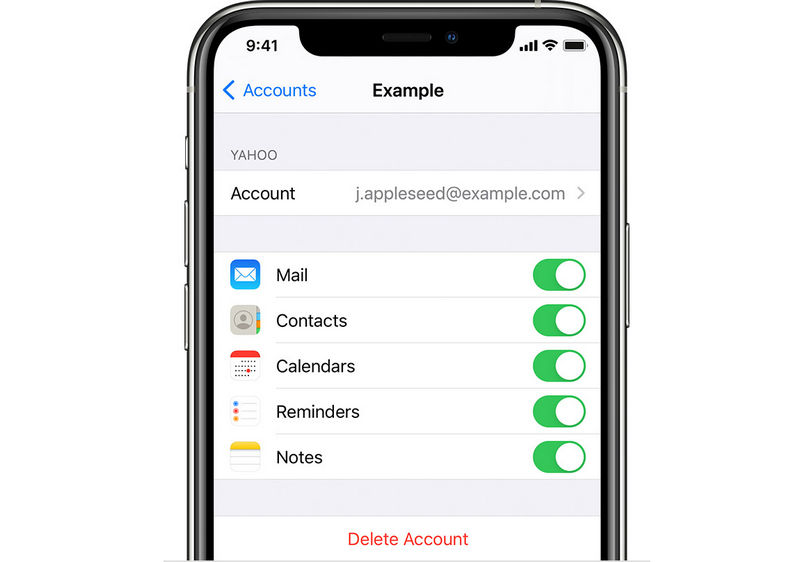
Tips: If you recently deleted an email account from your phone, those notes will also be deleted. Re-adding the account often brings them back instantly.
Way 2: Look in the Recently Deleted Folder
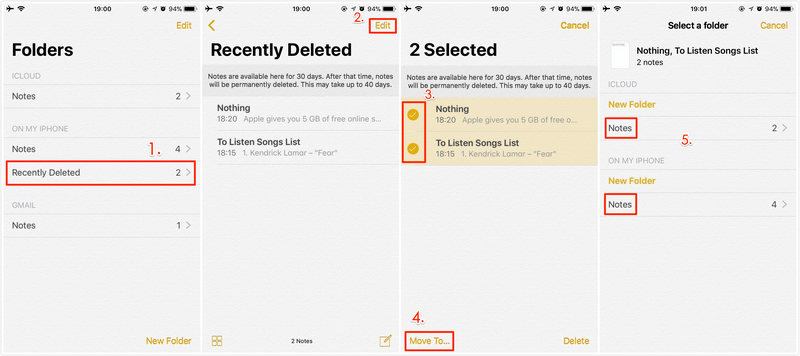
If you accidentally deleted a note, iOS keeps it in a safety net for 30 days.
Step 1. Open the Notes app on your iPhone. Tap the Back button on the top left side until you see the Folder list.
Step 2. Locate the Recently Deleted folder. Tap the Edit button in the top right corner to select your desired notes, and then tap the Move To button in the bottom left corner to move them to a folder.
Way 3: Search via the Spotlight Search
Sometimes notes aren't gone; they are just buried in a folder you forgot existed. You can search for them if you lost notes on iPhone.
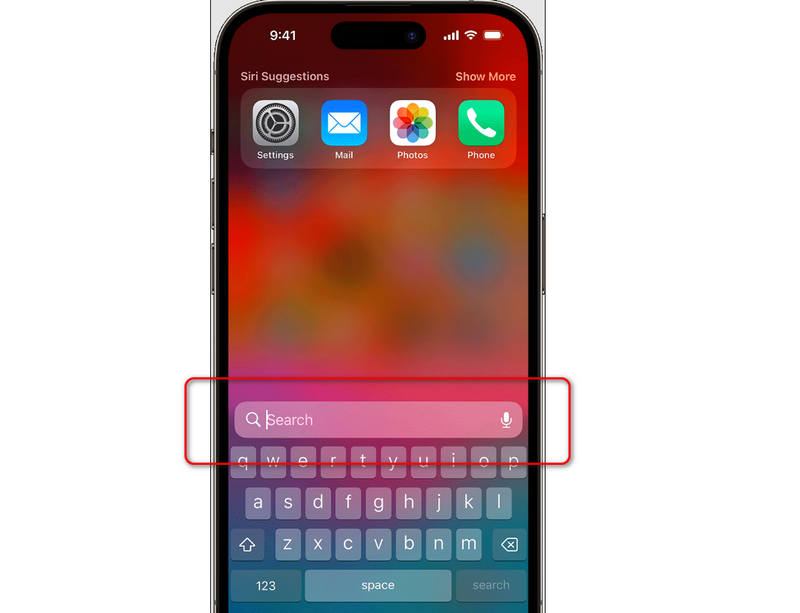
Step 1. Swipe down from the middle of the Home screen.
Step 2. Type a keyword from the missing note into the Search bar.
Step 3. If the note appears, it will show you which folder/account it is stored in.
Way 4: Recover Disappeared iPhone Notes from iCloud.com
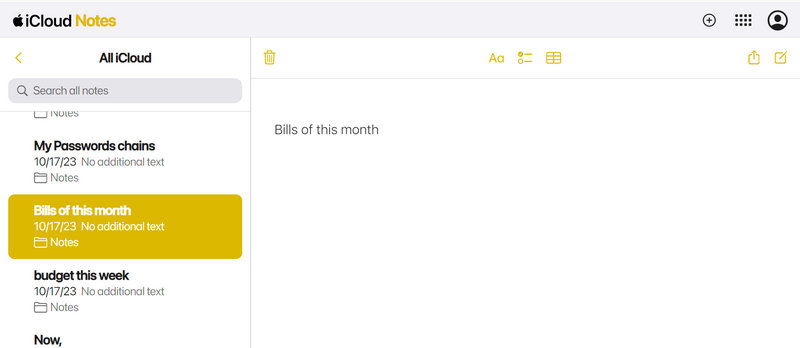
If your iPhone is acting up, check the source. Log in to iCloud.com from a computer.
Step 1. Go to icloud.com on a browser and sign in with your Apple ID.
Step 2. Click the Notes button. If the notes are here but disappear on your iPhone, you have a syncing issue. Try signing out of iCloud on your iPhone and signing back in.
Way 5: Recover Permanently Disappeared iPhone Notes
If iPhone Notes disappeared in Recently Deleted, are they permanently gone? No, Apeaksoft iPhone Data Recovery can help you bring them back. This program can deeply scan your iPhone to retrieve all lost data and files. iPhone Notes missing is no big deal for it. It will quickly scan your device and mark the lost notes in red. You just need to select them all and recover those disappeared iPhone notes.
Quickly Recover Lost Notes on iPhone and iPad
- Connect your iPhone to your computer to retrieve lost notes.
- Deeply scan your iPhone to detect all lost files.
- Mark the lost notes in red for your quick selection.
- Allow you to one-click recover all notes or just selected ones.
Secure Download
Secure Download

Step 1. Download, install, and launch Apeaksoft iPhone Data Recovery on your Windows or Mac computer. Connect your iPhone to your computer.
Then, click the Start Scan button to scan your iPhone to search for missing iPhone notes.

Step 2. During scanning, you can locate the Notes tab on the left side. You'll see existing and lost notes gradually appear on the interface. When it finishes scanning, you can select your desired notes and click the Recover to Device button to recover them easily.

Further Reading
Part 3: Comparison of the 5 iPhone Notes Recovery Methods
Let's draw a comparison table of the 5 excellent ways to fix iPhone Notes disappeared. Check them to find the one that suits you based on your circumstances.
| Method | Best For |
| Account Settings | Notes synced to Gmail, Yahoo, or other email accounts |
| Recently Deleted | Accidental deletions (less than 30 days) |
| iCloud Web | Checking if data still exists in cloud storage |
| iTunes/Finder Backup | Notes moved to other locations |
| Apeaksoft iPhone Data Recovery | Notes are permanently disappeared |
Bonus: Prevent Future iPhone Notes Disappear
Once you've answered the question iPhone where did my notes go? and successfully recovered them, take these steps to ensure it never happens again:
- Standardize your accounts: Try to keep all notes in iCloud rather than splitting them between Gmail and Outlook.
- Toggle on On My iPhone as a backup: It will save Notes from iCloud on your local storage. But remember these don't sync to other devices.
- Regular Backups: Ensure your iCloud Backup is running nightly. You can also randomly back up Notes to iTunes or Finder.
Conclusion
Why did my Notes disappeared on my iPhone? Whether your iPhone notes disappeared due to a sync error or a simple accidental deletion, there is almost always a way to get them back. Start with your Account settings, check your Recently Deleted folder, and don't forget to look at your third-party email accounts. If your notes are permanently deleted, you can use Apeaksoft iPhone Data Recovery to easily recover them. This program can recover almost all permanently lost files and info on iOS devices.
Related Articles
If you are trying to retrieve old text messages on your iPhone, read this step-by-step guide and pick an appropriate method.
Read this article about recovering data from an iPhone after a factory reset if you realize that you haven't backed up something important.
Looking for a way to see deleted history on iPhone? Come and view how to find deleted history on iPhone in 6 ways, even without backups!
WhatsApp always goes wrong when you use it? Don't worry, find the best solutions to address your problem in the article below.



