

How to Recover Deleted and Archived Emails from Outlook

This article intends to discuss how to recover deleted emails in Outlook. MS Outlook is Microsoft’s email client application. It is mainly used for email management. Plus, it comes with tools to organize the email inbox. According to our research, Outlook is widely used not only by individuals but also by small businesses. If you accidentally delete important emails, don’t panic! You can learn how to get them back following our guide.
PAGE CONTENT:
Part 1: How to Recover Permanently Deleted Emails in Outlook
Can you recover permanently deleted emails in Outlook on your desktop? The answer is yes, and all you need is Apeaksoft Data Recovery. It is able to scan your hard disk and look for any deleted emails before they are overwritten. The user-friendly interface enables beginners to navigate easily.
A Fast Way to Recover Permanently Deleted Emails in Outlook
- Recover deleted emails in Outlook quickly.
- Compatible with emails and all attachments.
- Preview lost emails for selectively recovering.
- Support Windows 11 and earlier, macOS 10.7 and above.
Secure Download
Secure Download

How to Recover Permanently Deleted Emails in Outlook
Step 1. Install the email recovery tool
Start the Outlook recovery software once you install it on your PC. There is another version for Mac. Go to the Hard Drive Recovery tab, pick the disk where your emails are stored, and click the Start Scan button to begin scanning your hard disk.

Step 2. Preview emails
When disk scanning is complete, go to the Type List tab and select Email to view all emails on your disk. Check Only Show Deleted to preview deleted emails. The Filter option allows you to find specific emails by name or path.
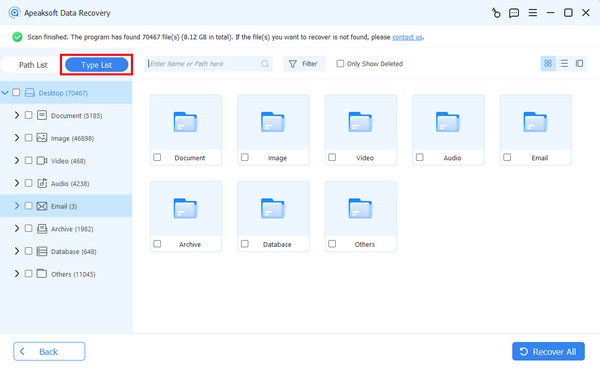
Step 3. Recover deleted emails
Finally, select the emails and attachments you want to retrieve and click the Recover button. Set an output folder and confirm Outlook email recovery. Then, you can read the deleted Outlook emails on your hard drive.

Part 2: How to Recover Deleted Emails in Outlook on Desktop
Once you delete an email in Outlook, it will be removed to the Deleted Items or Trash folder. Then, it will be kept in the folder for up to 30 days. That provides a window to recover deleted emails from Outlook on your desktop. If you cannot find your emails in Deleted Items, access the Outlook Server to recover them.
How to Recover Deleted Emails in Outlook
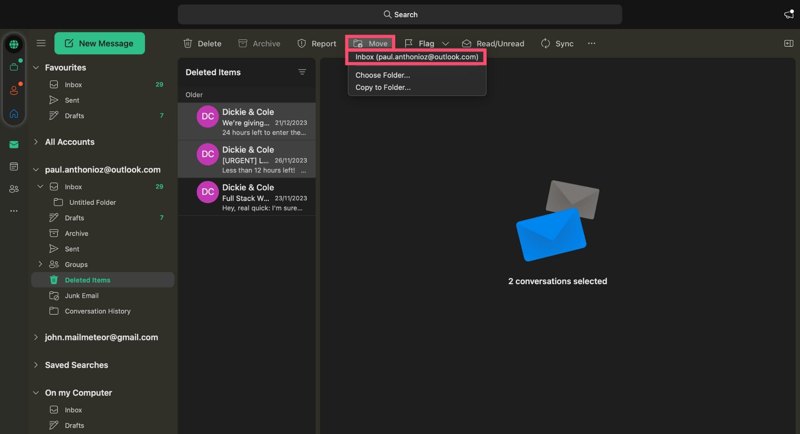
Step 1. Open the Outlook client.
Step 2. Go to the Deleted Items folder on the sidebar.
Step 3. Highlight the emails you’d like to retrieve.
Step 4. Click the Move button, and select Inbox.
How to Recover Permanently Deleted Emails from Outlook
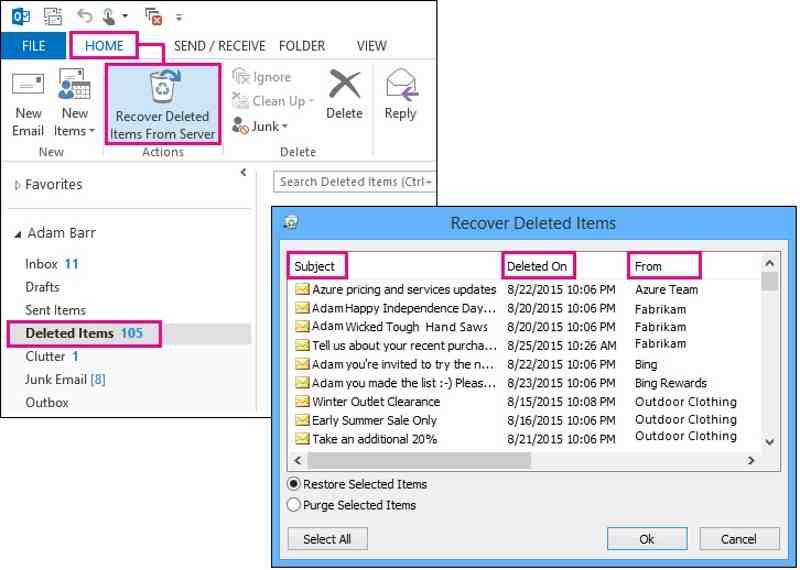
Step 1. Go to the Deleted Items folder in Outlook.
Step 2. Access the Home tab on the top ribbon.
Step 3. Click the Recover Deleted Items from Server.
Step 4. Next, select the emails you wish to retrieve from the list.
Step 5. Select Restore Selected Items and click OK.
Step 6. Then, enter the Deleted Items folder, and restore the desired emails to the Inbox.
Note: If you can only see the Trash folder instead of Deleted Items, it means that your account cannot retrieve permanently deleted emails from Outlook.
Part 3: How to Retrieve Deleted Emails in Outlook on Mobile
Today, more and more people are mobile-first. They read and manage their emails on their iPhones and Android devices. Microsoft has released the Outlook app for iOS and Android. It means that even if you don’t have a computer, you can retrieve deleted emails from Outlook on your mobile device. Bear in mind that the Outlook app cannot retrieve permanently deleted emails.
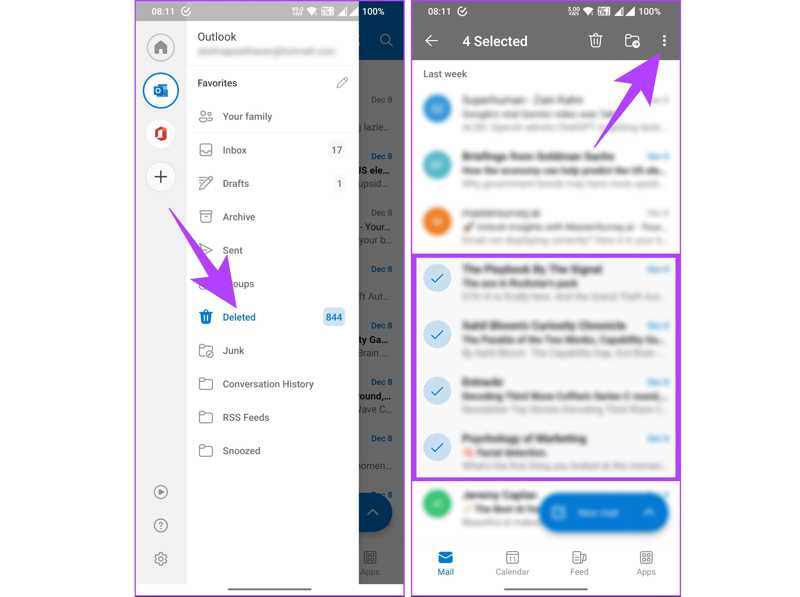
Step 1. If you deleted your emails within 30 days, run the Microsoft Outlook app on your mobile device.
Step 2. Tap the Outlook button in the top left corner.
Step 3. Then, choose the Deleted folder from the side pane.
Step 4. Now, you can view all emails deleted in 30 days.
Step 5. Long-press an email and select all messages you want to restore.
Step 6. Next, tap the More button with a three-dot icon at the top right side.
Step 7. Finally, choose Restore from the context menu to restore the selected emails to their original location.
Further Reading
Part 4: How to Recover Deleted Emails in Outlook Online
If you prefer to access and manage Outlook online, you can recover deleted emails from the Outlook web interface. Furthermore, the web client allows you to retrieve recently deleted and old emails in Outlook.
How to Recover Deleted Emails in Outlook Online
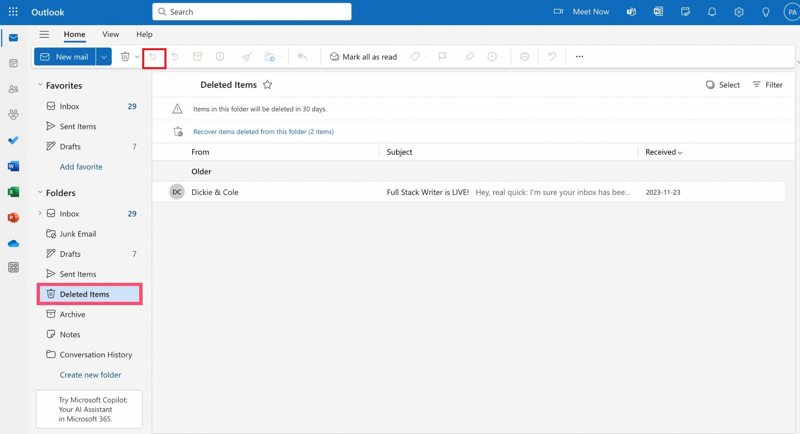
Step 1. Go to https://outlook.com/ in a browser.
Step 2. Log in to your account.
Step 3. Head to the Deleted Items folder on the sidebar.
Step 4. View all recently deleted emails and select the desired messages.
Step 5. Finally, click the Restore button on the toolbar to restore deleted emails.
Step 6. Then, move to the original folder, like the Inbox, and check if the emails are recovered successfully.
How to Recover Permanently Deleted Emails in Outlook Online
Step 1. If you cannot find the deleted emails, click the Recover items deleted from this folder in the Deleted Items folder.
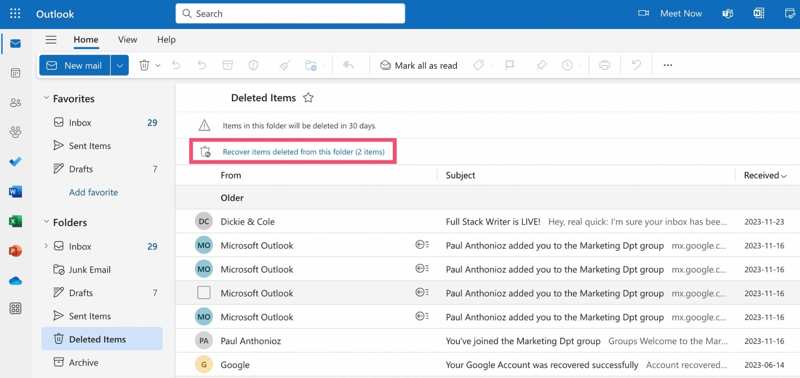
Step 2. Then, you will be brought to the Recoverable Items folder.
Step 3. Check the deleted emails you want to restore.
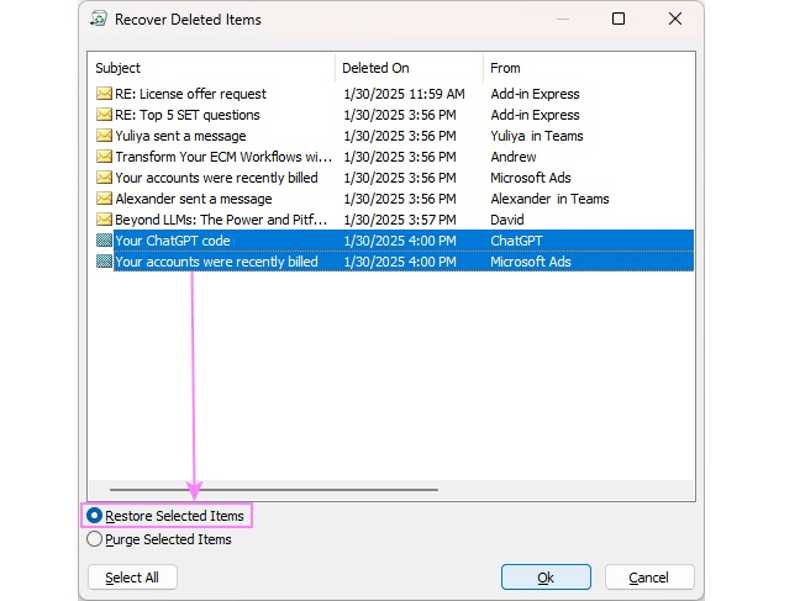
Step 4. Then, click the Restore button.
Note: The Recoverable Items folder won’t store your deleted emails forever. If you cannot find the desired emails in this folder, it becomes much harder to recover them.
Conclusion
This article shared how you can recover deleted emails from Outlook. The desktop client and web app allow you to get back emails deleted less than 30 days from the Deleted Items or Trash folder. Moreover, you can access the server or the Recoverable Items folder to find more deleted emails. The mobile app only integrates the Deleted folder for retrieving recently deleted emails. Apeaksoft Data Recovery is the ultimate option to quickly get back your lost emails without technical skills, including the permanently deleted emails in Outlook.
Related Articles




