


How to Recover Deleted Files on Mac With or Without Backup

Losing important files on a Mac is a common problem, whether from accidental deletion, a corrupted drive, or a crash. For Mac users, the good news is that recovering deleted Mac files is not difficult. In fact, there are multiple ways to get back lost files on Mac computers and laptops. This tutorial shares six proven methods to retrieve your deleted files even if you don't have a backup.
PAGE CONTENT:
- Part 1: How to Recover Deleted Files on Mac from Trash
- Part 2: How to Recover Deleted Files on Mac with Terminal
- Part 3: How to Recover Deleted Files on Mac via Recently Deleted
- Part 4: How to Recover Deleted Files on Mac from Time Machine Backup
- Part 5: How to Recover Deleted Files on Mac from iCloud
- Part 6: How to Recover Deleted Mac Files with Software
Part 1: How to Recover Deleted Files on Mac from Trash
As long as you accidentally delete a file on a Mac, press the Command + Z keys on your keyboard to undo it. However, this option only works for a limited amount of time. Alternatively, you can access the Trash folder to recover deleted files from Trash on Mac.
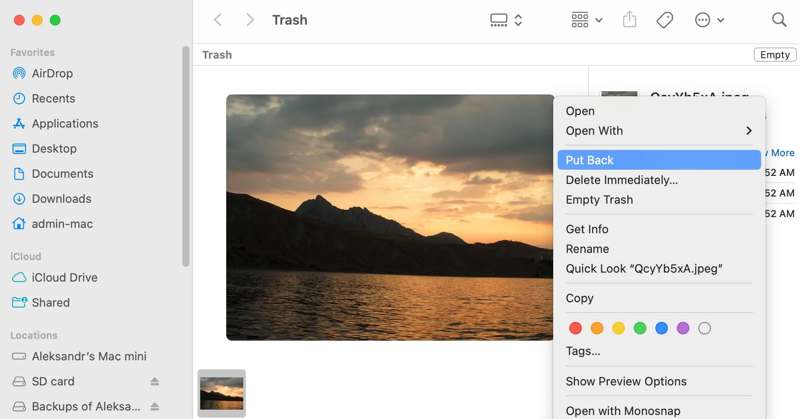
Step 1. Open the Trash folder on your Dock bar.
Step 2. Find the deleted file by name or date.
Step 3. Right-click on the desired file and choose Put Back.
Note: If you want to retrieve the lost file to another location, open the destination in Finder. Drag and drop the file from Trash to the destination folder.
Part 2: How to Recover Deleted Files on Mac with Terminal
Without accessing the Trash folder, you can recover deleted files on a Mac using command lines. This way gives you flexible options to customize the recovery operation, such as specifying the file names.
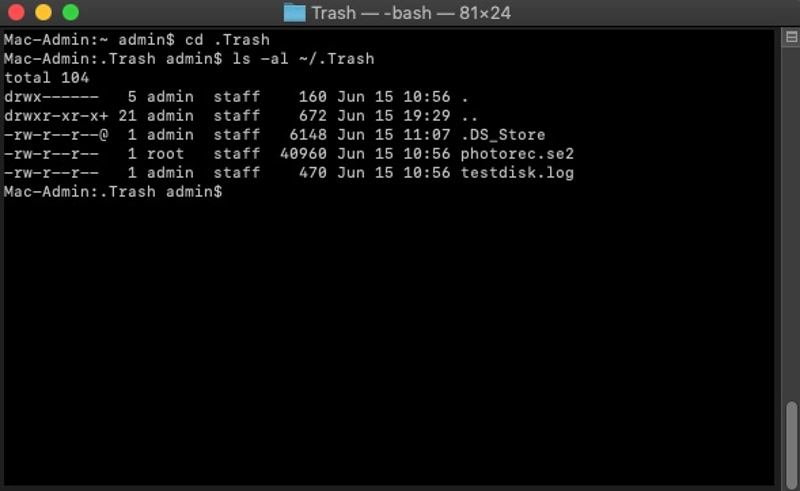
Step 1. Open Finder, go to Applications, and Utilities.
Step 2. Run the Terminal app.
Step 3. Type in cd .Trash and press the Return key to go to the Trash folder.
Step 4. Input ls -al ~/.Trash and press the Return key to view the files in Trash.
Step 5. Enter mv filename ../ and press the Return key to recover the deleted file to your home folder.
Note: Replace filename with the name of the desired file.
Part 3: How to Recover Deleted Files on Mac via Recently Deleted
Apple has added the Recently Deleted folder to specific services, like the Photos app on Mac, to save deleted files temporarily. Therefore, you can recover deleted files on Mac within 30 days.

Step 1. Open the Photos app on your Mac.
Step 2. Go to the Recently Deleted folder under the Utilities heading.
Step 3. Now, you can view all photos deleted within 30 days.
Step 4. Press the Cmd key and click the image files you want to retrieve.
Step 5. Click the Recover button to recover them.
Part 4: How to Recover Deleted Files on Mac from Time Machine Backup
A backup allows you to recover permanently deleted files on a Mac. If you have backed up your files with Time Machine, you can easily get back lost data quickly, especially the files that you cannot find in Trash.
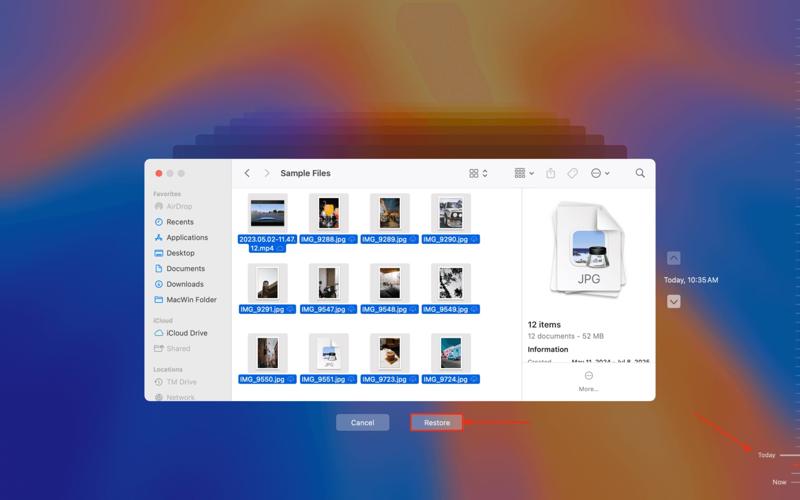
Step 1. Insert the backup device into your Mac.
Step 2. Click the Time Machine button at the top menu bar.
Step 3. Choose the Browse Time Machine Backups option.
Step 4. Locate the folder where the deleted files are stored.
Step 5. Press the Upward and Downward buttons to adjust the time until you find the deleted files.
Step 6. Select the files you want to get back and click the Restore button to recover them to the original location.
Part 5: How to Recover Deleted Files on Mac from iCloud
Each Apple account can get 5GB of free storage on iCloud. Some users back up or sync their files to iCloud. After you delete a file by mistake, you can recover the deleted file from your Mac on iCloud.com.
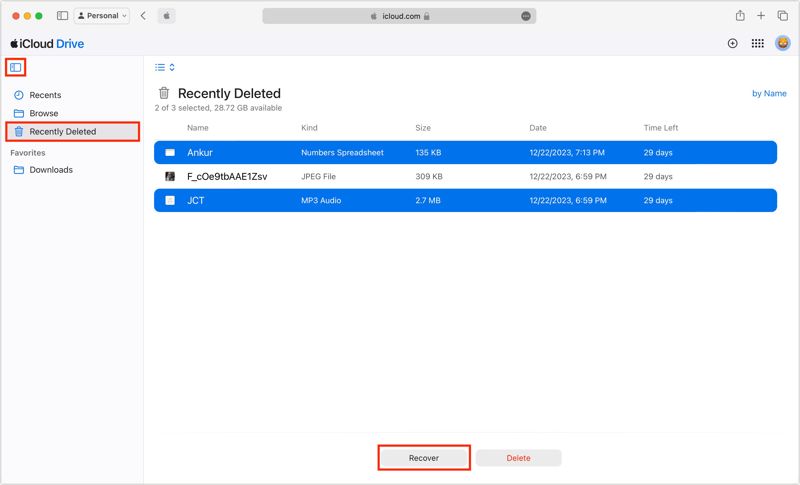
Step 1. Visit www.icloud.com in your web browser.
Step 2. Log in with the Apple Account linked to your Mac.
Step 3. Choose the Google Drive option. If you accidentally delete files in Notes, choose Notes instead.
Step 4. Go to the right folder, like Recently Deleted.
Step 5. Look at the deleted files and select the desired one.
Step 6. Click the Recover button.
Part 6: How to Recover Deleted Mac Files with Software
If you don't have a backup, you will need software to recover deleted Mac files, such as Apeaksoft Data Recovery. It is able to scan your hard drive and recover permanently deleted files on Mac without a backup. Moreover, the built-in advanced technology can look for as much data as possible.

Downloaded by over 1,000,000 users
- Recover permanently deleted files on Mac without backup.
- Extract lost files from corrupted hard drives.
- Preview deleted files on Mac before recovering.
- Integrate both quick scan and deep scan.
- Work on Mac OS X 10.7 and above.
Secure Download
Secure Download

How to Recover Deleted Files on Mac Without Backup
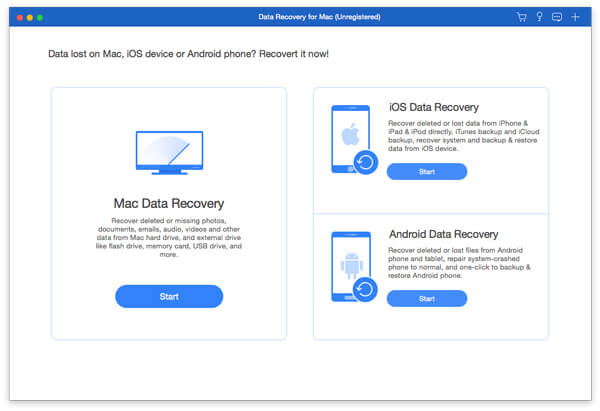
Step 1. Scan your Mac
Download and install the data recovery software on your Mac. When you lose a file, launch the software. Select the data types you want to recover, like Document. Next, choose the desired hard drive. Click on the Scan button to begin scanning your hard drive. It may take a while to complete the process.
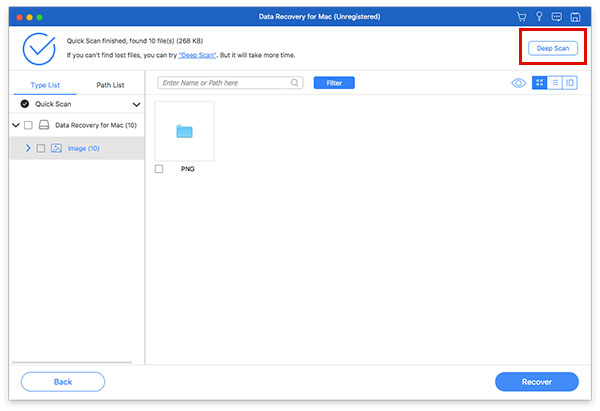
Step 2. Preview deleted files
When the process finishes, go to the Type List tab, select the data types, and preview your files. If there are too many files, check Only Show Deleted at the top of the window to display deleted files.
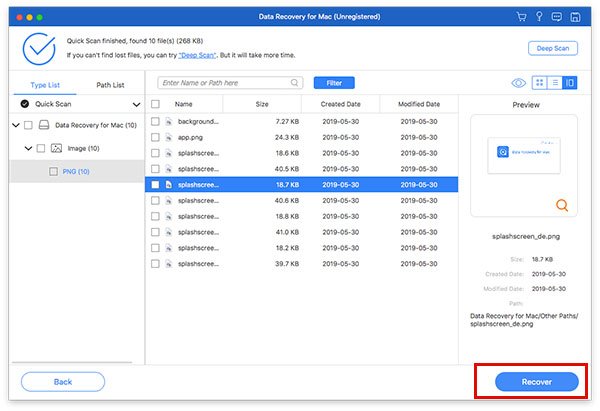
Step 3. Recover deleted Mac files
Finally, select the files you want to get back and click the Recover button at the bottom right corner. Set the output folder and initiate the data recovery process. When it is done, click the Open Folder button to open the output folder and see the deleted files on your Mac.
Further Reading
Conclusion
This tutorial shared multiple ways to recover deleted files on Mac. The first place to view deleted files is the Trash folder. Plus, you can try the command line. If you have a backup, you can recover your files from Time Machine or iCloud on your Mac computer. Apeaksoft Data Recovery is the ultimate option to get back lost files on your Mac computer, even if you don't have a backup.
 Apeaksoft Data Recovery
 Recover deleted or lost data on Windows and Mac computer.
Secure Download
Secure Download
Related Articles




