

How to Recover Deleted Google Docs in Any Situation - Full Guide

Key Takeaways
- You can check your Google Drive Trash first to see whether there is a deleted Google Doc.
- When your Google Docs are deleted more than 30 days or emptied from the Trash folder, you should turn to Google Support for help.
- If you want to restore overwritten content only, Google Docs also provides a Version History feature.
- If you have the habit of creating or editing Google Docs locally before uploading them to Google Drive, you can try Apeaksoft Data Recovery to restore deleted or lost Google Docs from your computer or external drives.
It is extremely common for workers to accidentally delete important files during daily work, especially when they are tired or distracted. Don't panic - losing a Google Doc is not the end of the world. This guide will provide a complete recovery guide for users on how to recover deleted Google Docs, whether you have emptied your Trash, lost a file after 30 days, or accidentally overwritten content.
PAGE CONTENT:
Can You Recover Deleted Google Docs
Is it possible to recover deleted Google Docs? Before moving on, let's make it clear - deleted Google Docs can be recovered no matter what situation you are in.
When you delete a Google Doc, it will be moved to the Trash folder first. You can easily recover a Google Doc that was deleted there.
If you once emptied the Trash folder or have deleted documents from Google Docs over 30 days, you will need to contact Google Support and submit a recovery request.
If the document still exists but was accidentally overwritten, Google Docs’ Version History can restore an earlier version.
If you have a local or external backup, Apeaksoft Data Recovery can quickly scan and recover your files as a reliable safety net.
Here is a table to help you quickly judge which method is the most suitable.
| Situation | Recommend Recovery Method | Notes |
| Recently deleted | Restore from Google Drive Trash | Fast and easiest method. But it only works for files deleted within 30 days. |
| Delete > 30 daysHave emptied the Trash | Google Drive Supporth | Submit recovery request to Google. Success depends on time since deletion. |
| Overwrite content or accidentally edited | Restore Previous Versions | Use Google Docs version history to restore to an older content. |
| Have a local or external backup | Apeaksoft Data Recovery | Scan your local computer or external drives to restore deleted files. |
Restore Deleted Google Docs from Google Drive Trash
Things will be much easier if you have just deleted the Docs in Google Drive or deleted them less than 30 days ago. In that case, you can directly recover Google Docs from the Trash folder. Here is a step-by-step guide.
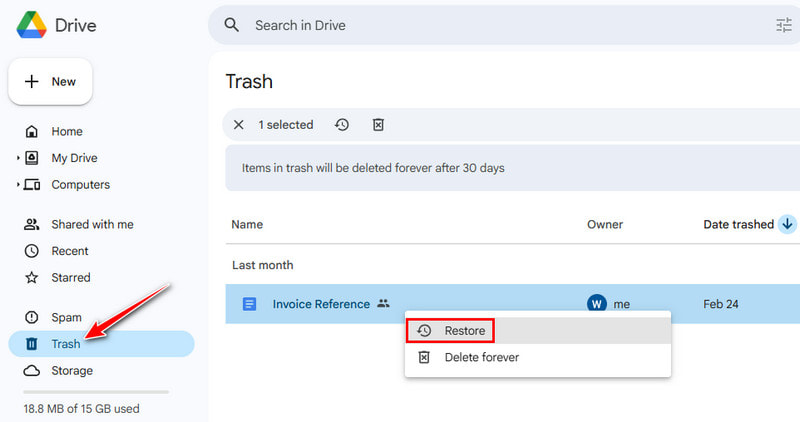
Step 1. Open Google Drive on your computer.
Step 2. Select Trash from the left panel.
Step 3. Locate the target document and right-click it.
Step 4. Choose Restore.
Recover Permanently Deleted Google Docs After 30 Days (Google Drive Support)
If you have already used the method above, only to find Trash folder is empty. That's because you may have emptied the Trash folder, or the files have been deleted for more than 30 days. In that case, you may need to seek help from the Google robot and fill in a recovery form. Follow the guide below to recover permanently deleted docs on Google Docs step by step.
Step 1. Go to Google's File Recovery page
(https://support.google.com/drive/answer/1716222).
Step 2. Click the Request file recovery button.
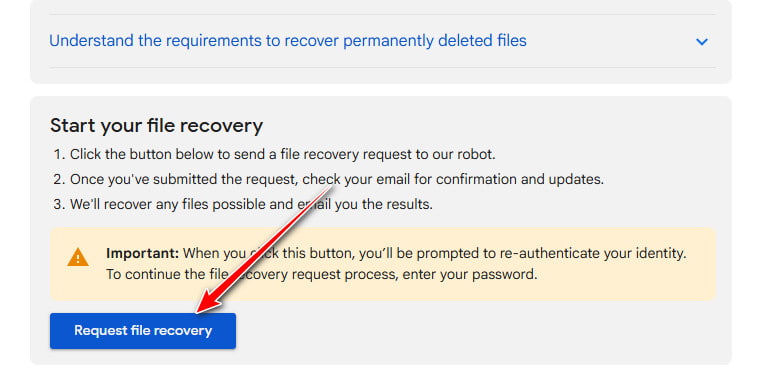
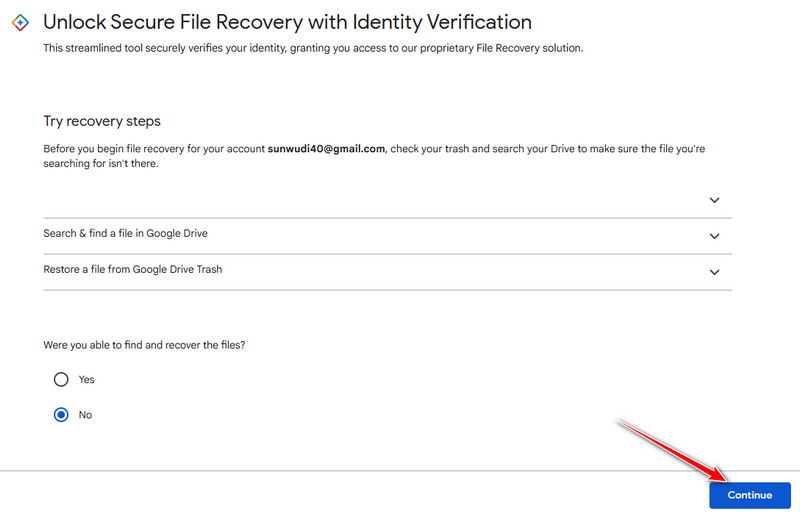
Step 3. Sign in with your Google account. And click Continue on the following window.
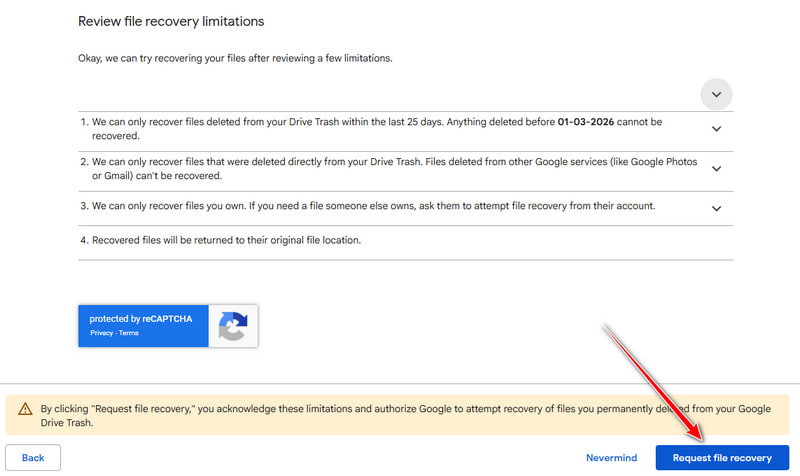
Step 4. Read the notifications and requirements on the screen. Click the Request file recovery button.
Step 5. The recovery results will be sent to your Gmail soon.
Tips: This method only works for files deleted from your Drive Trash within the last 25 Days. Also note that it only recovers files you own.
Restore Previous Versions of Google Docs
Sometimes your Google Doc is still there, but you accidentally deleted or changed important content. In these cases, you don’t need to recover the entire file - Google Docs’ Version History allows you to restore your document to an earlier state quickly and easily. Here’s how to do it step by step.
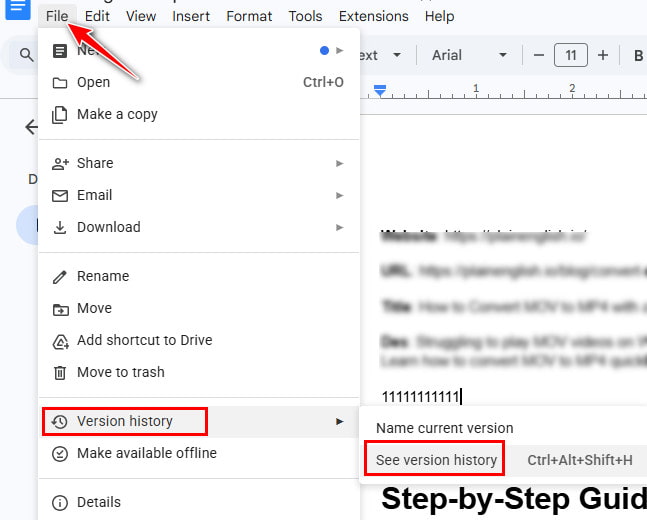
Step 1. Open the target file and click File (top-left).
Step 2. Click Version History - See version history.
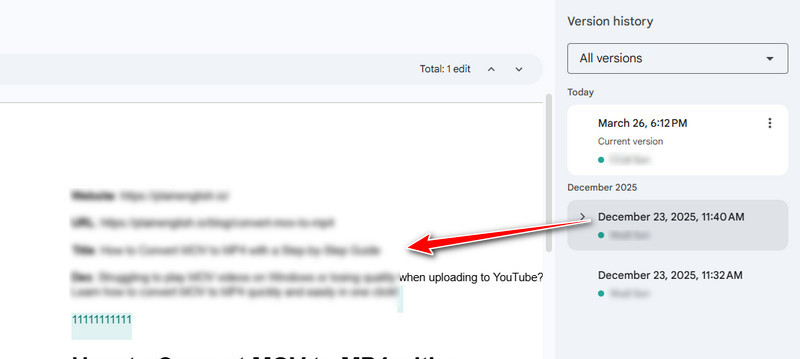
Step 3. Click each version to preview.
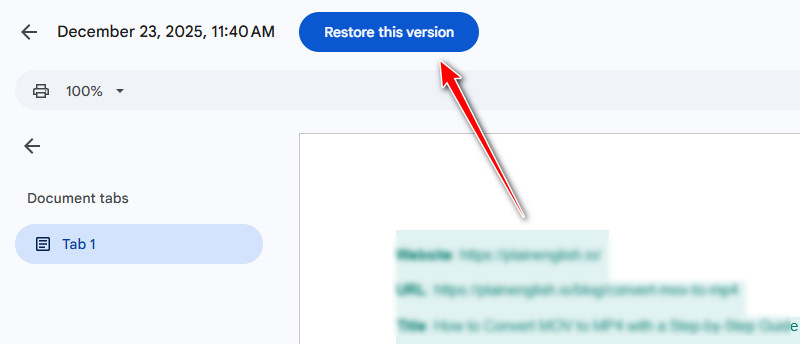
Step 4. Click Restore this version (top).
Recover Permanently Deleted Google Docs from Local or External Backup
Apeaksoft Data Recovery provides another solution for Google Docs recovery. Once you've saved Google Docs on your hard drive, Apeaksoft Data Recovery can scan them quickly and deeply, and restore them completely, no matter whether it's on Windows, Mac, USB drive, or SD card.
Secure Download
Secure Download
Step 1. Launch the software and select Hard Drive Recovery from the left panel.
Step 2. Click Start Scan.

Step 3. Sort the target files by category on the left side. Or, you can use the Filter feature at the top.

Step 4. Preview the Google Docs.
Step 5. Check the Google Docs and click Recover (bottom-right).
Tips: You can also use this software for PowerPoint recovery.
Conclusion
Lost your Google Docs? Now you can be assured! Whether you want to recover deleted Google Docs or restore content you accidentally removed, the solutions above can help you get everything back.
Warm tip: To avoid unnecessary data loss in the future, remember to back up your Google files regularly.
Related Articles




