

How to Retrieve Deleted Snapchat Messages on iPhone Without a Backup

As one of the most popular social media platforms, Snapchat is widely used among youth. However, because Snapchat messages are designed to disappear automatically, many users wonder how to recover deleted messages on Snapchat. In this guide, we will walk you through several practical ways to recover deleted Snapchat messages, including chats, photos, and video attachments.
PAGE CONTENT:
- Part 1: Can You Really Recover Deleted Snapchat Messages
- Part 2: How to Recover Deleted Snapchat Messages Without Backup
- Part 3: How to Recover Deleted Snapchat Messages with Snapchat My Data
- Part 4: How to Restore Deleted Snapchat Messages from iTunes/iCloud Backup
- Part 5: FAQs about Recovering Deleted Snapchat Messages
Part 1: Can You Really Recover Deleted Snapchat Messages
In most cases, chats are deleted after they are viewed or within 24 hours, depending on your settings. This temporary messaging system helps protect user privacy.
Why Do Snapchat Messages Disappear?
Snapchat is renowned for its ephemeral messaging system, where conversations will be removed by default:
- Messages are deleted after they are viewed.
- You can set the chats to be removed 24 hours after being seen.
When Can Snapchat Messages Be Recovered?
Although messages are automatically deleted, recovery may still be possible in some situations:
- You have an iCloud, iTunes, or Finder backup that contains the Snapchat messages.
- You download account data through Snapchat My Data.
- You use professional iPhone data recovery software to recover Snapchat chats.
But you should know that the success of recovery varies, and mainly depends on how long the messages have been deleted and whether the data has been overwritten.
Quick Overview of Snapchat Message Recovery Methods
| Method | Backup | Success Rate | Ease of Use |
| Recovery Software | No | High | Easy |
| Snapchat My Data | No | Low | Easy |
| iTunes/Finder Backup | Yes | Medium | Medium |
| iCloud Backup | Yes | Medium | Medium |
Part 2: How to Recover Deleted Snapchat Messages Without Backup
Is it possible to recover deleted Snapchat chats on your iPhone without a backup? In some cases, the answer is yes with the help of Apeaksoft iPhone Data Recovery. You can get back deleted Snapchat messages without technical skills.
Retrieve Deleted Snapchat Messages Easily
- Recover deleted Snapchat chats on iPhone without backup.
- Extract Snapchat messages from iTunes/iCloud backup selectively.
- Preview Snapchat messages before recovery.
- Won’t restore your device or interrupt existing data.
- Compatible with almost all iPhones and iPad models.
Secure Download
Secure Download

Step 1. Scan your iPhone
Launch this Snapchat message recovery tool after you install it on your PC. Hook up your iPhone to your computer with a Lightning cable. Choose Recover from iOS Device from the left sidebar. Follow the instructions to trust the computer, and click the Start Scan button to begin looking for Snapchat messages in your memory.

Tips: If you wish to recover Snapchat chats from iTunes or iCloud backup without restoring your device, choose Recover from iTunes Backup or Recover from iCloud Backup, and follow the instructions.
Step 2. Preview Snapchat chats
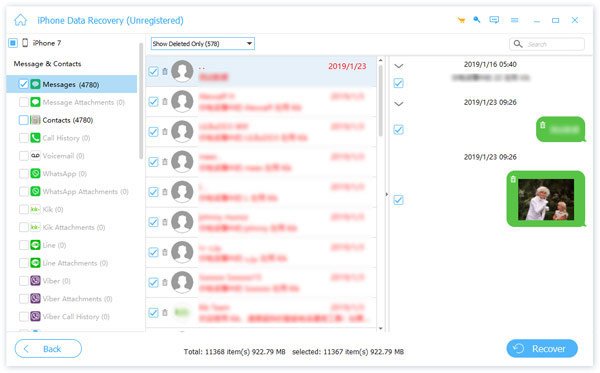
Once data scanning is done, choose Show Deleted Only at the top of the preview window. Now, you can see the deleted Snapchat chats.
Step 3. Retrieve chats on Snapchat
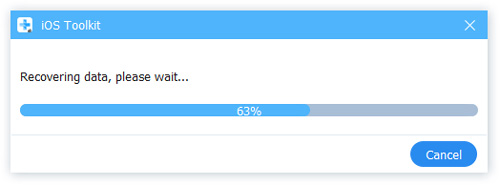
If you hope to read the messages later, select the desired items and click the Recover button at the bottom right corner. Set the output folder, and hit the Recover button again.
Tips: You can also follow similar steps to recover deleted Snapchat photos on iPhone.
Part 3: How to Recover Deleted Snapchat Messages with Snapchat My Data
Snapchat deletes most messages after they are viewed or after 24 hours. However, you may still be able to check some conversation records by downloading your account information through the Snapchat My Data feature.
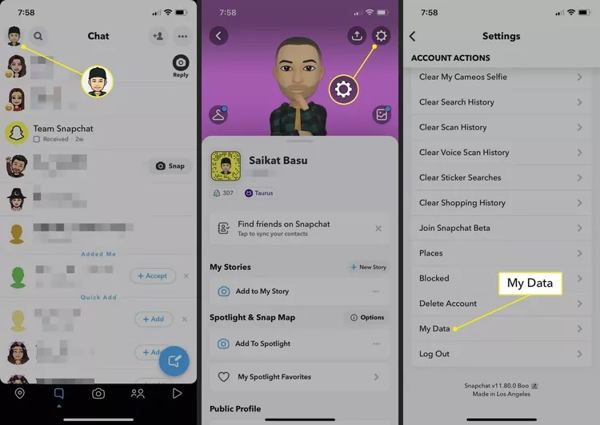
Step 1. Open your Snapchat app, tap on your profile, and press the Settings button.
Step 2. Scroll down and tap My Data under the Account Actions section. Then enter your Snapchat username and password, and verify your identity.
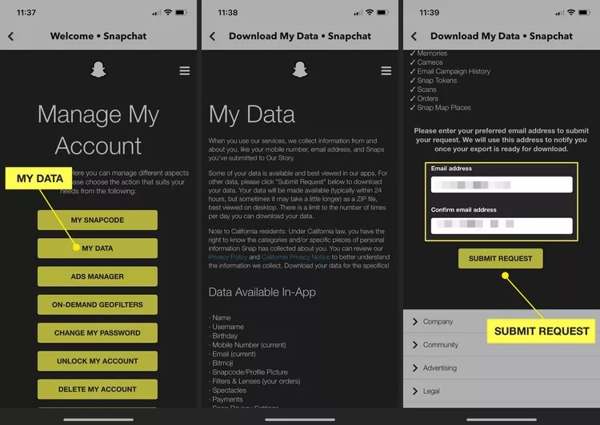
Step 3. Touch My Data again on the Manage My Account screen, enter an accessible email address, and tap Submit Request.
Step 4. As long as Snapchat receives your request, you will get a confirmation email. Access your inbox, open the email, and press the click here link. This link will redirect you to the Snapchat account portal.
Step 5. Log in to your Snapchat account on the web page, and enter the verification code that you receive on your registered phone.
Step 6. Then the My Data page will appear in a browser. Download the lost Snapchat messages recovery file under Your Data is Ready. After submitting your request, it may take several minutes or hours for Snapchat to prepare your data file.
Tips: Your messages will not always be contained in Snapchat My Data because many messages are removed from the servers before the data archive is generated.
Part 4: How to Restore Deleted Snapchat Messages from iTunes/iCloud Backup
For iOS users, the native backup options are available to see deleted Snapchat conversation history if you back up your iPhone using Finder, iTunes, or iCloud regularly. Bear in mind that they restore your device during the process.
Recover Deleted Snapchat Messages from Finder Backup
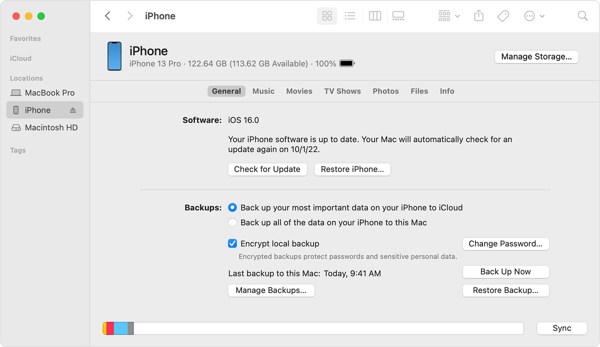
Step 1. Run the Finder app on macOS Catalina or later. Connect your iPhone to your computer with a USB cable.
Step 2. Select your device name after it is detected, and click the Restore Backup button.
Step 3. Choose the right backup and click Restore. Wait for the process to finish, and you will find deleted Snapchat messages on your iPhone.
Retrieve Deleted Snapchat Chats from iTunes Backup
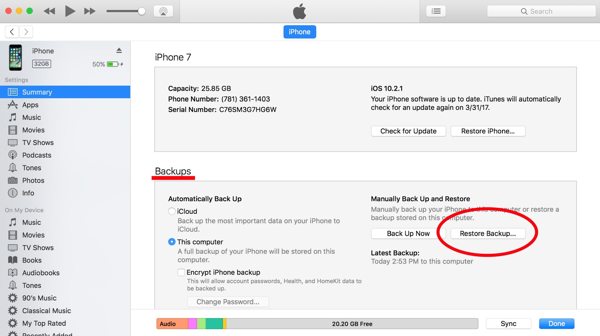
Step 1. Open the latest version of iTunes on your PC. Plug your iPhone into your PC with a USB cable.
Step 2. Click the Phone icon at the top left corner once your iPhone is recognized. Go to the Summary tab, and locate the Backups section.
Step 3. Select This computer, and click the Restore Backup button. Then follow the instructions to recover Snapchat chats to your iPhone.
Restore Deleted Snapchat Messages from iCloud Backup
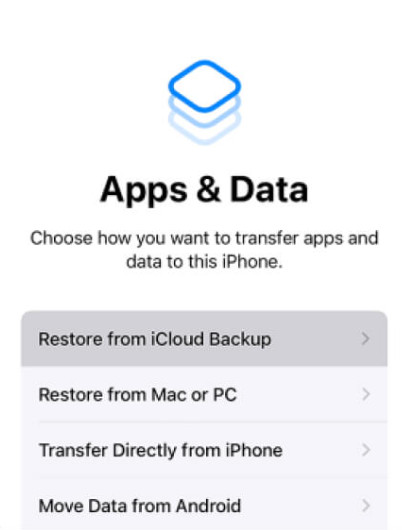
Step 1. Make sure that you have an iCloud backup. Run the Settings app, go to General, Transfer or Reset iPhone, and tap Erase All Content and Settings.
Step 2. After resetting, log in with your Apple ID. Next, choose Restore from iCloud Backup on the Apps & Data Screen.
Step 3. Choose a proper iCloud backup and restore it on your iPhone. Then you can see the deleted Snapchat conversation history on your iPhone.
Part 5: FAQs about Recovering Deleted Snapchat Messages
How to prevent Snapchat messages from disappearing?
You can prevent messages from disappearing by pressing and holding the message and choosing Save in Chat. Then, the message will stay in conversation until you or the other party deletes the Snapchat conversation. You can also change the chat settings to delete messages after 24 hours instead of after viewing.
Can police recover deleted Snapchat messages?
Snapchat deletes all messages from its servers after the recipient reads them. These messages are gone forever. Police can only get access to unread messages.
Can you recover Snapchat messages without a backup?
Yes. If the deleted messages have not been overwritten on your device, you can use data recovery software like Apeaksoft iPhone Data Recovery to scan the device and retrieve them.
Conclusion
This guide has discussed how to recover deleted messages on Snapchat on your iPhone or iPad. The built-in My Data feature allows you to download chats that you have received or sent recently. Or you can get back lost messages from your iTunes, Finder, or iCloud backups. Apeaksoft iPhone Data Recovery is the easiest way to retrieve lost Snapchat messages from your iPhone memory.
Related Articles




