

How to Recover Deleted Voicemail Messages on iPhone

"Accidentally deleted a voicemail message before I had the opportunity to listen to it. How to recover a deleted voicemail on my iPhone?" The voicemail is a voice message associated with carriers on iPhones. Most carriers support voicemails, like Verizon, AT&T, T-Mobile, Sprint, etc. Once you set up voicemail on your iPhone, you can receive and send it in the Phone app. This guide explains how to get back lost voicemails quickly.
PAGE CONTENT:
Part 1: How to Undeleted Voicemails
Once you delete a voicemail accidentally or intentionally, your iPhone will hold it for thirty days. Before it is permanently removed, you can undelete voicemail on your iPhone directly. Here are the steps:
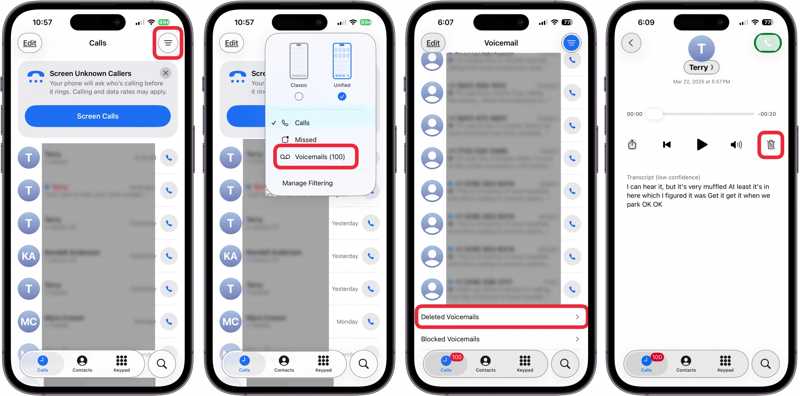
Step 1. Open the Phone app on your iPhone.
Step 2. Enter the Call screen.
Step 3. Tap the Menu button with a three-line icon and choose Voicemails.
Step 4. Choose Deleted Voicemails at the bottom to view recently deleted voicemails.
Step 5. Press the voicemail you want to undelete and tap the Undelete button.
Step 6. Then, the voicemail will go back to the Voicemail screen.
Part 2: How to Recover Deleted iPhone Voicemails from iCloud
After 30 days or voicemails are permanently deleted, and you have to retrieve voicemail messages on iPhone from a backup. The iCloud backup, for example, enables you to get back your voicemails on iPhone if you have a backup.
Step 1. Start the Settings app on your device.
Step 2. Tap on your profile, choose iCloud, and tap iCloud Backup.
Step 3. Check the latest backup under the Back Up Now button.
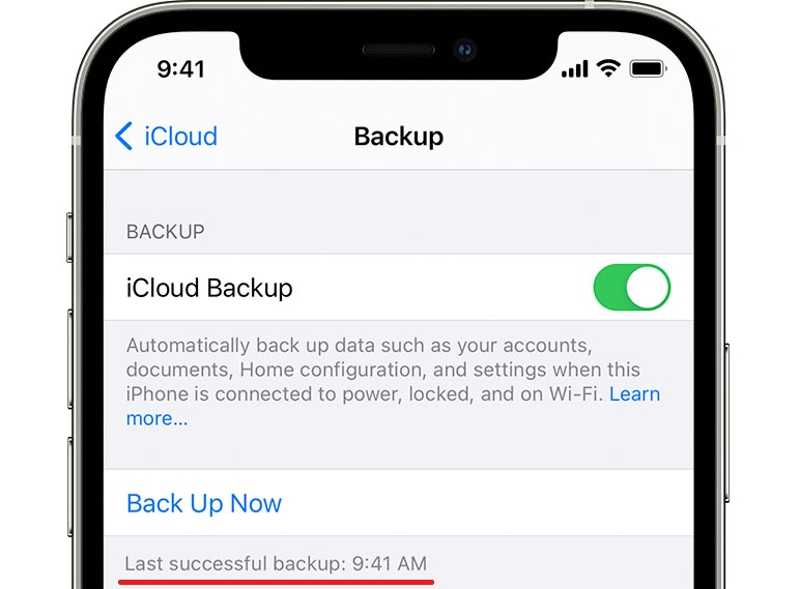
Step 4. Switch to the General tab in Settings.
Step 5. Tap Transfer or Reset iPhone, and choose Erase All Content and Settings.
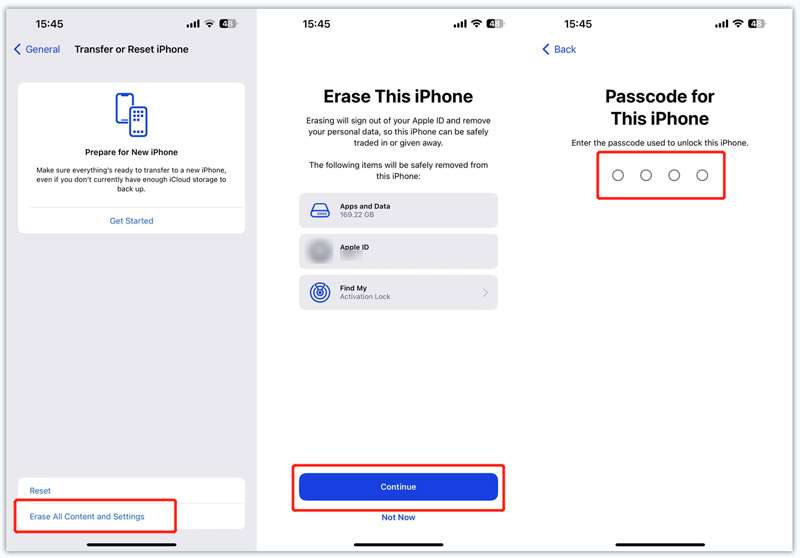
Step 6. Read the onscreen message and tap Continue.
Step 7. Enter your iPhone passcode or Apple ID password and confirm erasing your device.
Step 8. When your iPhone restarts, set it up following the prompts. Make sure to connect to a Wi-Fi network.
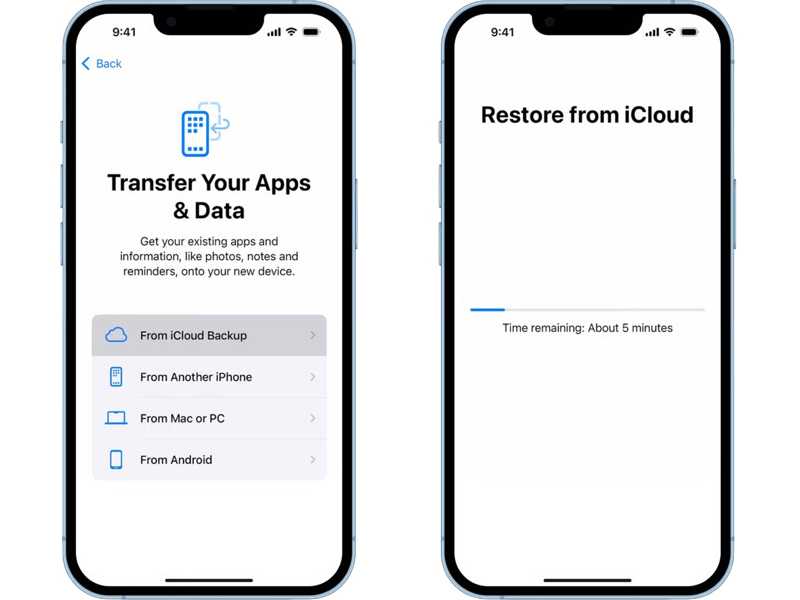
Step 9. Choose From iCloud Backup on the Apps & Data screen.
Step 10. Input your Apple ID and password.
Step 11. Then, select a backup that includes the lost voicemails.
Step 12. Complete setting up your iPhone.
Part 3: How to Retrieve Deleted iPhone Voicemails from iTunes/Finder Backup
If you regularly back up your iPhone to a computer, chances are that you can retrieve deleted voicemails from iTunes or Finder backup. Similar to iCloud backup, existing data on your iPhone will be overwritten by the backup. You’d better make a backup before restoring voicemails. The workflows are a little different, and we demonstrate them respectively:
On Windows and macOS Mojave or earlier
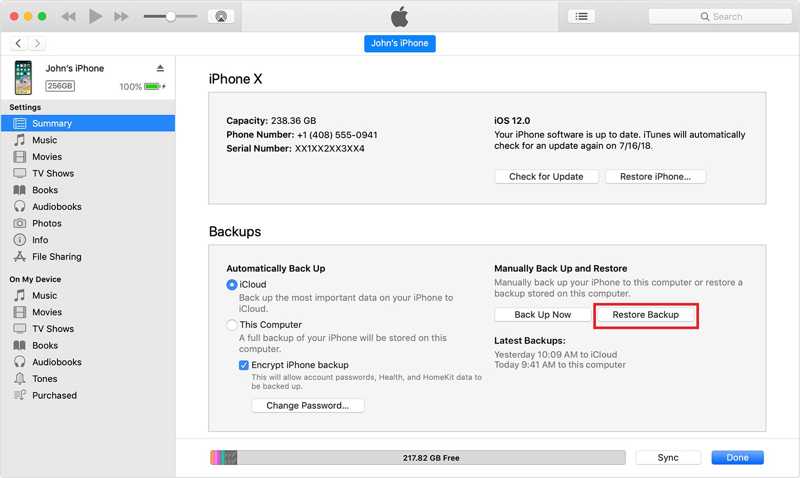
Step 1. Connect your iPhone to your computer with a USB cable.
Step 2. Open the latest version of iTunes.
Step 3. Once your iPhone is detected, click the Phone button at the top left corner.
Step 4. Go to the Summary tab and locate the Backups section.
Step 5. Click the Restore Backup button.
Step 6. Then, pick a proper backup file according to date and time, and hit Restore. This process may require iTunes backup password if you have ever set it.
Step 7. When it is done, you will find your voicemails on your iPhone.
On macOS Catalina or later
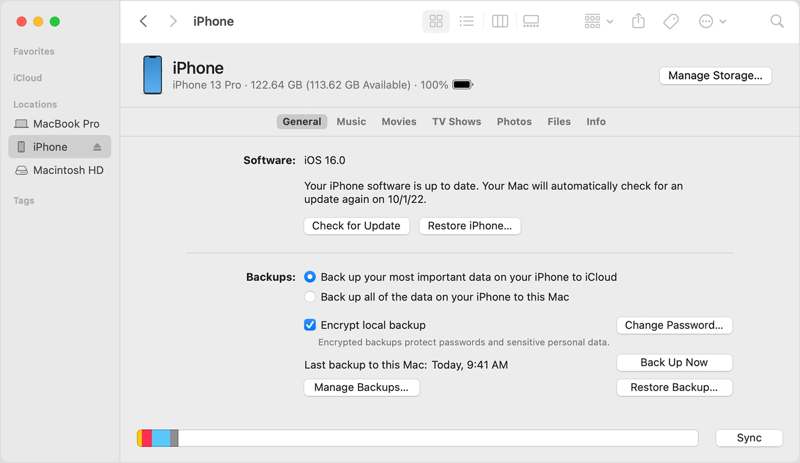
Step 1. Plug your iPhone into your Mac with a compatible cable.
Step 2. Run the Finder app on your Dock bar.
Step 3. Click your iPhone name on the sidebar.
Step 4. Enter the General tab, go to the Backups section, and hit Restore Backup.
Step 5. Choose the proper backup based on the date and time and hit Restore.
Part 4: How to Undelete Voicemails Without Backup
Can you recover deleted voicemails on iPhone if you don’t have a backup? The answer is yes, and all you need is a powerful data recovery software, such as Apeaksoft iPhone Data Recovery. When a voicemail is deleted permanently, it is still on your iPhone memory before it is overwritten by new data. The data recovery software is able to scan your memory and discover disappeared voicemails on iPhone.
The Best Option to Undelete Voicemails on iPhone Without Backup
- Recover deleted voicemails from iOS memory.
- Extract voicemails from iTunes or iCloud backup.
- Preview recoverable voicemails for selective recovery.
- Won’t interrupt or overwrite current data on your device.
- Work for all versions of iOS and iPadOS.
Secure Download
Secure Download

How to Undelete Voicemails on Your iPhone Without Backup
Step 1. Scan your iPhone
Install the best voicemail recovery software for iPhone from the official website. When you need to recover deleted voicemails on your iPhone, launch it from your desktop. It is compatible with Windows 11/10/8/7/XP/Vista and macOS 10.7 or above. Next, connect your iPhone to your computer with a Lightning cable. For iOS 13 and above, enter your iPhone passcode to authorize the connection.
Choose the Recover from iOS Device tab on the sidebar, and click the Start Scan button. If you have ever backed up iTunes and intend to restore voicemails from a backup, choose Recover from iTunes Backup File or Recover from iCloud Backup File instead.
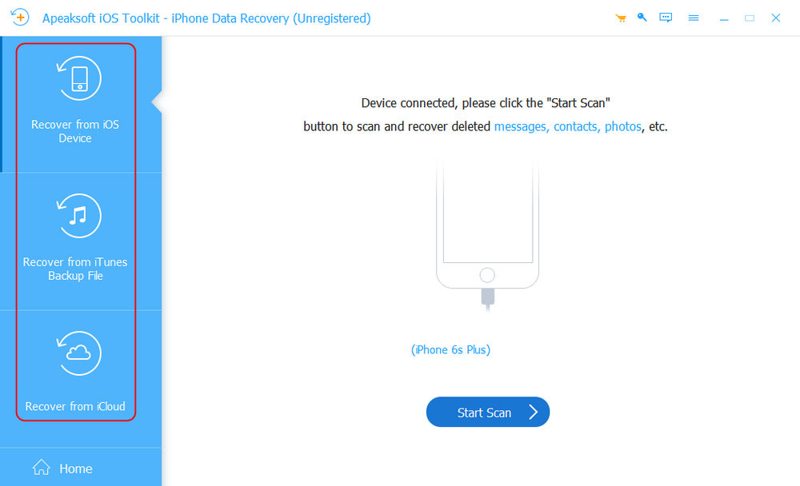
Step 2. Preview voicemails
When data scanning is complete, check the Voicemail to display all voicemails recoverable. If there are too many items, choose Show Deleted Only from the top drop-down list.
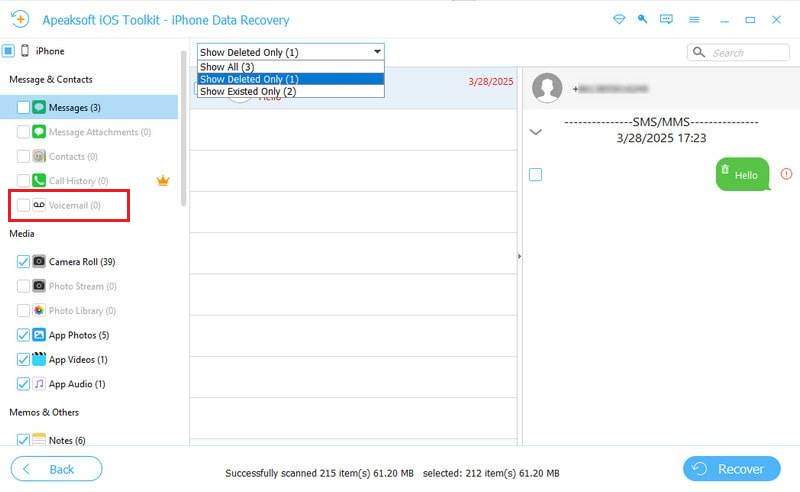
Step 3. Retrieve deleted voicemails
At last, select all voicemails you want to restore. Click the Recover button at the bottom right corner, set an output folder by hitting the Open button, and hit Recover again. A few minutes later, you can listen to the deleted voicemails on your hard drive.
Conclusion
This guide explained how to retrieve deleted voicemail on an iPhone. You have multiple methods of voicemail recovery, depending on your situation. If you delete a voicemail within 30 days, you can undelete it in your Phones app directly. For permanently deleted voicemails, you have to restore them from a backup. The downside is current data on your device will be erased or overwritten. Apeaksoft iPhone Data Recovery is the best option to get back your voicemails without a backup. Plus, it is easy to use.
Related Articles
Don't worry if you accidentally delete photos on your iPhone. This article offers 6 ways to recover deleted photos from iPhone easily.
How to restore iPhone without iTunes to fix a disabled iPhone? This page lists the 3 easy ways to restore iPhone to factory settings, even without a password.
When software errors or glitches occur on your iPhone, you can put your iPhone in Recovery Mode following our step-by-step guide.
When you delete your iPhone call history accidentally, you can recover it on iPhone using iCloud, iTunes, third-party software, or via the carrier.



