

How to Recover Images from WhatsApp on iPhone and Android

"I accidentally erased all data in WhatsApp on my phone, including photos. Please help me bring all my WhatsApp history with my previous photos back." As an instant messaging app, WhatsApp is popular among all generations. Many users share their memories with families and friends on WhatsApp. If you lose important photos, here you can learn multiple ways to recover images from WhatsApp on an iPhone or Android phone.
PAGE CONTENT:
Part 1: How to Recover Deleted WhatsApp Images Without Backup
Once you delete photos from WhatsApp on an iPhone, stop using your device. In fact, your photos are still in your memory before they are overwritten. Apeaksoft iPhone Data Recovery can scan your iPhone memory and discover the lost photos.
The Easiest Way to Recover Deleted Photos from WhatsApp on iPhone
- Recover photos from WhatsApp on iPhone without backup.
- Extract WhatsApp photos from iCloud or iTunes backup.
- eview deleted photos before recovery.
- Support a wide range of file types.
- Compatible with the latest models of iPhone and iPad.
Secure Download
Secure Download

How to Recover Deleted WhatsApp Images Without Backup
Step 1. Connect to your iPhone
Start the best photo recovery software for iPhone after you install it on your PC. There is another version for Mac users. Plug your iPhone into your PC with a Lightning cable. For iOS 13 or later, enter your iPhone passcode to authorize the connection.

Step 2. Preview deleted photos
Choose the Recover from iOS Device tab and click the Start Scan button. If you have an iTunes or iCloud backup, choose Recover from iTunes Backup File or Recover from iCloud Backup File.When it is done, check WhatsApp and WhatsApp Attachment on the sidebar. Then, you can view all chats and images. Choose Show Deleted Only from the top option to view deleted photos. You can also recover deleted photos in iPhone Photos to see if you can find some photos in WhatsApp.
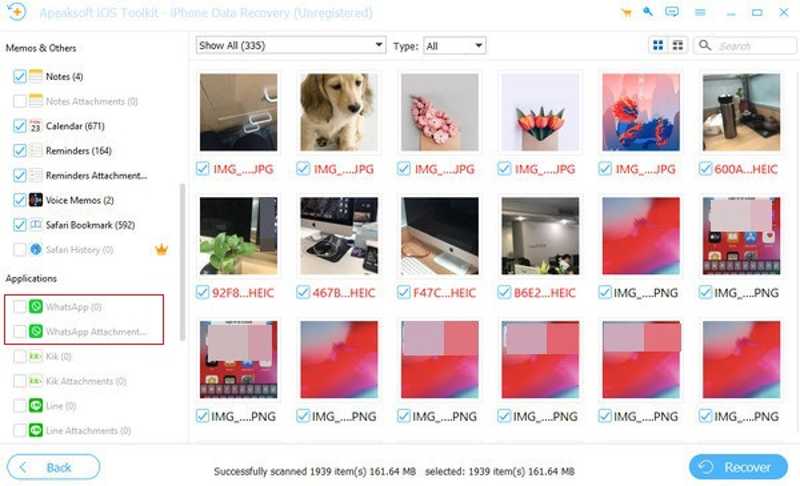
Step 3. Recover photos from WhatsApp
Select the images you want to get back and click the Recover button. Leave an output folder and click Recover again to recover deleted images from WhatsApp.
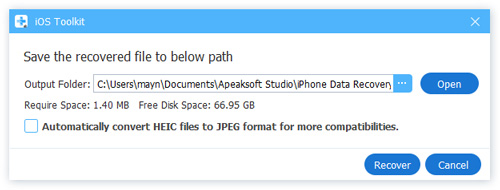
Part 2: How to Recover Images from WhatsApp Backup
Unlike other messaging apps, WhatsApp integrates the backup feature. Once you turn on Chat Backup, WhatsApp will back up your chats and images to Google Drive or iCloud, depending on your operating system. Restoring the backup will restore WhatsApp photos.
Step 1. Navigate to Settings and Chats in your WhatsApp.
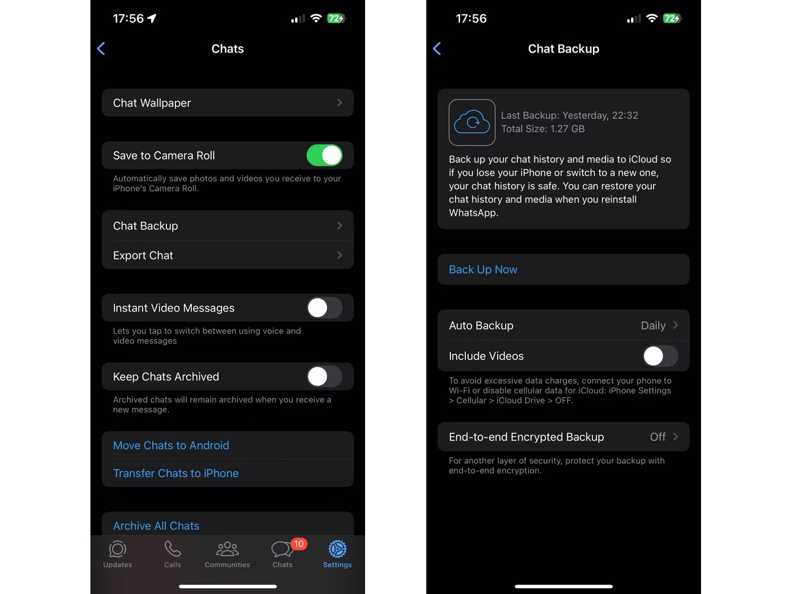
Step 2. Tap Chat Backup and check your WhatsApp backup history.
Step 3. Back to the home screen, deep-press WhatsApp, and tap Uninstall to uninstall WhatsApp.
Step 4. Next, reinstall WhatsApp from the Play Store or App Store.
Step 5. Run the new WhatsApp.
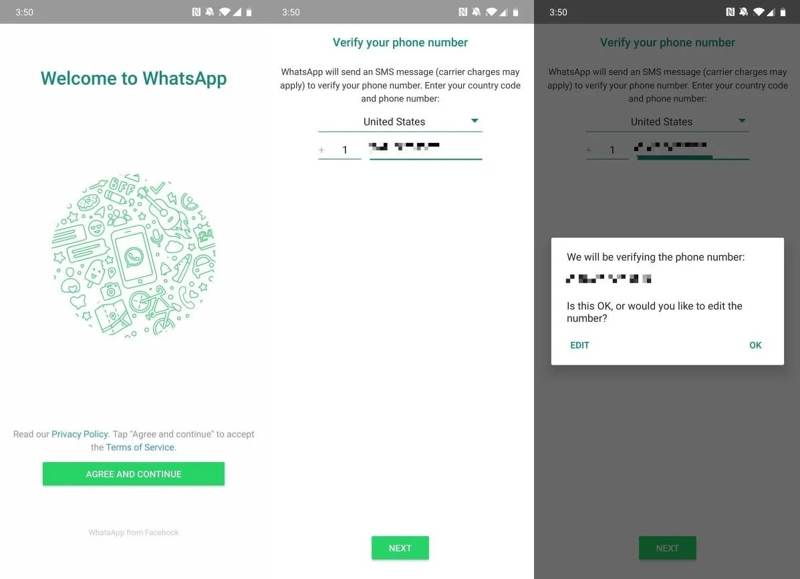
Step 6. Tap Agree and continue, enter your phone number, tap Next, and hit OK.
Step 7. Tap Continue, hit Restore, enter your name, and hit Next.
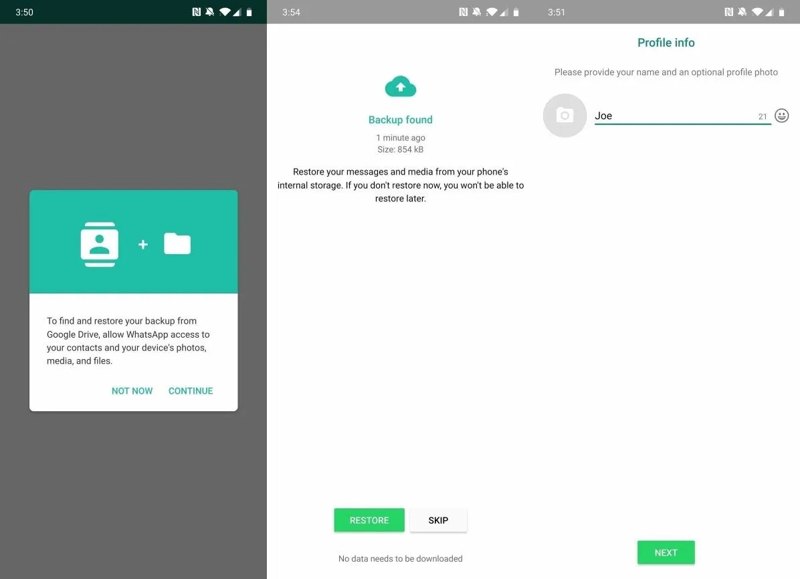
Step 8. Then, WhatsApp will restore the backup, including photos.
Part 3: How to Recover Deleted WhatsApp Images from iPhone and Android
How to Recover WhatsApp Photos from iTunes Backup
If you regularly back up your iPhone to iTunes, chances are that you can recover photos from WhatsApp through iTunes backup. The downside is that existing data will be overwritten on your iPhone.
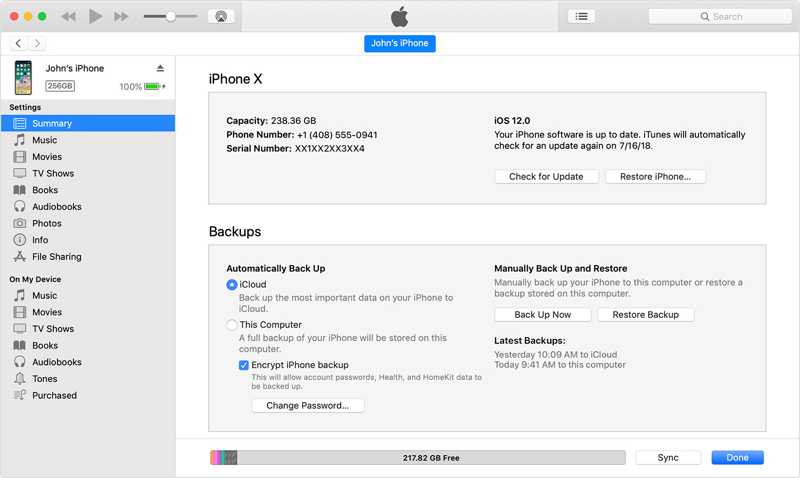
Step 1. Hook up your iPhone to a computer using a USB cable.
Step 2. Open the latest version of iTunes. For macOS Catalina or later, run Finder.
Step 3. Click the Device button once iTunes detects your device.
Or click your device name in Finder.
Step 4. Next, click the Restore button under the Backups section in the Summary or General tab.
Step 5. Choose the right backup and click Restore again. Maybe you have to enter the iTunes Backup password if you have ever set it.
How to Retrieve WhatsApp Images from Android Memory
By default, WhatsApp saves every image that you send and receive on Android. They are stored in a specific folder. Even if you accidentally deleted an image from a WhatsApp conversation, it is still in your memory.

Step 1. Run the built-in Files app on your phone.
Step 2. Go to the Internal Memory folder.
Step 4. Here, you can see all images related to WhatsApp.
Step 5. Select the images you want to recover, tap the More button with a three-dot icon, and choose Move to.
Step 6. Navigate to the target location.
Note: This method is only available for image recovery from WhatsApp for recently deleted messages.
Conclusion
This guide shared four ways to recover deleted photos from WhatsApp on an iPhone or Android device. The built-in chat backup feature in WhatsApp enables you to restore lost photos after reinstall the messaging app. Plus, you can try iTunes backup on an iOS device. If you just delete an image from WhatsApp, you can find it in your Android memory directly. Apeaksoft iPhone Data Recovery is the best option to recover any image on an iPhone without a backup.
Related Articles




