


How to Recover Deleted Bookmarks in Firefox Browser

As a free and open-source web browser, Firefox is popular worldwide. It loads websites fast and supports a wide range of add-ons. To quickly access specific websites, you can set them as bookmarks and manage them on the top bookmark bar. If you accidentally delete important bookmarks, you will lose quick access. Fortunately, this guide outlines several ways to recover lost Firefox bookmarks in various situations.
PAGE CONTENT:
Part 1: How to Recover Firefox Bookmarks by Undo
Recovering bookmarks in Firefox is a lot easier if you just deleted a bookmark or a bookmark folder. Firefox supports the Undo command in the Library window. Of course, this option is only available for the bookmark you just deleted.
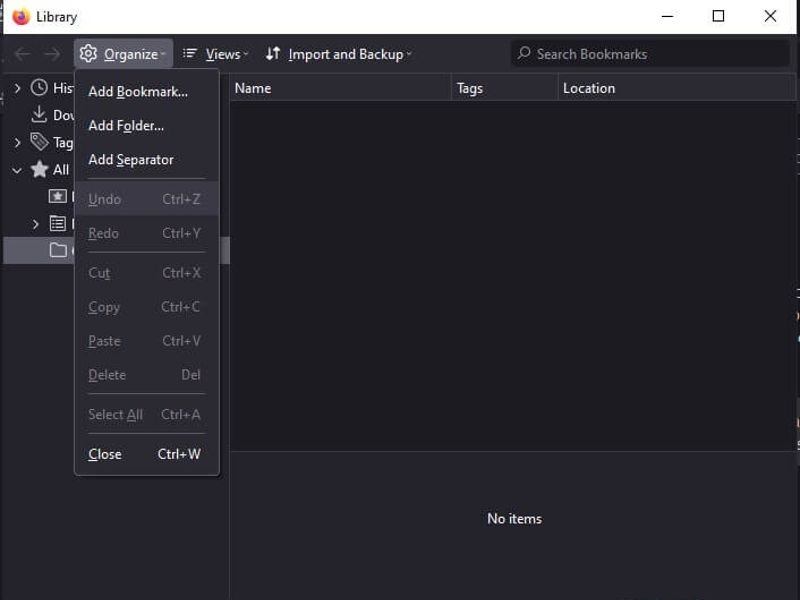
Step 1. Press Ctrl + Shift + B in Firefox to open the Library window.
Step 2. Click the Organize menu and choose Undo.
Step 3. Next, check the bookmark bar to see if the deleted bookmark has been retrieved.
Part 2: How to Recover Firefox Bookmarks
If you have exported your bookmarks, you can recover lost bookmarks in Firefox by importing the old items. The prerequisite is that you export all your bookmarks before you delete important items.
Step 1. Click the More button at the top right corner of Firefox.
Step 2. Choose Bookmarks and select Manage bookmarks.
Step 3. Click the Import and Backup menu.
Option 1: Import Bookmarks from HTML
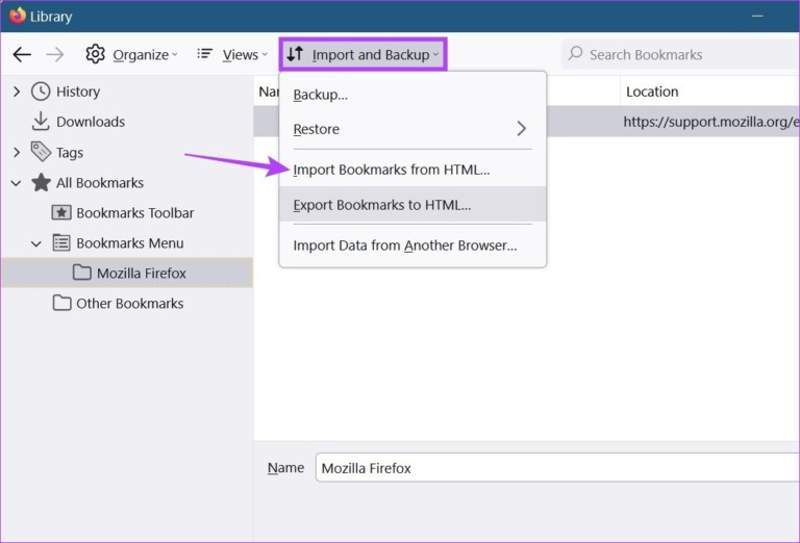
Step 4. Choose Import Bookmarks from HTML.
Step 5. Select the bookmark file and open it.
Option 2: Import Bookmarks from Other Browsers
Step 4. Choose Import Data from Another Browser.
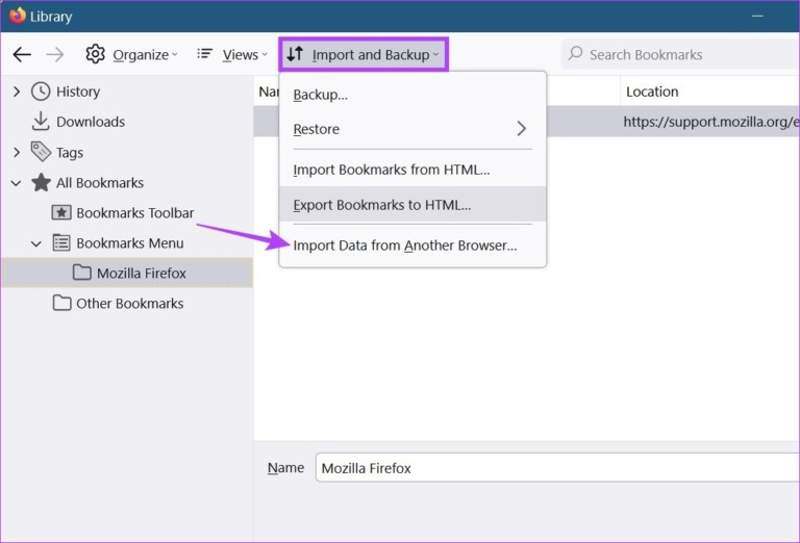
Step 5. Select the target browser and click Next.
Step 6. Check Bookmarks and click Next.
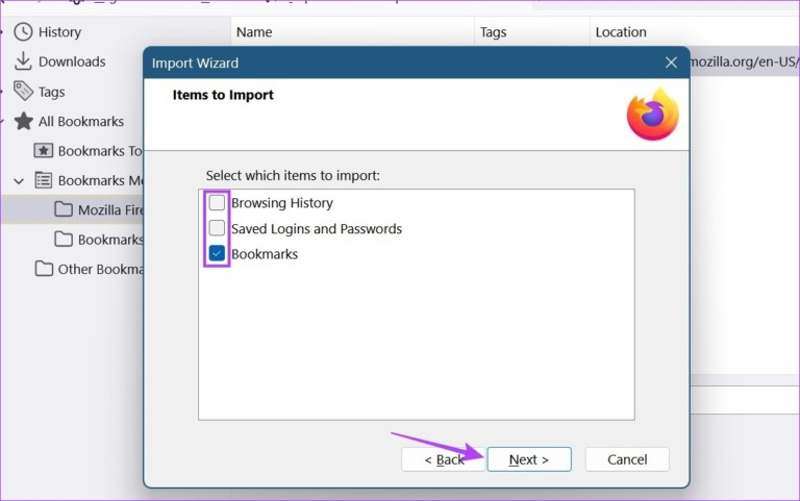
Step 7. Finally, click the Next button to confirm it.
Part 3: How to Restore Firefox Bookmark Backup
Firefox creates automatic bookmark backups and stores the last 15 backups as jsonlz4 files. Besides, you can schedule automatic backups using the Auto Bookmark Backup extension. This means that you can recover deleted bookmarks in Firefox from the backup.
Step 1. Click More in Firefox.
Step 2. Choose Bookmarks and click Manage bookmarks to open the Library window.
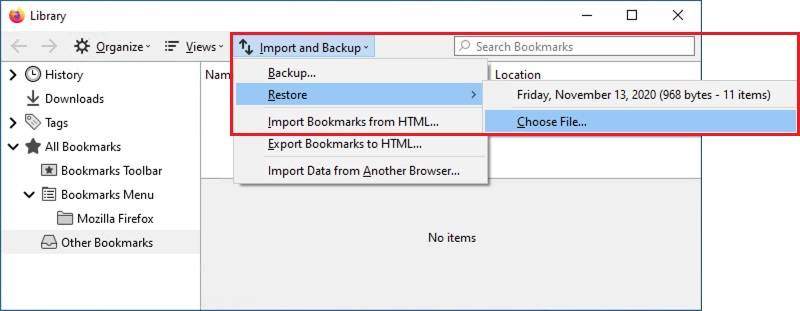
Step 3. Click the Import and Backup menu and choose Restore.
Step 4. Browse to the location where you saved the bookmark backup files.
Step 5. Select a backup and click the Open button to restore it.
Step 6. When prompted, click OK to replace the current bookmarks in Firefox.
Part 4: How to Recover Firefox Bookmarks Without Backup
Without a backup, it is difficult to recover deleted bookmarks in Firefox. A web browser won’t save your bookmarks to cloud storage. Alternatively, Firefox saves all bookmarks with different dates in a database file named places.sqlite in your profile folder. In other words, if you can retrieve the database, deleted Firefox bookmarks are recovered. Fortunately, Apeaksoft Data Recovery can help you resolve this problem. It can recover any lost files from your hard drive without a backup.

Downloaded by over 1,000,000 users
- Recover deleted bookmark files of Firefox in three steps.
- Deliver a recovery rate up to 99% for supported scenarios.
- Preview lost files before recovering.
- Support a wide range of file types and formats.
- Work for accidental deletion, system crashes, partition loss, and more.
Secure Download
Secure Download

How to Recover Deleted Bookmarks in Firefox Without Backup
Step 1. Install Data Recovery
Launch the Data Recovery software once you install it on your PC. It is compatible with Windows 11 to XP. There is another version for Mac OS X 10.7 or above. Go to the Hard Drive Recovery tab on the left side.
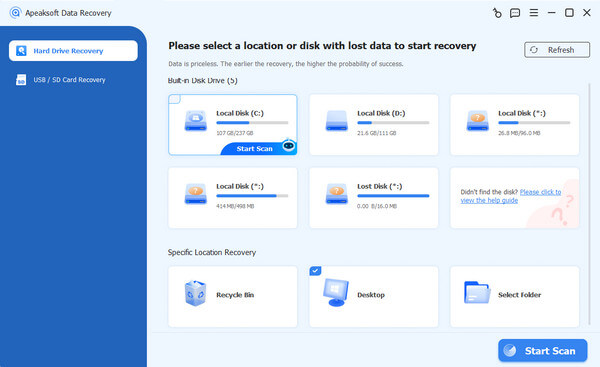
Tips: If you need to recover data from an external drive, choose USB/SD Card Recovery instead.
Step 2. Scan your drive
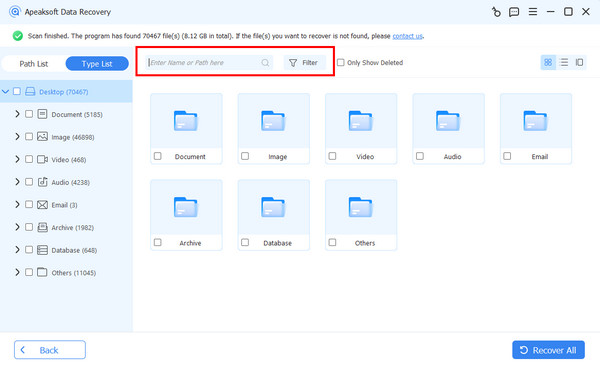
Select the disk where your Firefox is installed. By default, it is installed on Drive C. Click the Start Scan button to begin looking for lost data. It may take a while if there are too many files. When it is done, go to the Path List and navigate to the path: C:\Users\UserName\AppData\Roaming\Mozilla\Firefox\Profiles. Or type places.sqlite in the search bar to quickly locate the directory.
Step 3. Recover Firefox bookmarks
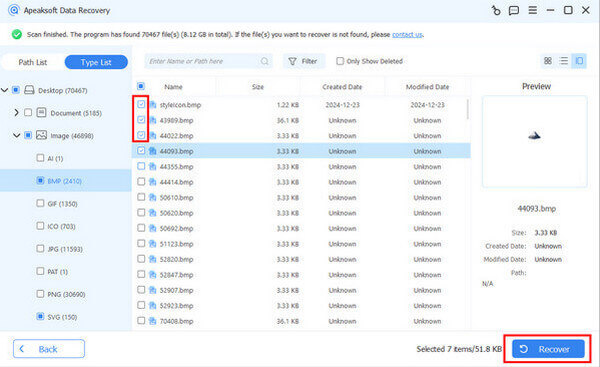
Find the deleted bookmark file by date and select it. Click the Recover button at the bottom right corner, select a different location, and hit Recover again. Then, you can move the database file to the Firefox profiles folder or use a Firefox History Viewer to read it.
Further Reading
Conclusion
This guide shared multiple ways to recover Firefox bookmarks if you accidentally deleted important bookmarks. Whether you have exported or backed up your bookmarks, you can quickly import and restore the lost URLs. Moreover, you can import lost bookmarks from other browsers into Firefox. Apeaksoft Data Recovery enables you to retrieve lost bookmarks for any web browser, including Firefox.
 Apeaksoft Data Recovery
 Recover deleted or lost data on Windows and Mac computer.
Secure Download
Secure Download
Related Articles




