

How to Recover Deleted Files from an iPhone and iPad

Accidental deletion is a common trouble that most iPhone users have encountered. The good news is that you have multiple ways to get back your data. However, you must understand the prerequisites and pick the right way to recover iPhone data and files effectively. This article identifies the proven methods, describes the corresponding situations, and shows you the workflow. Thus, you can find the right method and retrieve recently or permanently deleted data.
PAGE CONTENT:
Part 1: The Best Way to Recover iPhone Data
As one of the best iPhone file recovery software, Apeaksoft iPhone Data Recovery is flexible and available for a variety of situations. It is able to scan lost data on your iPhone memory and open iTunes or iCloud backup for data recovery. More importantly, the intuitive design makes it easy to use.
The Best Way to Recover Permanently Deleted Files on iPhone
- Recover data from device memory directly.
- Open iTunes and iCloud backup for data recovery without resetting.
- Support a wide range of data types.
- Preview deleted files for selective recovery.
- Compatible with iOS/iPad OS 26.
Secure Download
Secure Download

How to Recover Permanently Deleted Files on Your iPhone
Step 1. Connect to your device
Download and install the iPhone lost data recovery software. Launch it and choose the Recover from iOS Device tab. Plug your iPhone into the computer with a Lightning cable.

Tips: If your iPhone runs iOS 13 or later, enter your iPhone passcode to permit the connection.
Step 2. Preview deleted files
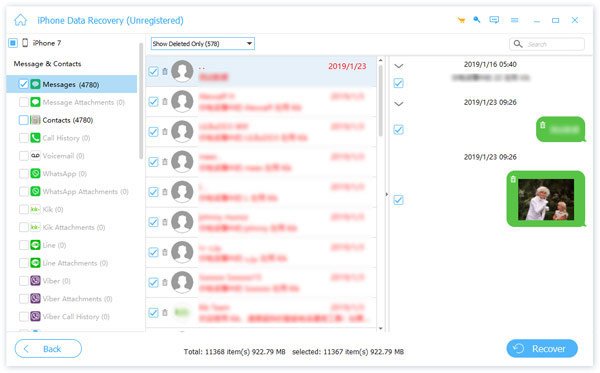
When data scanning finishes, choose the desired data type, like Contacts. Then, preview the iPhone data. If there are too many files, pick Show Deleted Only from the top option.
Step 3. Recover iPhone data
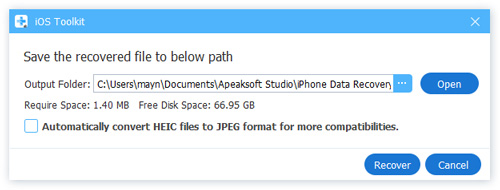
Select the files you want to retrieve from your iPhone. Finally, click the Recover button at the bottom. Set an output folder and hit Recover to initiate iOS data recovery. Existing data on your iPhone won’t be interrupted.
Part 2: How to Recover Deleted Files from iPhone
To avoid data loss, Apple has added the Recently Deleted folder for specific apps on iPhone, like Photos, Files, Notes, Messages, Voice Memos, etc. You can recover deleted files from an iPhone within 30 days. We use the Files app as an example to show you how it works.
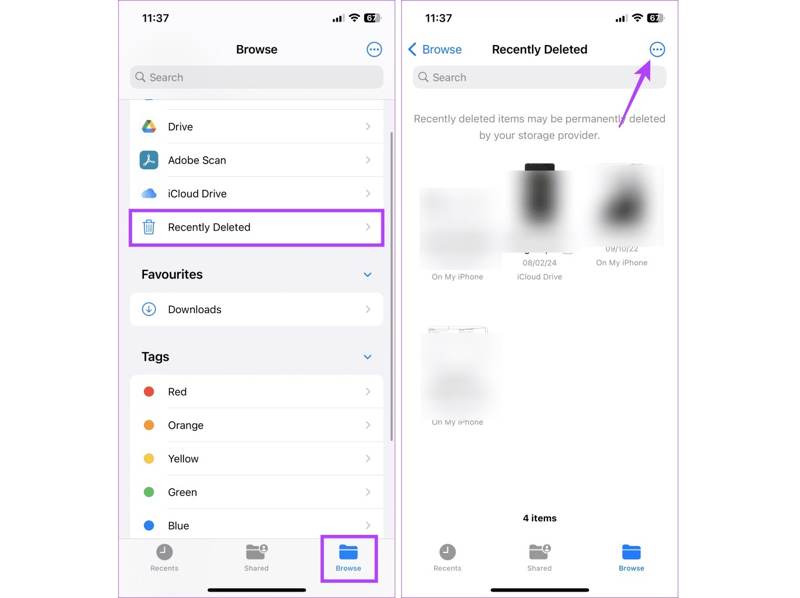
Step 1. Run the Files app.
Step 2. Go to Browse, and choose Recently Deleted.
Step 3. Select the recently deleted files you want to retrieve and tap Recover.
Step 4. When prompted, confirm data recovery on your iPhone.
Note: The location of the Recently Deleted folder is different in various apps, but you can find it quickly.
Part 3: How to Recover Data from iPhone Backup
If you have backed up your device regularly, you can recover permanently deleted files on your iPhone from iCloud or iTunes backup. Bear in mind that your data will be erased or overwritten by the backup.
How to Recover Lost Files on iPhone from iCloud
Step 1. Run the Settings app on your iPhone.
Step 2. Go to General, and Transfer or Reset iPhone.
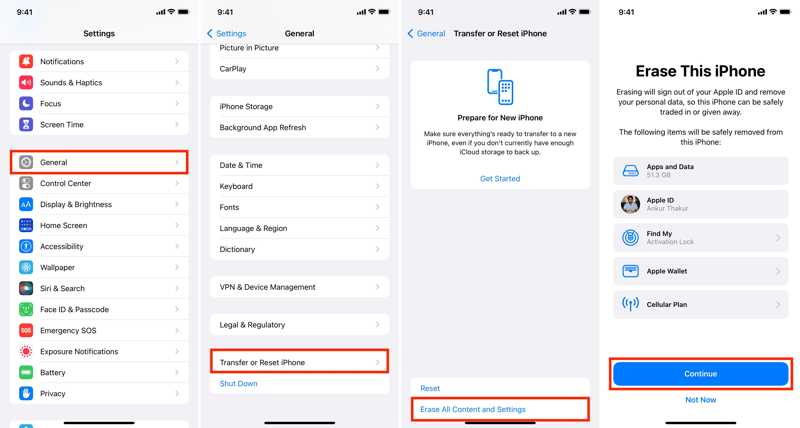
Step 3. Tap Erase All Content and Settings.
Step 4. When prompted, enter your Apple ID password.
Step 5. Then, tap Continue to begin factory resetting your iPhone.
Step 6. When it is done, your iPhone will restart in the Hello screen.
Step 7. Follow the onscreen instructions to set up your device.
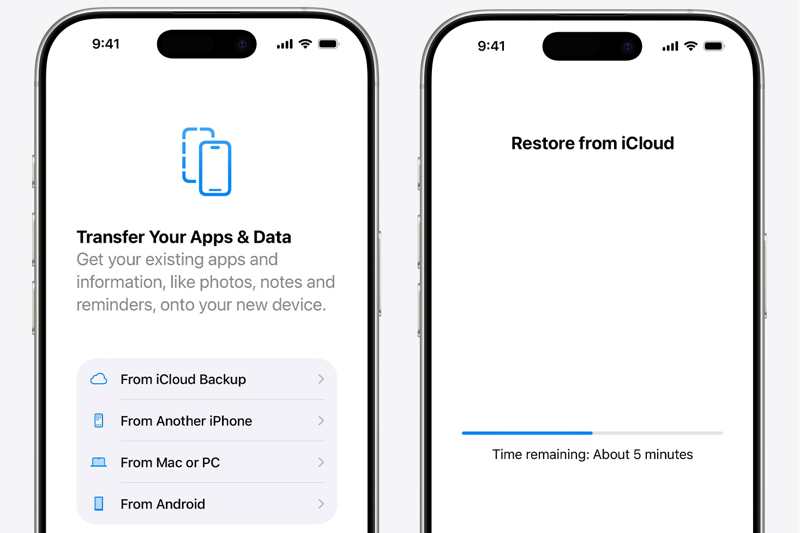
Step 8. Choose From iCloud Backup from the Apps & Data screen.
Step 9. Enter your Apple ID and password. Then, choose a proper backup.
Step 10. Complete the setup, and you will find data recovery on your iPhone.
How to Recover Data from iPhone by iTunes Backup
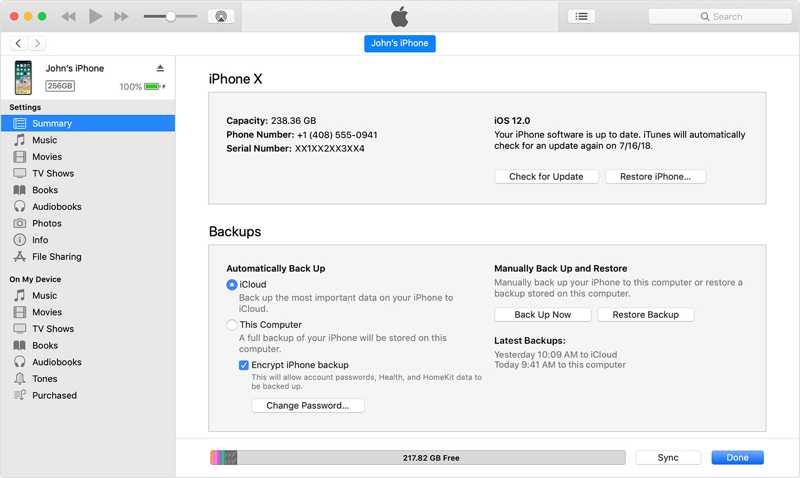
Step 1. Connect your iPhone to Windows and macOS Mojave or earlier with a USB cable.
Step 2. Open the latest version of iTunes.
Step 3. Once iTunes detects your device, click the Phone button at the top left side.
Step 4. Go to the Summary tab on the sidebar and locate the Backups section.
Step 5. Click the Restore Backup button, select the right backup, and click the Restore button.
Step 6. If the backup is encrypted, enter your password. Then, the backup will begin restoring on your iPhone.
How to Recover Permanently Deleted Files on iPhone from Finder
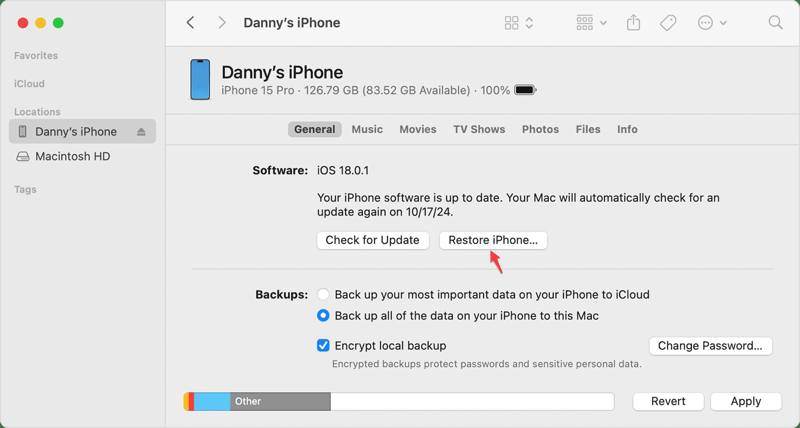
Step 1. Open the Finder app from the Dock.
Step 2. Hook up your iPhone to your computer running macOS Catalina or later with a USB cable.
Step 3. Click your iPhone name on the sidebar.
Step 4. Head to the General tab and click the Restore iPhone button.
Step 5. Pick the backup you want and hit the Restore button.
Step 6. If your backup is encrypted, enter your password to begin recovering data from your iPhone.
Step 7. When it is done, disconnect your iPhone.
Part 4: Comparison of iPhone Data Recovery Methods
| Prerequisites | |
| Apeaksoft iPhone Data Recovery | A computer A Lightning cable |
| Recently Deleted | Work for specific apps, like Photos, Files, Notes, Messages, and more Recover files that were deleted within 30 days |
| iCloud Backup | Have an iCloud backup Erase all content and settings on your iPhone A stable Wi-Fi network Apple ID and password |
| iTunes Backup | A computer runs Windows and macOS Mojave or earlier A compatible USB cable The latest version of iTunes Have an iTunes backup The password if the iTunes backup is encrypted |
| Finder Backup | A computer runs macOS Catalina or newer A compatible USB cable Have an iPhone backup The password if thce Finder backup is encrypted |
Conclusion
This guide explained the proven methods of iPhone file recovery in various situations. The Recently Deleted folder can find and recover files deleted within 30 days. If you have an iCloud backup, you can get back permanently lost files without extra hardware or software. iTunes and Finder backup allow you to retrieve the lost data on your iPhone with a computer. Apeaksoft iPhone Data Recovery is a flexible way of iPhone data recovery. It is available even if you don’t have a backup.
Related Articles
Your iPhone contacts cannot be syncing to iCloud or Mac? Here you can learn multiple solutions to fix this problem quickly.
You can learn four effective approaches to transfer contacts between an iPhone and an iPad with a USB cable or wirelessly.
You can learn how to restore your iPhone or iPad without iTunes using iCloud, Finder, Apple Devices, and other software.
Learn what an iPhone backup password is, how to enable/disable it, recover/reset a forgotten backup password, and explore the best iPhone backup alternative.



