How to Recover Lost/Unsaved/Deleted Audacity Files

Audacity, a free and open-source program, is the first choice for many people, especially musicians and podcast editors, to record and edit audio. However, when you use Audacity, your unsaved or temporary project may be lost due to unexpected software crashes, virus attacks, mistaken deletion, etc. That would be a nightmare, right?
Hope this kind of thing never happens to you. But if you are having this nightmare right now, fear no more. We will help you recover lost Audacity files. There will be 5 efficient ways waiting for you in this article. Please keep reading.
PAGE CONTENT:
- Method 1: Recover Lost Audacity Recordings Using Professional Software
- Method 2: Recover Deleted Audacity Files via Temporary Folder
- Method 3: Retrieve Lost Files in Audacity Using Automatic Crash Recovery
- Method 4: Get Back Lost Audacity Recordings by Searching Exported Files
- Method 5: Try Command Prompt to Open Audacity Files
- Method 6: Reinstall Disk Driver to Successfully Read Audacity Files
| Method | Best for |
| Data Recovery Software | People who want to quickly and easily recover deleted or lost Audacity files from drives. |
| Temporary Folder | Retrieve the unsaved AU fragments that are still stored in the Audacity temporary directory. |
| Automatic Crash Recovery | Restore unsaved projects after an unexpected crash of Audacity. |
| Exported Files | Restore the Audacity recordings from the previously exported audio file. |
| Run Command Prompt | Fix the issue where files were inaccessible due to file system errors on storage devices. |
| Reinstall Disk Driver | Solve the problem of audacity files not being recognized caused by abnormal device recognition |
Method 1: Recover Lost Audacity Recordings Using Professional Software
To retrieve your Audacity recordings, you can simply employ a professional data recovery tool, which is much more efficient, instead of searching the disk yourself. For example, Apeaksoft Data Recovery is a great choice. It offers effective solutions to handle Audacity data loss issues.
One-Click to Recover Lost Audacity Files
- Recover missing/unsaved/deleted Audacity data with ease.
- Restore lost Audacity files caused by program crashes, virus attacks, accidental deletions, etc.
- Preview the files for a better selectively recovery.
- Besides Audacity files, you can also recover audio, images, videos, PDF/Word/Excel docs, emails, and other files.
Secure Download
Secure Download

In short, Apeaksoft Data Recovery is the best recovery software on both Windows and Mac. And the operation of this software is quite easy and simple. Just follow the instructions below.
Step 1. Please download and install Apeaksoft Data Recovery on your computer from the button above. Then, open this program.

Step 2. Choose the location of your Audacity files, and press the Start Scan button.
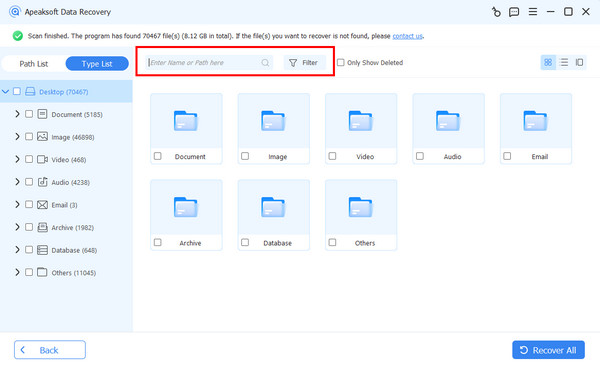
Step 3. After the Quick Scan, a Deep Scan will be performed automatically. Then, select the Audio option in the left panel, and make use of the Filter function to search for target Audacity files.

Step 4. Check the files and press the Recover button.
Tips: With Apeaksoft Data Recovery, you can recover all kinds of data from hard/flash drive, memory card, digital camera, and more. It even allows you to recover deleted files that are not in the recycle bin.
Method 2: Recover Deleted Audacity Files via Temporary Folder
To bring unsaved Audacity tracks back, you need to locate the folder that saves temporary Audacity files.
Step 1. Open Audacity, and press the Ctrl and P keys on the keyboard to open the Preferences window. Then go to Directories, and you will see the location of the temporary file directory.
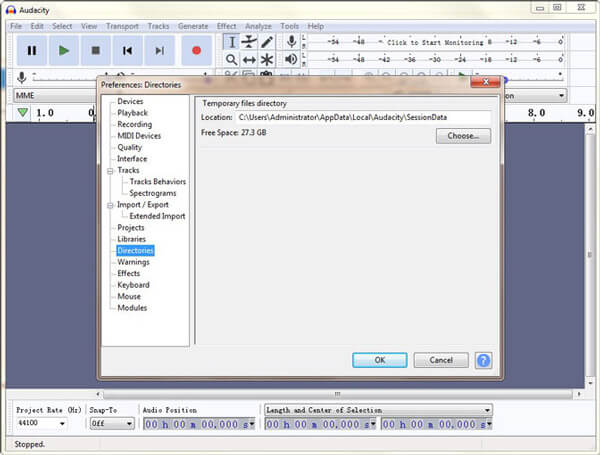
Windows 11/10/8: C:\Users\UserName\AppData\Local\Audacity\SessionData Windows 7:
C:\Users\UserName\AppData\Local\Temp\audacity_1_2_temp
Windows XP: C:\Documents and Settings\Local Settings\Temp\audacity_1_2_temp
Step 2. Open this folder. Check if your unsaved file is in this folder. If the answer is yes, open it with Audacity. Now you can save the file to a safer place.
Method 3: Retrieve Lost Files in Audacity Using Automatic Crash Recovery
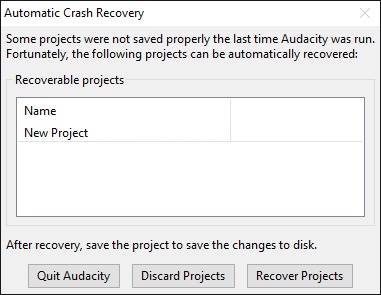
Audacity itself provides a built-in recovery tool to recover the unsaved project due to Audacity crashes. This tool will pop up automatically to remind you that there is a recoverable file when you launch the program next time. Just simply click on the Recover Projects button, it will bring your latest file back.
Tips:
Does Audacity have Autosave feature?
Yes, it has the Autosave feature, which can restore unsaved changes after a crash or a shut-down.
Method 4: Get Back Lost Audacity Recordings by Searching Exported Files
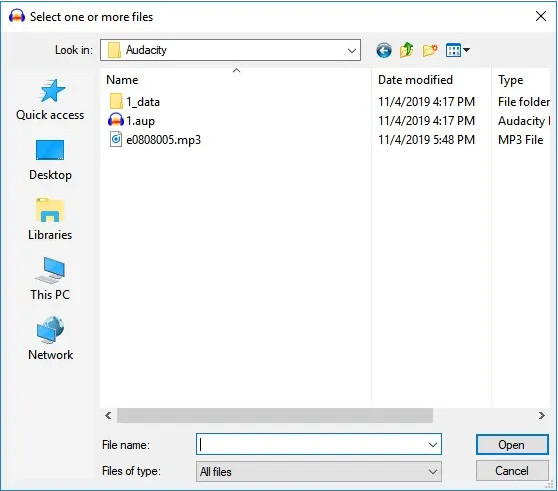
If you have exported the lost Audacity recordings beforehand, you can effortlessly find the deleted Audacity recordings from the exported audio files. All you need to do is to locate the folder where Audacity files are saved. Then, select the deleted or lost Audacity recording and click on the Open button to recover Audacity files.
Method 5: Try Command Prompt to Open Audacity Files
If your Audacity files cannot be opened or do not appear due to storage device corruption, you can try running the CHKDSK command to repair the device’s file system and restore normal access to those Audacity files.
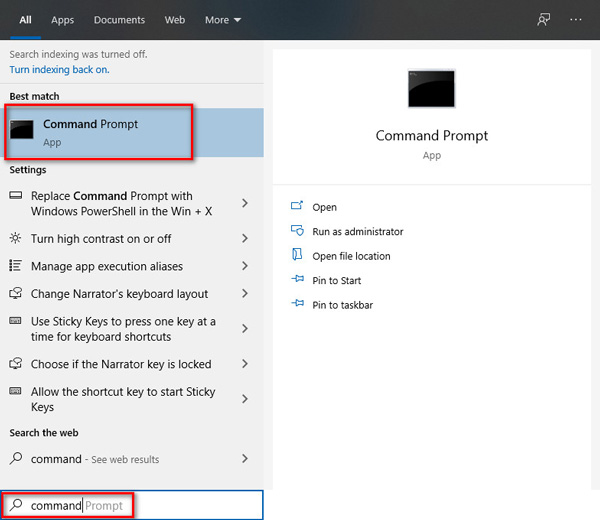
Step 1. Press the Windows and R keys simultaneously on your keyboard to awake your Run window. Then enter cmd and click OK to open Command Prompt.

Or you can search in your Start menu. Right-click on the app and choose Run as Administrator.
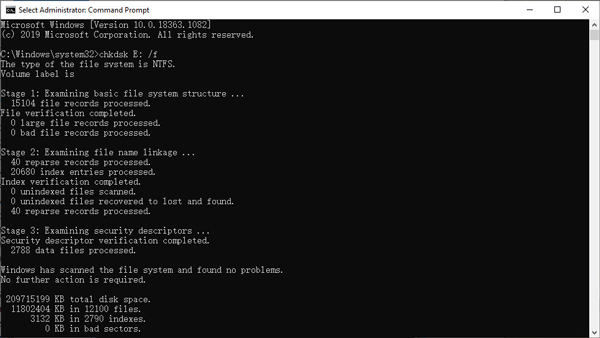
Step 2. Then type the command below and press the Enter key on your keyboard.
chkdsk < SD card drive letter>:/f (e.g., chkdsk E: /f)
Method 6: Reinstall Disk Driver to Successfully Read Audacity Files
This method can be used when your computer cannot recognize Audacity AU files from your memory card or flash drive. If your computer cannot recognize the Audacity files on your memory card or USB drive because the disk driver is malfunctioning, you can try reinstalling the disk driver to make the system properly detect the device.
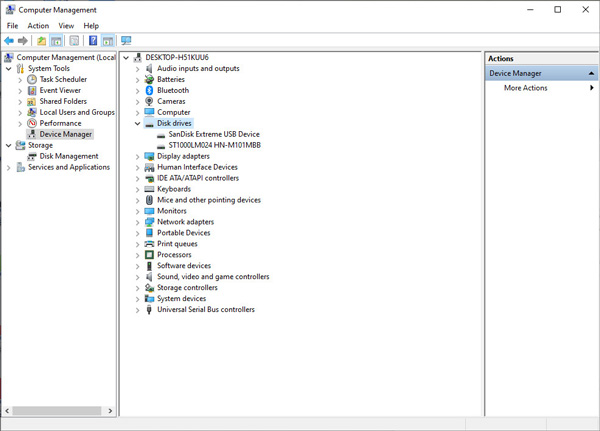
Step 2. Navigate to Device Manager and double-click Disk Drives. Find and right-click your removable drive. Click OK.
Conclusion
Audacity indeed supports an automatic recovery utility for program crashes. But it is not a 100% guarantee. You may still lose your precious audio projects if you forget to recover them in time. However, Apeaksoft Data Recovery has the capability to recover Audacity recordings in any circumstances. And it can keep the original quality of your Audacity projects during the recovery process.
By the way, if you don't want to lose your file, you should back up your data regularly and check the files one more time before removing them.
Related Articles