

How to Recover Permanently Deleted Photos from iCloud

It is well known that iCloud is the official cloud service released by Apple for customers to sync and back up photos and files through Apple ID accounts. Once you set up iCloud Photos or iCloud Backup, all your photos and videos will be stored in your cloud storage. That gives you a chance to get back your photos if you accidentally deleted them or after performing a factory resetting. This guide shares how to recover photos from iCloud.
PAGE CONTENT:
Part 1: iCloud Photos vs. iCloud Backup
iCloud Photos and iCloud Backup are two main services for Apple customers. iCloud Photos is able to sync your photos and videos across all your Apple devices through an Apple ID. Once you set it up, the service automatically uploads your photos and videos to your iCloud account. Thus, you can access them on all devices associated with the same Apple account.
Part 2: How to Retrieve Synced Photos from iCloud
If you just delete photos and the change hasn’t synced to iCloud, you can get back deleted photos from iCloud to your iPhone, iPad, Mac, or PC. The prerequisite is that you have a stable Wi-Fi network.
How to Recover Photos from iCloud on iPhone
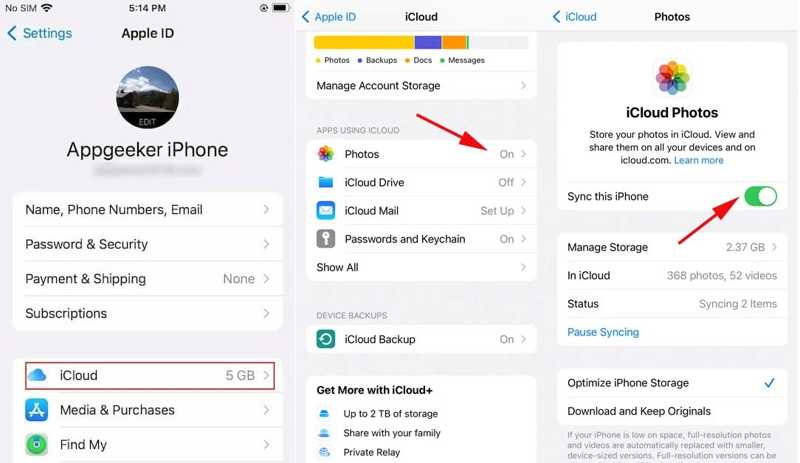
Step 1. Open the Settings app on your iPhone.
Step 2. Make sure to connect to a Wi-Fi network.
Step 3. Tap on your profile and choose the iCloud tab.
Step 4. Tap the Photos option and toggle off Sync this iPhone.
Step 5. Select Download and Keep Originals and toggle on Sync this iPhone.
Step 6. A few minutes later, iCloud deleted photos recovery will finish. You can access them in your Photos app.
How to Retrieve Photos from iCloud to Mac
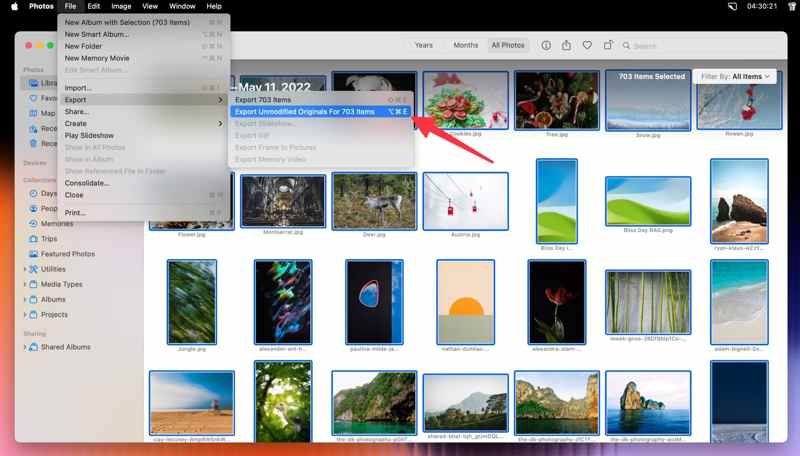
Step 1. Open the Photos app on your Mac.
Step 2. Click the Photos menu and choose Settings.
Step 3. Go to the iCloud tab and check Download Originals to this Mac.
Step 4. Wait for all iCloud Photos to get back, and then you can access iCloud backup and view your photos..
Step 5. Then, head to the Library section, and select all photos by hitting the Cmd and A buttons on your keyboard.
Step 6. Navigate to File, Export, and click Export Unmodified Originals for x Items.
Step 7. Click Export, set the output folder, and hit Export Originals.
How to Recover Photos from iCloud.com
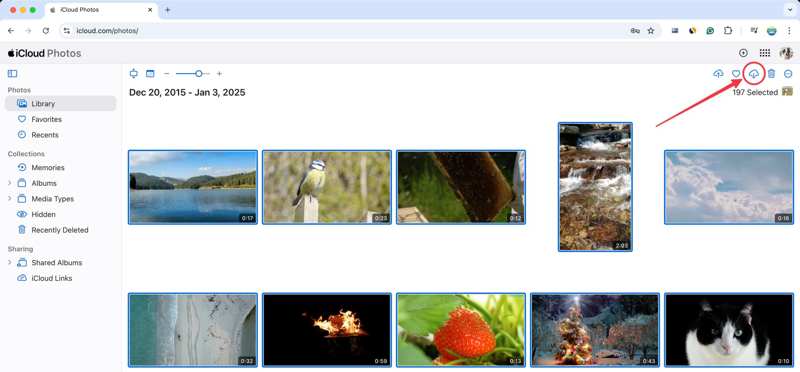
Step 1. Go to www.icloud.com/photos in a browser, and sign in with your Apple ID and password.
Step 2. Enter the Library album and select all photos you want to recover.
Tips: If your deleted photos have been updated to iCloud, enter the Recently Deleted album instead.
Step 3. Click the Download button at the top right corner to recover old photos from iCloud to your computer.
How to Ask Apple to Retrieve Photos from iCloud
Step 1. Visit www.privacy.apple.com and sign in with your Apple ID credentials.
Step 2. Click Request a copy of your data.
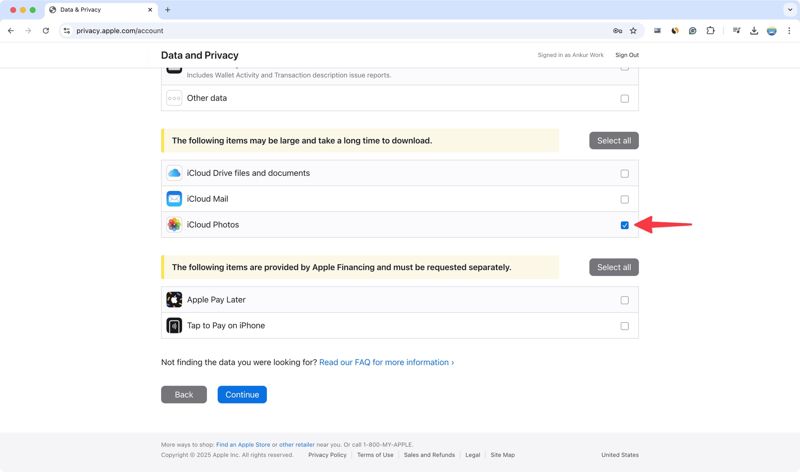
Step 3. Check iCloud Photos on the list and click Continue.
Step 4. Click the File Size menu and select a maximum file size.
Step 5. Hit Complete request and wait for Apple to inform you via email.
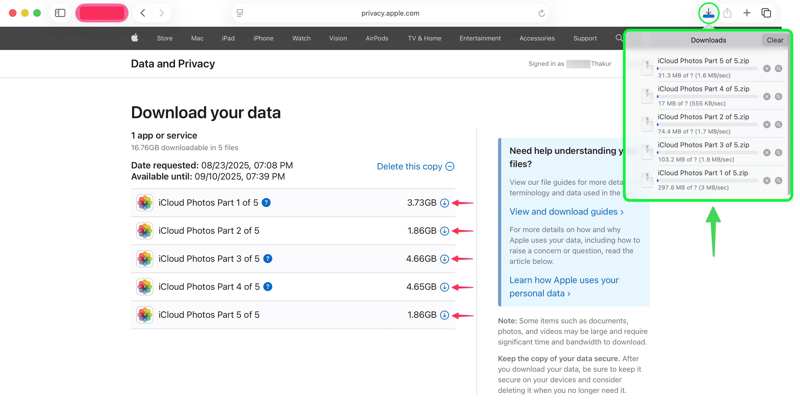
Step 6. Click Get your data in the email informing, and then hit Download.
Part 3: How to Recover Photos from iCloud Backup
iCloud Backup is another option to recover permanently deleted photos from iCloud. According to Apple, the data synced to iCloud won’t include iCloud backup. In other words, if you turn off iCloud Photos, you can restore photos from iCloud backup instead. This method requires you to erase your iPhone or iPad first.
Step 1. Run your Settings app.
Step 2. Navigate to General, Transfer or Reset iPhone, and choose Erase All Content and Settings.
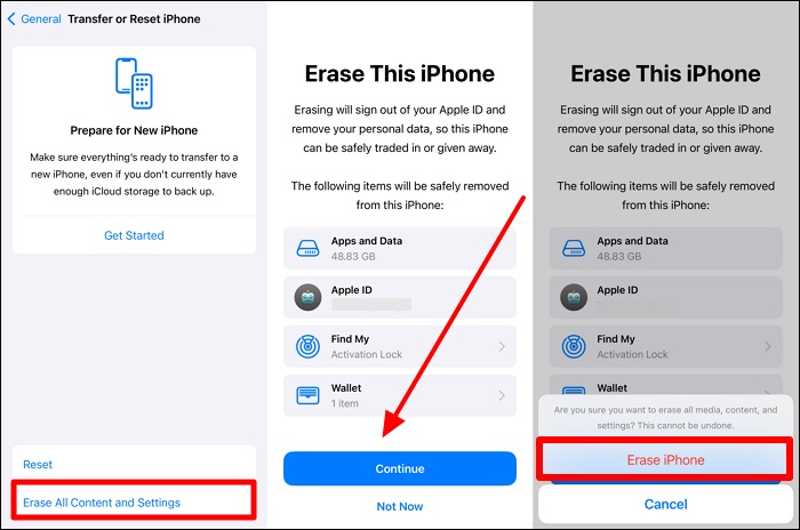
Step 3. If prompted, enter your iPhone passcode or Apple ID password.
Step 4. Read the alert, tap Continue, and hit Erase iPhone. This will factory reset your iPhone.
Step 5. When your iPhone restarts, set it up as a new device.
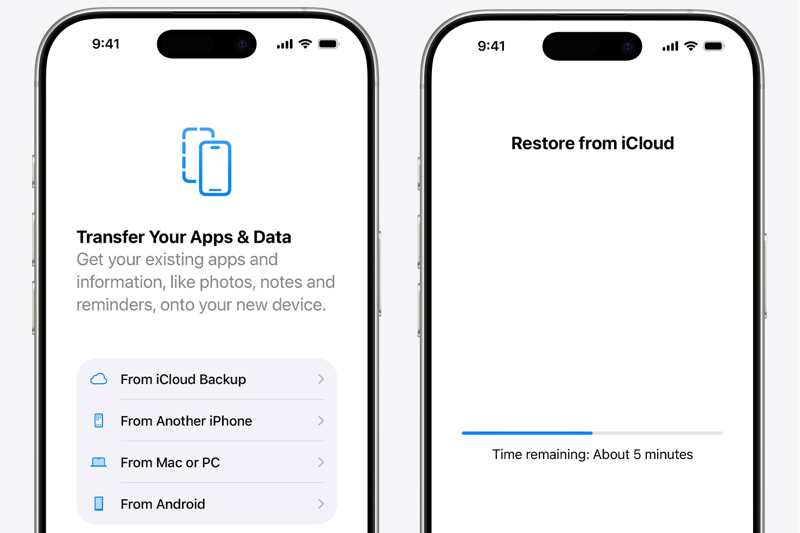
Step 6. Choose From iCloud Backup when you reach the Apps & Data screen.
Step 7. Enter your Apple ID and password, choose the backup that includes the desired photos.
Step 8. Finally, complete setting up your device.
Part 4: How to Restore Photos from iCloud Backup Without Resetting Your iPhone
Can I restore photos from iCloud backup without resetting my iPhone? The answer is yes. All you need is Apeaksoft iPhone Data Recovery. It is able to open an iCloud backup and extract photos for recovery.
The Easiest Way to Restore Photos from iCloud Backup Without Resetting Your Device
- 1.Open the iCloud backup file for data recovery.
- 2.Preview photos in iCloud backup before recovery.
- 3.Selectively recover photos from iCloud backup.
- 4.Won’t factory reset or erase your device.
- 5.Support the latest models of iPhone and iPad.
Secure Download
Secure Download

How to Restore Photos from iCloud Backup Without Resetting
Step 1. Open iCloud backup
Launch the best iCloud photo recovery software after installing it on your PC. There is another version for Mac. Go to the Recover from iCloud Backup File tab, and input your Apple ID account. Choose iCloud Backup and download the right backup file.
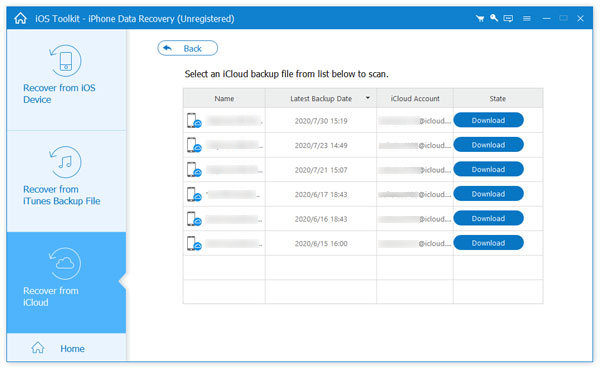
Step 2. Preview photos
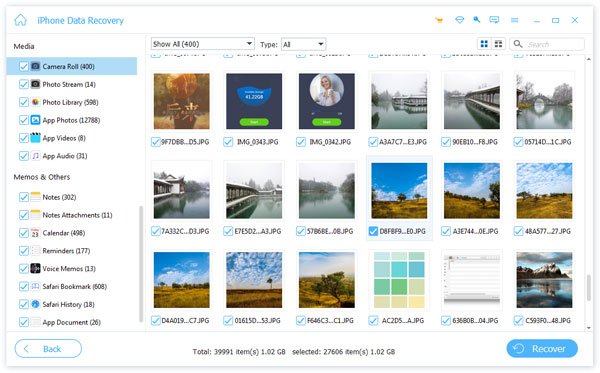
Select Camera Roll, Photo Library, and other desired data types. Hit Next to proceed. Then, preview all photos in your iCloud backup.
Step 3. Restore photos from iCloud
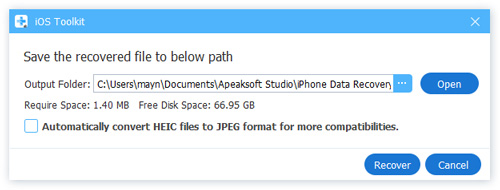
Select the photos you want to get back, and click the Recover button. Set an output folder and hit Recover.
Conclusion
This guide explained how to retrieve iCloud photos on your iPhone, iPad, Mac, PC, and online. You can pick the right method according to your situation and follow our steps to get back your pictures. Apeaksoft iPhone Data Recovery is a simple way for iCloud photo recovery without resetting your device.
Related Articles
How long does it take to backup an iPhone to iCloud backup? Taking Hours? Days? Or forever? Take the 5 free tips to make your iCloud backup faster in minutes.
What is iCloud Backup? Can iCloud back up everything across your Apple devices? How to access iCloud Backup? Get all answers from this post.
Is it real to hack someone’s iCloud account? How do I access my iCloud account when I forget my password? This post gives the ultimate solutions! Read now.
This article provides 3 professional ways to recover iCloud: you can use a specialized software or go to the iCloud deleted and recovery feature.



