

How to Restore Deleted or Unsaved Photoshop Files on Windows & Mac

Can you recover a file on Photoshop?
When you delete a Photoshop file but the project isn’t finished yet, what you need urgently is to recover the deleted Photoshop file. However, it’s not easy to do that. Although Photoshop keeps offering considerate features for users to protect their works, you have to take time to learn how to recover Photoshop files, for those features may not be obvious enough to be discovered. But you are lucky enough to be here, for you can learn 4 excellent ways to recover deleted or unsaved Photoshop files.
PAGE CONTENT:
- Part 1: Recover Deleted or Lost Photoshop Files with Data Recovery Software
- Part 2: Restore Deleted Photoshop Files from Recycle Bin (Windows) / Trash (Mac)
- Part 3: Recover Unsaved Photoshop Files from Recent Files (Windows & Mac)
- Part 4: Recover Unsaved Photoshop Files via AutoSave (Windows & Mac)
- Part 5: Recover Photoshop Files from Temporary Folder (Windows & Mac)
- Part 6: Restore Photoshop Files from File History (Windows) / Time Machine (Mac)
- Part 7: FAQs About Photoshop File Recovery
Part 1: Recover Deleted or Lost Photoshop Files with Data Recovery Software
It’s not necessarily required to learn how to recover unsaved Photoshop files within Photoshop, because Apeaksoft Photoshop file recovery software, like Apeaksoft Data Recovery, can quickly scan your PC or Mac to recover deleted or lost Photoshop files. It will highlight the lost files on your computer, so you can restore the Photoshops files with a few clicks. You can also plug your USB or SD card into your computer, and the program will recover PSD files from external drives with ease.
Restore Photoshop Files Quickly with Ease
- Easily recover deleted Photoshop files on PCs and phones.
- Quickly scan your device to retrieve the lost PSD files.
- Preview the name and date of the lost Photoshop files.
- Highlight the deleted Photoshop files so you can locate them.
Secure Download
Secure Download

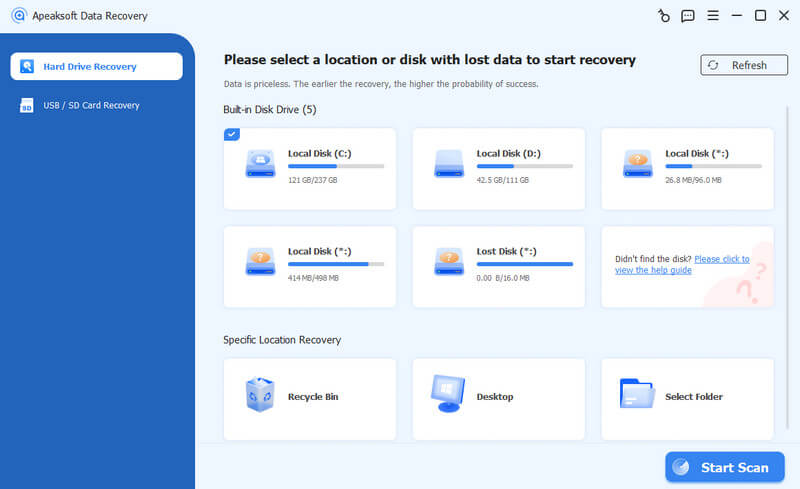
Step 1. Launch Apeaksoft Data Recovery, select the disk containing your PSD files, and click Start Scan.
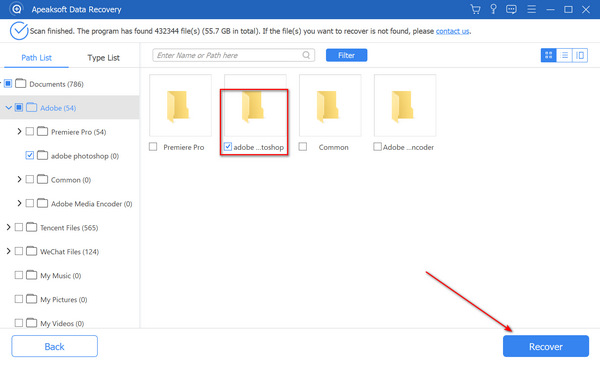
Step 2. After scanning, search for your project or browse the folder, then click Recover All to restore your Photoshop files.
Part 2: Restore Deleted Photoshop Files from Recycle Bin (Windows) / Trash (Mac)
If you have accidentally deleted Photoshop files or lost PSD files on Windows or Mac, you can easily recover deleted Photoshop files from the Recycle Bin or Trash without any additional software.
Windows:
Step 1. Open Recycle Bin.
Step 2. Find and select the PSD files you want to recover.
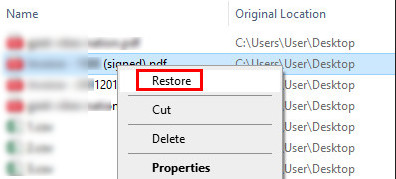
Step 3. Double-click or right-click the file and choose Restore. The file will be sent to its original location.
Mac:
Step 1. Open Trash.
Step 2. Find the desired PSD files.
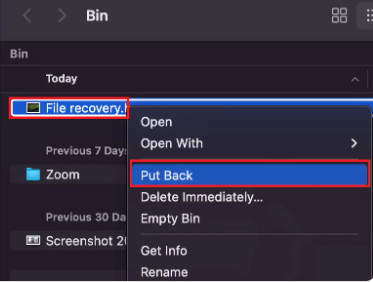
Step 3. Right-click it and choose Put Back to recover Photoshop files on Mac.
Part 3: Recover Unsaved Photoshop Files from Recent Files (Windows & Mac)
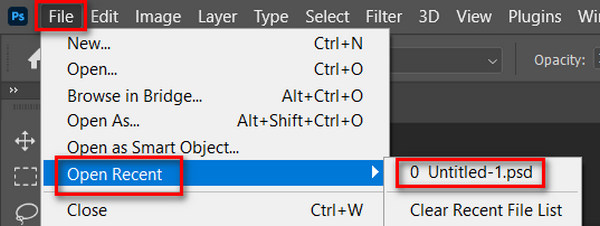
For files that were not saved before closing Photoshop, the Recent Files feature offers a quick way to recover your PSD files on both Windows and Mac. If you haven’t left aside Photoshop for too long, there’s a high chance of recovering Photoshop files in this way.
Step 1. Open Photoshop.
Step 2. Click File - Open Recent.
Step 3. Check if there are recent PSD files.
Part 4: Recover Unsaved Photoshop Files via AutoSave (Windows & Mac)
How to recover a file in Photoshop? If you have turned on the AutoSave feature in Photoshop, you can easily recover unsaved or accidentally closed PSD files. The AutoSave function works similarly to recovering Excel files in Microsoft Office, for it automatically saves your project regularly, and it also backs up your project file in a specific folder. This method allows you to restore lost Photoshop files on Windows or Mac without third-party software.
How to Check if AutoSave Is On
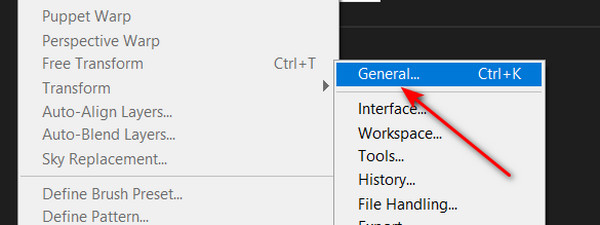
Step 1. Open Photoshop and click Edit - Preference - General.
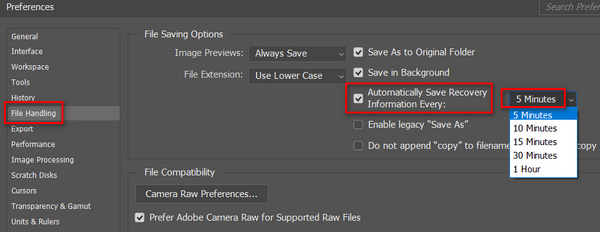
Step 2. Click the File Handling button on the left menu bar. If you see the Automatically Save Recovery button is toggled, it means you can recover the deleted Photoshop files with this feature.
Recover Unsaved Photoshop Files with AutoSave
Once AutoSave was enabled in Photoshop, you can recover unsaved or accidentally closed PSD files. Where do Photoshop AutoSave files go? Please check the path:
On Windows:
C:\Users\%UserName%\AppData\Roaming\Adobe\Adobe Photoshop\AutoRecover
On Mac:
~/Library/Application Support/Adobe/Adobe Photoshop/AutoRecover
Maybe you have ever set where the Adobe data is to save, but you can finally recover the unsaved Photoshop files in AppData on Windows or Adobe on Mac.
Part 5: Recover Photoshop Files from Temporary Folder (Windows & Mac)
If there is a sudden computer crash, and he AutoSave fails to work normally, you can still recover unsaved Photoshop files from the Temp folder. This method helps you restore lost PSD files after a system crash on both Windows and Mac without backup.
Windows
you can just enter C:/Users/UserName/AppData/Local/Temp/ on the Run Windows. Then, add the specific extension of your PSD file. You will see the Photoshop Temp files here.
Mac
Run Terminal on your Mac following the path: Finder > Application > Terminal. Then, enter open $TMPDIR and go to Temporaryitems. Locate your desired PSD file and open it with Photoshop.
Part 6: Restore Photoshop Files from File History (Windows) / Time Machine (Mac)
If your computer crashed, powered off, or your PSD files became corrupted, you can recover deleted or unsaved Photoshop files from backup using File History on Windows or Time Machine on Mac. This method also works when Windows does not load correctly, allowing you to restore previous versions of Photoshop files and recover lost PSD files without data loss.
Windows:
Check the steps to recover deleted Photoshop files on Windows below:
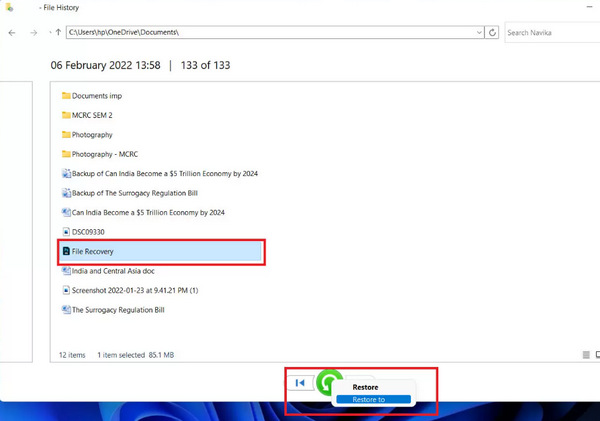
Step 1. Search Restore your files with File History and open it.
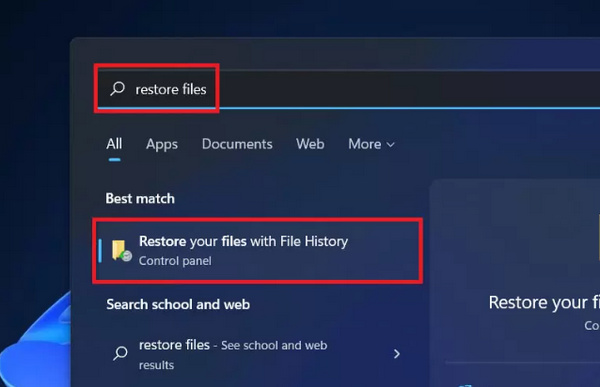
Step 2. You also need an external drive or a network to recover deleted Photoshop files with File History. Plug your USB into your PC, and then search for lost PSD or PSB file in File History. Right-click on it, and choose Restore to to recover the deleted Photoshop file.
Mac:
Check the steps to recover deleted Photoshop files on Mac below:
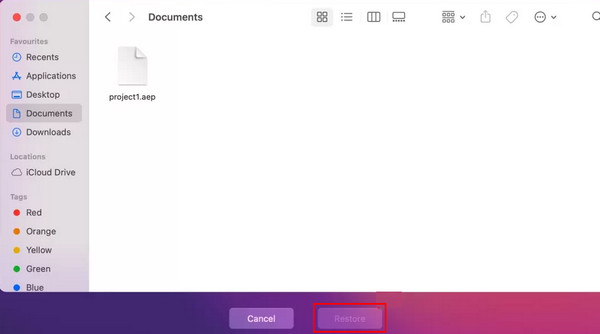
Step 1. Tap Command + Spacebar, type Time Machine.
Step 2. Browse the file and choose your desired PSD files.
Step 3. Click Restore to restore Photoshop files on Mac.
Part 7: FAQs About Photoshop File Recovery
How to recover a Photoshop file if I clicked "No" when closing it?
You can still recover unsaved PSD files using AutoSave or checking the Temp folder, as shown in part 4 and part 5.
Where does Photoshop save temporary files?
Photoshop creates Temp files during editing to prevent data loss.
On Windows: C:UsersUSERNAMEAppDataLocalTemp
On Mac: Open Terminal and enter open $TMPDIR to access Temporaryitems. You can open these files in Photoshop to recover unsaved PSDs.
Can I restore deleted Photoshop files without using software?
Yes. On Windows, use Recycle Bin or File History to restore PSD/PSB files. On Mac, use Trash or Time Machine backups to restore previous versions of your Photoshop projects.
Conclusion
You can easily recover unsaved Photoshop files in several effective ways, including AutoSave, Temp folder recovery, File History/Time Machine, Recent Files, and more. You can also notice that many of them have preconditions that you have to turn on a specific feature in advance. But Apeaksoft Data Recovery offers the easiest solution. It doesn’t require any prerequisites, and you can scan your PC to get any chance to restore unsaved or deleted Photoshop files. We hope that you can recover your precious projects in Photoshop.
Related Articles




