


How to Recover PPT Files on Windows and Mac Computer

There are a few scenarios where your presentations may be lost. For example, you closed MS PowerPoint and forgot to save your presentation. Suddenly crashing PowerPoint or system errors can lead to a corrupted PPT file. Accidentally deleting is a main factor responsible for PPT loss. Furthermore, you may replace a PPT file by mistake. Anyway, this guide demonstrates multiple ways to recover PPT files in various situations on your Windows and macOS.
PAGE CONTENT:
Part 1: How to Recover a Deleted PPT File
As long as you delete a PPT file accidentally, it won't be erased. Instead, it will go to the Recycle Bin or Trash folder. Before you empty the Recycle Bin or Trash, you can recover deleted PPT files easily.
On Windows
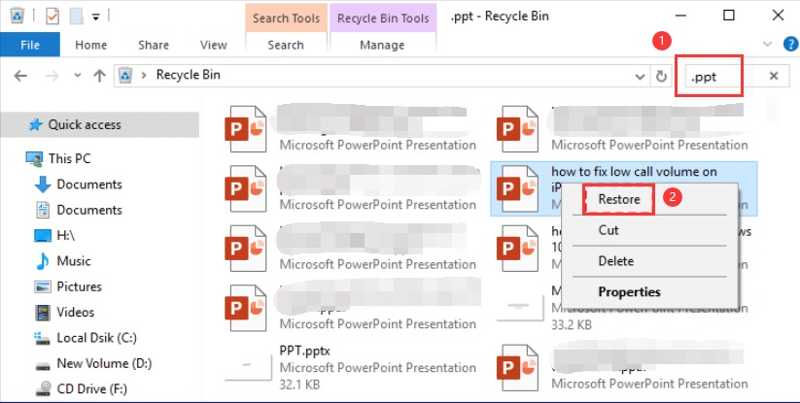
Step 1. Open the Recycle Bin button on your desktop.
Step 2. Type in ppt in the search bar.
Step 3. Right-click on the PPT file you want to recover and choose Restore.
Step 4. Go to the original location and check if it has been recovered.
On Mac
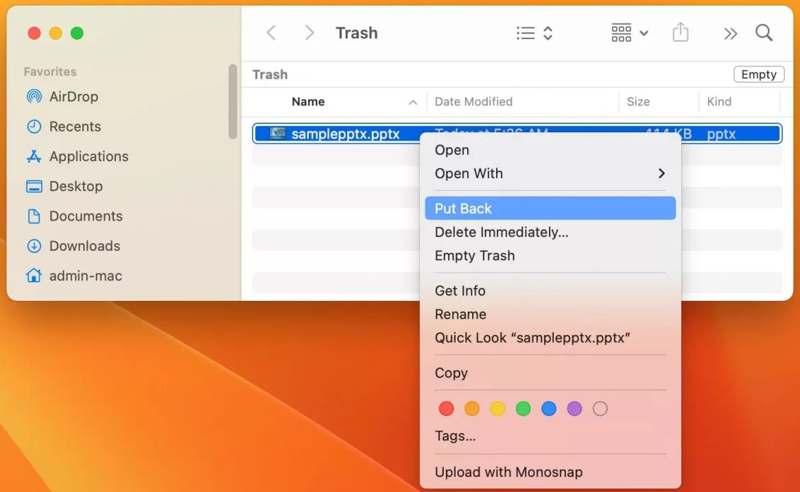
Step 1. Run the Trash button on your Dock bar.
Step 2. Find the desired PPT file.
Step 3. Right-click on it and choose Put Back to recover the lost PPT file.
Part 2: How to Recover an Unsaved PPT File
Suppose you are editing a PPT file and PowerPoint closes suddenly. Or you closed the PPT file and forgot to save your work. As a result, your editing won't be saved. However, you can recover a closed PPT file not saved using the AutoRecover feature.
Set up AutoRecover in MS PowerPoint
Step 1. Head to the File menu in MS PowerPoint.
Step 2. Click the Options button at the bottom left corner.
Step 3. Switch to the Save tab and check the box next to Save AutoRecover information every.
Step 4. Type in a number and click OK to confirm it.
Recover Unsaved PPT File
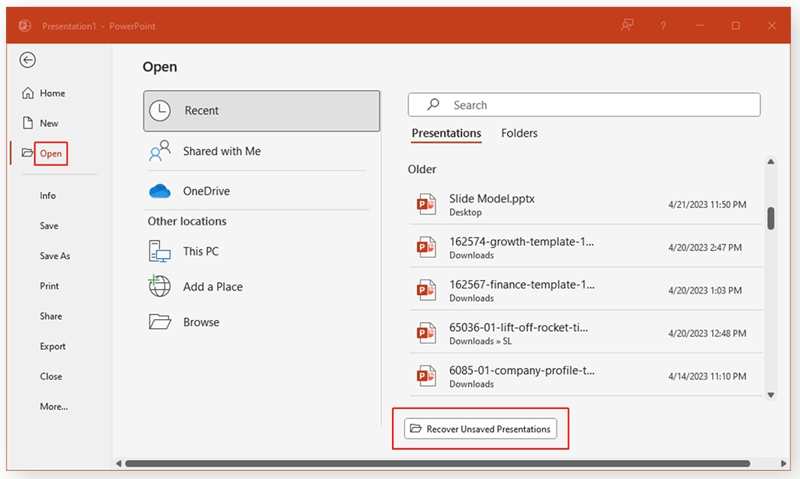
Step 1. Open MS PowerPoint from the Start menu.
Step 2. Go to the File menu.
Step 3. Click the Open option and choose Recent.
Step 4. Click the Recover Unsaved Presentations button.
Step 5. Select the file version in the temp folder and click Open.
Step 6. Next, the unsaved PPT file will be recovered and opened.
Part 3: How to Recover a Corrupted PPT File
If your PPT file is corrupted or damaged, you cannot access the presentation. The good news is that MS PowerPoint has integrated a PPT repair feature. In other words, you can recover a corrupted PPT file without third-party repair tools.
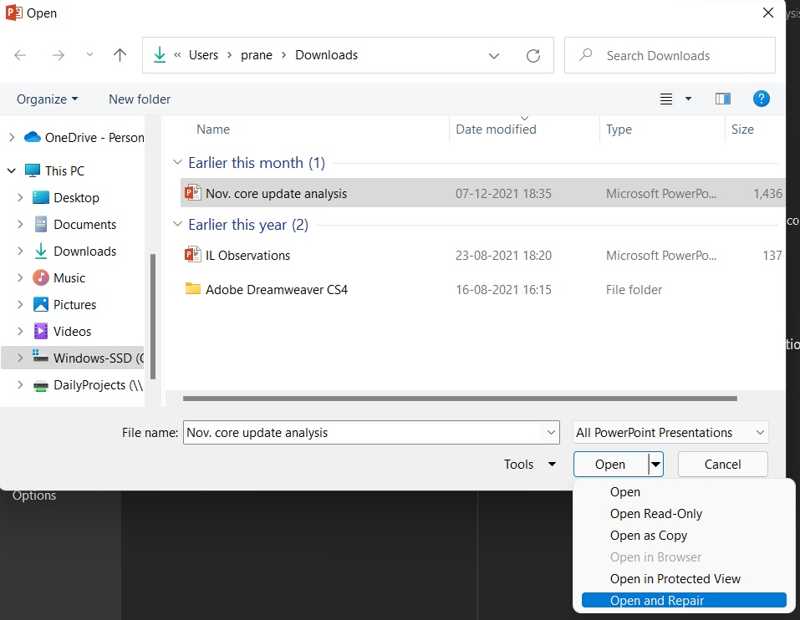
Step 1. Open MS PowerPoint on your desktop or from the Start menu.
Step 2. Go to the File menu and click the Open option.
Step 3. Navigate to the location and select the corrupted PPT file in the Open dialog.
Step 4. Click the Arrow button next to Open and choose Open and Repair.
Step 5. Wait until the repair process is complete. Then, the presentation will open.
Step 6. Export the PPT as a new file.
Note: You’d better save the corrupted PPT file to another location instead of the original folder.
Further Reading
Part 4: How to Recover an Overwritten PPT File
Can you recover a PPT file accidentally written over? The common methods are unavailable. However, Apeaksoft Data Recovery can help you resolve this problem. Plus, the user-friendly design makes it easy to use for ordinary people.

Downloaded by over 1,000,000 users
- Recover lost PPT files with one click.
- Work for deleted, corrupted, and replaced PPT files.
- Preview lost PPT Files for selective recovery.
- Integrate a quick scan and a deep scan.
- Compatible with a wide array of file types.
Secure Download
Secure Download

How to Recover Replaced PPT Files on Windows 10
Step 1. Install PPT Recovery
Start the PPT recovery software once you install it on your PC. There is another version for Mac. Go to the Hard Drive Recovery mode, select the hard drive stored the PPT file, and click the Start Scan button.
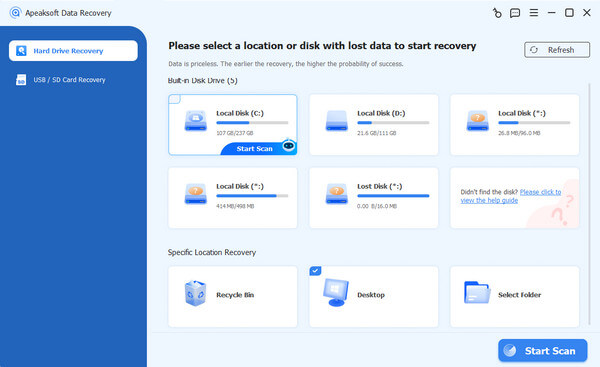
Tips: If you want to recover a PPT file from an external hard drive, go to USB / SD Card Recovery.
Step 2. Preview PPT files
After the disk scan, go to the Type List tab and choose Document. Now, you can preview all PPT files on your drive. You can quickly locate a specific presentation file using the Filter option.

Step 3. Recover replaced PPT files
Finally, select the desired PPT files and click the Recover button. Set an output folder and confirm PPT recovery.

Conclusion
Now, you should understand how to recover PPT files not saved, corrupted, or overwritten. The built-in features in MS PowerPoint enable you to get back your presentations in various situations. For instance, the AutoRecover feature can restore unsaved PPTs. Apeaksoft Data Recovery is the ultimate option to get back your presentation files easily.
 Apeaksoft Data Recovery
 Recover deleted or lost data on Windows and Mac computer.
Secure Download
Secure Download
Related Articles




