


How to Recover Deleted and Corrupted Outlook PST Files

A PST file, also known as the Personal Storage Table, is an Outlook file that stores personal information in Microsoft Outlook or Microsoft Exchange. It usually includes messages, contacts, attachments, addresses, and other information. If you accidentally delete a PST file or an Outlook file is corrupted, you will lose your messages and information. This guide shares five ways to recover Outlook PST files with or without a backup.
PAGE CONTENT:
Part 1: How to Recover PST File with Inbox Repair Tool
Microsoft Outlook comes with the Inbox Repair Tool by default. It can quickly recover corrupted Outlook PST files. However, this method is unavailable for deleted or lost Outlook PST files.
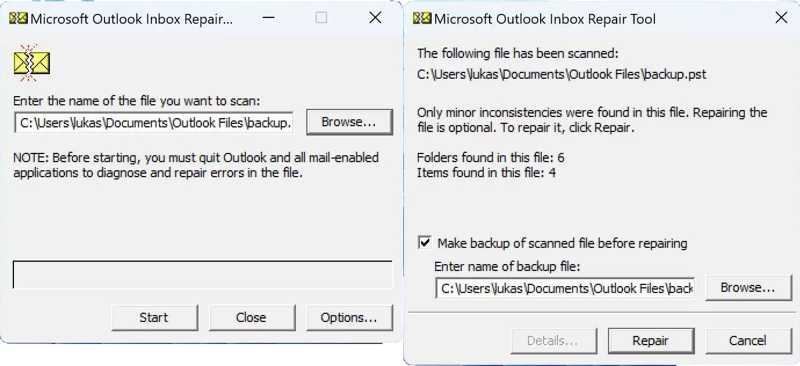
Step 1. Go to the following file directory:
Outlook 2019 and later: C:Program Files (x86)Microsoft OfficeootOffice16
Outlook 2016: C:Program Files (x86)Microsoft OfficeootOffice16
Step 2. Find and open the SCANPST.exe file.
Step 3. Click the Browse button to select the corrupted PST file.
Step 4. Click the Start button to scan the file.
Step 5. If an error is detected, click Repair to fix it.
Step 6. When the repair is complete, start Outlook with the associated profile.
Part 2: How to Recover a Deleted Outlook PST File from a Previous Version
File History is a backup feature on Windows. Once you set it up, this feature will automatically save versioned copies of personal files, including Outlook PST files. If your Outlook file is lost, recover the deleted PST file from the Previous Version.
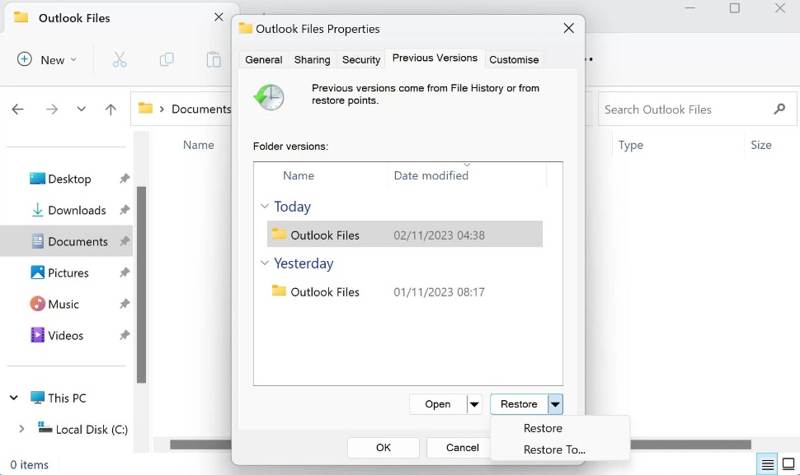
Step 1. Open File Explorer, search for Outlook Files, and open the folder.
Step 2. Right-click the folder and choose Properties.
Step 3. Switch to the Previous Versions tab.
Step 4. Select the correct version and click Restore.
Step 5. Run Outlook to check if the deleted PST file is retrieved.
Part 3: How to Recover PST File from AutoArchive
AutoArchive is the backup feature in Outlook 2003 and later. After being enabled, it will automatically back up Outlook items of a specific age to an archive folder. That gives you a chance to recover the Outlook PST file.
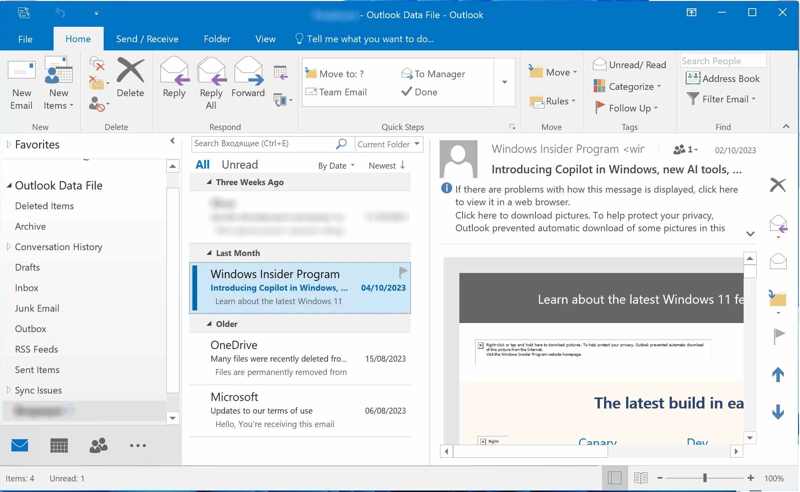
Step 1. Run MS Outlook.
Step 2. Go to the File menu and choose Open & Export on the sidebar.
Step 3. Click Open Outlook Data File and choose the archive.
Tips: The default location is Documents/Outlook Files.
Step 4. Next, browse the archive under the Outlook Data File section.
Part 4: How to Recover PST File Outlook by Backup & Restore
In addition to the Outlook backup feature, Windows comes with the Backup and Restore feature. As long as you turn on this feature, you can recover deleted Outlook PST files from the right backup.
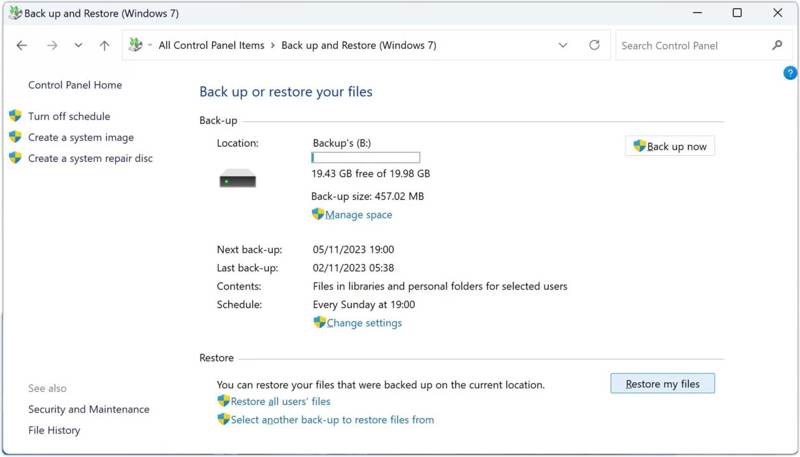
Step 1. Open the Control Panel from the Start menu.
Step 2. Click the Backup and Restore(Windows 7) option.
Step 3. Press the Restore my files button.
Step 4. Click the Browse for files button and select the lost PST file.
Step 5. Press the Next button and click Restore.
Part 5: How to Recover a PST File Without a Backup
If the common methods are unavailable, try Apeaksoft Data Recovery. It can recover Outlook PST files without backups. It is able to scan your hard drive and find deleted or lost files. Moreover, the intuitive interface can streamline the workflow.

Downloaded by over 1,000,000 users
- Recover deleted PSF files with three steps.
- Scan hard drives and recover files without backup.
- Preview lost PST files and other data before recovering.
- Support a wide range of data types and file formats.
- Keep the recovered files in their original condition.
Secure Download
Secure Download

How to Recover a PST File Without a Backup
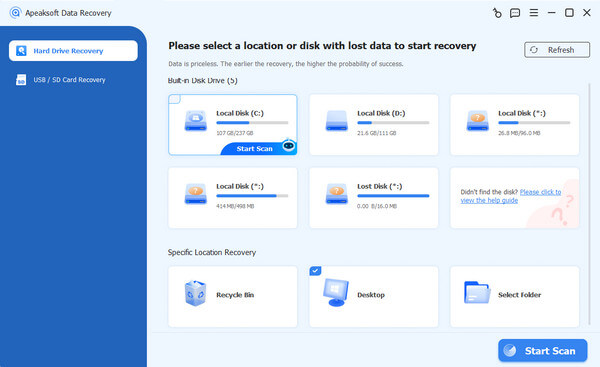
Step 1. Scan hard drives
Launch the data recovery software after installing it on your computer. It is compatible with Windows 11/10/8.1/8/7/Vista/XP and macOS 10.7 or later. Go to the Hard Drive Recovery tab in the sidebar and select where the PST file is stored. Click the Start Scan button to begin scanning the drive.
Step 2. Preview PST files
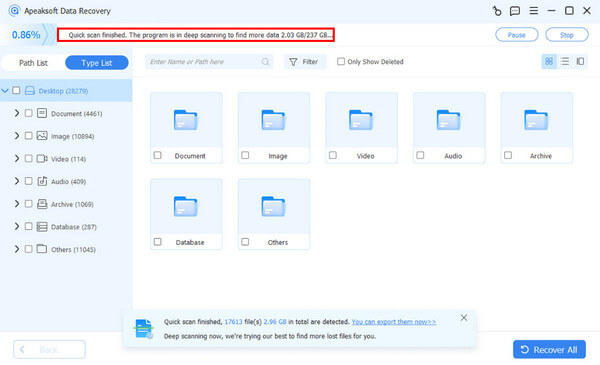
After a quick scan, the software will automatically perform a deep scan. When it finishes, go to the Type List tab to preview files by type. Alternatively, go to the Path List tab and navigate to the Outlook folder. Check the Only Show Deleted box to display the deleted PST file.
Step 3. Recover PST files
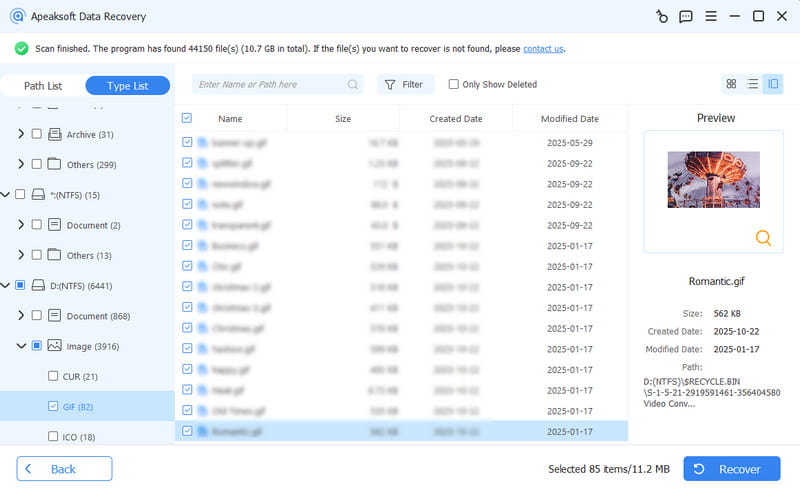
Select the deleted PST file and click the Recover button at the bottom. Select an output folder and click the Recover button again. Next, move the PST file to the Outlook folder.
Further Reading
Conclusion
This guide shared five ways to recover an Outlook PST file if it is corrupted or accidentally deleted. Both Windows and Outlook offer backup features to help you retrieve lost messages. For corrupted PST files, you can try the built-in Inbox Repair Tool. Apeaksoft Data Recovery enables you to retrieve PST files without backup.
Related Articles




