

How to Recover Deleted Search History on Mobile and Computer

“I use search history to go back and find things, but I recently deleted it by mistake. Is there a way of recovering search history?” Today, a web browser is an essential tool on almost every digital device, such as Chrome, Firefox, Apple's Safari, and more. It allows users to manage sensitive history. If you lose or accidentally delete important history, here you can learn how to recover search history on your iPhone, Android device, Windows, or Mac.
PAGE CONTENT:
Part 1: How to Recover Search History on iPhone
The easiest way to find deleted search history on iPhone or iPad is Apeaksoft iPhone Data Recovery. It is able to scan device memory for data recovery. Furthermore, it can extract search history from iTunes or iCloud backup without resetting your device.
The Best Way to Recover Search History on iPhone
- Find deleted search history on iPhone without backup.
- Extract data from iCloud or iTunes backup.
- Preview lost search history before recovery.
- Available to a wide range of browsers.
- Support the latest versions of iOS and iPadOS.
Secure Download
Secure Download

How to Recover Search History on iPhone
Step 1. Connect to your iPhone
Start the best data recovery software for iPhone once you install it on your computer. It works on Windows 11/10/8/7/XP/Vista and macOS 10.7 or above. Plug your iPhone into your computer with a Lightning cable. Go to the Recover from iOS Device tab.

Tips: To recover search history from iTunes or iCloud backup, choose Recover from iTunes Backup File or Recover from iCloud Backup File.
Step 2. Preview search history
Click the Start Scan button to begin looking for recoverable data on your device. When it is done, all data is organized by type. Select the desired data types on the sidebar, like Safari History. You can pick Show Deleted Only from the top option to view the deleted search history.
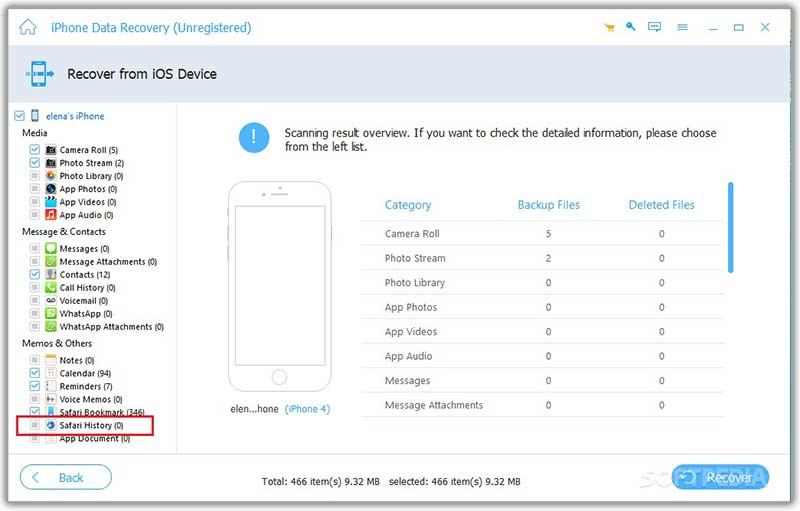
Step 3. Recover deleted search history
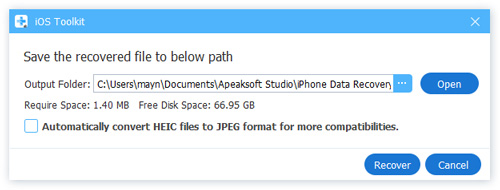
Select the items you want to retrieve. For example, you can recover iPhone call history. Click the Recover button at the bottom. Next, set an output folder and hit Recover.
Part 2: How to Recover Search History on Android
If you have turned on Web & App Activity on your Google account, you can recover deleted search history from Chrome on your Android phone. This method requires a stable internet connection.
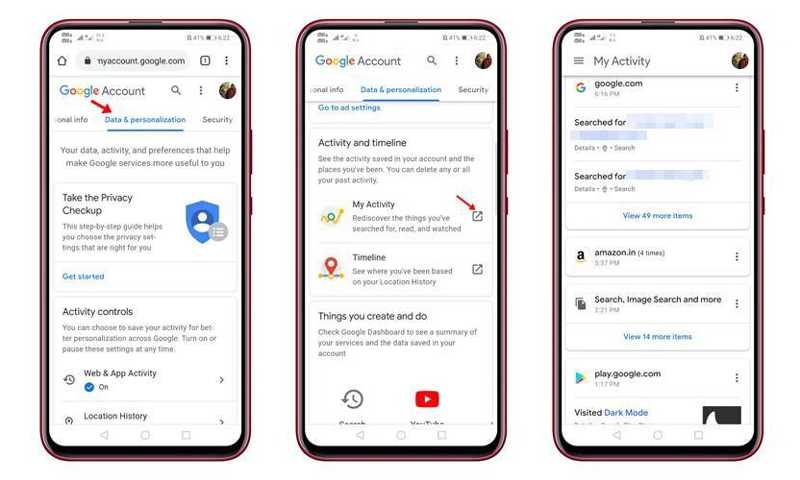
Step 1. Open your Chrome browser, and go to www.google.com/settings.
Step 2. Sign in to your account on the Google My Activity page.
Step 3. Switch to the Data & personalization tab and locate My Activity.
Step 4. Scroll down and find the deleted search history and recover it.
Part 3: How to Restore Search History on Windows
If you need to get back deleted search history on a PC, you can do it in File Explorer. Each browser saves search history in a local file. You can navigate to the file and open it quickly. This method requires the DB Browser for SQLite.
Step 1. Press the Win and R buttons on your keyboard to open the Run dialog.
Step 2. Copy and paste the path below according to your browser:
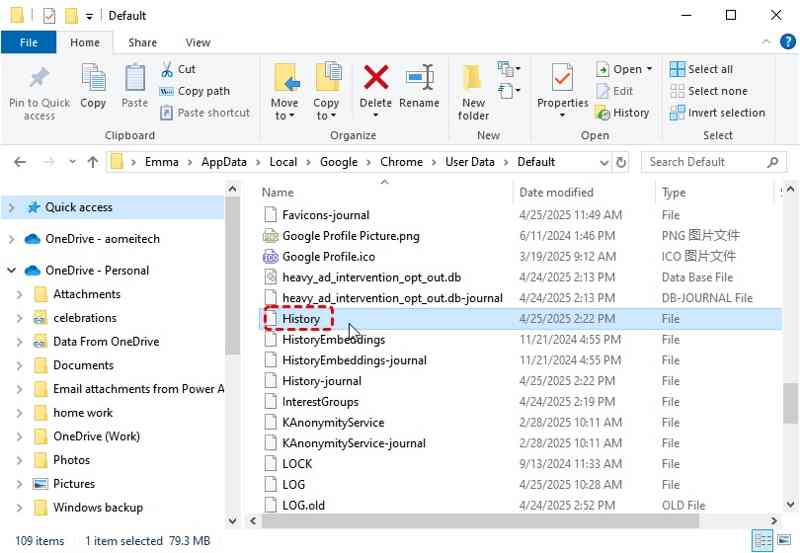
Chrome: %LocalAppData%GoogleChromeUser DataDefault\
Firefox: %APPDATA%MozillaFirefoxProfiles\
Microsoft Edge: %LocalAppData%MicrosoftEdgeUser DataDefault\
Step 3. Press the OK button.
Step 4. Then, find the History file and open it with DB Browser for SQLite.
Step 5. Scroll down and locate the visited-links table.

Step 6. Right-click on it, choose Export as CSV file, and save it on your desktop.
Step 7. Next, open the CSV file in Excel, and here you can restore the deleted Google search history.
Part 4: How to Get Back Deleted Search History on Mac
To restore deleted search history on Mac, you can try Time Machine if you turn it on. All your search history is saved in a file named History.db. You can try the steps below to recover it on your Mac.
Step 1. Close your browser on your Mac.
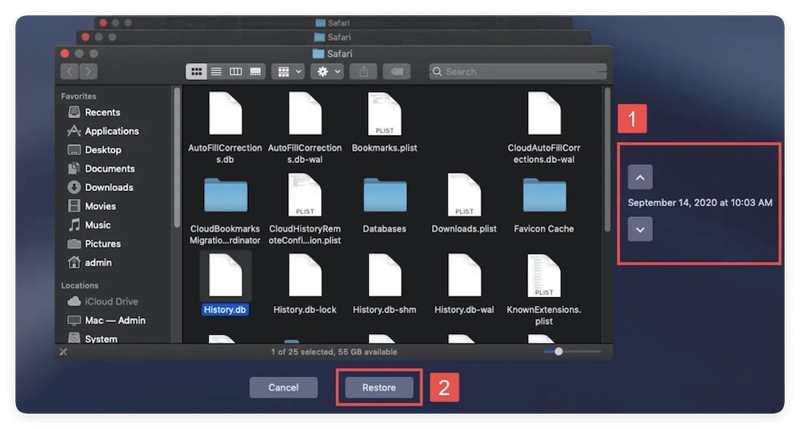
Step 2. Open Finder and go to the browser folder. For Safari, the path is ~/Library/Safari/.
Step 3. Connect your Time Machine backup device to your Mac.
Step 4. Open Time Machine and find the right backup.
Step 5. Then, find and select the History.db file, and click the Restore button.
Step 6. Install the SQLite Browser from the official website and open it from your Applications folder.
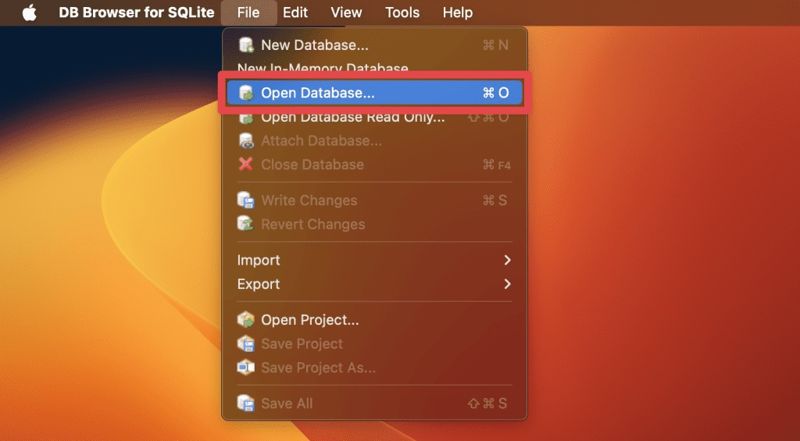
Step 7. Go to the File menu and choose Open Database.
Step 8. Select the History.db file and click Open to recover the search history on Mac.
Conclusion
Now, you should understand how to restore search history on iPhone, Android, Windows, or Mac devices. You can read our guide, pick the right method, and follow our steps to get back your lost search history of any browser. Apeaksoft iPhone Data Recovery is the best option for recovering what you have searched on your iPhone or iPad.
Related Articles
If you accidentally delete images of important chats, this tutorial demonstrates multiple ways to recover images from WhatsApp.
This guide shares multiple effective methods to recover deleted voicemails on your iPhone with or without a backup file.
This guide will guide you the 4 ways to recover Outlook emails using the Deleted Items Folder, the Outlook server, backup, and third-party software.
Do you want to restore deleted apps from iCloud? This article will show you 3 proven methods to get back deleted apps with ease.



