


How to Recover Deleted Search History on Windows/Mac/Mobile

"I remember researching a medical term on Chrome a couple of days ago, but today when I needed that term, I couldn't remember it and all history had been cleared. I really need to know that term. What can I do? Is there a way to recover deleted search history?"
Yes, many. But it depends on how the search history was deleted, and the recovery doesn't always go well. This article will walk through 7 ways to recover deleted search history.
PAGE CONTENT:
Part 1: Can Deleted Search History Be Recovered
Yes, sometimes.
Browsers store search history on your device. When you delete the search history, most browsers only remove the entries from these databases, so your device sees the files as "deleted". But they are not, for now. Also, even if the search history file is gone for good, some traces are left on your device, like in the DNS cache, though they remain only for a short time.
So it's possible to recover deleted search history, if it was cleared only recently and you rarely used the device afterward, which means the records probably haven't been fully erased yet.
Part 2: Where Search History Is Stored
Your search history is saved in an encrypted database on your device. Here's a clear list of default saving locations for popular browsers.
| On Windows | On Mac | |
| Chrome | C:\Users\<username>\AppData\Local\Google\Chrome\User Data\Default\History. | /Users/<username>/Library/Application Support/Google/Chrome/Default/History. |
| Edge | C:\Users\username\AppData\Local\Microsoft\Edge\User Data\Default\History | ~/Library/Application Support/Microsoft Edge/Default/History |
| Safari | × | ~/Library/Safari/History.db |
| Firefox | C:\Users\<Your_Username>\AppData\Roaming\Mozilla\Firefox\Profiles\<Profile_Name.default-release>\ | /Users/<Your_Username>/Library/Application Support/Firefox/Profiles/<Profile_Name.default-release>/ |
Note: When you navigate to these locations, you’re likely to find the history files in SQLite database format (often with suffixes like .db and .sqlite). If so, you can’t read the files directly. You can only view their content with specialized tools such as DB Browser and SQLiteStudio.
On iPhone/Android: Search History is stored in each browser app's private storage. Safari history may also be synced to iCloud if Safari Sync is activated.
Part 3: How to Recover Deleted Search History on a Browser
Method 1: Check DNS Cache (Quick Recovery)
Even though browser history has been deleted, the DNS cache may still keep traces of recently visited domains. You don't get the original search history data, but you can see some names of the websites you visited.
Step 1. Open Command Prompt: Press Windows + R to open the Run box, type cmd, and press Enter.
Step 2. In the Command Prompt, paste the following command:
ipconfig /displaydns
Press Enter.
Step 3. Your Windows will show you a list of recent DNS records, which can be an alternative to search history.

Note: What is DNS cache?
When you visit a website, DNS helps your device find it by matching the website name to its IP address. It temporarily stores a record of the websites it looked up recently in the DNS cache.
Method 2: Restore from Browser Sync / iCloud Account
If Browser Sync / iCloud Sync is enabled, the search history, even if deleted locally, is stored in the cloud. That is to say, you can access the synced version from another device and restore it by signing back into your account.
Step 1. Check whether the history sync is enabled on your account.
- For Chrome: Profile > Sync and Google services > History
- For Edge: Profile > Manage profile settings > Sync
- For Firefox: Menu > Settings > Sync
- For Safari: Settings > Apple account > iCloud
Step 2. If Sync is enabled, log in to the same browser account / Apple account on another synced device and check the search history.
Method 3: Use System Restore (Windows)
System Restore doesn't back up the specific search history, but it creates a restore point in the past, which your system will return to. If there's a restore point when the search history still exists, there's a chance you can recover it.
But heads up, after using System Restore, the data and programs you created after the restore point will likely disappear, so make sure you are okay with the loss before using it.
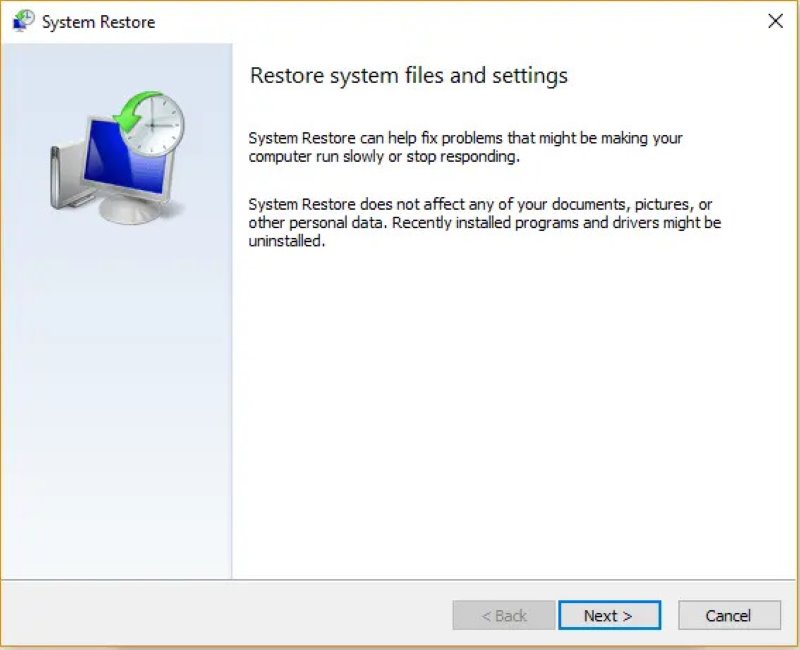
Step 1. Press Windows + R, type rstrui.exe, and press Enter. The System Restore Wizard shows up. Click Next.
Step 2. Select a restore point created before your search history was cleared.
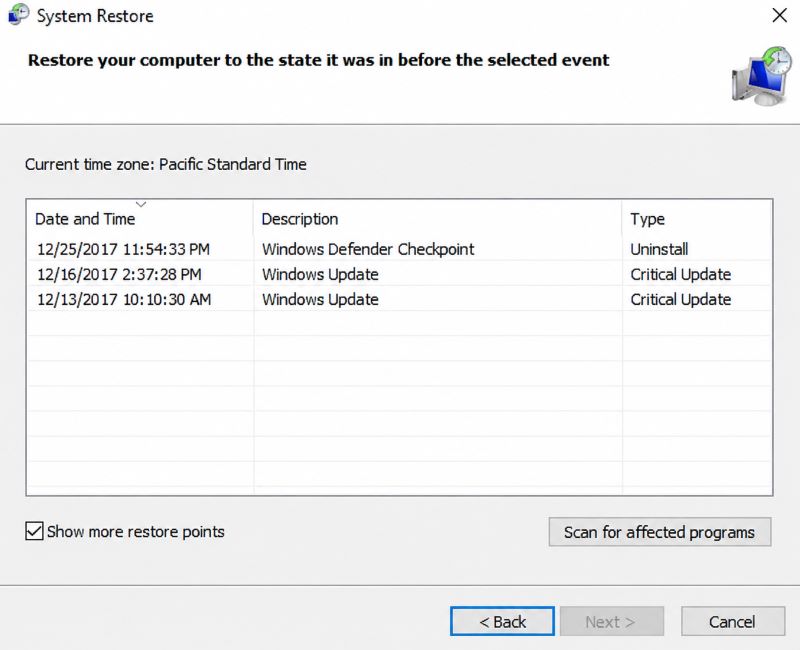
Step 3. Click Scan for affected programs to see what changes will be made. If you're sure about it, click Next.
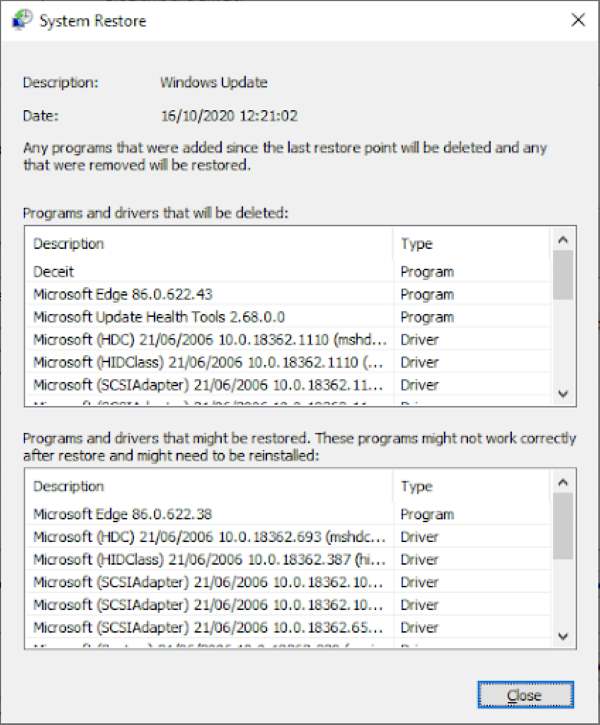
Step 4. Review the restore point, and click Finish. After you confirm the warning message, Windows will restart and restore the system.
Step 5. Check your search history on the browser.
Note: System Restore doesn’t always work well. Some browsers store history files in your personal user folder, which System Restore may not access. If System Restore has failed to recover your search history, you can switch your system back to the present by clicking Undo Last Restore.
Method 4: Use Time Machine (Mac)
It's easy to recover cleared Safari search history if you have a Time Machine backup. Similar to System Restore on Windows, Time Machine lets Mac users travel back in time to a point where their search history isn't deleted yet. But Time Machine is better in that it allows you to recover a specific file, rather than restoring the entire system.
Step 1. Insert your Time Machine backup drive into your Mac.
Step 2. Close your browser completely.
Step 3. Open Finder and go to the folder where your browser stores the search history. Check Part 2 if you don't know where it is.
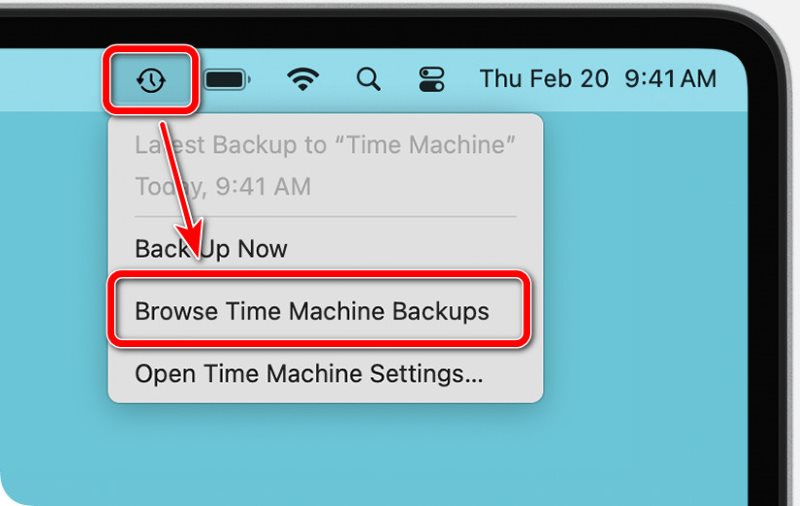
Step 4. Click the Time Machine button, which appears as a clock, in the menu bar at the top.
If you don’t see it, go to System Settings > Control Center > Time Machine and turn on Show in Menu Bar.
Step 5. Select Browse Time Machine Backups. Your screen will enter Time Machine mode, showing older versions of your folders.
Step 6. Go to the history's saving location, select the files, and click Restore. The files will return to the original location.
Method 5: Use Data Recovery Software
Apeaksoft Data Recovery is especially helpful for retrieving lost files when you don't have a backup. If you need a reliable way to recover deleted search history from a flash drive, Apeaksoft Data Recovery is a practical solution worth considering.

Downloaded by over 1,000,000 users
- Locate recoverable search history files in seconds.
- Support both Windows & Mac, various formats, and multiple file systems.
- Easy to use for beginners, requiring no technology background.
- Retrieve search history without any loss.
Secure Download
Secure Download

Step 1. Install and run the software.
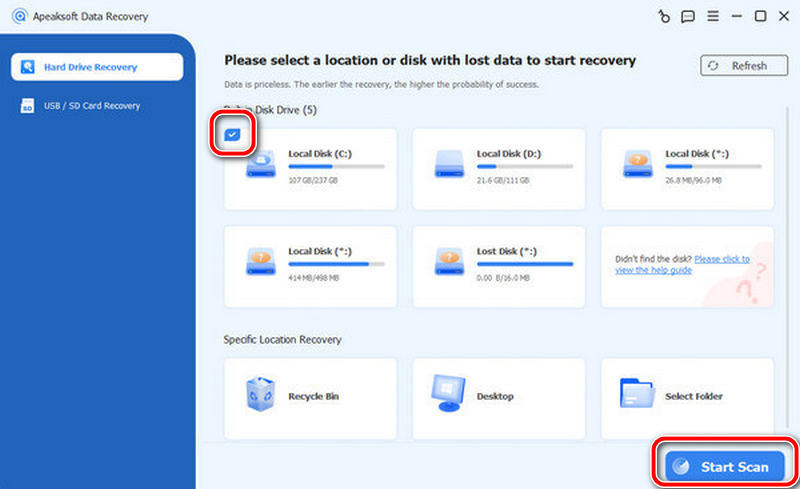
Step 2. Select the location where your search history was stored. Then click Start Scan.
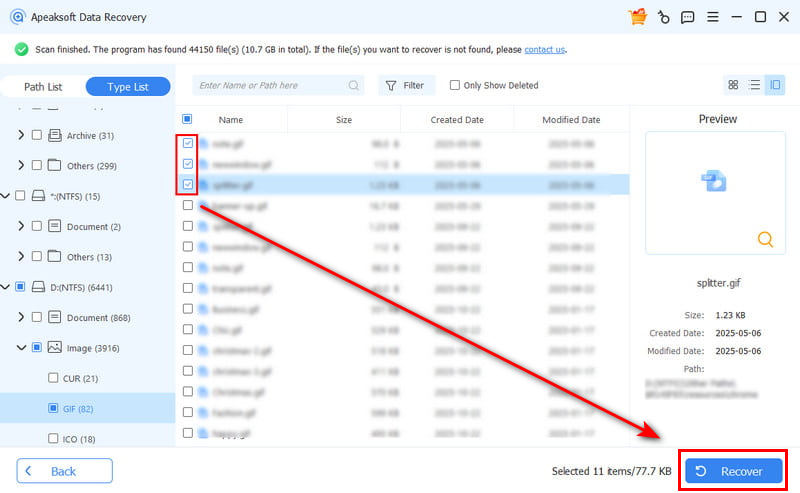
Step 3. In seconds, you will see old files sorted by path. Find the lost search history and click Recover.
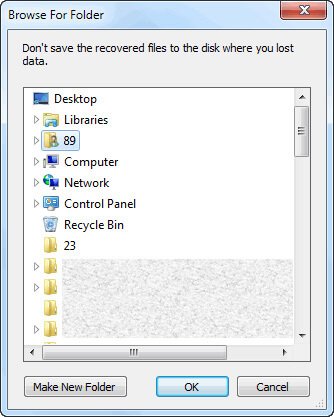
Step 4. Select a save path for it and click OK. After the recovery finishes, you will be shown the recovered file automatically.
Part 4: How to Recover Deleted Search History on Mobile
How to Recover Search History on iPhone
Using iCloud Sync on an iPhone is feasible, with the guide in Part 3. Apart from that, you can also reset your iPhone with iCloud backup, if you have one.
Step 1. Open Settings and go to iCloud > iCloud Backup. Make sure the backup was created before the history was deleted.
Step 2. Now go to Settings > General > Reset iPhone, tap Erase All Content and Settings, and set up again with the option from iCloud Backup.
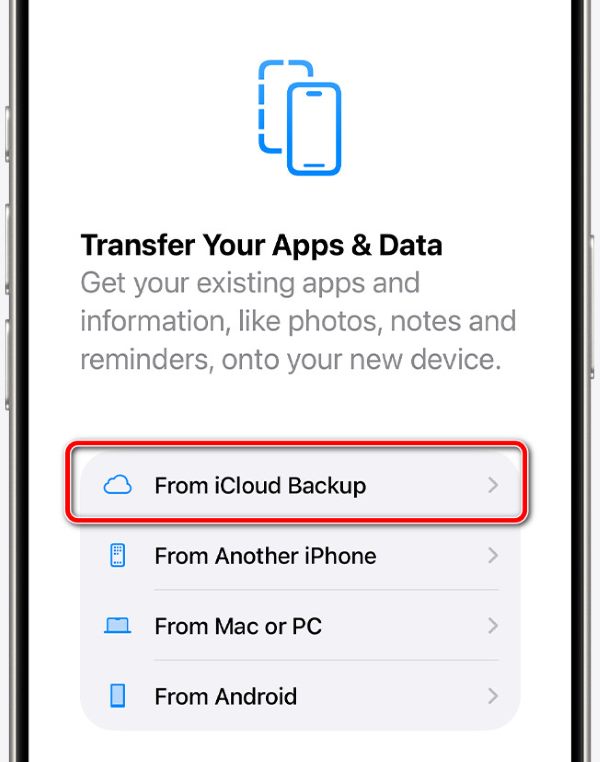
Step 3. After restoration, check Safari history.
How to Recover Search History on Android
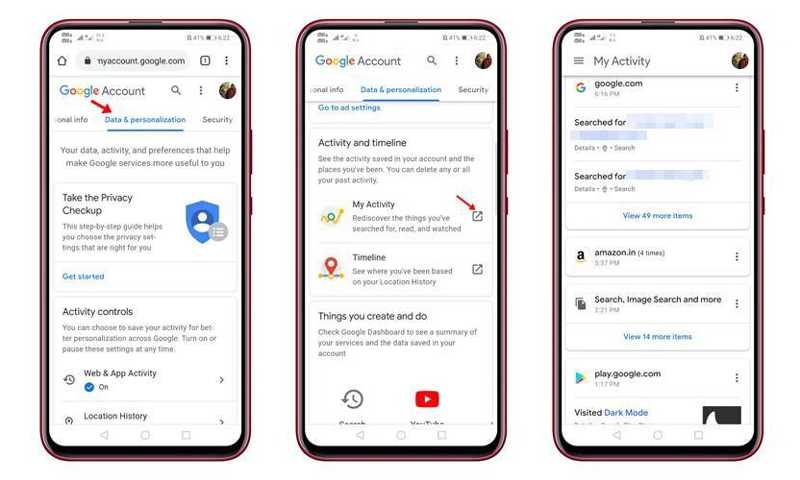
You can recover deleted Google search history on Android with Google My Activity if Web & App Activity was enabled before the search was deleted.
Step 1. Open your browser and go to Google My Activity. Make sure it's signed in with the same account you want to retrieve.
Step 2. Switch to the Data & Personalization tab and locate My Activity.
Step 3. Scroll down to find the deleted search history and recover it.
Quick Answer: How to Recover Search History on Specific Platforms
Most platforms, such as Instagram, Twitter, and TikTok, don't offer a way to recover search history once it's been permanently deleted. So the ways you recover search history on platforms depend on the browser and device. Think about which browser or device you used to visit the platform, and find a way to recover the search history from the methods mentioned before.
YouTube is an exception. On Google My Activity, sign in to the same account for YouTube and see a timeline of your recent searches on Google services, including YouTube.
Conclusion
Now, you should understand how to restore search history on iPhone, Android, Windows, or Mac devices. You can read our guide, pick the right method, and follow our steps to get back your lost search history of any browser. Apeaksoft Data Recovery is the best option for recovering what you have searched on your Windows or Mac.
 Apeaksoft Data Recovery
 Recover deleted or lost data on Windows and Mac computer.
Secure Download
Secure Download
Related Articles




