

How to Retrieve Google Backup on an Android Device

Google Backup is one of the most powerful tools available to Android users for protecting personal data. Whether you switched to a new phone, performed a factory reset, or accidentally deleted important information, you can retrieve Google backup on Android to bring back apps, contacts, call logs, messages, media, and even Wi-Fi passwords. Suppose you've ever wondered how to restore Android phone from Google backup or how the Google backup and restore Android process really works. In that case, this guide covers everything in detail.
PAGE CONTENT:
- Part 1: What Is Google Backup on Android?
- Part 2: How to Restore Android Phone From Google Backup During Initial Setup
- Part 3: How to Restore Google Backup on Android After Setup
- Part 4: Troubleshoot Why Your Google Backup Doesn't Restore
- Part 5: The Best Way to Restore Lost Data on Android Without Backup
Part 1: What Is Google Backup on Android?
Google Backup is a cloud-based backup service integrated into all Android devices. It automatically stores your essential data securely in your Google Account. It can back up and restore app data, contacts, photos, videos, contacts, messages, and other necessary info on Android phone, even including device settings like Wi-Fi passwords.
In 2026, Android makes restoring data easier than ever, but the steps can vary depending on the version of Android, phone brand, or whether you want to restore during setup or after setup. This complete guide explains every method, including restoring to a new device and retrieving Google backup Android files.
Part 2: How to Restore Android Phone From Google Backup During Initial Setup
The easiest and most complete method to restore your device is to restore the Google backup during the phone's setup process. This is ideal when you buy a new Android phone, perform a factory reset, or want to transfer all data from one Android to another Android.
Step 1. Turn on your new Android phone or a factory reset device. Follow the on-screen instructions until you reach Copy apps & data.
Step 2. Choose Restore from Google Backup or A backup from the cloud. Then, sign in with the Google Account that contains your backup.
Step 3. Select the backup you want to restore from the device list. Here, you can also choose what files you want to retrieve from Google backup on Android.
Step 4. Choose your desired files, like apps, call logs, contacts, device settings, etc. Tap Restore and wait for the process to complete.
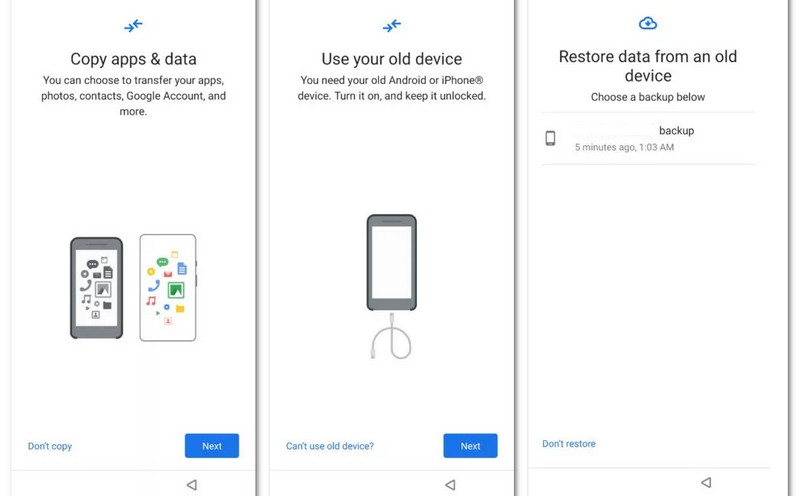
This is the most efficient way to restore Google backup on Android, as it restores the largest amount of data at once. Apps will also be reinstalled gradually in the background.
Part 3: How to Restore Google Backup on Android After Setup
If you have already set up your Android phone and want to retrieve Google backup Android data, the process depends on the type of data you want to restore. You can restore different types of files and info from Google backup with different apps.
1. Restore Contacts from Google Contacts
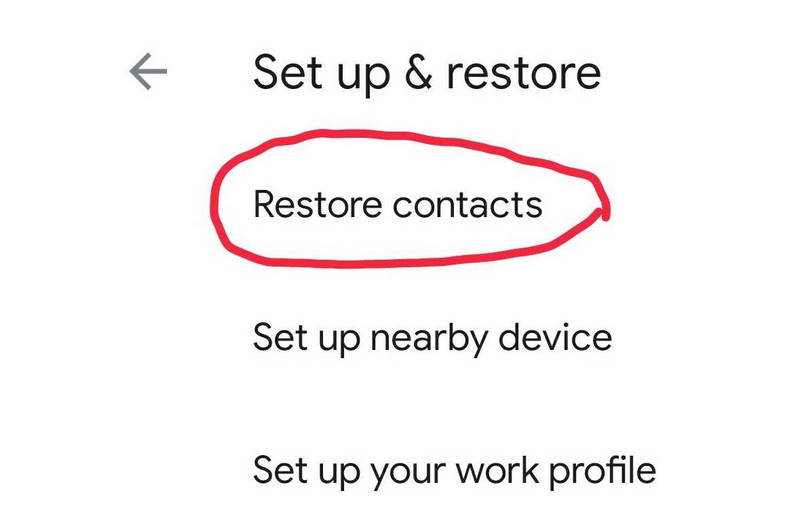
Step 1. Open the Settings app on your Android phone. Then, tap Google.
Step 2. Tap Set up & restore. Then, tap the Restore contacts button. This way, you can restore Google backup on Android to bring back your contacts.
2. Restore Photos and Videos from Google Backup
If you use the Google Photos app, you can easily restore from Google backup to download photos and videos on another device.
Step 1. Install Google Photos. Then, sign in with your Google account. Ensure that this Google account is associated with another Android phone that has synced photos and videos.
Step 2. After logging in, your photos and videos will appear automatically. That's how easy you can retrieve photos and videos from Google backup on your Android.
3. Restore Other Files from Google Backup on Android
With Google backup and restore on Android, you can automatically restore files and info, like recovering Google calendar events, Google Drive files, and Gmail, once you open the apps and sign in to your Google account. That's how powerful and convenient Google backup can help you.
Part 4: Troubleshoot Why Your Google Backup Doesn't Restore
Sometimes users struggle to restore Android phone from Google backup. Below are the most common reasons:
1. You used the wrong Google Account. Make sure you’re logged into the account used on the previous phone.
2. Backup is outdated or missing. Google backups older than 57 days may be deleted automatically.
3. Your Android device was already set up. You must reset the phone to restore fully.
4. Google Play Services is outdated. If you want to let apps to be reinstalled automatically, ensure that Google Play Services is up to date.
5. Wi-Fi connection issues. A weak or unstable Wi-Fi or internet connection can prevent restoring apps or settings from Google backup.
Part 5: The Best Way to Restore Lost Data on Android Without Backup
If you accidentally deleted files or factory reset your Android, but Google backup and restore on Android can't help you restore files. How can you retrieve your important files and info? Apeaksoft Android Data Recovery is your best resort. It can restore deleted data on Android after deletion, factory reset, or rooting. You can also recover permanently deleted files and info on your device. This program works better than Google backup and restore, for it doesn't require any previous backup.
The Best Way to Recover Lost Files and Info on Android
- Connect your Android phone to your computer to recover lost Android files and info.
- Scan your Android phone or tablet to retrieve lost and existing files and data.
- Mark the lost files on your Android phone in red for quick selection.
- Recover your selected files and info during the scanning process.
Secure Download
Secure Download

Conclusion
Restoring data on an Android device has become more convenient and reliable thanks to Google's cloud backup system. Whether you’re wondering how to restore Android phone from Google backup, how to retrieve Google backup Android data, or how Google backup and restore Android works, the process is straightforward if you follow the steps in this guide.
If Google backup and restore cannot help you recover lost files, you can use Apeaksoft Android Data Recovery. It can recover permanently deleted files and data without a previous backup.
Related Articles
Learn where are deleted text messages stored on Android and explore how to recover text messages on Android in several proven ways!
Are you looking for the best Android data recovery software? With so many claiming to be the best Android data recovery tools on the market, how do you choose?
Have you ever deleted files on your Android accidentally? This post will show how to recover deleted files from Android even if you have not backed up before!
This tutorial helps you recover Samsung account when you forgot Samsung account ID or password on your Samsung device and computer quickly and effectively.



