


How to Restore Your Android Phone with 6 Approaches

Restoring an Android phone refers two actions: restoring from a Google backup and restoring to factory settings. That is why some users are confused about it. The former is designed to get back lost data or transfer all data from one Android device to another. The latter is used for troubleshooting. This concrete guide shares the proven methods and detailed steps to restore a locked Android phone and other knowledge.
PAGE CONTENT:
Part 1: How to Restore Android Phone from Google Backup
Once you sign in to a Google account on your handset, you can back up your entire device and restore your Android phone from Google backup. We use a Google Pixel device as an example to show you the workflow.
Step 1. Run the Settings app on your phone.
Step 2. Tap on your profile.
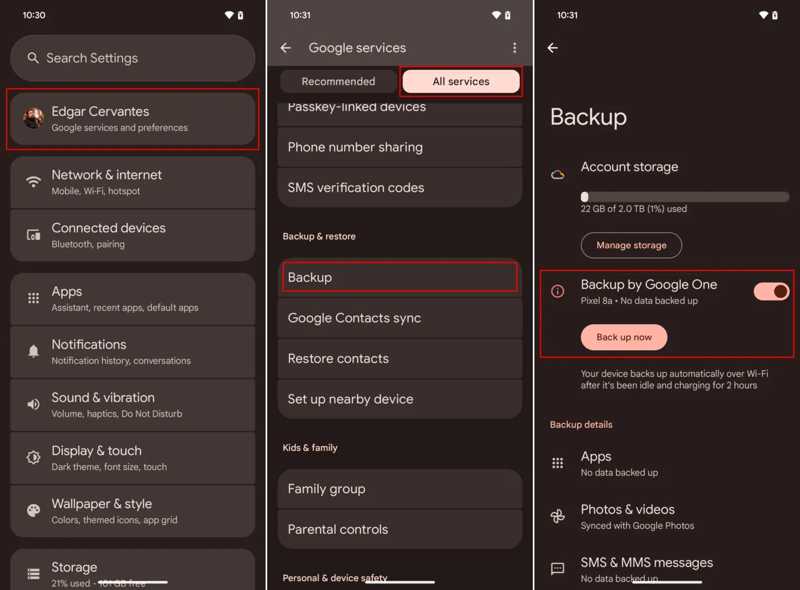
Step 3. Tap All services, and choose Backup.
Step 4. If you don’t have a backup, toggle on Backup by Google One, and tap Back up now.
Step 5. When it is done, go back to the Settings app.
Step 6. Go to System, and then Reset options.
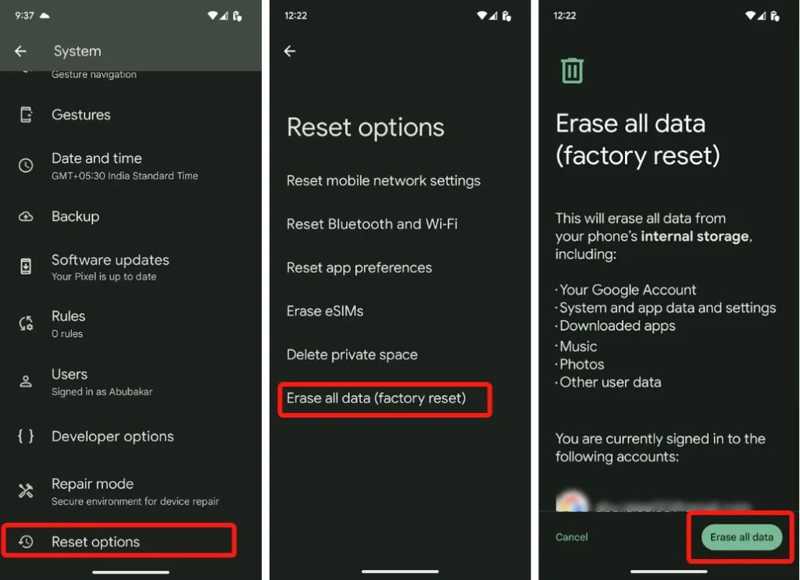
Step 7. Tap Erase all data(factory reset) and hit Erase all data.
Step 8. Enter your phone PIN to initiate the process.
Step 9. Once your phone restarts, tap Start and agree to the terms and conditions.
Step 10. Connect your phone to a Wi-Fi.
Step 11. Tap Next on the Copy apps & data screen.
Step 12. Choose Can’t use old device.
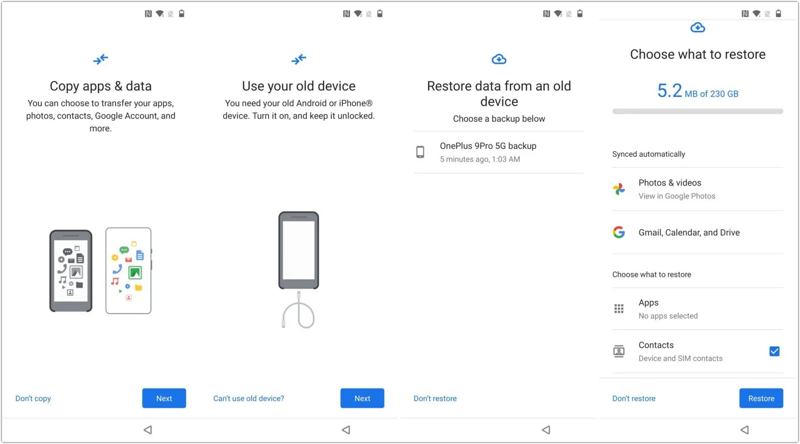
Step 13. Log in to the same Google account.
Step 14. Choose the last backup.
Step 15. Select the desired data type. To restore lost contacts on an Android phone, for instance, select Contacts.
Step 16. Tap the Restore button.
Part 2: How to Factory Restore an Android Phone
How to Restore Android Phone to Factory Settings
The easy way to restore an Android phone to factory settings is the built-in Settings app. The precondition is that your phone is still accessible and you still remember your lock screen password.
On Google Pixel
Step 1. Open the native Settings app.
Step 2. Head to System and Reset options.
Step 3. Tap Erase all data(factory reset).
Step 4. Hit Erase all data.
Step 5. Input your PIN to confirm it.
On Samsung
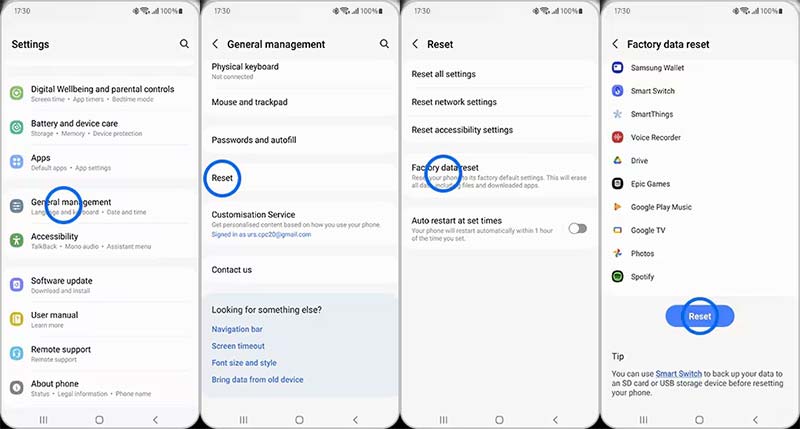
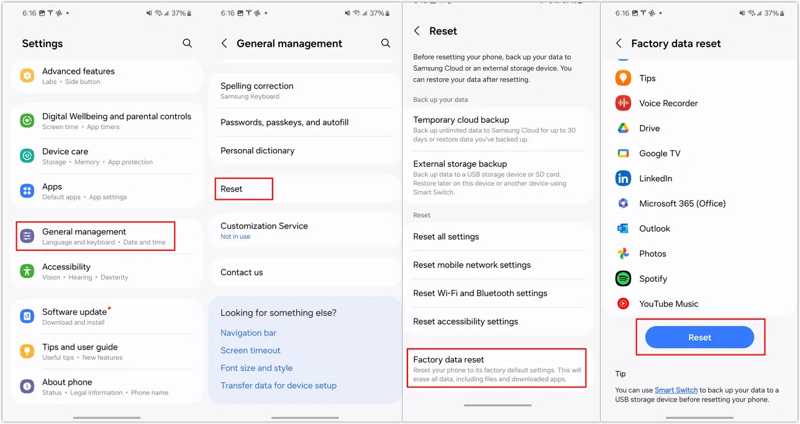
Step 1. Navigate to Settings, General management, and Reset.
Step 2. Tap Factory data reset.
Step 3. Scroll down and tap the Reset button.
Step 4. Authenticate with your password or fingerprint.
How to Restore a Locked Android Phone in Recovery Mode
When you forget your lock screen password, you have to restore a locked Android phone in Recovery Mode. This method works through the right button combination and bypasses the operating system.
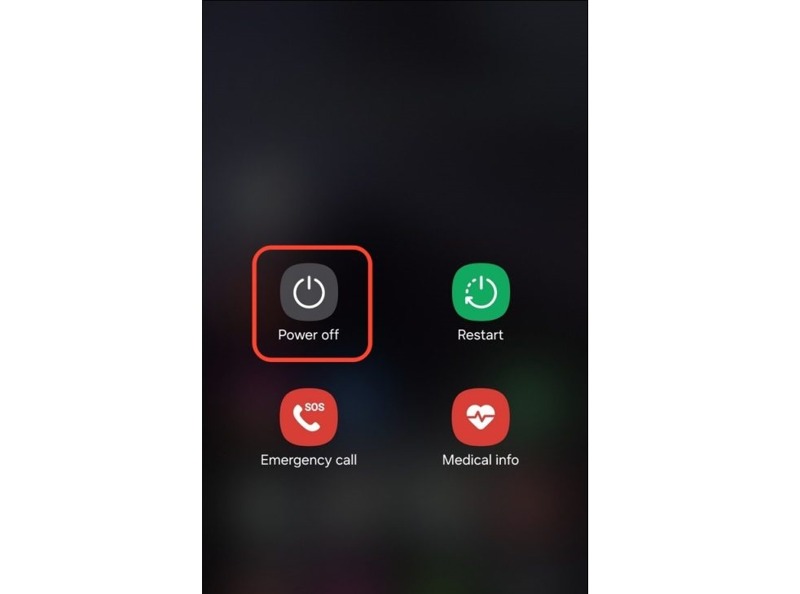
Step 1. Long-press the Power button until the power menu appears.
Step 2. Tap the Power off option.
Step 3. For Pixel and most Android devices, press and hold the Power + Volume Down buttons.
For Samsung, press and hold the Power + Volume Down buttons together.
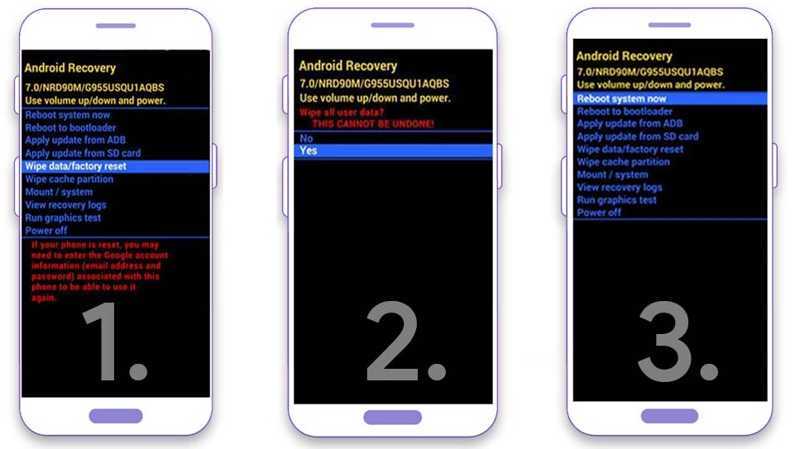
Step 4. Once the bootloader screen pops up, release the buttons.
Step 5. Use the volume buttons to highlight the Wipe data/factory reset option.
Step 6. Press the Power button to proceed.
Step 7. If prompted, select Yes and press the Power button to start factory restoring the Android phone.
Step 8. When it finishes, select Reboot system now and press the Power button.
How to Restore an Android Phone Using Find My Device
Another way to restore a locked Android phone to factory settings is Google’s Find My Device. The precondition is that you have turned on Find My Device on your phone before you are locked.
On Google Find My Device Web
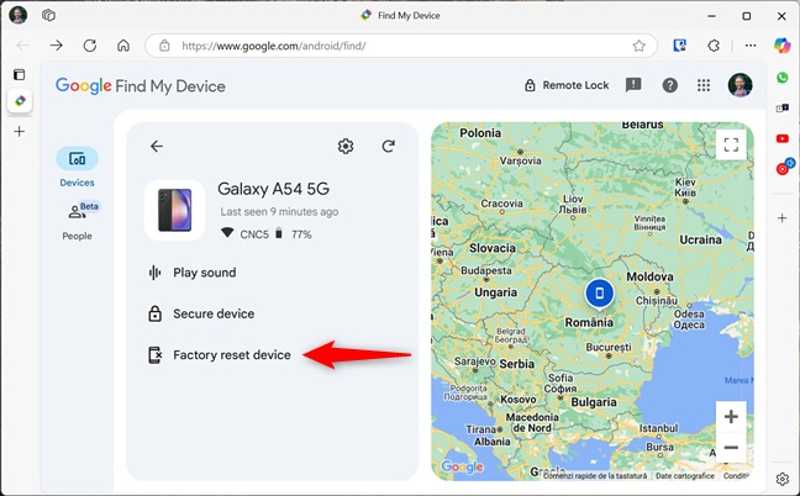
Step 1. Log in to www.google.com/android/find in a browser.
Step 2. Choose your phone from the Devices tab.
Step 3. Click the Factory reset device option.
Step 4. Read the notification and click Next to confirm it.
On the Google Find My Device App
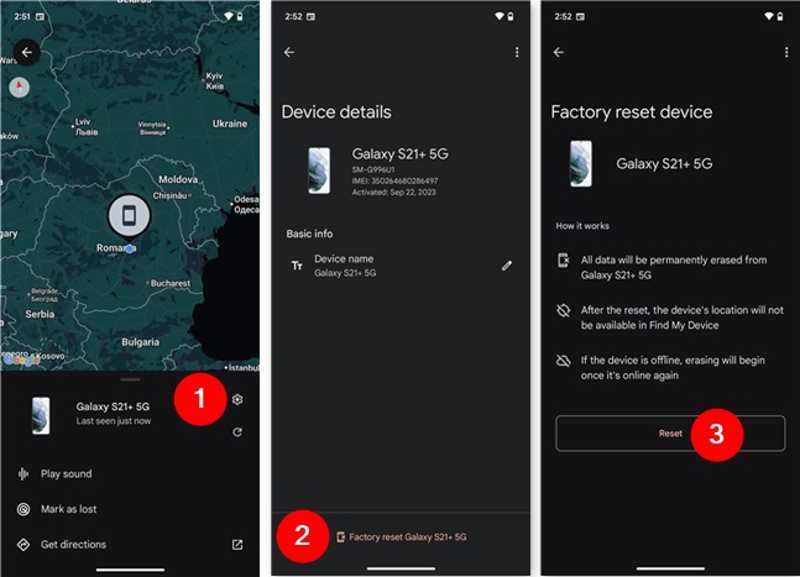
Step 1. Open Google’s Find My Device app on a borrowed phone. You can install it from the Play Store for free.
Step 2. Sign in with the associated Google account.
Step 3. Go to the Devices tab and choose your phone.
Step 4. Tap the Settings button.
Step 5. Press Factory reset [your phone name] and hit Reset.
Further Reading
Part 3: How to Restore Lost Data on Android Without Backup
If you don’t have set up backup on your phone, Apeaksoft Android Data Recovery can help you restore lost photos on Android phone. It works with almost all data types on Android devices. Moreover, it can scan your phone memory and look for lost data quickly.

Downloaded by over 1,000,000 users
- Restore data on Android phones without a backup.
- Work for a wide range of data types, like photos, SMS, contacts, etc.
- Preview lost data for selective recovery.
- Available for disabled, frozen, and broken phones.
- Support all phones from Samsung, Google, Motorola, and more.
Secure Download
Secure Download

How to Restore Data on Android Without Backup
Step 1. Connect to your phone
Run the Android data recovery software after installing it on your computer. Connect your phone to the computer with a USB cable. Follow the onscreen instructions to enable USB Debugging mode on your phone.

Step 2. Preview lost data
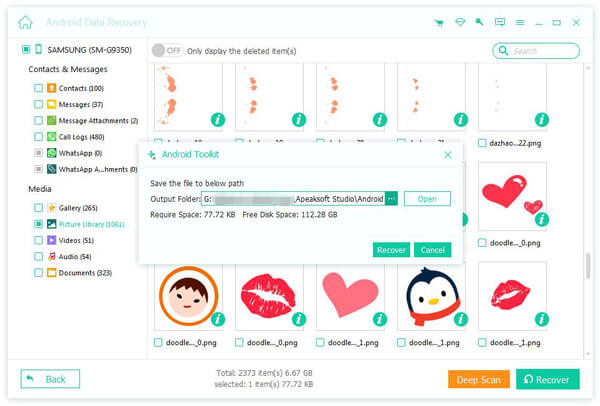
Once your phone is detected, select the data types you want to recover. To restore text messages on an Android phone, for example, select Messages. Click on the Next button to scan your phone memory. Then, you can preview the data on your phone.

Step 3. Restore data on Android
Select the lost files and data you want to retrieve and click the Recover button. Set an output folder and confirm restoring the Android phone without a backup.
Conclusion
This guide explained how to restore an Android phone from Google backup or restore it to factory settings. You can pick the right method and follow our detailed steps to get back lost data or troubleshoot software glitches. Apeaksoft Android Data Recovery is an ultimate option to quickly retrieve lost data from an Android phone or tablet without a backup.
 Apeaksoft Android Data Recovery
 Recover various deleted or lost data from all popular Android devices.
Secure Download
Secure Download
Related Articles




