

How to Restore an Android Device to Factory Settings

Restoring Android to factory is a process that brings your phone or tablet to the factory status. It is an effective solution when you encounter serious software issues, like an unresponsive screen, or your device is infected by a virus or malware. There are a few scenarios when you have to factory restore your phone, such as before you sell your device. Here are the workflows you can try in different situations.
PAGE CONTENT:
Part 1: How to Restore Android to Factory Settings
The easiest way to restore an Android to factory settings is the Reset option in the Settings app. The prerequisite is that your phone is still accessible. Moreover, you'd better turn off Factory Reset Protection on your device first.
Step 1. Turn on your phone.
Step 2. Go to the Settings app.
Step 3. Navigate to Accounts, and pick your Google account.
Step 4. Tap Remove Account.
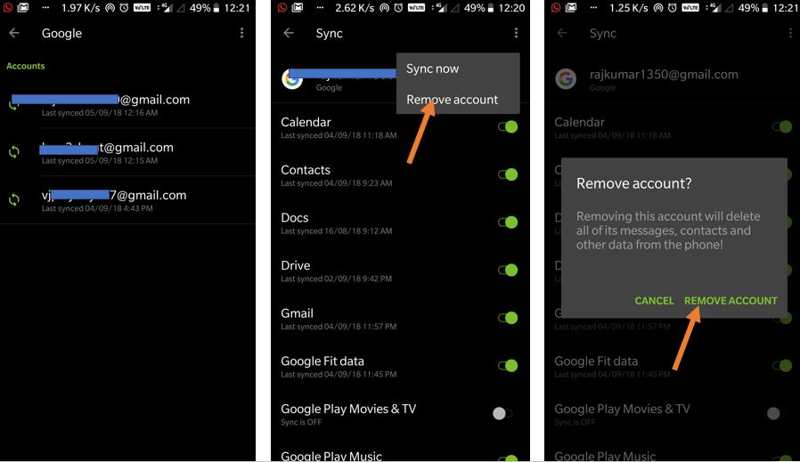
Step 5. Choose Remove Account again when prompted. Now, FRP is disabled automatically.
Step 6. Back to the Settings app and choose System or General Management.
Step 7. Tap Reset or Reset Options.
Step 8. Scroll down and tap Factory data reset.
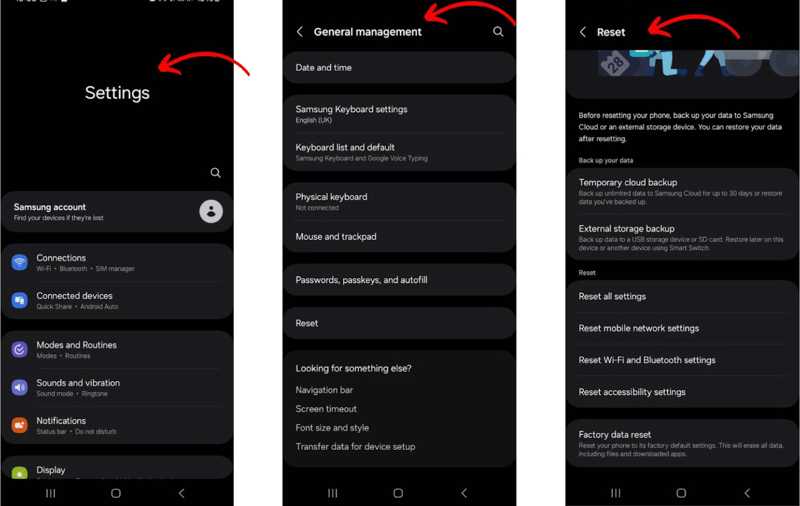
Step 9. Read what will be erased, and tap Reset Phone or Erase All Data.
Step 10. Input your PIN or password and confirm restoring your Android tablet or phone to factory settings.
Part 2: How to Factory Reset Android in Recovery Mode
Even if your screen is frozen or unresponsive, you can factory restore your Android phone or tablet. The Recovery Mode allows you to bypass the operating system and perform a factory reset on your device.
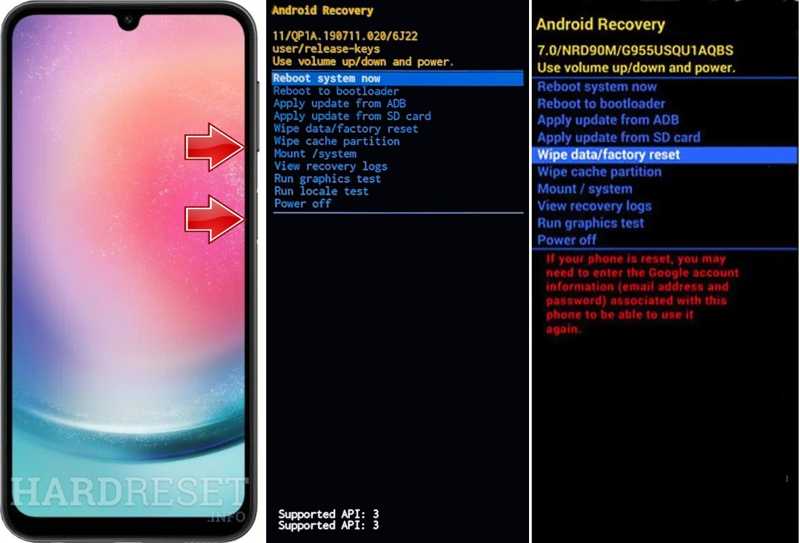
Step 1. Put your phone in Recovery Mode:
For Google Pixel, hold the Power button and tap Power off. Then, hold the Power + Volume Down buttons together to enter the boot-option screen. Use the Volume buttons to highlight Recovery Mode, and hit the Power button to confirm it.
For Samsung Galaxy, hold the Power button and choose Power Off. Hold down the Power + Volume Up buttons or Power + Volume Up + Home/Bixby buttons until you see the Samsung logo.
For Motorola, shut down your device, and hold Volume Down + Power buttons until it turns on. Use the Volume buttons to highlight Recovery Mode, and hit Power.
For OnePlus, power off your device, and hold the Power + Volume Down buttons together. Use the Volume keys to highlight Recovery Mode and hit Power.
For LG, shut down your phone, and hold the Power + Volume Down together until you see the LG logo. Highlight Recovery Mode with your Volume keys, and hit Power.
Step 2. Press the Volume Down button a few times until Wipe data/factory reset is highlighted.
Step 3. Hit the Power button.
Step 4. Then, select Yes using the Volume buttons, and hit Power to begin restoring my phone to factory settings.
Step 5. When it is done, highlight Reboot system now using your Volume buttons, and hit Power.
Step 6. Your phone will boot into normal mode.
Part 3: How to Restore Android to Factory Settings Remotely
Even if your handset is not in your hand, you can restore an Android device to factory settings. The prerequisite is that you have signed into a Google account on your Android phone. Plus, you need a web browser and an internet connection.
Step 1. Open a browser on another mobile device or a computer.
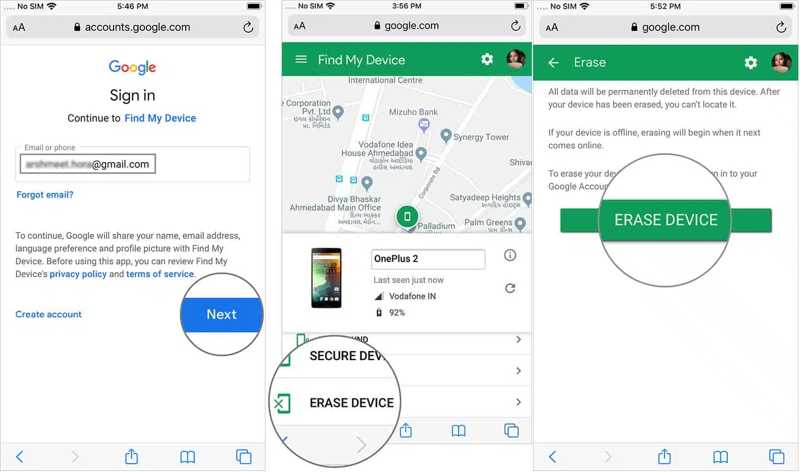
Step 2. Go to www.google.com/android/find and log in to the Google account associated with your Android device.
Step 3. Tap Next to enter the main device page and track it on the map.
Step 4. If you have multiple Android devices, select the phone you want to restore.
Step 5. Then, tap ERASE DEVICE on the toolbar.
Step 6. Input your Google account password again.
Step 7. Tap the ERASE DEVICE button to confirm the factory restore of Android.
Part 4: How to Restore Data After Factory Reset Android Without Backup
Is it possible to restore an Android backup without a factory reset? Generally speaking, you have to factory reset your phone and then restore a Google One or Samsung Cloud backup. However, you can restore data after a factory reset on Android without a backup. Apeaksoft Android Data Recovery is all you need. It can scan your phone memory and discover lost files without a backup file.
The Easiest Way to Restore Data After Factory Reset Android Without Backup
- Recover deleted Android files after a factory reset.
- Scan phone memory and recover data without backup.
- Preview lost data on your device quickly.
- Support almost all file types on Android.
- Compatible with a wide range of Android device models.
Secure Download
Secure Download

How to Restore Data After Factory Reset Android Without Backup
Step 1. Scan your phone
Launch the best Android data recovery software once you install it on your computer. Plug your Android device into your computer with a USB cable. Make sure to turn on USB Debugging mode on your phone. Then, select Transfer files when prompted. Authorize the software to access your data. Select the data types you want to recover and click Next to begin scanning your device.

Step 2. Preview Android data
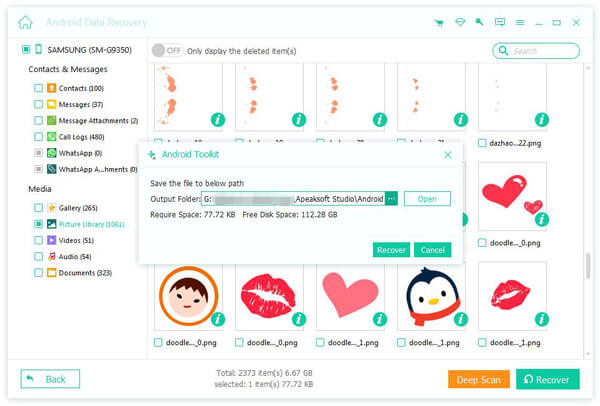
After scanning, you can view your data by type, such as Gallery, Videos, Contacts, and more. If you cannot find the desired files, click Deep Scan to perform a deep scan.

Step 3. Recover data after factory reset
Finally, select all files and items you wish to recover, and click the Recover button. Set an output folder and hit Recover again. It won't overwrite existing data on your device.
Conclusion
This article explains how to factory restore an Android phone or tablet. If your device is accessible, you can reset it with the Settings app. If it is disabled or unresponsive, you have to enter Android Recovery Mode and perform a factory reset directly. Plus, Google's Find My Device feature enables you to factory restore your device remotely. Apeaksoft Android Data Recovery is a simple way to get your data back after factory restoring your device.
Related Articles
To transfer apps from Android to Android without any hassle, you can use Android Data Transfer Tool, Nearby Share, Google Backup, or Samsung Smart Switch.
Messages often carry important information. When you find you have lost messages on your Android phone, you can try the top 3 recovery apps in this article.
If you have an old Android phone, you can still see the fingerprint scanner lock screen for Android. This article will offer a detailed guide to it.
Google can back up and restore your device, managing your data well. This guide will show you how to retrieve Google Backup on Android.



