


[2026 Updated] How to Restore Deleted Apps on iPhone

Although deleting an app on an iPhone requires two steps - holding the app and tapping on delete, it is easy to remove an app accidentally, especially when cleaning up iPhone storage or managing apps. Sometimes, you may also find that an app is missing after an iOS update. In these cases, all settings and data associated with that app will be deleted. In this thorough guide, we will tell you how to restore deleted apps on iPhone.
PAGE CONTENT:
Part 1. Check Whether Your App Is Hidden in App Library
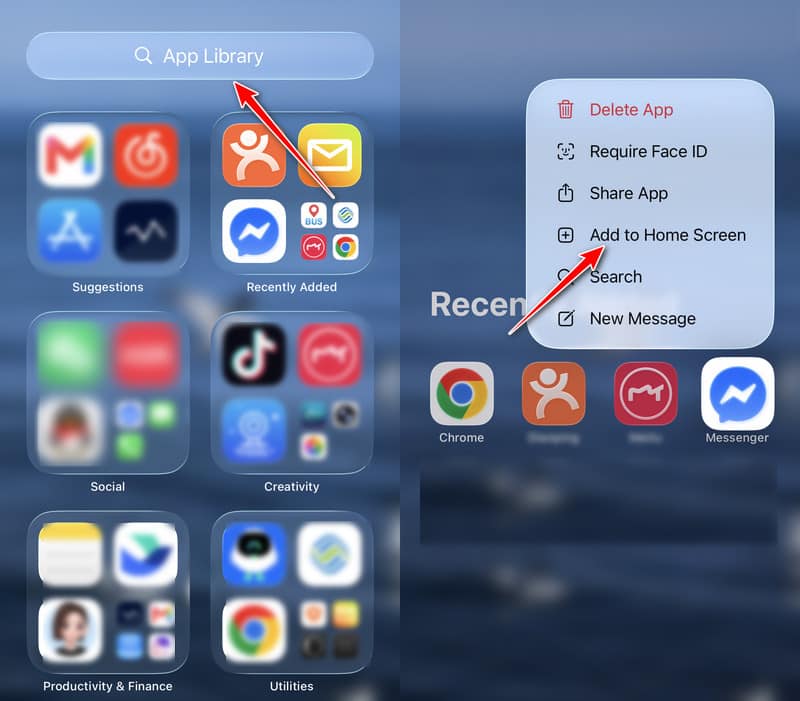
When you find that an app is missing from your iPhone and are wondering how to restore deleted apps on your iPhone, please first check the App Library. In many cases, the app hasn't been deleted but accidentally removed from the Home Screen when you tap Remove App > Remove from Home Screen. You can follow the steps below to try to restore deleted apps on iPhone from the App Library:
Step 1. Keep swiping left on your Home Screen to the rightest App Library page.
Step 2. Look through all the apps here. To located your target app quickly, you can search in the top search bar.
Step 3. If you see the app, just long-press the app, and choose Add to Home Screen.
In some versions of iOS, installed apps will be automatically moved into the App Library, not the Home Screen. Though putting apps in the App Library by default is inconvenient, Apple offers users ways to change the settings. Let's see how to do that.
Though putting apps in the App Library by default is inconvenient, Apple offers users ways to change the settings. Let's see how to do that.
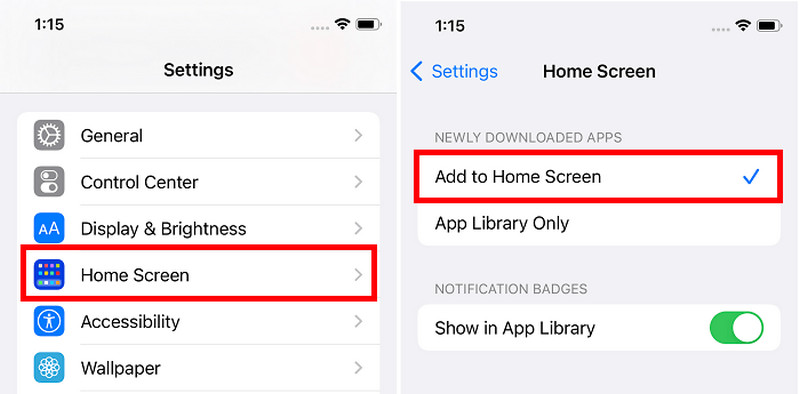
Step 1. Go to the Settings app on your iPhone.
Step 2. Scroll down to find Home Screen and tap it.
Step 3. Under NEWLY DOWNLOADED APPS, check Add to Home Screen. Now you can see the newly downloaded app on both the Home Screen and App Library.
Part 2. Reinstall the Deleted iPhone App from the App Store
In the former method, if you can't find the app on the App Library, then it is most likely to be deleted. In this case, you can reinstall it from the App Store. All download apps under the same Apple ID will be listed on the App Store, even the app that was not installed on the device.
Let's restore deleted apps on iPhone using the App Store.
Step 1. Open the App Store app on your iPhone.
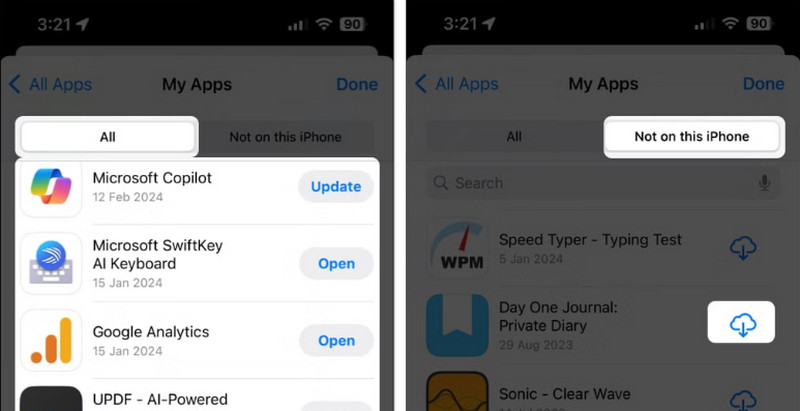
Step 2. Tap the profile button on the top right corner to enter the account screen. Choose Apps & Purchase History > Your Apps.
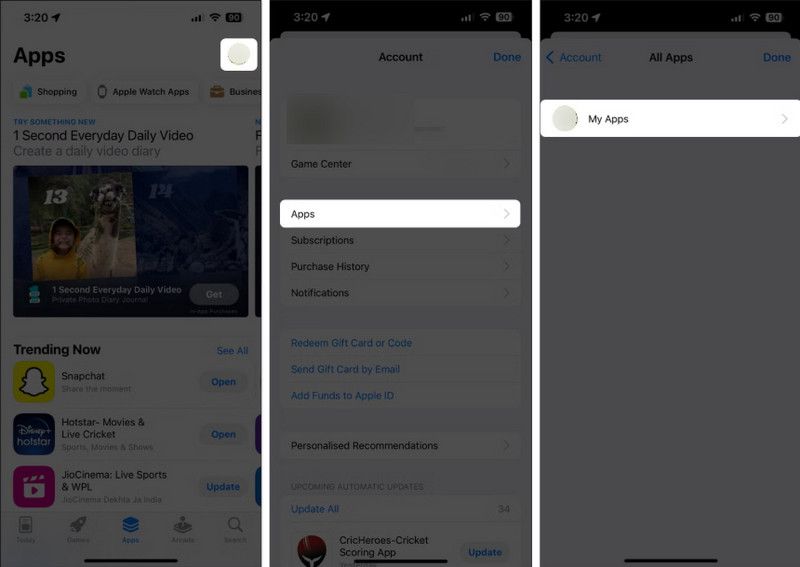
Step 3. You will find all apps you once installed. Go to the Not on this iPhone section to find the one you accidentally deleted and tap the cloud button to download.
Part 3. Recover Deleted App Data via iPhone Data Recovery Software
If an app is actually deleted from your iPhone, restoring it from the App Store can only restore the app itself but not the app data. Whether the data can be restored depends on whether it was synced to your account, or whether you have created a backup. The easiest way to restore the app data on iPhone is using iPhone data recovery software like Apeaksoft iPhone Data Recovery.
The professional program specializes in recovering iPhone, iPad, and iPod data. It recovers videos, images, contacts, documents, the app data, etc. As long as the data was once saved on your device, this program can recover it for you.
Moreover, the program also simplifies the workflow so that you can recover the data you want easily and quickly. Let's see how to recover deleted apps on an iPhone using Apeaksoft iPhone Data Recovery.

Downloaded by over 1,000,000 users
- Restore deleted app data with ease.
- Restore app data without a backup.
- Mark the deleted app data in red.
- Preview and selectively recover the app data.
- Easy-to-use and virus-free.
Secure Download
Secure Download

Step 1. Download and install the program from the former two links to your Windows or Mac computer. Double-click to launch it. You will be asked to connect your iPhone to this computer.
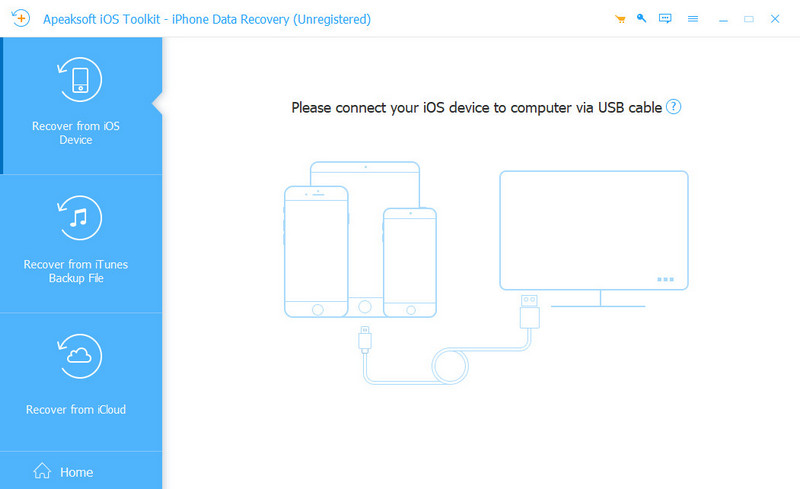
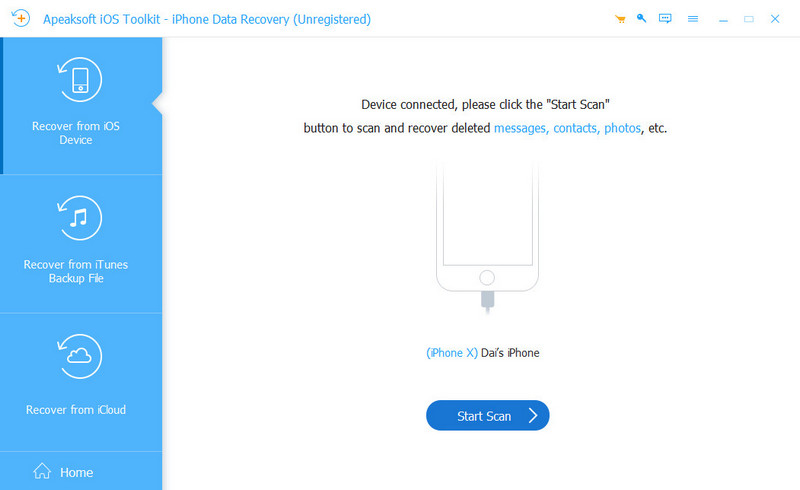
Step 2. Connect your iPhone to this computer using a USB cable. Tap on Trust on the pop-up window of your iPhone. Once the device is successfully connected, you will see the interface shown in the following image. Click Start Scan.
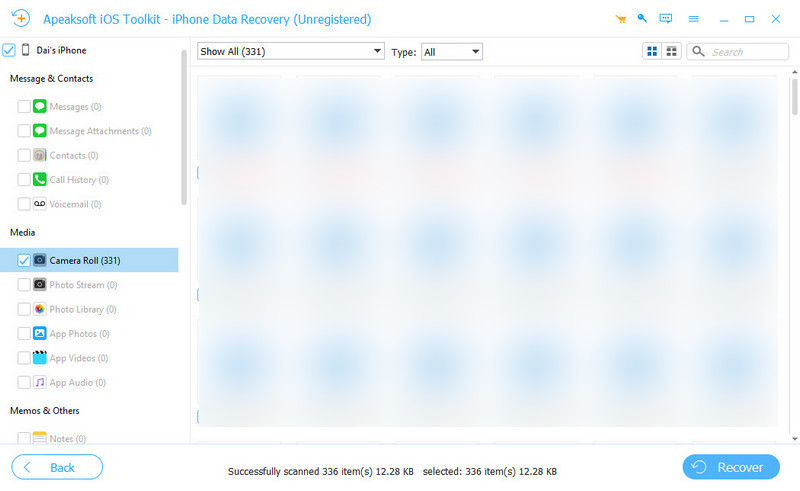
Step 3. Then the program will start to scan all deleted contents on your iPhone. Once the scanning is finished, first filter all the files on the top and choose Show Deleted Only. Then, you can change the view and list all deleted files by the deleting date. Select all files that were deleted on the day you uninstalled the app. Finally, click the Recover button on the bottom.
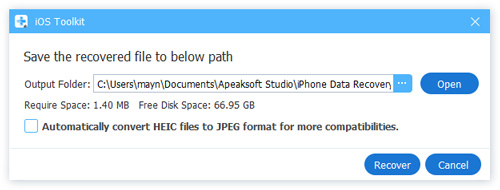
Step 4. Click Open and specify the output path. Then click Recover again. In a few minutes, the data will be recovered.
Conclusion
How to recover deleted apps on an iPhone? In this article, we introduce 3 ways to restore deleted or missing apps and app data. First, please check the App Library. And then download the deleted app from the App Store. If you want to recover not only the app but also the app data, use Apeaksoft iPhone Data Recovery.
 Apeaksoft iPhone Data Recovery
 Recover deleted or lost data from iOS Devices, iTunes, and iCloud backup.
Secure Download
Secure Download
Related Articles




