

What Is Samsung Recovery Mode and How to Enter Recovery Mode

In this guide, we intend to discuss Samsung Recovery Mode. While Samsung phones and tablets are popular, users may encounter various software glitches, much like other digital devices. As its name indicates, Recovery Mode is an essential method for troubleshooting. Moreover, it lets you regain access to your device even if you forgot your phone password. As a significant feature on Samsung devices, you can learn how to enter or exit Recovery Mode.
PAGE CONTENT:
Part 1: What Is Samsung Recovery Mode
In fact, Recovery Mode is a built-in feature on all Android devices, including Samsung phones and tablets. It allows users to bypass the phone lock screen and perform various tasks. The scenarios when you should put your Samsung tablet or phone in Recovery Mode include:
- 1. Your phone screen is frozen or unresponsive.
- 2. You forgot your phone password.
- 3. Your Samsung device is locked and disabled.
- 4. You wish to sell your phone.
- 5. You are ready to give your device to others.
What Are the Main Options on the Samsung Recovery Mode Screen?
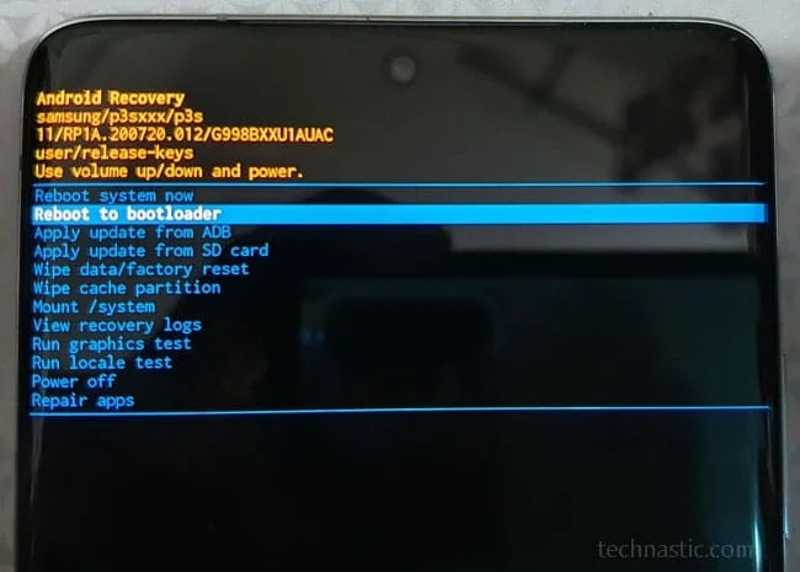
- 1. Reboot system now: boot your phone in normal mode.
- 2. Reboot to bootloader: boot your phone in bootloader mode.
- 3. Apply update from ADB: update software using ADB.
- 4. Apply update from SD card: update the software on Samsung from the firmware on an SD card.
- 5. Wipe data/factory reset: factory reset your Samsung device.
- 6. Wipe cache partition: erase all data stored in the system cache partition.
- 7. Mount/system: mount the system partition and modify everything on this partition.
- 8. View recovery logs: view the record of all activities done in the Recovery Mode.
- 9. Run graphics test: is used to test the GPU on Samsung devices.
- 10. Run local test: is used to help developers.
Part 2: Put the Samsung Phone in Recovery Mode with Buttons
The easiest way to enter Android recovery mode on Samsung devices is the button combination. However, the combination is different, depending on your device model. We list them below:
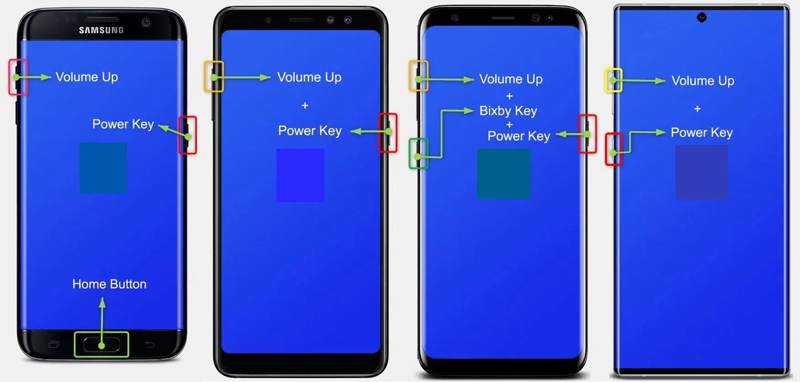
For Samsung Devices with a Home Button
Step 1. Long-press the Power button to power off your device.
Step 2. Hold down the Volume Up + Home + Power buttons together for 5 to 7 seconds.
Step 3. As long as you see the Samsung logo, release the Power button while keeping holding the other two buttons.
Step 4. When your device enters Samsung Recovery Mode, release all buttons.
For Samsung Devices Without a Home Button
Step 1. Turn off your device.
Step 2. Press and hold the Volume Up + Power buttons at the same time for 5 seconds.
Step 3. When the Recovery Mode pops up, release the buttons.
For Samsung Devices with an Independent Bixby Button
Step 1. Shut down your Samsung Galaxy device.
Step 2. Hold down the Volume Up + Bixby + Power buttons simultaneously for 5 seconds.
Step 3. Hold the buttons until the Recovery Mode appears.
For Samsung Devices with Power/Bixby Button
Step 1. Power off your device.
Step 2. Long-press the Volume Up + Power buttons for 5 seconds.
Step 3. When you see the Recovery Mode, let the buttons go.
Part 3: Enter Recover Mode on a Samsung Phone Using ADB
If buttons on your device are not working, you can put Samsung A15/A17/S8 and other models in Recovery Mode with ADB commands. This method requires a computer and a USB cable.
Step 1. Download the latest Android SDK platform tools on your computer and extract the files on your desktop.
Step 2. Go to the platform-tools folder that stores the ADB and Fastboot files.
Step 3. Type CMD in the address bar in the folder and press the Enter or Return key on your keyboard to open a command prompt window.
Step 4. Make sure to install the Samsung USB driver on your machine.
Step 5. Connect your device to your computer with a USB cable.
Step 6. Next, input adb devices and hit the Enter or Return key to check if your device is connected to ADB successfully.
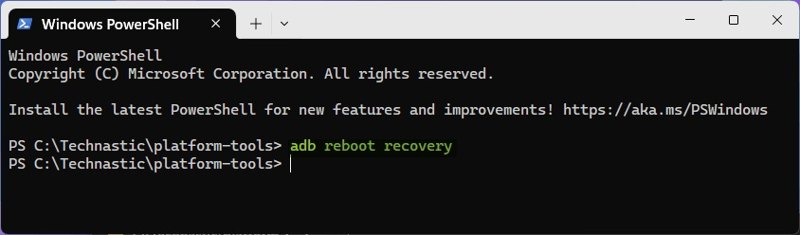
Step 7. Type the command: adb reboot recovery, and hit Enter or Return.
Step 8. Now, your Samsung device will enter Recovery Mode.
Part 4: Exit Samsung Recovery Mode
After troubleshooting or updating software, you may need to exit Samsung Recovery Mode. In other words, you should put your Samsung device in Normal Mode and access your data as usual.
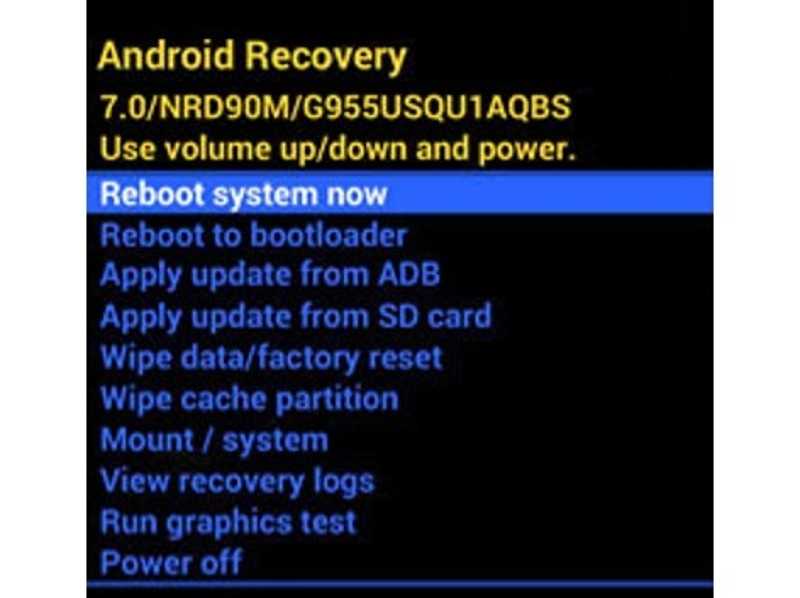
Step 1. Use the Volume Up and Volume Down buttons to highlight Reboot system now in Recovery Mode.
Step 2. Press the Power button to confirm the action.
Step 3. Now, your device should reboot into normal mode.
Part 5: Recover Data After Putting Samsung in Recovery Mode
After factory resetting your Samsung device, you may need to recover lost data and files. From this point, we recommend Apeaksoft Android Data Recovery. It is able to scan your phone memory and look for lost files.
The Best Way to Recover Data on Samsung After a Factory Reset
- Retrieve data on Samsung with a single click.
- Available to factory reset, accidental deletion, and more.
- Preview lost files before recovery.
- Support almost all data types on Samsung.
- Compatible with a wide range of Samsung phones and tablets.
Secure Download
Secure Download

How to Recover Data on Samsung After Factory Reset
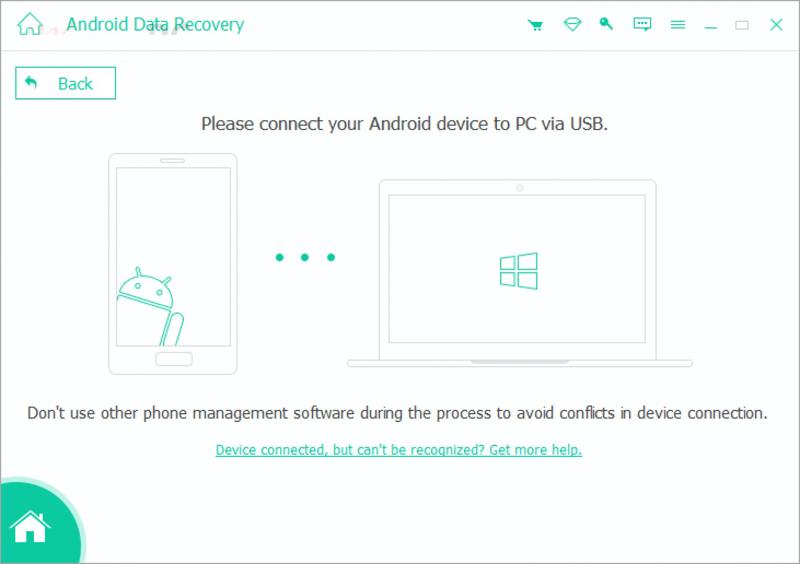
Step 1. Connect to your device
Open the best data recovery software for Samsung after installing it on your computer. Connect your Samsung phone or tablet to your computer with a compatible cable. Make sure to turn on the USB Debugging mode on your device and authorize it to access your data.
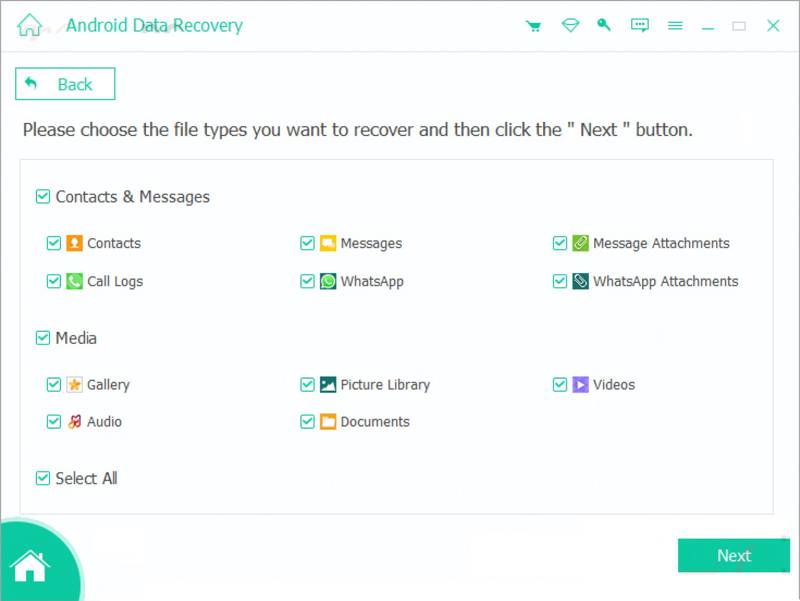
Step 2. Scan lost data
Next, check the data types that you want to get back, like Messages, Contacts, Gallery, and more. If you are not sure, tick the checkbox next to Select All. Click the Next button to begin scanning your device. It can recover files without an internet connection or recovering your Samsung account.
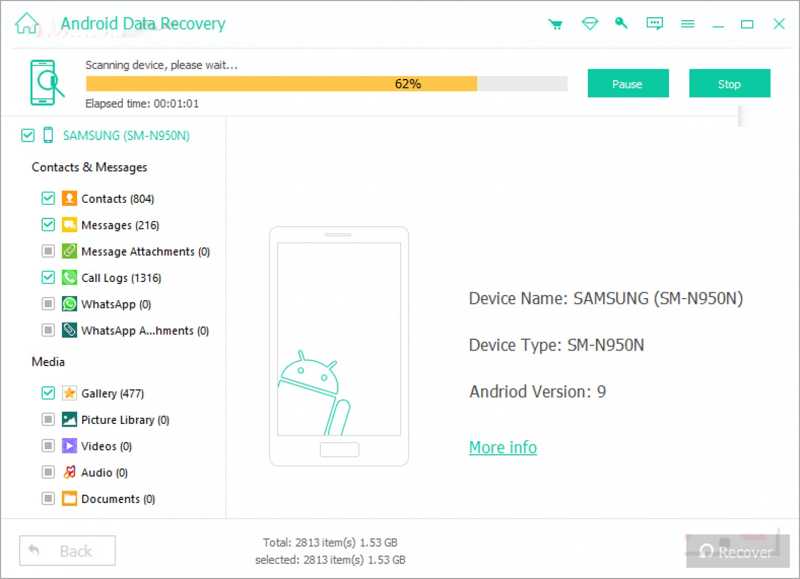
Step 3. Recover Samsung data
After scanning, view the files recoverable on your Samsung device. Select the files and items you want to retrieve and click the Recover button at the bottom. Finally, set an output folder and hit Recover again. Existing data on your device won't be interrupted.
Conclusion
Now, you should understand what Recovery Mode on Samsung is and how to put your device into Recovery Mode for troubleshooting and more. You can use the right button combination to enter Recovery Mode. The ADB commands enable you to go into Recovery Mode on your device if the buttons are not working. Apeaksoft Android Data Recovery allows you to scan and retrieve data on your Samsung device after a factory reset. More importantly, it is easy to use for ordinary people.
Related Articles
Samsung Smart Switch is a utility to back up, restore, and sync a Samsung Galaxy phone to any other device. Come and learn how to use it!
When you switch from Samsung to iPhone, you can transfer data using the Move to iOS app, computer, cloud service, and third-party software.
This post will offer a deep explanation of the Samsung lock screen. You can learn how to set up, customize, and remove it easily.
To back up messages on Samsung, you can use Apeaksoft Android Data Backup & Restore, Samsung Cloud service, or mobile apps.



