

How to Recover Data from SD Card on Android [Desktop & Mobile]

Have you ever accidentally deleted important data or work files on your Android SD card? Have you ever formatted your Android SD card by mistake? These are the reasons why you are reading this article. This article will tell you how to easily recover data on your Android SD card on both your computer and your phone.
PAGE CONTENT:
Part 1: Is It Possible to Recover an SD Card from Android
Can I recover data from an Android SD card? The answer is Yes. It is completely feasible to recover data from an SD card on an Android device. Moreover, the success rate is very high most of the time.
Why is it possible to recover data from an Android SD card? When you delete data from the SD card or format the SD card, the system does not erase the data from the physical storage space of the device. Instead, the system merely temporarily marks the space occupied by the data as available. Therefore, as long as this space is not overwritten by new data, such as pictures and videos, you may be able to retrieve the data using specialized tools.
Part 2: How to Restore Data from Android SD Card on Windows/Mac
There are many SD card data recovery software available on the market. Our team has tested many of them, and finally, we recommend Apeaksoft Data Recovery.
SD Card Data Recovery Software for Android
- Recover various data from the SD card with one click.
- Recover photos, videos, emails, docs, etc.
- Recover from various occasions like deletion, formatting, a virus, etc.
- 99.8% success rate and 100% data security.
Secure Download
Secure Download

How to Restore an Android SD Card
Step 1. Prepare your SD card, a computer and a card reader.
Tips: If you find that the data has been lost, please immediately close all the apps that are currently using the SD card (such as the camera, file manager, etc.) to prevent data overwrite.
Step 2. Download this SD card data recovery software for Android from the above button and insert your SD card into your computer.
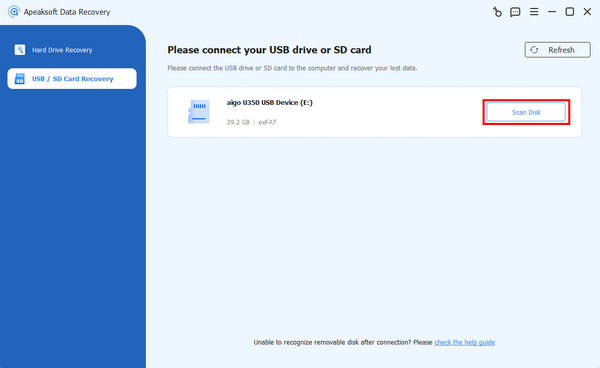
Step 3. Run the software and choose the second option in the left panel.
Step 4. Press the Scan Disk button and wait for the software to scan your SD card automatically.
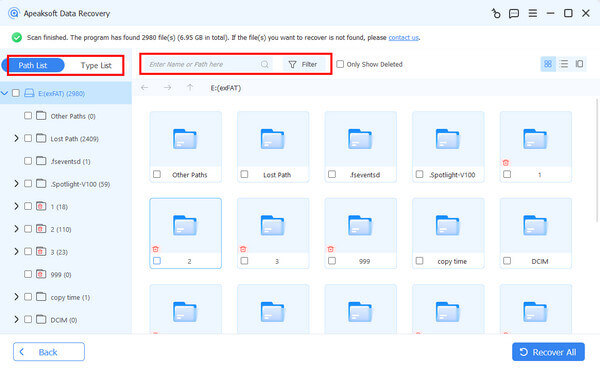
Step 5. Select the data type you want to restore in the left navigation bar.
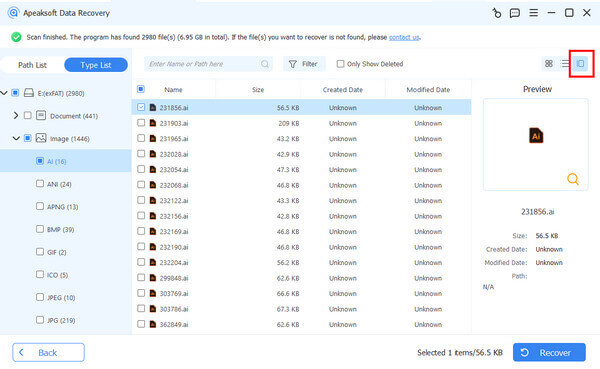
Step 6. Preview detailed data files on the right page to see whether it’s the right one you want to recover from the Android SD card.
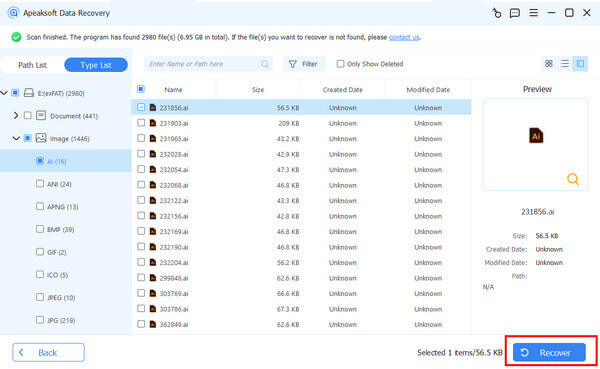
Step 7. Check it and press the Recover button if there is no problem.
Part 3: How to Recover Android SD Card Data on the Mobile
If you don't have a computer at hand or if you prefer a more convenient method, you can actually solve this problem by using the SD card recovery app on your mobile phone. However, most of the SD card recovery apps require you to root your Android device in order to achieve better results.
Here, we will take DiskDigger as an example to show you how to restore an SD card on Android.
Step 1. Open the Google Play Store and search for DiskDigger.
Step 2. Install it on your device.
Tips: During the installation process, if the system prompts for the installation location, be sure to select Internal Storage or Phone Storage. Do not install it on the SD card.
Step 3. Root your Android device and run the app. Choose the Full Scan mode.
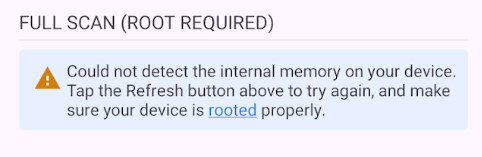
Tips: Basic scan does not require Root access. However, it can only search for images and videos, and the results might be thumbnails or cached files of relatively low quality.
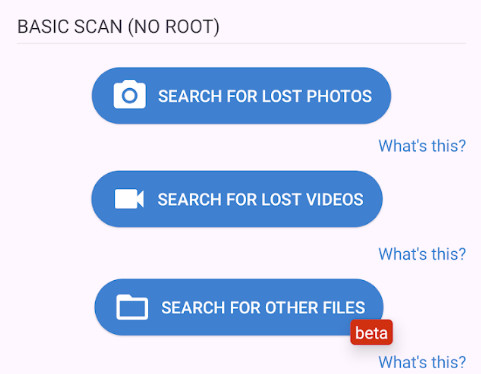
Step 4. Select the SD card as the scanning location and choose the data type you want to recover.
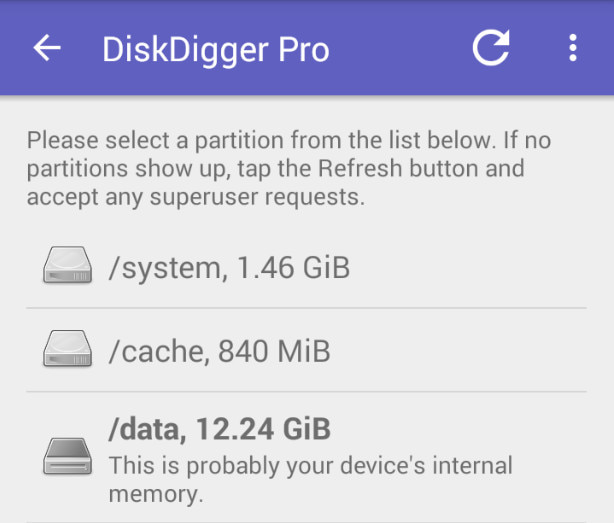
Step 5. Press the Start scan button.
Step 6. Preview the result.
Step 7. Choose a saving path for the files, and press the Recover button to finish.
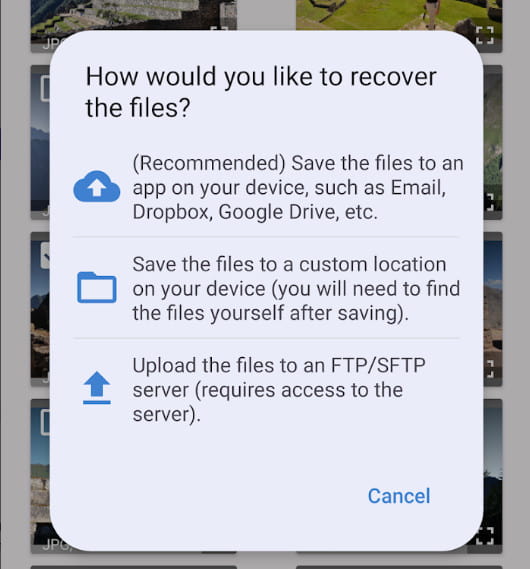
Tips: You MUST save the files to your phone's Internal storage. NEVER save them directly back to the original SD card, as this will overwrite other deleted data and ruin the recovery process.
Conclusion
This article provides detailed instructions on how to recover data from the SD card on Android devices on both mobile and desktop platforms. It is recommended to use dedicated SD Card recovery software. We hope this post will be useful to you. Finally, we wish you success in restoring the lost SD card data!
Related Articles
Running out of your Android space? Read this article, move apps to an SD card, and free up your device's internal storage.
If your files are lost on an SD card, it's not easy to recover lost files. Check how to recover deleted files in SD card on Mac and Windows.
Want to move photos from Samsung, stock Android, or Google Photos? This article will illustrate each of them and introduce another comprehensive way.
If your SD card cannot be reading, follow our proven solutions to resolve this problem and effectively get back your data.



