

What Is Stellar Data Recovery and How to Use It on PC or Mac

There are a few cases when files and data may be lost on Windows and Mac, for example, accidentally deleting a file, emptying the Recycle Bin or Trash, closing a file and forgetting to save it, file system corruption, hard disk damage, and more. Fortunately, data recovery software, such as Stellar Data Recovery, can get back lost data quickly. This article reviews the data recovery software and shares essential information about it.
PAGE CONTENT:
Part 1: Stellar Data Recovery Review
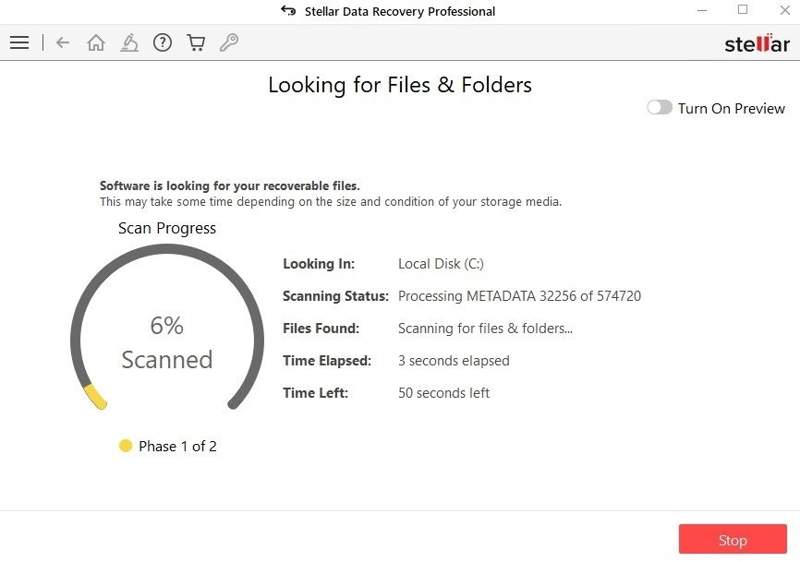
As its name indicates, Stellar Data Recovery works well for recovering file types, including photos and documents, from flash drives, memory cards, SSDs, and traditional HDDs on Windows and macOS. It was released by the Stellar software company, which is reputable in data care.
Key Features of Stellar Data Recovery Software
1. Support over 300 file types and formats.
2. Work for NTFS, FAT32, exFAT, APFS, HFS+, and HFS.
3. Available on HDDs, SSDs, USB drives, memory cards, and more.
4. Create a disk image for data recovery later.
5. Retrieve data from any hard drives.
6. Preview files and recover a specific one.
7. Create a recovery drive for a crashed system.
8. Monitor the current status of hard drives.
9. Recover data from a partition that no longer exists.
10. Compatible with Windows and macOS.
Stellar Data Recovery Review
- It supports many file types and storage media.
- Stellar Data Recovery can recover corrupted photos and videos.
- The free version allows data recovery up to 1GB.
- It allows users to preview files before recovery.
- It can create a disk image byte by byte.
- The scan speed is low on large drives.
- The file signature support is limited.
- It doesn’t run on Apple silicon without Rosetta.
- It scans an entire device, defaults to RAW scan only.
Is Stellar Data Recovery Safe?
Yes, the software is safe and legitimate. The developer has built a good reputation for data recovery, although the success rate varies, depending on the condition of your storage device. However, the Stellar Data Recovery crack may be added.
Is Stellar Data Recovery Free?
Users can download Stellar Data Recovery for free, but the free demo can only recover up to 1GB of data. If you want to recover more data, you need to purchase an activation key for Stellar Data Recovery.
| Standard | Professional | Premium | |
| Annual License for Windows | $59.99 | $89.99 | $99.99 |
| Lifetime License for Windows | $99 | $149 | $199 |
| Annual License for Mac | $69.99 | $89.99 | $99.99 |
| Lifetime License for Mac | $129 | $149 | $199 |
Part 2: How to Use Stellar Data Recovery
When you accidentally delete a file, go to the Recycle Bin or Trash to restore it. If the file is permanently deleted, you cannot recover it from the Recycle Bin or Trash. In such cases, you can try Stellar Phoenix Windows Data Recovery.
Step 1. Install Stellar Data Recovery on the same drive where your lost files are stored.
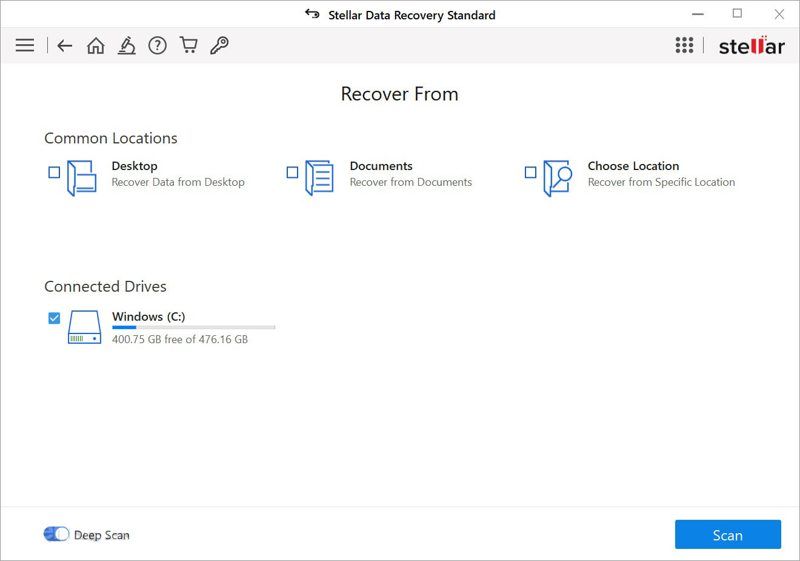
Step 2. Launch the program, pick specific file types to speed up the search process. If you are not sure, check All Data.
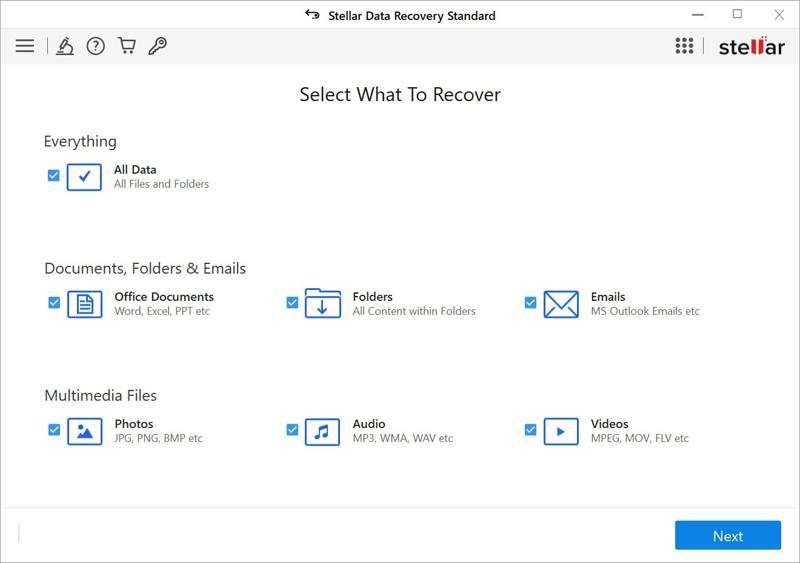
Step 3. Click the Next button.
Step 4. Then, choose which device or drive you want to scan. If you want to recover data from an external drive, connect it to your computer, and select it in the software.
Step 5. Click the Scan button to begin scanning recoverable files on your drive.
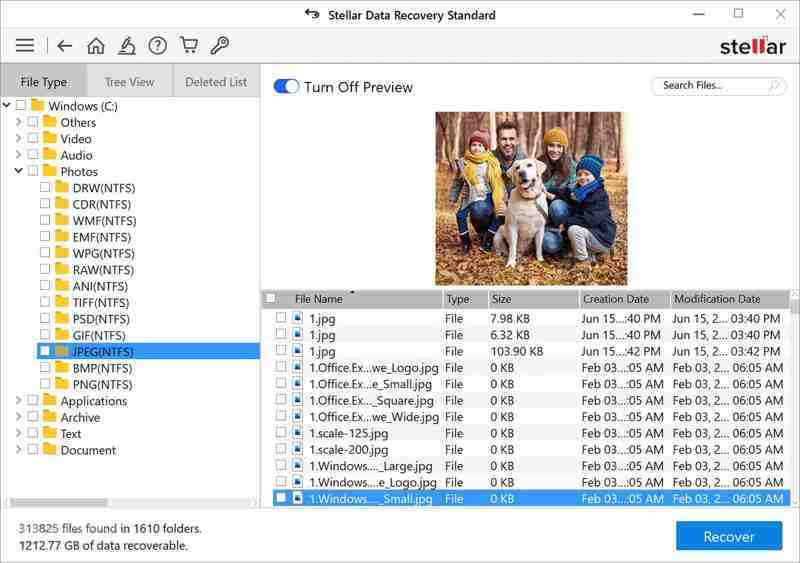
Step 6. When it is done, the program will show the preview of the files and folders.
Step 7. Choose File Type to preview files by type, go to Tree View to preview files by path, or select Deleted List to only view deleted files.
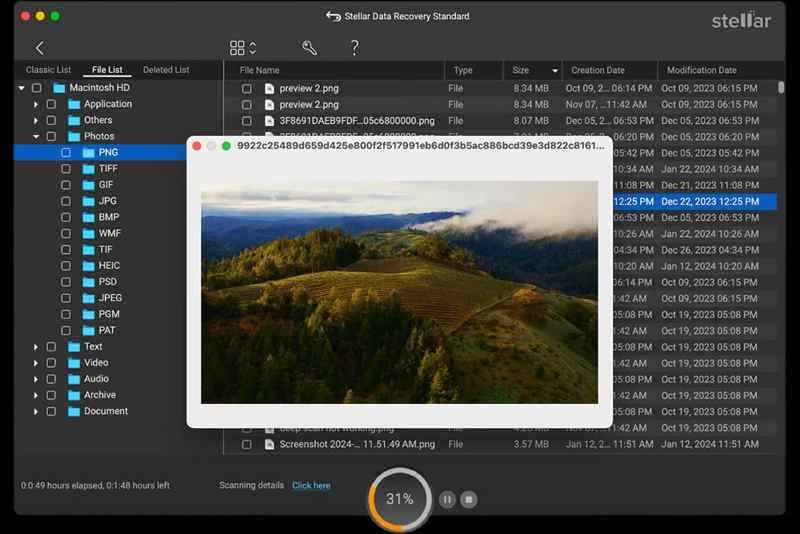
Step 8. Check the files you want to restore and click the Recover button.
Step 9. Next, click the Browse button and select a destination.
Step 10. Finally, click the Start Saving button.
Note: If the destination files have the same names, you can overwrite, rename, or skip.
Further Reading
Part 3: A Good Alternative to Stellar Data Recovery
Stellar Phoenix Data Recovery is a good option to recover data from your hard drive; however, it is not a perfect tool. If you are unable to find your deleted files, you will need an alternative solution, such as Apeaksoft Data Recovery. The user-friendly interface and design simplify the workflow.
A Good Alternative to Stellar Phoenix Data Recovery
- Recover data from internal and external hard drives.
- Deliver a high success rate.
- Work in various situations, including a corrupted disk.
- Preview lost files by type, path, and more.
- Support a wide range of file types, including emails.
Secure Download
Secure Download

How to Use Stellar Phoenix Data Recovery Alternative
Step 1. Scan your drive
Download the alternative to Stellar Phoenix Data Recovery and install it on your PC. It is compatible with Windows 11/10/8/7/XP/Vista. There is another version for Mac. Go to the Hard Drive Recovery tab, pick the desired disk, and click Start Scan. If you need to recover data from an external hard disk, connect it to your PC. Then, go to USB / SD Card Recovery, select the hard drive. and click Start Disk.

Step 2. Preview lost files
When data scanning is complete, go to the Type List tab and preview recoverable files by type. To preview files by path, choose the Path List tab. Check Only Show Deleted if you wish to recover deleted files. The Filter option can find specific files.
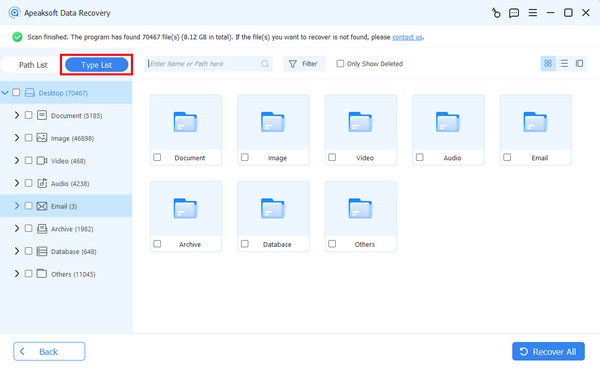
Step 3. Recover deleted files
Select the files you want to restore and click the Recover button. Set an output folder and confirm data recovery. You’d better set a destination rather than the original location.

Conclusion
This article reviewed one of the best data recovery software programs, Stellar Data Recovery. Now, you should understand what it can do, its strengths and weaknesses, as well as other information you should know. If you recently deleted an important file, you can follow our steps to use the software. More importantly, we also recommended an alternative, Apeaksoft Data Recovery. It is easier to use.
Related Articles




