

What to Do When Support.Apple.com iPhone Restore Occurs

"My iPhone got stuck on support.apple.com/iphone/restore. How to get an iPhone out of the problem?" If your iPhone or iPad encounters a serious software glitch, you may see support.apple.com/iphone/restore or support.apple.com/ipad/restore on your screen. As the message prompts, you need to restore the operating system to regain access to your device. This guide explains what you should do when the alert message pops up on your iPhone or iPad screen.
PAGE CONTENT:
Part 1: What Support.Apple.com iPhone Restore Means
What does support.apple.com/iphone/restore mean? It means that your iPhone enters or gets stuck in Recovery Mode. Here are some situations when the message may come in handy:
1. Software glitches.
2. Hardware problems.
3. Update failure.
4. Jailbreak complications.
Part 2: How to Fix Support.apple.com/iphone/restore
Solution 1: Force Restart Your Device
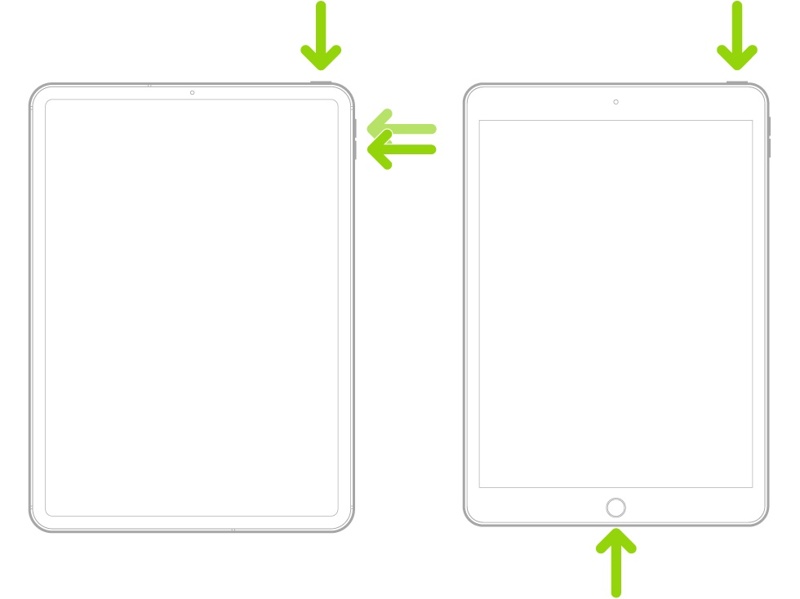
If your screen gets stuck on support.apple.com/iphone/restore, the first thing to do is force restart your device. That helps you get rid of the freezing screen and regain access to your device quickly. The button combination is different, depending on your device model:
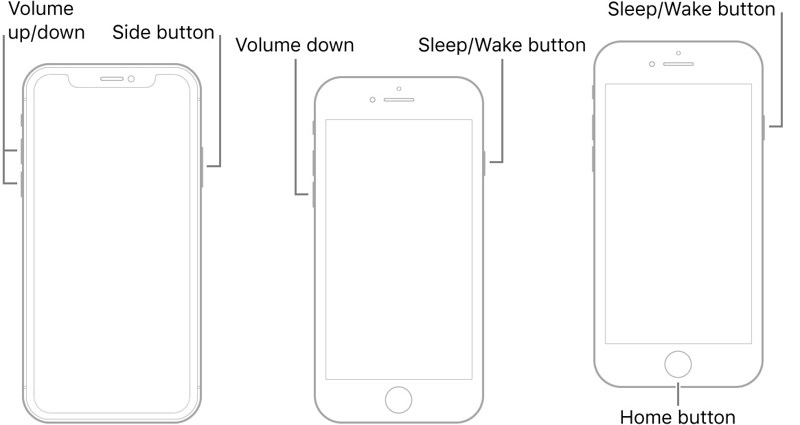
On an iPhone 8 or later, an iPad without a Home button
Quickly press and release the Volume Up button.
Quickly press and release the Volume Down button.
Hold the Side button until you see the Apple logo.
On an iPhone 7/7 Plus, iPod Touch(7th Gen), iPod nano(6th Gen)
Long-press the Volume Down + Side buttons together.
When the Apple logo appears, release the button combination.
On an iPhone 6s or earlier, an iPad with a Home button, iPod Touch(6th Gen), iPod nano(7th Gen)
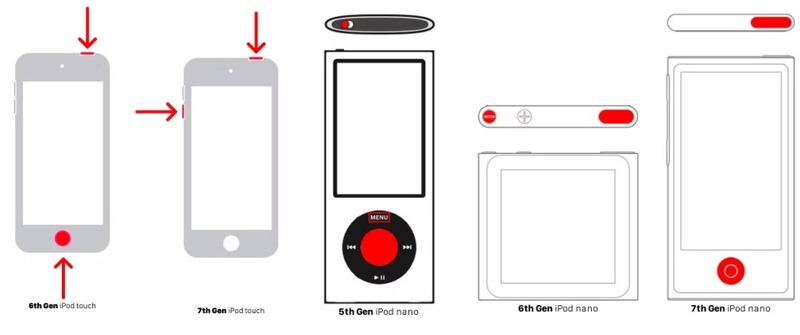
Hold down the Home and Sleep/Wake buttons simultaneously.
Once the Apple logo pops up, let the buttons go.
On an iPod nano(5th Gen), iPod classic
Put the Hold switch firmly in the unlocked position.
Press and hold the Menu and Center buttons for 8 seconds.
Release the buttons until you see the Apple logo.
Solution 2: Update Your Device
If the support.apple.com/ipad/restore screen occurs after a failed update, you can update your device using iTunes or Finder. This method requires a computer and the latest version of iTunes or Finder.
Step 1. If you are using Windows and macOS Mojave or earlier, open the latest version of iTunes.
If you are using macOS Catalina or later, run Finder instead.
Step 2. Plug your iPhone into your computer with a compatible USB cable.
Step 3. The application should automatically recognize your device. If not, click the Phone button or your iPhone name.
Step 4. If you see a dialog on your device, tap Trust to trust this computer.
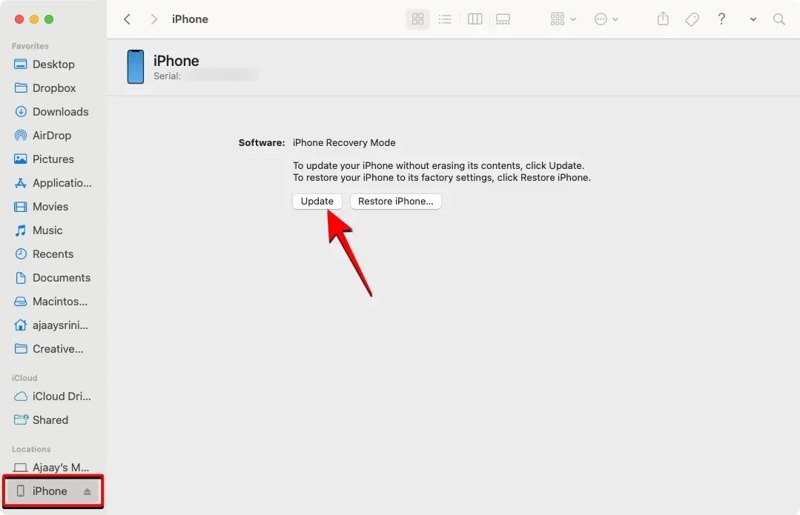
Step 5. Then, iTunes or Finder detects your device in Recovery Mode, and you will be prompted with two buttons. Click the Update button to proceed.
Step 6. Once the latest software for your device is found, click the Install button to download it.
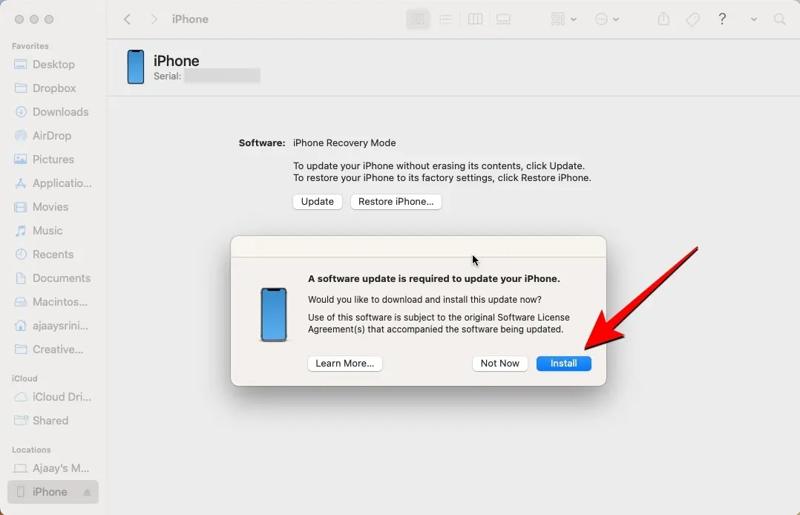
Step 7. It takes a few minutes to complete the process. Once the installation is successful, your iPhone or iPad should restart.
Note: Note: In most cases, this solution should fix your iPhone or iPad and get it out of the support-apple-restore error. If the error keeps occurring after the update or the process fails, repeat the steps above and click Restore iPhone.
Solution 3: Use a Third-party iPhone Repair Tool
If the support-apple-restore error persists on your screen, you will need a powerful system recovery tool, such as Apeaksoft iOS System Recovery. It is able to scan software glitches on your device and fix them quickly.
One-stop Solution to Fix Support Apple iPhone Restore
- Fix software glitches quickly.
- Available to a wide range of software issues.
- Upgrade or downgrade iOS and iPadOS.
- Support almost all iPhone, iPad, and iPod Touch models.
Secure Download
Secure Download

Here are the steps to fix the Support Apple iPhone Restore
Step 1. Detect software glitches
Run the best system recovery software after installing it on your computer. Connect your iPhone to your computer with a Lightning cable. Click the Start button to begin scanning your device and looking for software glitches automatically.
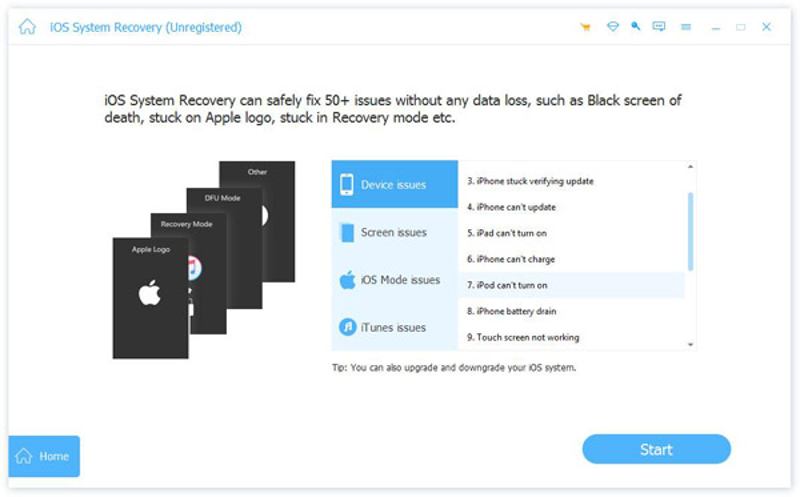
Step 2. Choose a mode
Click the Free Quick Fix link to fix software glitches. If the error persists, click the Fix button and select a mode, including Standard Mode and Advanced Mode. Click Confirm to move on.
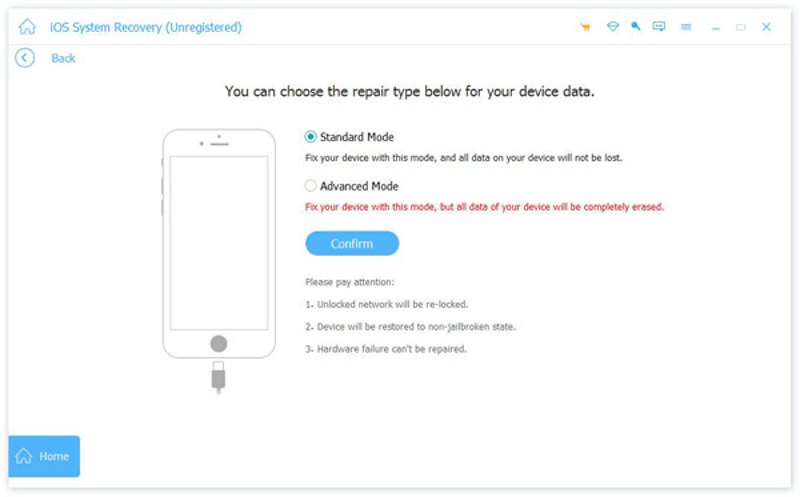
Step 3. Fix Support Apple Restore
The software will automatically detect your device in Recovery Mode. You need to manually select your device information, including category, device type, and model. Then, select an available update for your device. Finally, click the Repair button to begin fixing Support Apple Restore on your device.
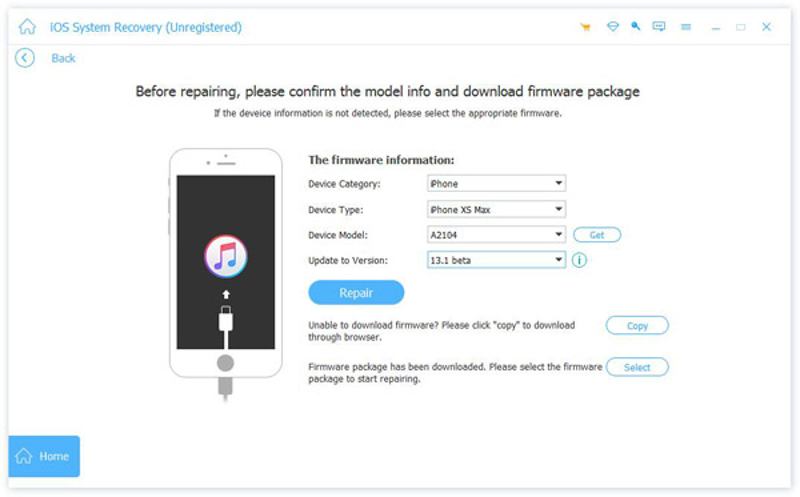
Solution 4: Contact Apple Support
If the solutions above are unavailable to your device, chances are that something is wrong with your hardware, such as a failed NAND chip, motherboard issue, or battery damage. It is time to contact Apple Support or visit the nearest Apple Store. The official support can help you check and fix your device. Remember that you’d better back up your device before taking it to an Apple Store.
Part 3: How to Recover iPhone Data after Fixing Support Apple.com iPhone Restore
It is well known that software and hardware repair may lead to data loss. After fixing Support Apple.com iPhone Restore, you may find that your data is lost. Thankfully, Apeaksoft iPhone Data Recovery can help you get back your data even if you didn’t back up your device.
The Best Way to Recover Data After Fixing Support Apple.com iPhone Restore
- Retrieve data after fixing software glitches.
- Open iCloud or iTunes backup and extract lost data.
- Support a wide range of file types.
- Preview lost data for selectively recovering.
- Compatible with the latest models of iPhone, iPad, and iPod Touch.
Secure Download
Secure Download
How to Recover Data after Fixing Support Apple.com iPhone Restore
Step 1. Connect to your device
Download and install the best data recovery software for iPhone. After fixing Support Apple Restore, launch the software. Then, link your iPhone and computer with a Lightning cable. If you run iOS 13 or later, enter your passcode to permit the connection. Choose the Recover from iOS Device tab on the sidebar. Click the Start Scan button to begin looking for data recoverable on your device.

Tips: If you want to extract data from iTunes or iCloud backup, choose the Recover from iTunes Backup File or Recover from iCloud Backup File tab instead.
Step 2. Preview lost data
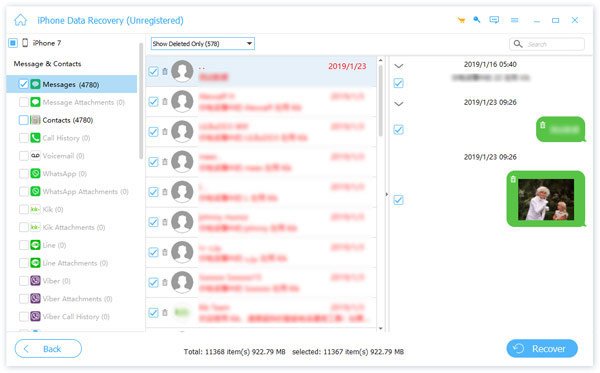
Once data scanning is done, you will be presented with the preview window. All data are organized by type. If you want to recover contacts, for example, go to the Contacts type on the left side, and you can view all contacts. If there are too many items, choose Show Deleted Only from the top option.
Step 3. Recover iPhone data
Select the files and items you want to recover and click the Recover button. Set an output folder by hitting the Open button and hitting Recover again.
Conclusion
Now, you should understand what you should do when you see a message that says Support Apple iPhone Restore on your screen. You can follow our proven solutions to fix this problem and re-access your device. Apeaksoft iPhone Data Recovery helps you retrieve lost data after you fix this problem.
Related Articles
Here we list you best 6 iPhone data cleaner apps to help you erase data completely on iPhone 16/15/14/13/12/11/XS/XR to free up space and boost speed.
Is your iPhone suddenly unable to play videos? Don't panic, Here you can troubleshoot the problem and quickly restore a smooth playback.
If it says unable to Activate when activating iPhone, follow our solutions to fix this problem and activate your device quickly.
Learn what an iPhone backup password is, how to enable/disable it, recover/reset a forgotten backup password, and explore the best iPhone backup alternative.



