

How to Effectively Recover Unsaved Text Files in Sublime

"I am using Sublime Text as a notepad, and I have plenty of unsaved files that usually reopen after reboot or crash, but I lose some of them. How can I get unsaved Sublime Text files?" As a powerful text, code, and markup tool, many people use Sublime Text on their Windows, Mac, and Linux due to its standout speed, stability, and cross-platform customization. If you forgot to save your files, here is how to retrieve them.
PAGE CONTENT:
Part 1: Ultimate Way to Recover Unsaved Sublime Text Files
The easiest method to restore unsaved Sublime files is Apeaksoft Data Recovery. It is able to scan your hard drives deeply for files that were lost due to various factors. More importantly, the intuitive interface simplifies the workflow of file recovery.
Ultimate Way to Recover Unsaved Sublime Text Files
- Recover unsaved files from Sublime Text in three steps.
- Support all file types, including text files.
- Restore files from the emptied Recycle Bin, hard drives, memory cards, etc.
- Offer a high success rate and fast recovery speed.
- Available for unsaved, corrupted, deleted, and other situations.
Secure Download
Secure Download

How to Recover Unsaved Sublime Text Files
Step 1. Scan your drive
Launch the best text recovery software after you install it on your PC. There is another version for recovering unsaved Sublime Text files on Mac. Choose the Hard Drive Recovery tab and click the disk where your files are stored. If your lost files are stored on an external drive, choose USB/SD Card Recovery. Click the Start Scan button to begin scanning your drive.

Step 2. Preview text files
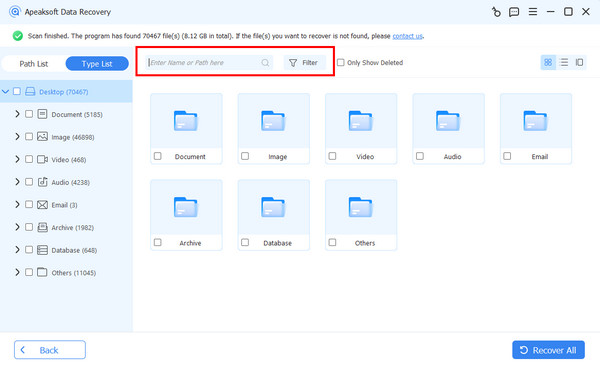
After the quick scan, the software will automatically perform a deep scan. When it finishes, switch to the Type List tab and select the target file type. Or head to Path List and choose the right location. Then, preview lost Sublime Text files. You can quickly locate it with the Filter and Search Bar.
Step 3. Recover Sublime Text files
Tick the checkbox next to each recoverable file and click the Recover button. Then, set an output folder and confirm file recovery. You can also recover deleted videoswith it.

Part 2: How to Get an Unsaved Sublime Text File on Mac/PC/Linux
By default, Sublime saves sessions every 30 seconds. In other words, you can get unsaved Sublime Text files even if you forgot to save them when closing the program. We use Sublime 4 as an example to show you how it works:
Step 1. Stop using Sublime.
Step 2. Open a file explorer on your computer or laptop.
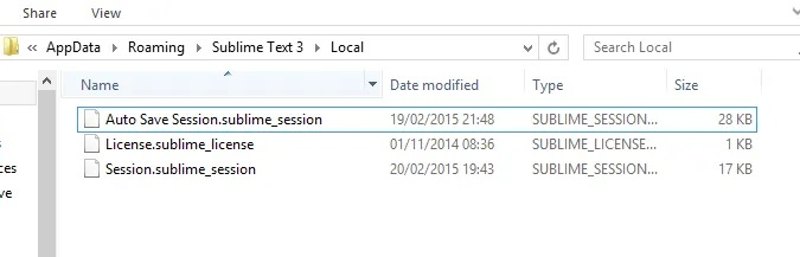
Step 3. Open the location for unsaved Sublime Text files:
For Mac: ~/Library/Application Support/Sublime Text 3/Local/
For PC: C:UsersmyuserAppDataRoamingSublime Text 3Local
For Linux: ~/.config/sublime-text-3/Local/
Step 4. Find the right file and version:
Auto Save Session.sublime_session
Session.sublime_session
The former is used to store the unsaved files, and the latter stores file and folder history.
Step 5. Open the unsaved file, and you can find the content inside the contents section.
Step 6. Make sure to save it as a new file to avoid replacing the content.
Part 3: Other Options to Restore Unsaved Sublime Text Files
The built-in backup features on Windows and Mac allow you to restore unsaved Sublime Text files. The prerequisite is that you have turned on the backup features. Moreover, your file must be saved at least once.
How to Restore Unsaved Sublime Text Files on a PC
Step 1. Locate the Sublime Text folder in a File Explorer.
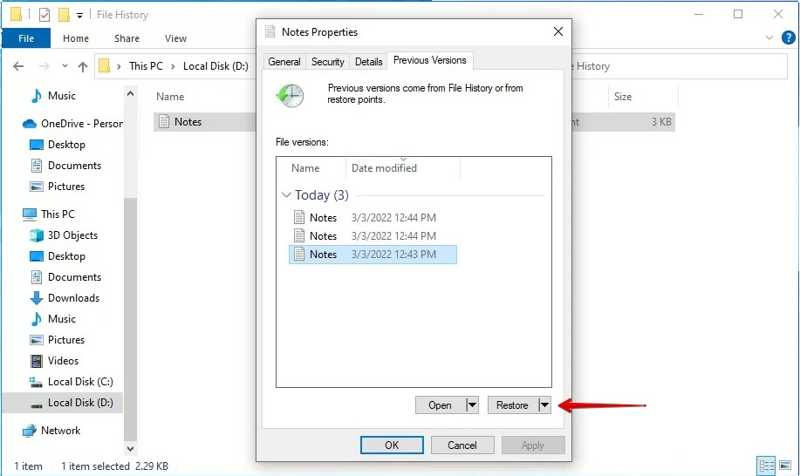
Step 2. Right-click on the folder and choose Properties.
Step 3. Go to the Previous Versions tab.
Step 4. Pick the version that includes the unsaved file and click Restore.
How to Recover Unsaved Sublime Text Files on Mac
Step 1. Navigate to the Sublime Text folder in Finder.
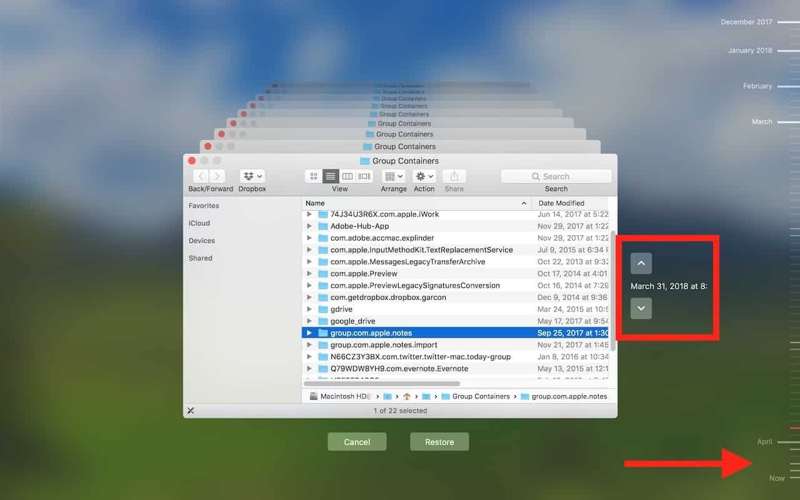
Step 2. Click the Time Machine button on the top menu bar.
Step 3. Press the Up and Down arrows to find the unsaved file.
Step 4. Finally, click the Restore button.
Part 4: How to Turn on AutoSave in Sublime Text
As mentioned previously, Sublime Text keeps unsaved files. Furthermore, it integrates the AutoSave feature. If you want to avoid losing files later, you'd better turn on this feature and set it up. Here are the steps:
Step 1. Open the Sublime Text program on your desktop.
Step 2. Access Settings-User:
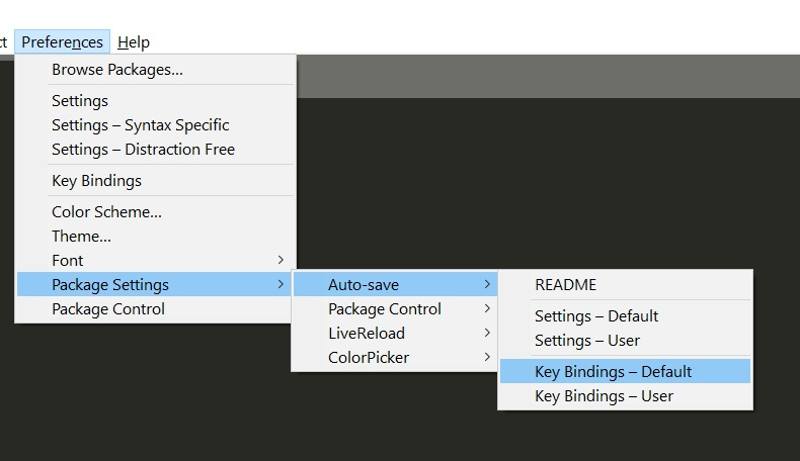
On Mac: Click Sublime Text on the menu bar, choose Preferences, and click Settings - User.
On PC: Click Preferences and choose Settings – User.
Step 3. Type {"save_on_focus_lost": true} .
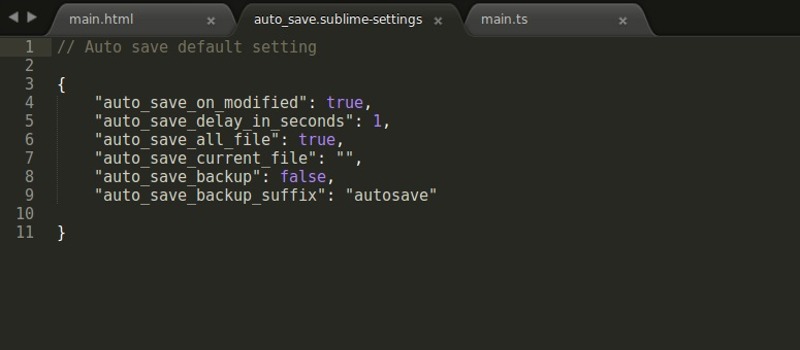
Step 4. Save the file and close it.
Conclusion
This article shared multiple methods to get unsaved Sublime Text files on macOS, Windows, and Linux. You can follow our steps to get back your lost files quickly. Apeaksoft Data Recovery can help you bring your unsaved files back. If you have other questions about this topic, please write them down below this post.
Related Articles
This article provides 3 professional ways to recover iCloud: you can use a specialized software or go to the iCloud deleted and recovery feature.
When you delete files from iPhone by accident, you should know different methods about how to recover data with iTunes from the article.
Come and explore the top 6 SD card recovery software for Mac and Windows to help you recover lost or deleted files, like photos, videos, etc., from SD cards!
This article shows detail steps to enter into or out of Moto X recovery mode. In addition, you can also get safe solutions to recover Moto X data with ease.



