Как записать экран в TikTok: пошаговая инструкция в высоком качестве.

Некоторые видео и прямые трансляции в TikTok нельзя скачать напрямую. Если вы хотите сохранить интересные видео или пересмотреть любимые прямые трансляции позже, запись экрана TikTok — это простой способ. В этом руководстве мы покажем вам, как это сделать. как записывать экран в TikTok На разных устройствах в высоком качестве.
СОДЕРЖАНИЕ СТРАНИЦЫ:
Часть 1: Как записывать экран в TikTok на iPhone/iPad
Apple предоставляет пользователям iPhone и iPad встроенную функцию записи экрана для бесплатной записи видео из TikTok или прямых трансляций. Если вы хотите узнать, как записывать экран в TikTok, выполните следующие шаги:
Шаг 1. Откройте видео или прямую трансляцию в TikTok, которую хотите записать.
Шаг 2. Проведите пальцем вниз от верхнего правого угла и нажмите на Экранная запись .
Советы: Если функция записи экрана недоступна, вы можете долго удерживать палец на пустой области экрана. Центр управления, нажмите Добавить элемент управления внизу и выберите Экранная запись чтобы добавить ее.
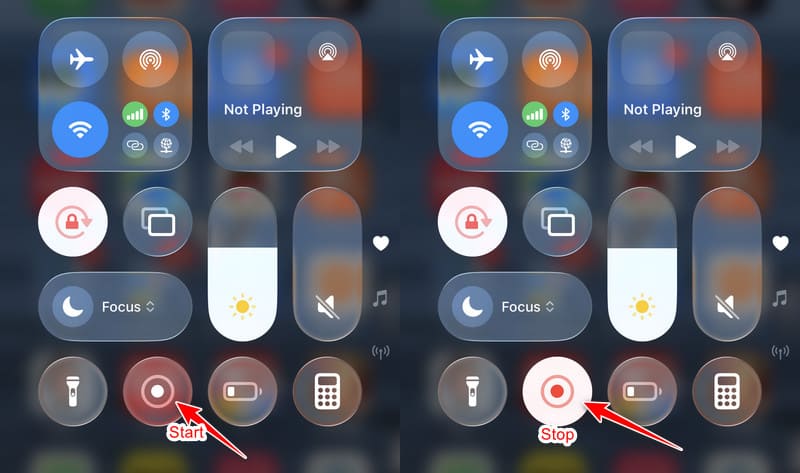
Шаг 3. После завершения обратного отсчета вы можете воспроизвести видео из TikTok или посмотреть прямую трансляцию.
Шаг 4. Когда запись закончится, проведите пальцем вниз от верхнего правого угла еще раз и нажмите красную кнопку, чтобы остановить запись.
Шаг 5. Записанное видео из TikTok будет автоматически сохранено в... Фото приложение
Часть 2: Как записывать видео в TikTok на Android
Устройства Android также предлагают встроенные функции записи экрана, позволяющие записывать видео и прямые трансляции в TikTok. Следуйте приведенным ниже инструкциям, чтобы узнать, как записывать видео в TikTok с помощью телефона Android:
Шаг 1. Откройте TikTok и найдите видео или прямую трансляцию, которую хотите записать.
Шаг 2. Проведите пальцем вниз от верхнего края экрана, а затем коснитесь экрана. Screen Recorder.
Советы: Название и местоположение могут различаться в зависимости от модели вашего устройства.
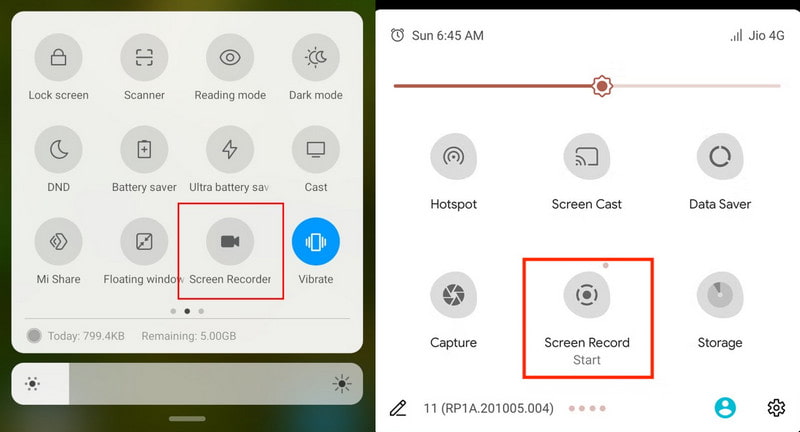
Шаг 3. Настройте параметры записи, такие как качество звука и видео, затем нажмите Начать запись.
Шаг 4. Дождитесь начала воспроизведения контента.
Шаг 5. Нажмите кнопку «Стоп», когда закончите. Записанное видео из TikTok будет сохранено в вашей учетной записи. Галерея or Фото приложение
Часть 3: Как записать экран в Windows
Если вы использование TikTok на компьютере с Windows или MacНе беспокойтесь. Также существуют встроенные инструменты и сторонние программы для записи экрана, позволяющие записывать видео и прямые трансляции из TikTok на Windows или Mac.
Способ 1: Используйте встроенную игровую панель Xbox для записи видео в TikTok на Windows.
Xbox-игра Bar — это встроенный инструмент для записи экрана в Windows. Он позволяет бесплатно записывать видео из TikTok и прямые трансляции без установки дополнительного программного обеспечения.
Шаг 1. Откройте видео или прямую трансляцию, которую хотите записать.
Шаг 2. Штамповочный пресс Windows + G , чтобы открыть Xbox Game Barзатем нажмите кнопку, похожую на кнопку камеры, а затем нажмите Запись кнопка красного цвета.
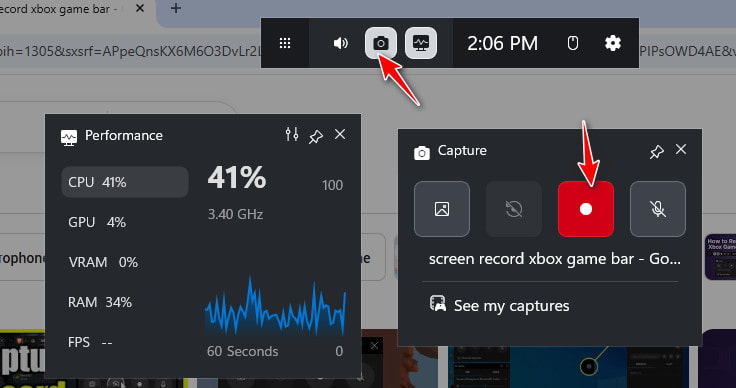
Шаг 3. Воспроизведите видео из TikTok или прямую трансляцию.
Шаг 4. Нажмите Stop кнопка в правом верхнем углу или нажмите Виндовс + Альт + Р чтобы закончить запись.
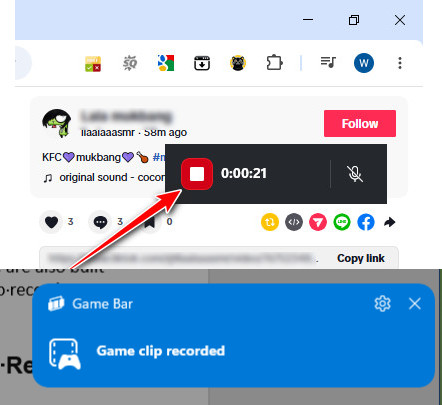
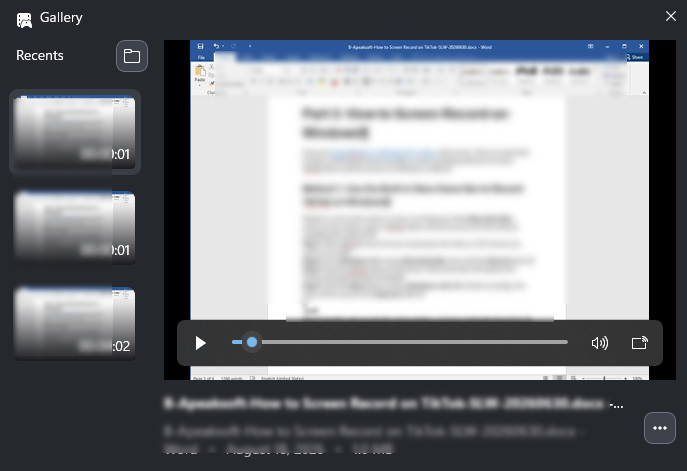
Шаг 5. Нажмите на синюю кнопку, чтобы просмотреть сделанный снимок.
Способ 2: Использование программы Apeaksoft Screen Recorder для записи видео из TikTok на Windows.
Xbox Game Bar записывает только конкретное окно, а не всю область экрана. Если вам нужны более гибкие возможности записи, такие как запись определенной области и более высокое качество изображения, лучше использовать специальную программу для записи экрана. Apeaksoft Screen Recorder Это мощная программа для записи видео в TikTok, позволяющая снимать видео и прямые трансляции в высоком качестве.

Загружено более 1,000,000 пользователей
- Записывайте видео и прямые эфиры в TikTok в высоком качестве.
- Используйте программу для автоматической записи прямых трансляций в TikTok, чтобы планировать записи автоматически, без необходимости ждать или засиживаться допоздна.
- Настройте область записи таким образом, чтобы она захватывала только то, что вам нужно.
- Добавляйте выделения, текст, стрелки и аннотации во время записи.
- Перед сохранением записи просмотрите её предварительно.
Шаг 1. Нажмите на кнопку выше, чтобы бесплатно скачать этот диктофон для TikTok.
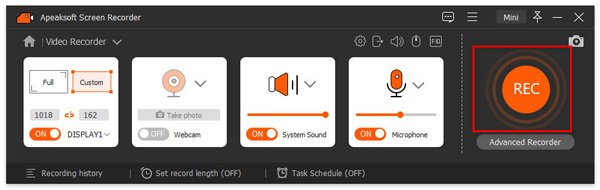
Шаг 2. Откройте целевое окно TikTok. Выберите определенную область для записи, затем настройте параметры веб-камеры, системного звука и микрофона.
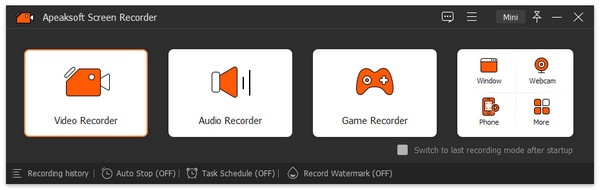
Советы: Если вы хотите записывать только звук, нажмите стрелку вниз в верхнем левом углу и выберите нужный вариант. На выбор доступны следующие функции: Запись экрана, Запись звука, Захват экрана, Запись игр, Запись окна, Запись веб-камеры и Запись телефона.
Шаг 3. Нажмите REC Кнопка для начала записи в TikTok.
Шаг 4. Во время записи можно добавить эллипс, линию, стрелку или другие подписи.
Шаг 5. После завершения просто нажмите кнопку «Завершить» в красном квадрате.
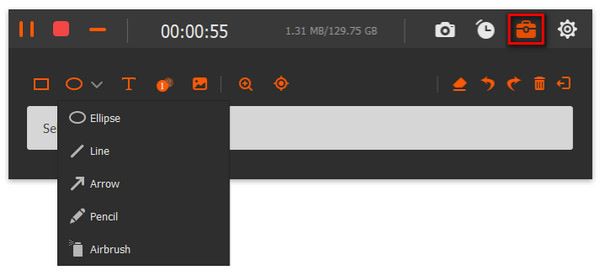
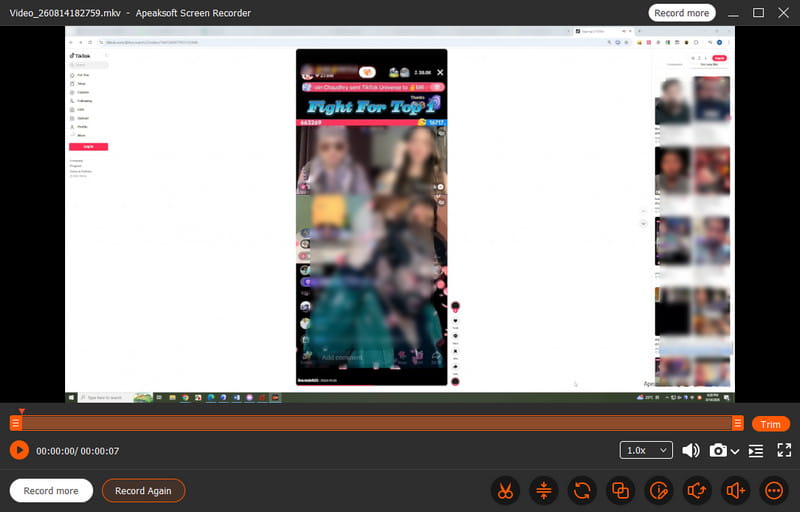
Шаг 6. Затем вы можете просмотреть, отредактировать и сохранить записи.
Часть 4: Как записывать видео в TikTok на Mac
Пользователи Mac могут использовать встроенные инструменты или сторонние программы для записи экрана, чтобы записывать видео и прямые трансляции из TikTok. Если вы хотите узнать, как записывать видео в TikTok на Mac, следуйте приведенным ниже инструкциям, чтобы легко сохранять свой любимый контент.
Шаг 1. Откройте TikTok в браузере и подготовьте видео или прямую трансляцию, которую хотите записать.
Шаг 2. Штамповочный пресс Ctrl + Shift + 5 чтобы открыть панель инструментов для создания скриншотов.
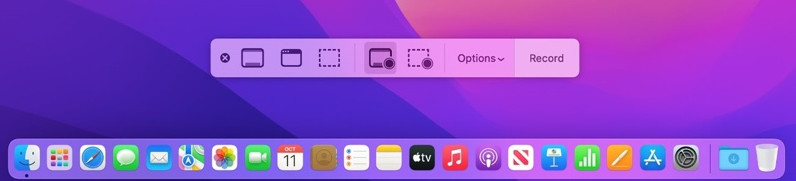
Шаг 3. Выбрать Записать весь экран or Запись выбранной части, затем нажмите Запись.
Шаг 4. Воспроизведите видео из TikTok или прямую трансляцию.
Шаг 5. Нажмите Stop Нажмите кнопку в строке меню, когда закончите. Запись будет сохранена автоматически.
Советы: Вы также можете использовать Apeaksoft Screen Recorder для запись экрана на Mac в высоком качестве.
Часть 5: Часто задаваемые вопросы о записи экрана в TikTok
Уведомляет ли TikTok о записи экрана?
Нет. TikTok не уведомляет пользователей о записи экрана во время видео или прямых трансляций.
Можно ли записывать видео в TikTok с экрана без кнопки загрузки?
Да. Если видео в TikTok недоступно для скачивания, вы можете использовать встроенную программу записи экрана вашего устройства или стороннюю программу для записи экрана, чтобы сохранить контент.
Снижает ли запись экрана в TikTok качество видео?
Зависит от ситуации. Встроенных инструментов для записи экрана достаточно для базовых нужд. Если вы хотите записывать видео для TikTok в более высоком качестве, вам понадобится профессиональная программа для записи экрана TikTok, например, такая. Apeaksoft Screen Recorder может быть лучшим выбором.
Заключение
Запись экрана TikTok поможет вам сохранить видео и прямые трансляции, которые нельзя загрузить напрямую из TikTok. Независимо от того, используете ли вы iPhone, телефон Android, компьютер Windows или Mac, вы можете следовать описанным выше инструкциям, чтобы запись экрана TikTok легко получить доступ к контенту.

Статьи по теме