


Så här åtgärdar du anslutningsfelet till Apple ID-servern

"Jag öppnade precis min iPhone efter ungefär en månad, och jag kan inte logga in på mitt Apple-ID. Min iPhone ger mig ett felmeddelande som det uppstod ett fel vid anslutningen till Apple ID-servern"Hur kan jag åtgärda det här felet?" Anslutningsfelet är vanligt på iOS-enheter när användare försöker logga in på sina Apple-konton eller köpa appar eller innehåll. Den här artikeln delar effektiva lösningar för att åtgärda det här felet.
SIDINNEHÅLL:
Del 1: Vad felet vid anslutning till Apple ID-servern betyder
Som tidigare nämnts kan felet vid anslutning till Apple ID-servern uppstå när du försöker logga in med dina Apple ID-uppgifter eller använda en tjänst som är länkad till ditt konto. I sådana fall måste din enhet kommunicera med Apples servrar och matcha din kontoinformation. Om din enhet inte kan komma åt eller ansluta till servern kommer du att få felet. Vanliga orsaker inkluderar:
- 1.Dålig internetanslutning.
- 2.Felaktigt Apple-ID, lösenord eller information.
- 3.Apples servrar är nere.
- 4.Ditt Apple-konto är låst eller inaktiverat.
- 5.Programvarufel.
Del 2: Vad du ska göra om det uppstod ett fel vid anslutning till Apple ID-servern
Lösning 1: Kontrollera din internetanslutning
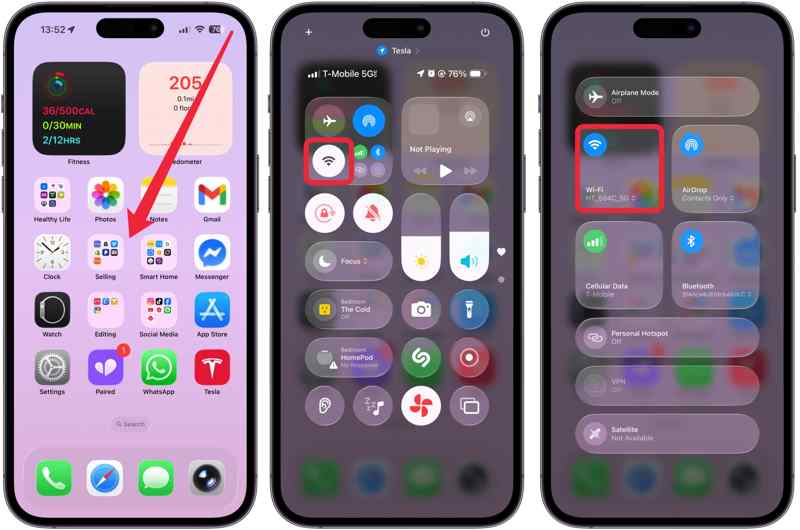
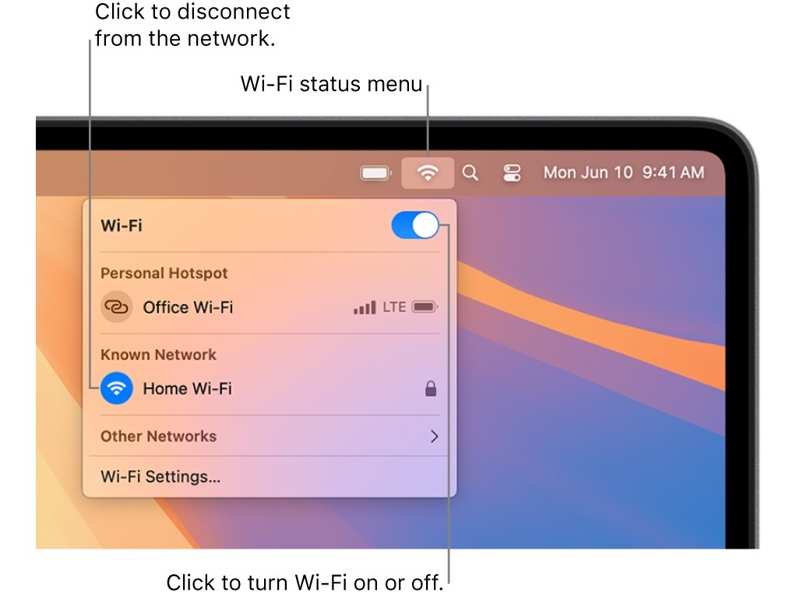
När du stöter på felet Det uppstod ett fel vid anslutning till Apple ID-servern är det första du kan göra att kontrollera ditt nätverk. Ange Control Center på din iPhone, iPad eller Mac. Tryck på Wi-Fi knappen och kontrollera signalen. Om nätverket är dåligt, byt till ett starkt Wi-Fi-nätverk.
Lösning 2: Starta om din enhet
Att starta om enheten är visserligen en enkel lösning, men det kan åtgärda enkla problem och små buggar. Om du får felmeddelandet vid anslutning till Apple ID-servern kan du försöka starta om enheten.
På iPhone / iPad
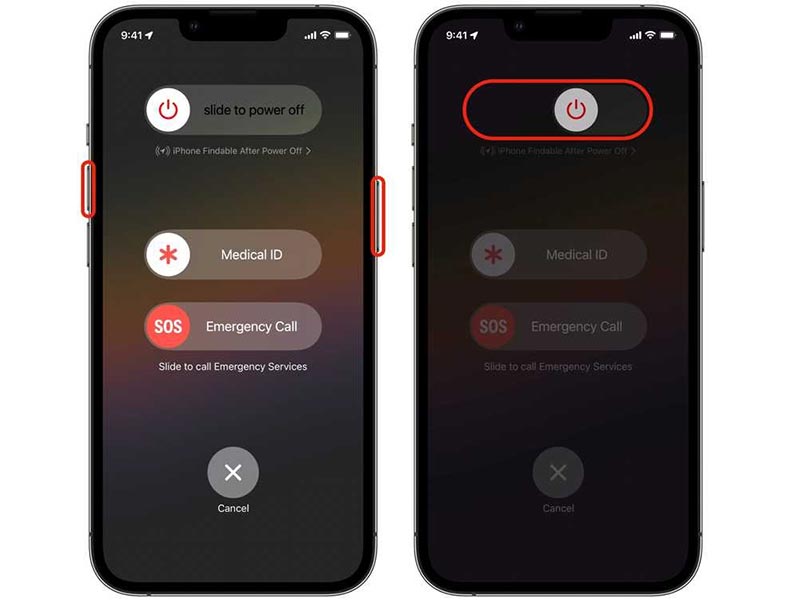
Steg 1. Tryck och håll antingen Volym knapp + Sida knapp på en iOS-enhet med Ansikts-IDFör gamla enheter, håll nere Sida or Effekt knapp.
Steg 2. När avstängningsskärmen visas släpper du knapparna eller knappen.
Steg 3. Flytta reglaget för att stänga av enheten.
Steg 4. Några minuter senare håller du ned Sida or Effekt knappen tills du ser Apple-logotypen.
På Mac
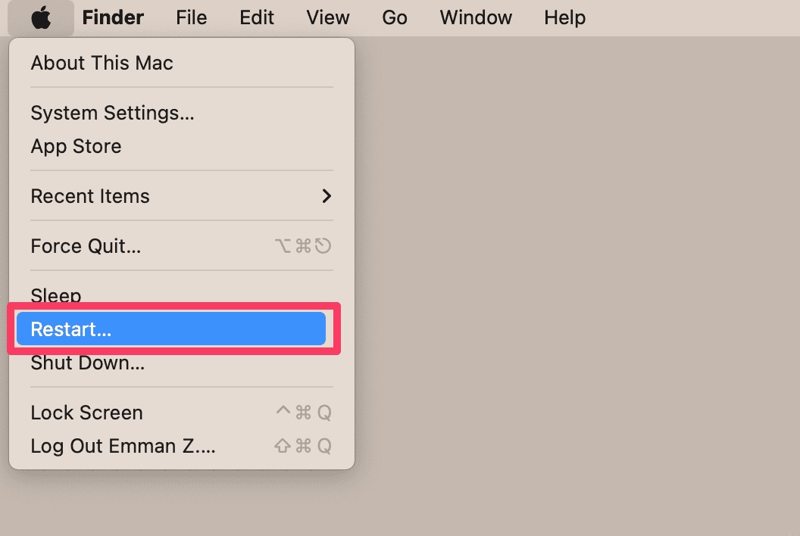
Steg 1. Gå till Apple meny.
Steg 2. Välj Omstart alternativ.
Steg 3. Vänta tills din Mac startar om och ange ditt lösenord.
Lösning 3: Logga ut och logga in på ditt Apple-ID
När du har ändrat informationen för ditt Apple-ID bör du uppdatera den på alla dina Apple-enheter. Annars kommer du att stöta på felet vid anslutning till Apple ID-servern. Du kan logga in på ditt konto igen för att uppdatera ändringarna.
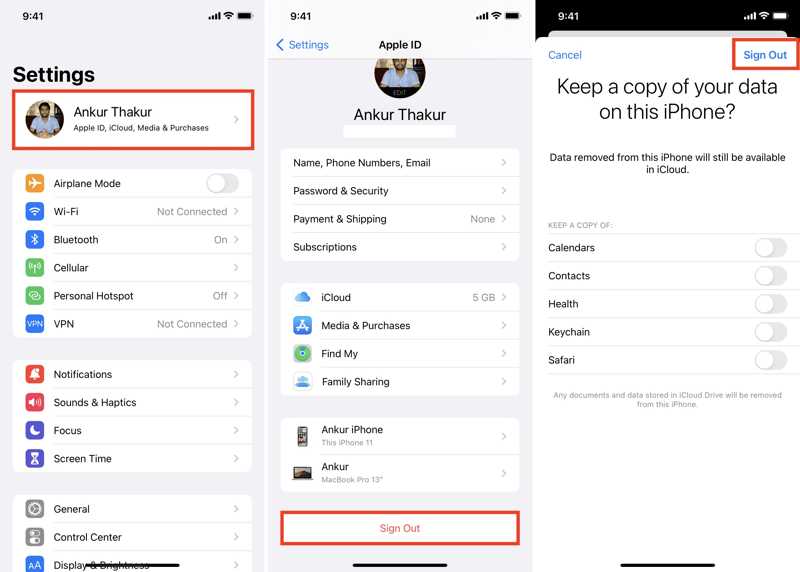
Steg 1. Öppna Inställningar or Systeminställningar appen på din Apple-enhet.
Steg 2. Klicka Apple-ID or Apple-konto.
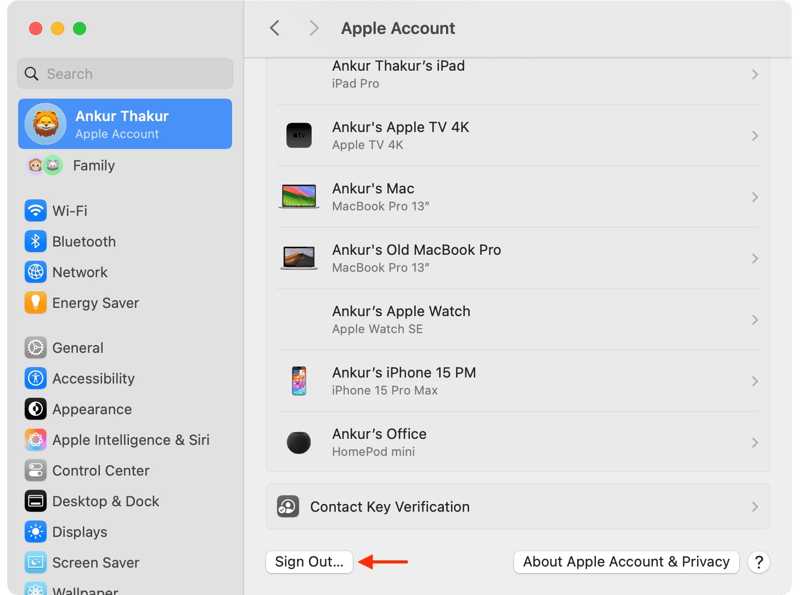
Steg 3. Scrolla ner och tryck på Logga ut knapp.
Steg 4. Ange ditt Apple-ID-lösenord och tryck på Stäng av.
Steg 5. Välj de data du vill behålla en kopia av eller ignorera dem.
Steg 6. Träffa Logga ut igen för att bekräfta det.
Steg 7. Logga sedan in med ditt Apple-ID och lösenord för att uppdatera informationen.
Lösning 4: Kontrollera Apple Server Status
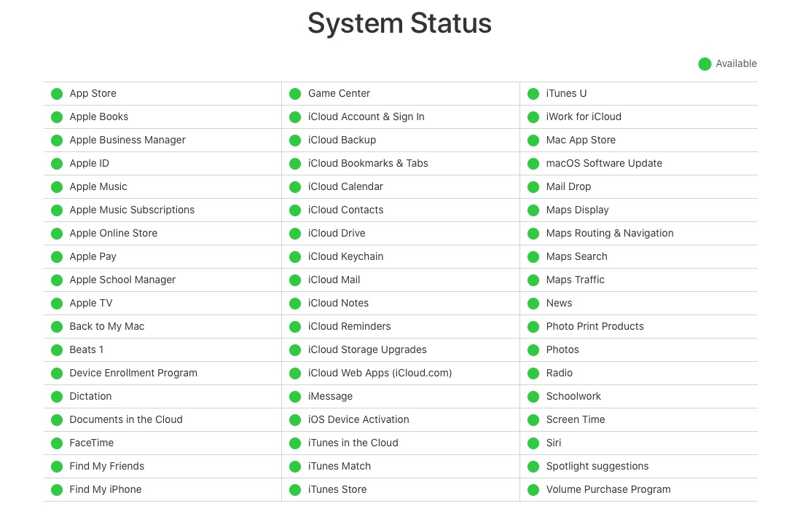
När det uppstår ett fel vid anslutning till Apple ID-servern bör du kontrollera statusen för Apples servrar. Om de respektive servrarna är nere måste du vänta på att de fungerar igen. Gå till https://www.apple.com/support/systemstatus/ i en webbläsare och kontrollera servrarnas status.
Lösning 5: Ändra ditt Apple ID-lösenord
Om felet vid anslutning till Apple ID-servern uppstår på din Apple-enhet måste du också ändra ditt lösenord. Den här lösningen kräver att funktionen tvåfaktorsautentisering är aktiverad.
Steg 1. Kör Inställningar or Systeminställningar app.
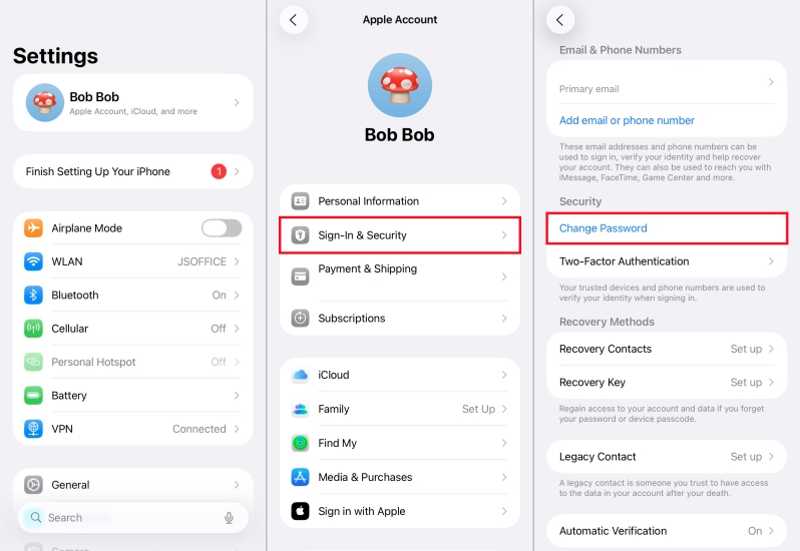
Steg 2. Tryck på din profil eller klicka på Apple-konto.
Steg 3. Gå till Inloggning och säkerhet.
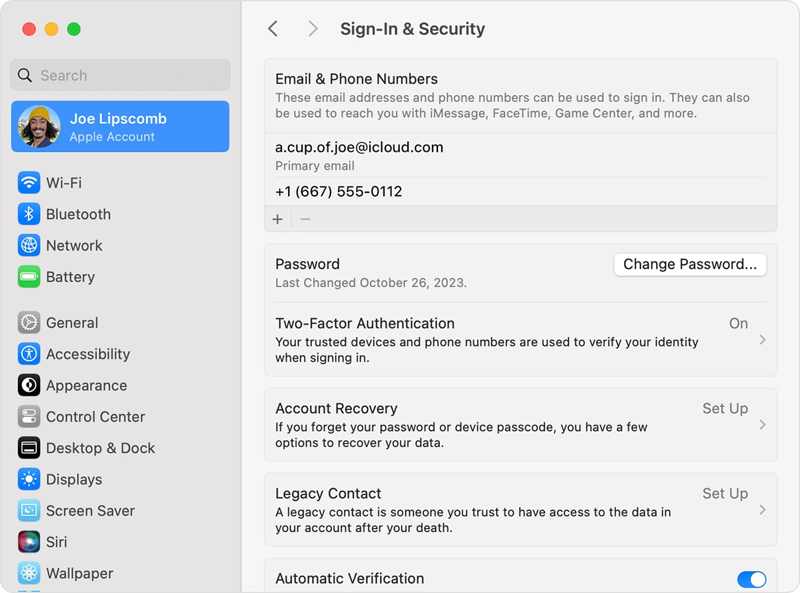
Steg 4. Klicka på Ändra lösenord knapp.
Steg 5. Autentisera med ditt lösenord eller inloggningslösenord.
Steg 6. Ange sedan ett nytt lösenord och verifiera det.
Ytterligare läsning
Del 3: En enda lösning för att åtgärda felet vid anslutning till Apple ID-servern
Om du har provat lösningarna ovan men felet vid anslutning till Apple ID-servern kvarstår behöver du en kraftfull lösning, till exempel Apeaksoft iFoneKit iOS-upplåsareDen kan ta bort det föråldrade Apple ID-kontot från din iOS-enhet utan lösenord.

Nedladdad av över 1,000,000 användare
- Ta bort gammalt Apple ID-konto från iOS i tre steg.
- Kräv inte iPhone-lösenord eller Apple ID-lösenord.
- Tillgängligt för ett låst eller inaktiverat Apple-konto.
- Erbjud bonusfunktioner, som en fabriksåterställd iPhone.
- Stödjer ett brett utbud av iPhones och iPads.

Så här åtgärdar du felet vid anslutning till Apple ID-servern på din iPhone
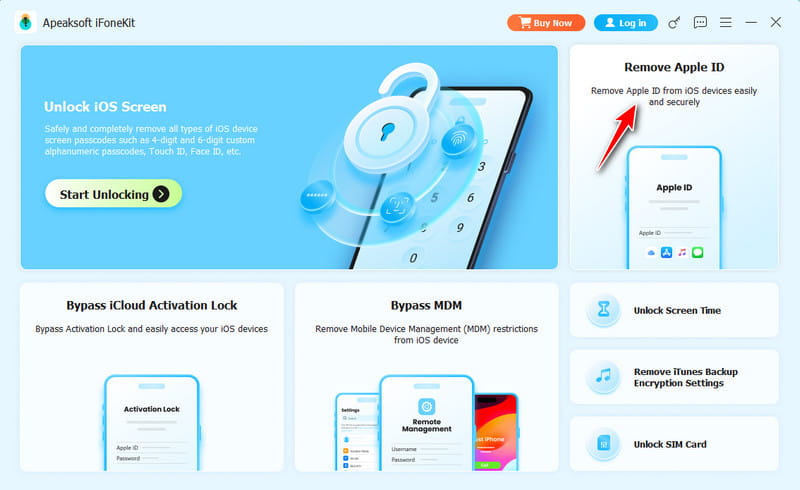
Steg 1. Installera iOS Unlocker
Kör programvaran för borttagning av Apple-ID efter att du har installerat den på din dator. Det finns en annan version för Mac. Välj Ta bort Apple ID läge.
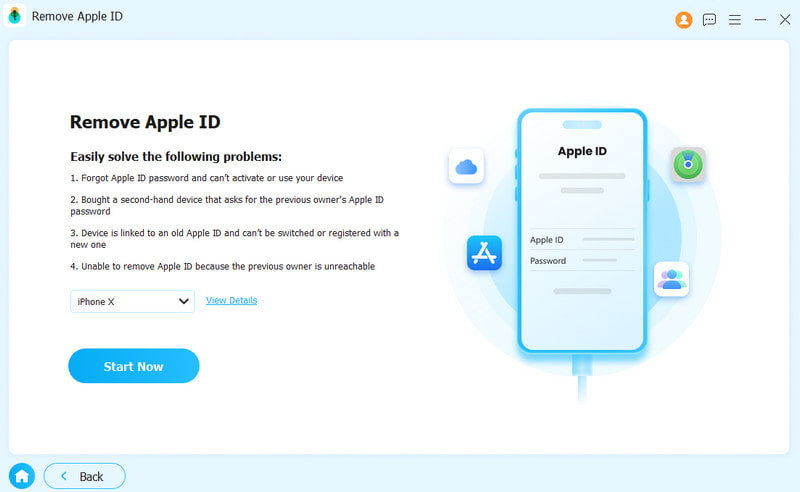
Steg 2. Länka din iPhone
Anslut din iPhone till datorn med en Lightning-kabel. Se till att du litar på den här datorn. När din enhet har upptäckts klickar du på Börja nu knapp.
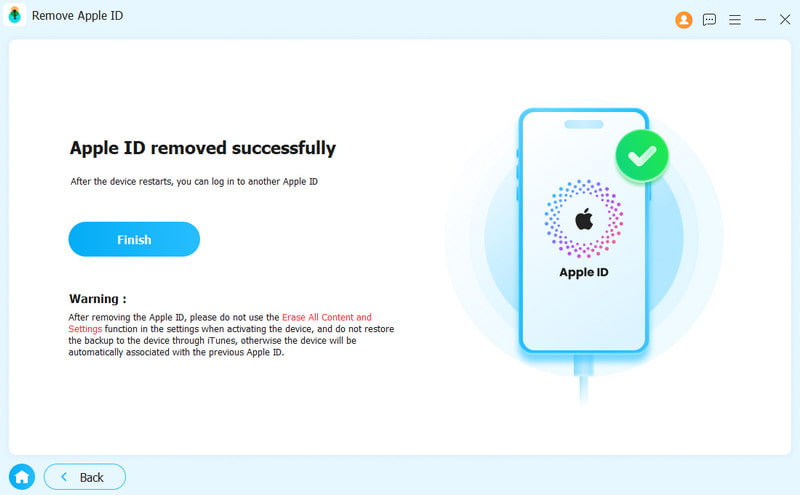
Steg 3. Ta bort gammalt konto
Om Hitta min är inaktiverat tar programvaran automatiskt bort Apple-ID:t. Om Hitta min är aktiverat återställer du alla inställningar på enheten. Klicka på. OK i bekräftelsedialogrutan och tryck på Bekräfta igenSedan startar programvaran processen.
Slutsats
Nu borde du förstå varför fel vid anslutning till Apple ID-servern inträffar. Ännu viktigare är att du kan följa våra lösningar för att åtgärda detta fel i olika situationer. De vanliga lösningarna kan hjälpa dig att använda ditt Apple-konto som vanligt. Om de inte är tillgängliga, Apeaksoft iFoneKit iOS-upplåsare är en komplett lösning för att snabbt åtgärda detta fel.

Relaterade artiklar




