How to Format an SD Card on Windows, Mac, and Android & Recovery Tips

What does format SD card mean?
Is it reversible?
I want to transfer data from my SD card to the computer, but I clicked on the format button by mistake. How to unformat an SD card?
Formatting an SD card could help you get rid of all data on your SD card with a single click, which is a common way to fix errors or free up storage space. However, if you tap on it accidentally, all your files will be gone permanently, which can be risky if you haven't backed up the data timely.
Don't worry! In this guide, you’ll learn what it means to format an SD card, how to format it on Android, Windows, and Mac, and what to do if you need to recover data from a formatted SD card.
PAGE CONTENT:
Part 1: What Does It Mean to Format an SD Card
What can formatting SD Card do?
SD card formatting is a simple process of cleaning up the card. It not only removes all current data, files, and information on the card, but also creates a new file system. Unlike erasing files, formatting SD card wipes the entire card, rather than just destroying the file system.
Will an SD card format erase data?
As mentioned before, it will delete all files on your SD card, like photos, videos, documents, music, and more. The operation will clear the file system and mark storage space as available for new data, making previously stored files inaccessible. But does that mean you will lose these files forever? The answer depends on your decision. In many cases, formatted data is not destroyed immediately. If you want to get back deleted files from a formatted SD card, professional SD data recovery software, such as Apeaksoft Data Recovery, could help you if the formatted data hasn’t been overwritten.
Tips:
Can you format an SD card without losing data?
In most cases, it’s not possible to format it without losing files. If you want to keep your data, you’d better back up your SD card to a computer or cloud storage before formatting.
What is the benefit of formatting an SD Card?
If formatting an SD card cleana up all data, why should we do this? The benefits include:
- First of all, it is a basic troubleshooting. If your SD card is not detected by your smartphone, digital camera or computer, format could restore the file system to normal.
- It will not clean up existing files, but also wipe out viruses, malicious programs, Trojans, etc. If you suspect that your SD card is infected with a virus, formatting the SD card could get rid of it simply.
- Another benefit of formatting an SD card is to rebuild the file system after the SD card becomes corrupted.
Therefore, if you need to format an SD card, just read more!
Part 2: How to Format SD Card on Android Phone
Step 1. Insert your SD card into your Android phone (SD card not reading?), unlock your phone and open the Settings app from the App Tray.
Step 2. Scroll down to find the Storage option and tap on it. Locate the SD card section, and hit Format SD card to erase all data on it.
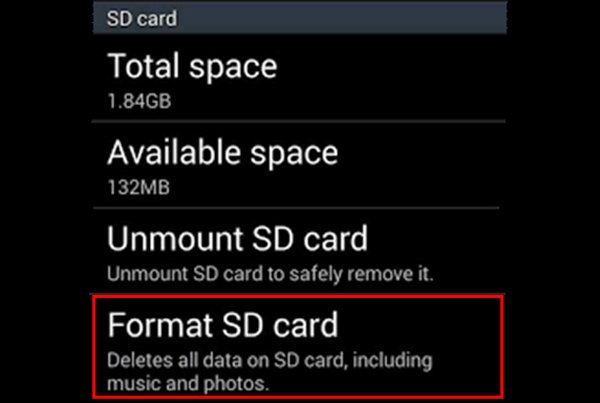
Tips: Unable to format SD card or SD card won't format on smartphone? You can try to do it on a computer instead.
Part 3: How to Format an SD Card on Windows PC
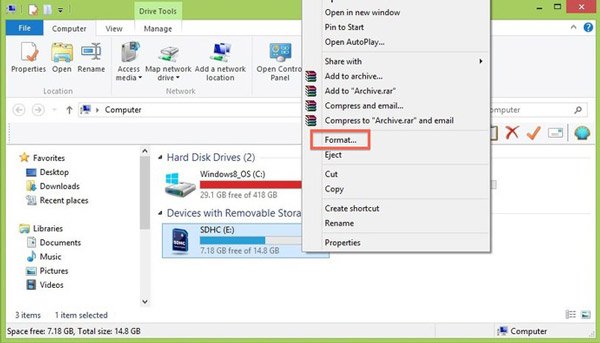
Step 1. Put your SD card into your Windows PC, open My Computer/This PC from the desktop, and you will find the SD card under the Portable Devices area.
Step 2. Right-click on it and select Format on the floating menu bar to open the format SD card window.
Step 3. There are three file systems:
NTFS is the default Windows operating system format.
FAT32 is a widely compatible format.
exFAT is compatible with Windows and Mac.
If it is not the first time to format the SD card, check the box next to Quick Format.
Step 4. Finally, click on the Start button to initiate the process.
Part 4: How to Format SD Card on Mac
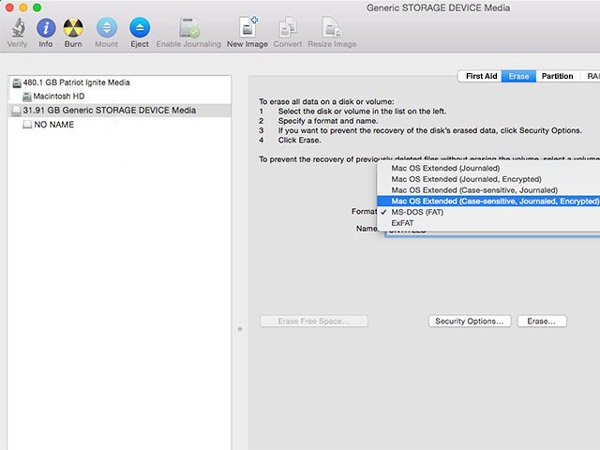
Step 1. Also, put the SD card into the slot of your Mac computer. Open the Disk Utility app and find your SD card under External in the left-hand column.
Step 2. Locate the top ribbon and click on Erase to open the format SD card window.
Step 3. Unfold the dropdown menu of Format and select a proper format, drop a name for the SD card, and then click the Erase button.
Bonus Tips - How to Recover Data from Formatted SD Card
Some people format an SD card by mistake. As a result, all data will be deleted from the SD card. Is it possible to unformat the SD card? The answer is simple, yes. All you need is a professional SD card data recovery tool, like Apeaksoft Data Recovery.
Recover Data from Formatted SD Card
- One click to get back deleted files from a formatted SD card.
- Support a wider range of data types, including all image, document, audio, video, and email formats.
- Get back your files from the formatted SD card in their original format and quality.
- Preview the recoverable files and select specific ones for recovery.
- Compatible with Windows 11/10/8.1/8/7/Vista/XP (SP2 or later) and Mac OS X 10.7 or above (including macOS 26/27 Golden Gate).
- Besides SD card format, it is also applicable for accidental deletion, virus attack, system crash, and more.
Secure Download
Secure Download

Step 1. Download and install Data Recovery on your PC. Insert the formatted SD card into your computer and launch the best SD card recovery program.
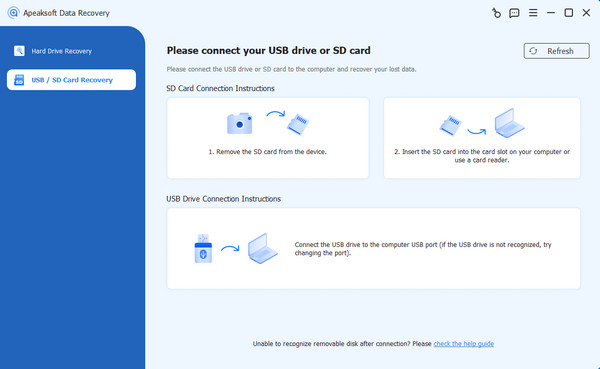
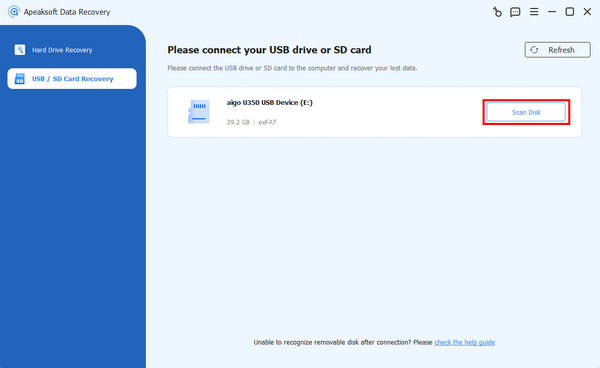
Step 2. Go to the USB / SD Card Recovery tab and choose your SD card. This program will work as soon as you click on the Scan Disk button.
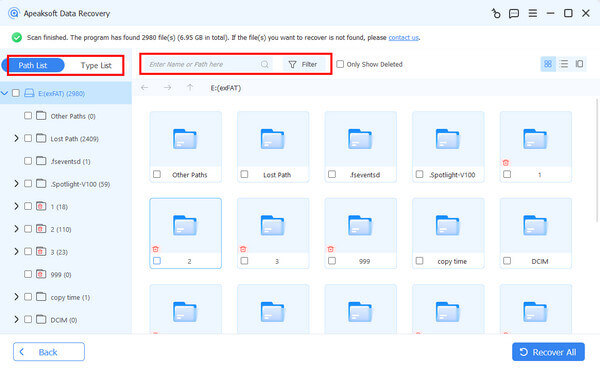
Step 3. After scanning, you will be presented with the result window. For example, go to the Video tab from the left sidebar, and you will get several folders named AVI, MP4, 3GP, FLV, etc. Go to each folder and search for the files that you want to recover. The Filter feature in the top ribbon could help you locate the files quickly.
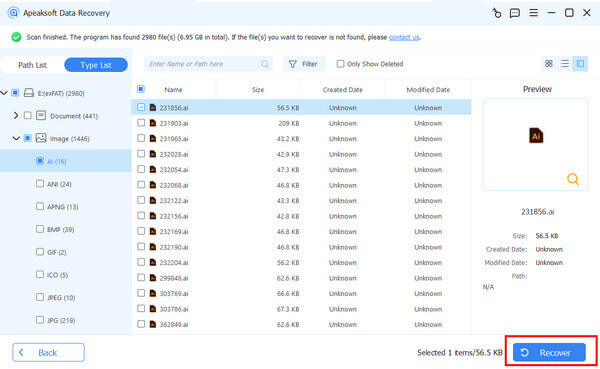
Step 4. Check the boxes in front of each desired file and click on the Recover All button to start unformatting the SD card. Wait for it to complete, then you can access and edit your files normally.
Conclusion
Now you know how to format an SD card and how to recover data from an SD card if you lose important data by mistake. It is recommended to have an SD card backup in advance. If not, software like Apeaksoft Data Recovery can also help you unformat the SD card if data hasn't been overwritten.
Related Articles