

How to AirDrop Photos and Files from iPhone to MacBook

Apple AirDrop is a swift feature for sharing content on an Apple device with other Apple devices nearby. It employs Bluetooth and Wi-Fi networks to create a peer-to-peer wireless or wired connection for transferring photos, documents, and even links to apps. It is built directly into iOS and macOS’s sharing system. It means that users can AirDrop from an iPhone to a Mac without extra software or hardware. We demonstrate the workflow with steps.
PAGE CONTENT:
Part 1: How to AirDrop from iPhone to Mac
Some users complained that AirDrop is becoming more and more difficult. In fact, Apple has added another level of security to this wireless connection on iOS 26.2 or later and iPadOS 26.2 or later. We share the detailed process to use AirDrop from iPhone to Mac.
How to AirDrop from iPhone to Mac Wirelessly
Requirements
- A Mac runs macOS Yosemite or later.
- An iPhone runs iOS 7 or later.
- Wi-Fi and Bluetooth are enabled on both devices.
- Place two devices within about 30 feet of each other.
Step 1. Turn on AirDrop on Mac
Open Control Center.
Enable Bluetooth and Wi-Fi.
Next, click AirDrop, and choose Everyone for 10 Minutes.
Or open the Finder app from your Dock bar, select AirDrop on the sidebar, click the Allow me to be discovered by menu at the bottom, and choose Everyone for 10 Minutes.
Tips: If the iPhone is on your contact list, choose Contacts Only.
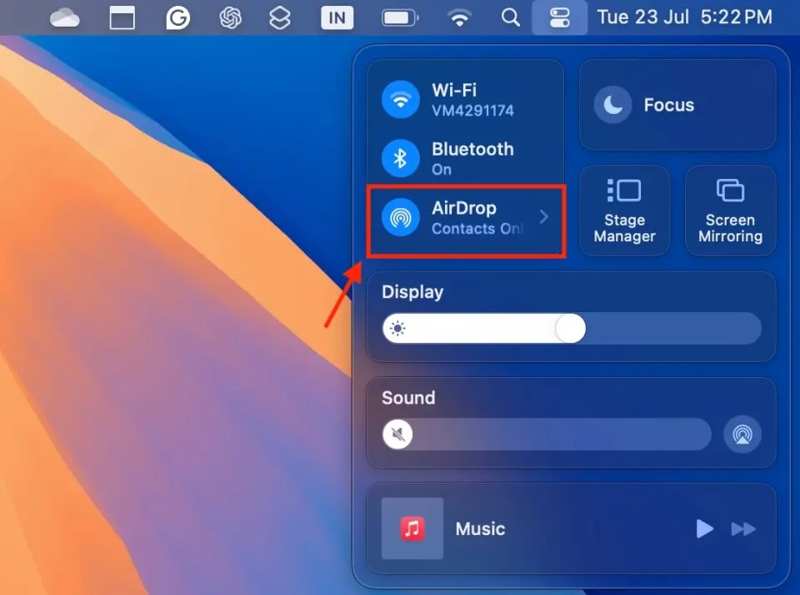
Step 2. Turn on AirDrop on iPhone
Enter Control Center on your iPhone.
Enable Bluetooth and Wi-Fi.
Deeply tap the connection pane, and choose AirDrop.
Choose Everyone for 10 Minutes. If the Mac is on your contact list, choose Contacts Only.
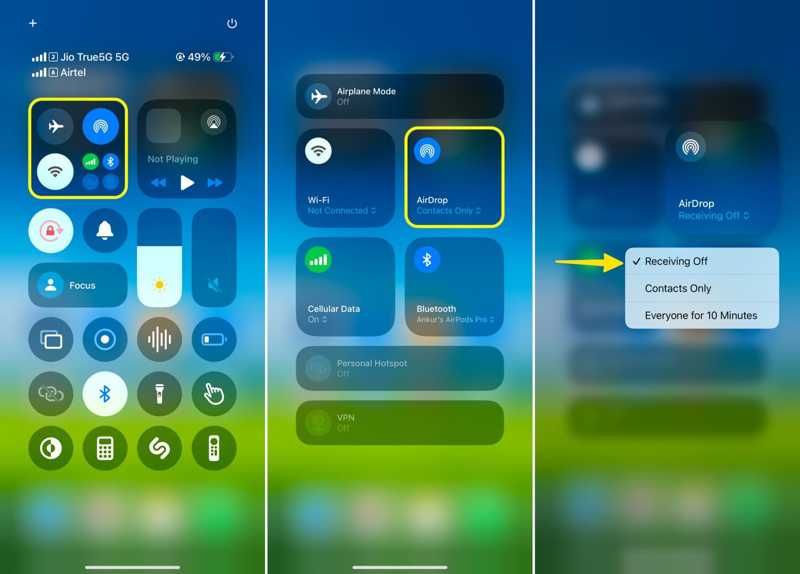
Step 3. AirDrop photos from iPhone to Mac
Open the Photos app on your iPhone.
Go to the Albums tab.
Tap the Select button, and touch each photo you want to share.
Tap the Share button, hit AirDrop, and tap the Mac computer.
Turn to your Mac and the photos should appear in the Finder window.
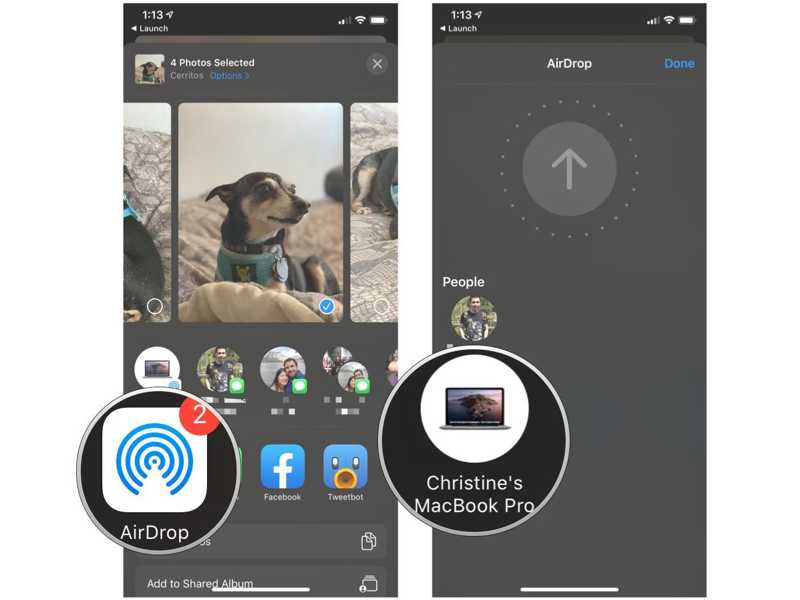
How to Use Wired-AirDrop from iPhone to Mac
Requirements
- A Mac runs macOS Yosemite or later.
- An iPhone runs iOS 7 or later.
- Wi-Fi and Bluetooth are enabled on both devices.
- A USB-C or USB-C to Lightning cable.
Step 1. Set up AirDrop
Connect your iPhone to your Mac with the USB-C to Lightning cable.
If prompted, tap Trust on your iPhone and enter your passcode.
Turn on Bluetooth and Wi-Fi in Control Center on both your iPhone and Mac.
Enable AirDrop and choose Contacts Only or Everyone for 10 Minutes.
Tips: If you have updated to iOS 26.2 or later, you can only AirDrop an iPhone to a Mac that is on your contact list. Otherwise, you have to generate an AirDrop code for file transfer.
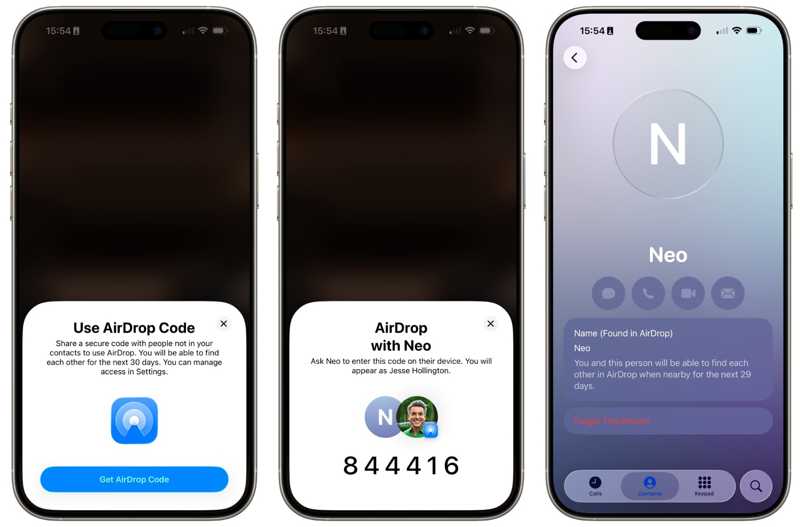
Step 2. AirDrop from iPhone to Mac
Open the Photos or Files app on your iPhone.
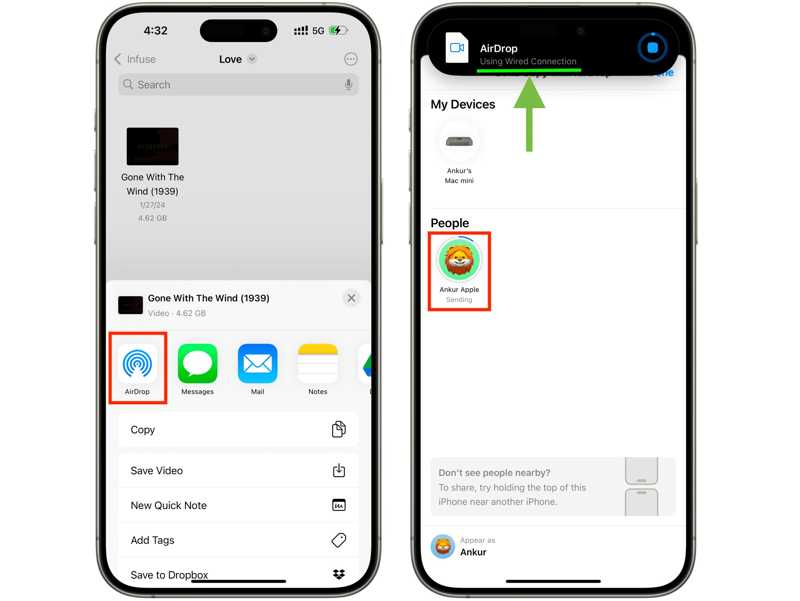
Select the desired file, tap the Share button, and followed by AirDrop.
Pick your Mac to begin using AirDrop from iPhone to Mac.
You should see a notification saying Using Wired Connection on your screen.
Further Reading
Part 2: What to Do If You Can't AirDrop from iPhone to Mac
Some users complained that AirDrop is not working from iPhone to Mac. This problem is usually caused by improper settings. You can try a few methods to fix this problem on your own.
Fix 1: Re-enable Bluetooth and Wi-Fi
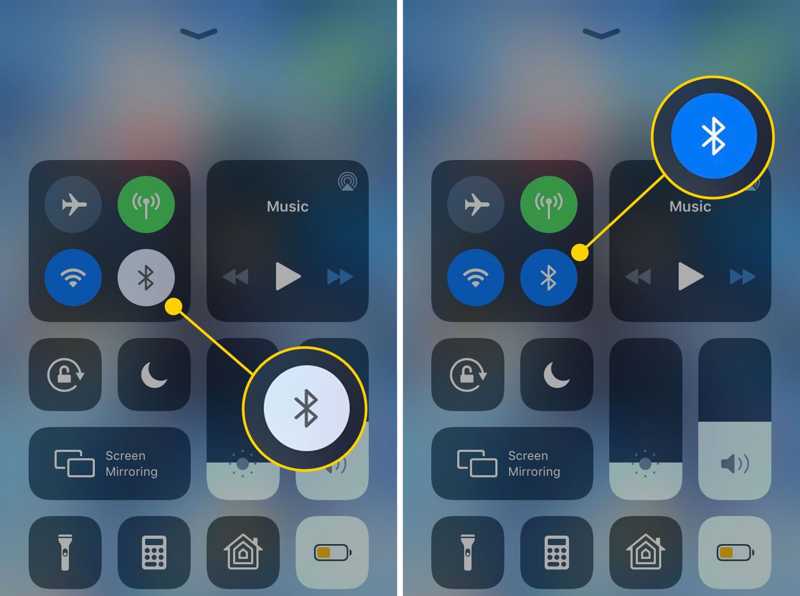
Go to the Control Center on your iPhone, tap luetooth to disable it. Tap the Wi-Fi and disable it. Restart your iPhone, and turn on Bluetooth and Wi-Fi in Control Center.
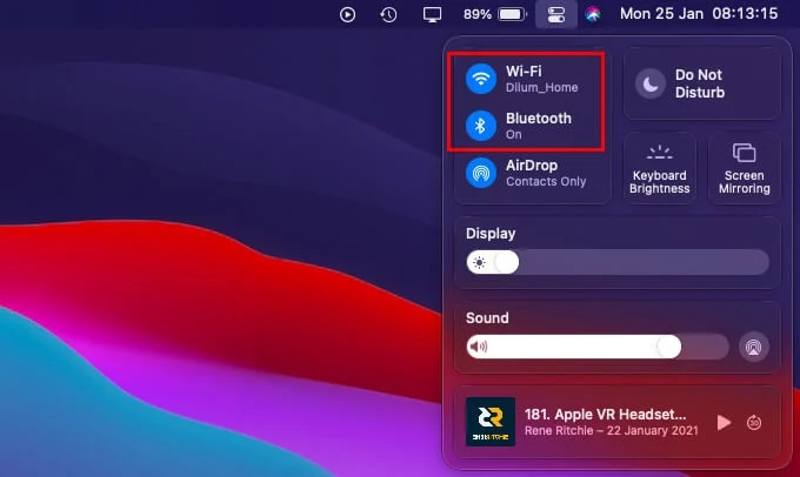
Turn to your Mac, disable Bluetooth and Wi-Fi in Control Center. Reboot your Mac and enable Bluetooth and Wi-Fi.
Fix 2: Disable Personal Hotspot on iPhone
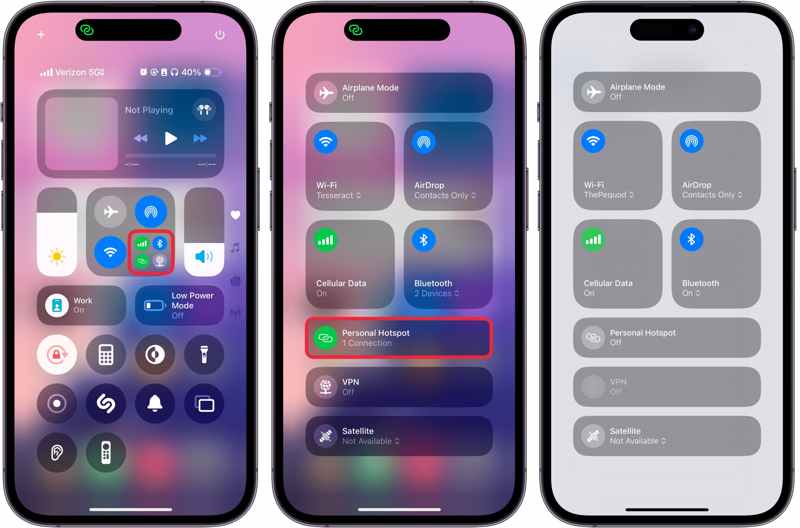
Step 1. Go to the Control Center on your iPhone.
Step 2. Long-press the connection pane.
Step 3. Tap Personal Hotspot to turn it off.
Step 4. Check if you can AirDrop from iPhone to Mac.
Fix 3: Disable Do Not Disturb on Mac
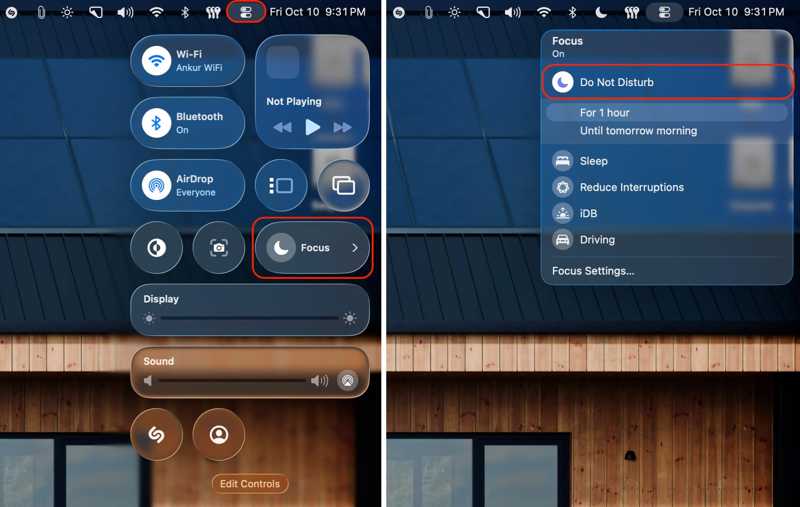
Step 1. Click the Control Center button on the top menu bar.
Step 2. Choose Focus.
Step 3. Click Do Not Disturb.
Fix 4: Restart iPhone and Mac
Restart iPhone:
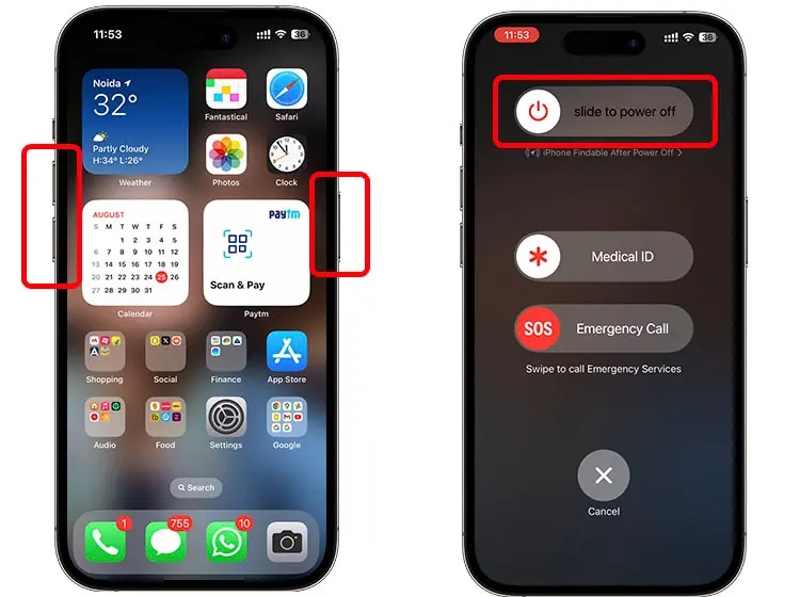
Press and hold either Volume button + Side button.
Move the slider to shut down your device.
Hold the Side button until you see the Apple logo.
Restart Mac:
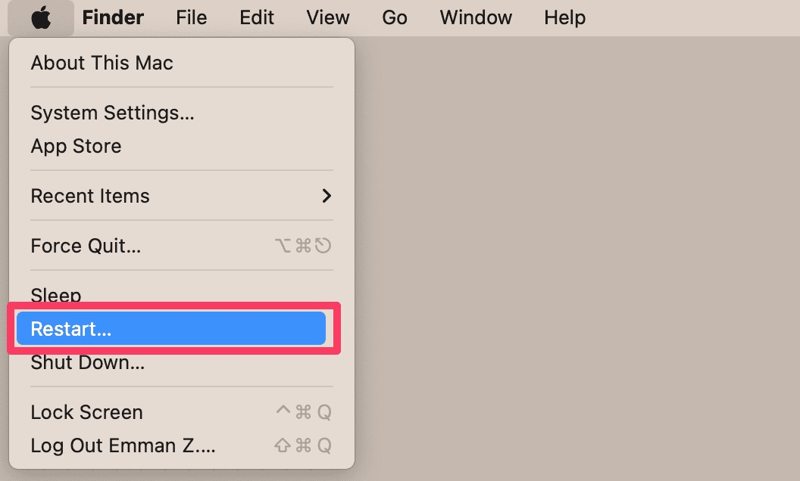
Go to the Apple menu.
Choose Restart.
When your Mac reboots, check if AirDrop from iPhone to Mac is working now.
Part 3: Best Alternative to AirDrop from iPhone to Mac
If you cannot AirDrop from an iPhone to a Mac, finding an alternative solution is a good option. Apeaksoft iPhone Transfer, for example, enables you to transfer any file from iPhone to Mac with a physical connection.
A Good Alternative to AirDrop from iPhone to Mac
- Transfer files from iPhone to Mac quickly.
- Support almost all file types on iPhone.
- Move multiple files at one time.
- Compatible with the latest editions of iOS and macOS.
Secure Download
Secure Download

How to Send Files from iPhone to Mac Without AirDrop
Step 1. Connect iPhone to Mac
Start the alternative to AirDrop after installing it on your computer. Plug your iPhone into your Mac with a Lightning cable. There is another version for PC.
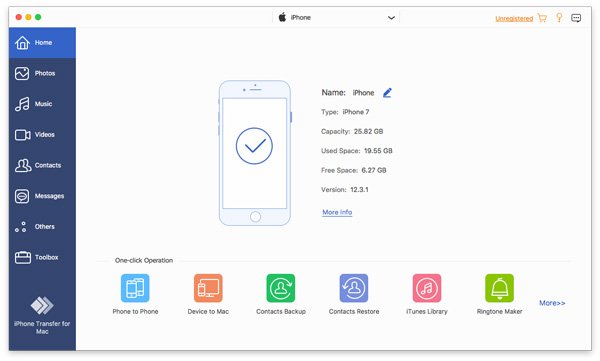
Step 2. Preview your data
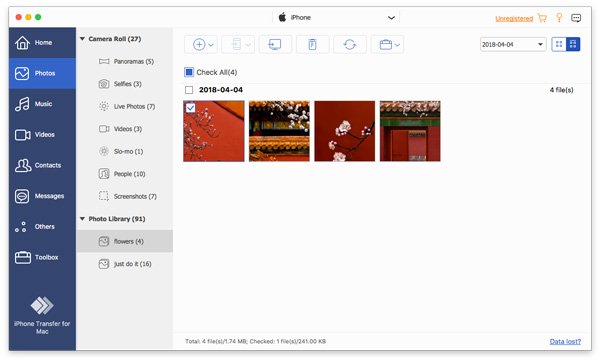
Select the desired data type, such as Photos, on the sidebar to load all photos on your iOS device.
Step 3. Transfer data from iPhone to Mac
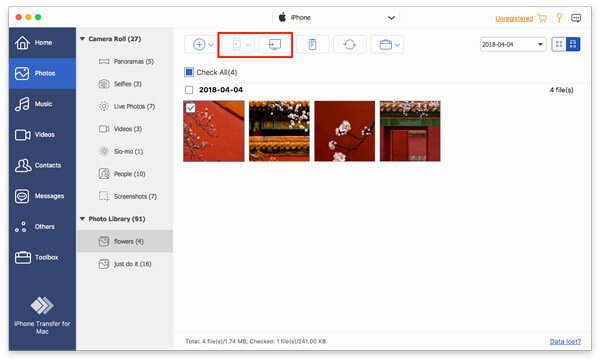
Select all photos you want to move, click the Computer button on the top menu bar, and choose Export to Mac.
Conclusion
This guide explained how to send AirDrop from an iPhone to a Mac mini and other models. You can follow our steps to transfer photos, documents, and files from your iPhone to a Mac computer or laptop. Plus, we listed the proven solutions when your AirDrop is not working. Apeaksoft iPhone Transfer is a good alternative to AirDrop for data transfer between iOS and Mac quickly.
Related Articles




