

Everything You Should Know iMobie AnyTrans and Alternative

Currently, there are oceans of data transferring tools on the market. Some of them sync data between mobile devices and computers with a compatible cable. Others can work wirelessly. iMobie AnyTrans, for example, is a standout data transferring toolkit. Due to the flexible design, it can help users to transfer, back up, and manage files across their mobile device and computer. Our unbiased review helps you quickly learn the software.
PAGE CONTENT:
Part 1: iMobie AnyTrans Review
iMobie AnyTrans is an all-in-one data management software. It is used to back up your data from iPhone to computer, switch from Android to iPhone, and transfer data between iOS devices. Before purchasing an AnyTrans license code, let’s learn what the software can do first.
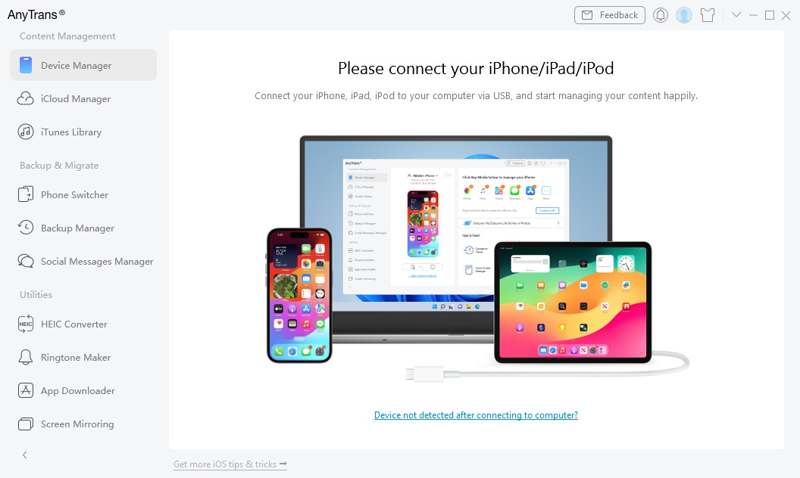
Key Features of iMobie AnyTrans
1. Back up iOS device data to a computer with a cable.
2. Transfer data from iOS to a computer wirelessly.
3. Manage iTunes and iCloud backups.
4. Sync data from the old iPhone to a new device.
5. Migrate data from Android to iPhone.
6. Manage the iPhone home screen on a computer.
7. Support media files, contacts, messages, and more.
8. Work on iOS 5 and above, Android 5 and above.
9. Available on Windows 11/10/8/7/Vista and macOS 10.13.
Review of iMobie AnyTrans
- AnyTrans for iOS keeps all your data organized in a single place.
- It provides a web interface and mobile app.
- It can sync your iTunes library across Mac and Windows.
- It supports both wired and wireless connections.
- It is compatible with a wide range of data types, including WhatsApp.
- It was design for personal use.
- Users reported connection issues when transferring files wirelessly.
- The price is high.
Is iMobie AnyTrans free to download?
Yes, you can download AnyTrans for free on the official website. However, the free demo can transfer nothing. In other words, you need to purchase or subscribe to an AnyTrans key. The one-month subscription costs $35.99, and the one-year subscription costs $39.99. The one-time license costs $59.99, and the Family plan costs $79.99.
Is AnyTrans safe?
Yes, AnyTrans is safe to use. It was developed and released by iMobie. It won’t install viruses and malware on your device if you download it from the official website. However, it won’t encrypt your data when transferring it. That may bring cyber risk to your files and device.
Part 2: How to Use iMobie AnyTrans
iMobie AnyTrans provides flexible options to transfer data between an iPhone and a computer, or between an Android and an iPhone. We demonstrate the step-by-step workflows below in various situations.
How to Use AnyTrans for iOS Wirelessly
Step 1. Install the AnyTrans for iOS app from the App Store.
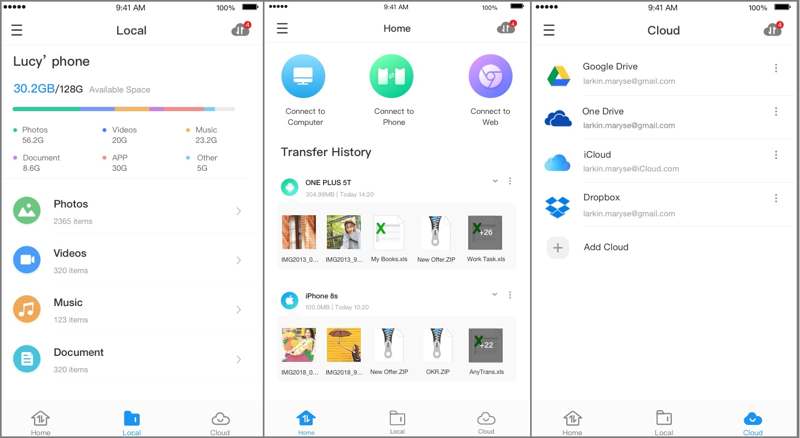
Step 2. Access https://anytrans.imobie.com/scancode in a browser to display a QR code.
Step 3. Open the app and scan the code with your camera.
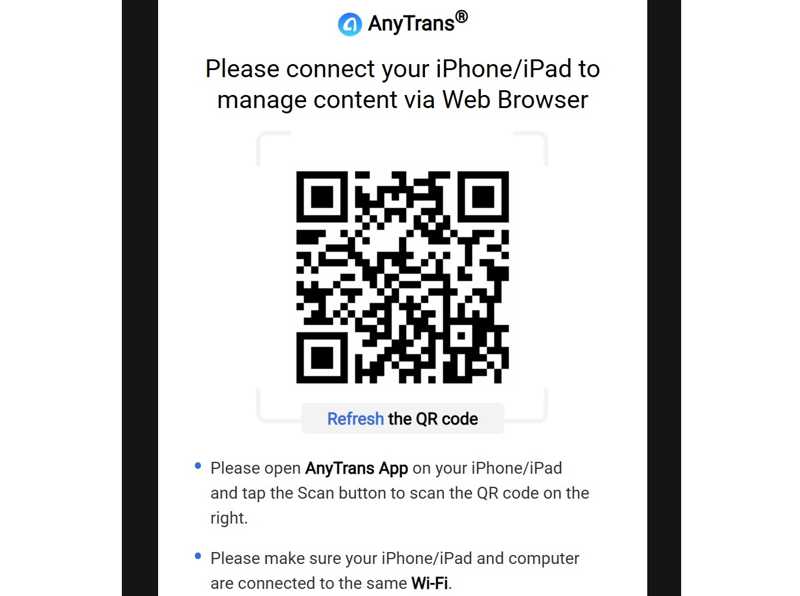
Step 4. Then, transfer photos, videos, and other files from your iPhone to the computer.
Step 5. Receive and save your iPhone data on your computer.
Further Reading
How to Use AnyTrans on Windows and Mac
Step 1. Install AnyTrans on your computer and open it.
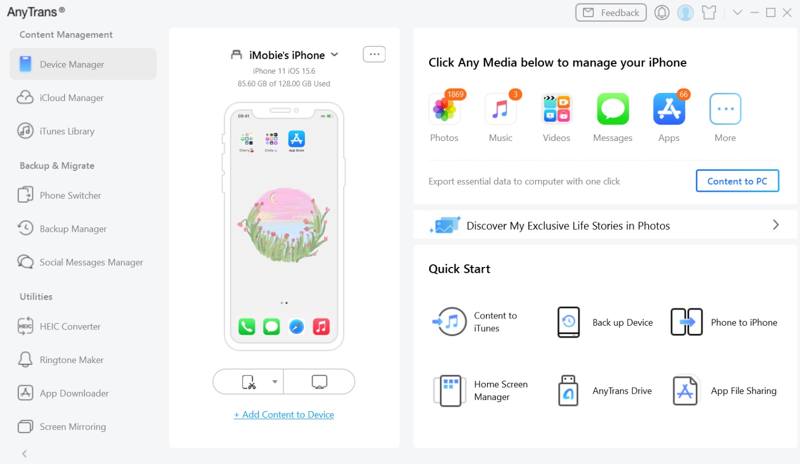
Step 2. Connect your iPhone to your computer with a compatible cable.
Step 3. After your device is detected, click the data type you want to transfer, like Photos.
Step 4. Then, preview all photos on your iPhone.
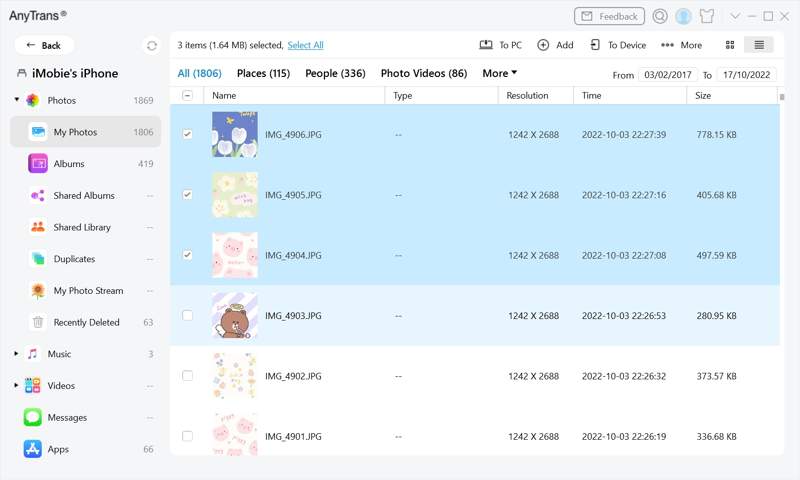
Step 5. Select the desired photos and click the To PC button on the top ribbon.
Step 6. If you want to transfer data from a computer to an iPhone, click the Add button and open the files.
How to Use AnyTrans for Android to iPhone Transfer
Step 1. Connect both your phone and your iPhone to your computer with cables.
Step 2. Run the AnyTrans software and choose Phone Switcher on the sidebar.
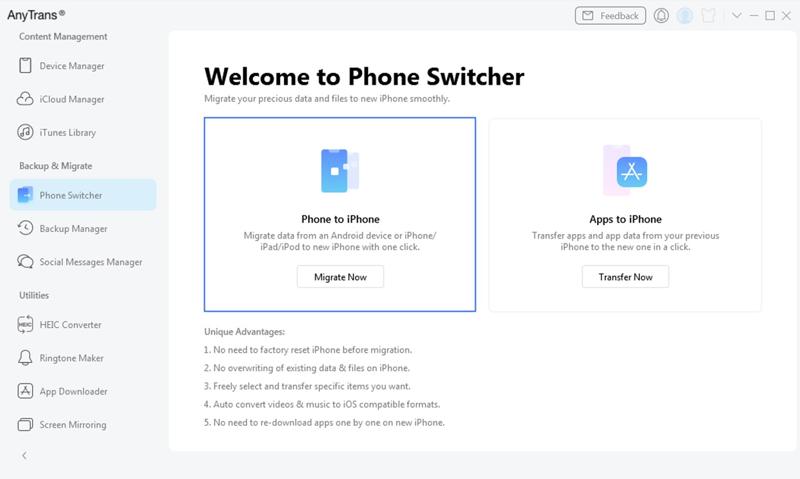
Step 3. Click the Migrate Now button.
Step 4. Select the data types you want to migrate, and click the Next button.
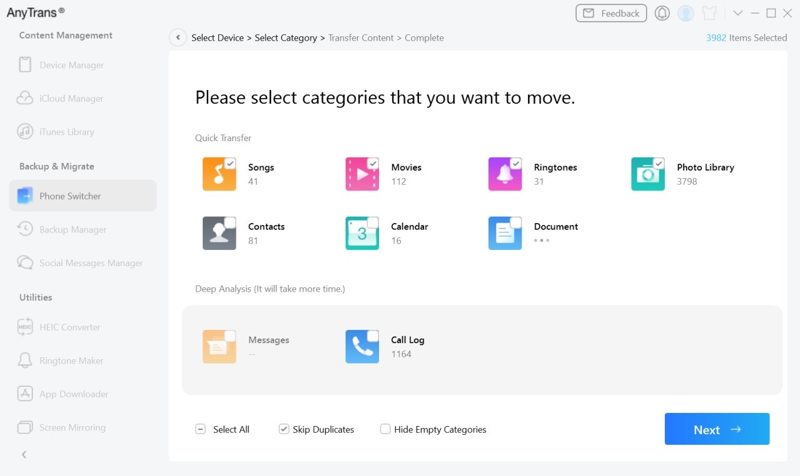
Step 5. During the process, keep your iPhone and phone connected to your computer.
Part 3: An Alternative to iMobie AnyTrans
If AnyTrans is unavailable on your device or you don’t like it, you can find an alternative tool, such as Apeaksoft iPhone Transfer. It is more compact and easier to use. It concentrates data transfer between iPhone and computer, iPhone and iPhone, or phone to phone. The concise interface makes it a good option for beginners.
A Great Alternative to iMobie AnyTrans for Android, iOS, Windows, and Mac
- Transfer almost all data between iOS and Windows or Mac.
- Migrate data between iOS and Android in one click.
- Support almost all data types, like media files, contacts, SMS, etc.
- Transcode data formats according to the target device.
- Compatible with the latest version of iOS and Android.
Secure Download
Secure Download

How to Transfer iOS Data with AnyTrans Alternative
Step 1. Scan your iPhone
Launch the AnyTrans alternative after you install it on your PC. There is another version for Mac. Plug your iPhone into your PC with a Lightning cable. If prompted, tap Trust on your screen to trust this PC. To transfer data between iOS devices, plug them into your PC with cables.
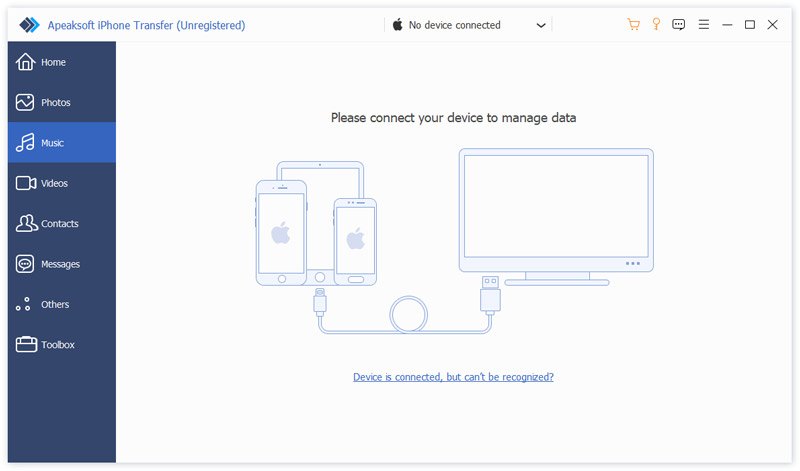
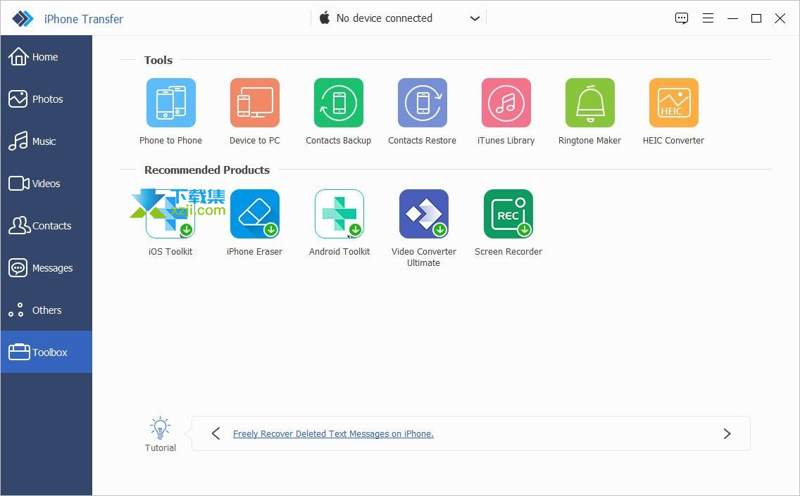
Tips: If you want to transfer data between phones in one click, go to the Toolbox, choose Phone to Phone, and follow the onscreen instructions to get data migration.
Step 2. Preview your data
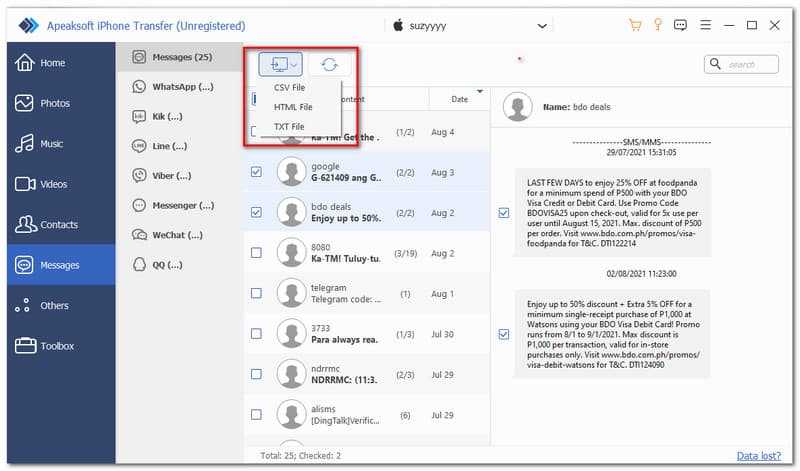
Select the desired data type on the sidebar after your device is recognized, such as Messages. Now, preview all messages on your device.
Step 3. Transfer data between iOS and PC
Select the chats you want to transfer, click the PC button on the top ribbon, choose a file format, and pick Export to PC. Then, set an output folder and save the file.
Conclusion
Now, you should understand what iMobie AnyTrans application is, what it can do, its advantages and disadvantages, and other information you should know. Furthermore, we also shared how to use it to transfer data from your iPhone to a computer and vice versa. In addition, we also recommended an alternative solution for iOS data transfer, Apeaksoft iPhone Transfer. it can quickly transfer many types of files seamlessly without stutter or failure.
Related Articles




